How to Connect Bluetooth Headphones to a Vizio TV
I’ve been through this myself—you just want to watch a movie at night without waking up the whole house, but your Vizio TV isn’t cooperating. Connecting Bluetooth headphones to a Vizio TV can be straightforward, but the exact steps depend on which model you own. Some Vizio TVs have built-in Bluetooth, others don’t. I’ll explain both paths, including the workarounds I’ve used more times than I can count. Let me start with the most important thing: figure out whether your TV supports Bluetooth. You can check by looking at your user manual or simply digging into the settings menu. On most Vizio smart TVs, go to Settings > Audio > Sound Output. If you see an option for “Bluetooth” or “Speaker List,” you’re good. If not, you’ll need a small external adapter—I’ve used those too and they work perfectly.
Check Your Vizio TV for Bluetooth Support
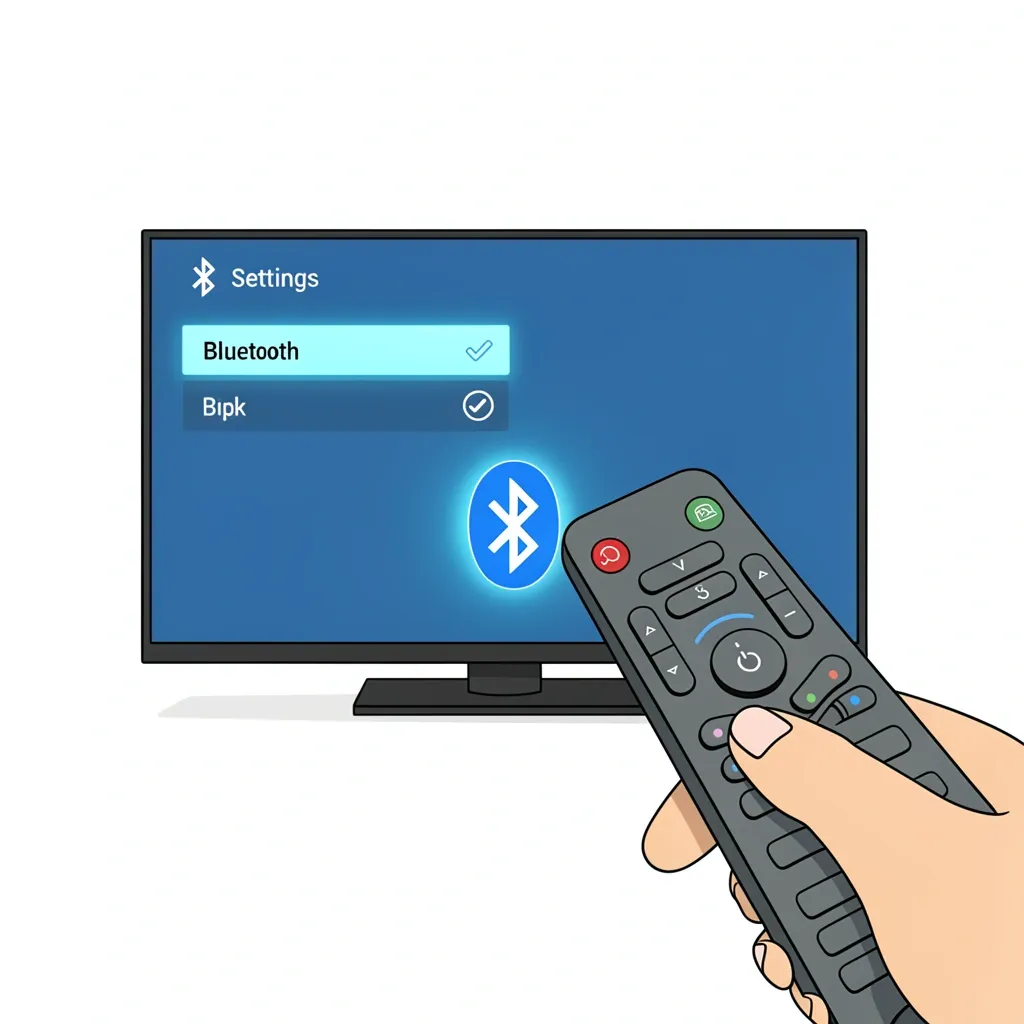
Before you go digging around, know that Vizio has changed how Bluetooth works over the years. Newer models with SmartCast (usually from 2020 onward) have Bluetooth built right in. Older VIA or VIA+ models (like many D-series and E-series from 2015–2019) might have Bluetooth for the remote or for casting, but not for audio output. That’s a common trap. To quickly check, press the Menu button on your remote and look for Bluetooth under Settings > Audio > Audio Output. If you see a Bluetooth option, your TV can pair directly with headphones. If you don’t, your TV likely uses Bluetooth only for the remote—you’ll need a transmitter.
How to Connect Bluetooth Headphones Directly to a Vizio TV
If your Vizio TV does have built-in audio Bluetooth, here’s the method I use every time. It works for most SmartCast models and some newer V-series sets.
For SmartCast TVs (2020 and newer)
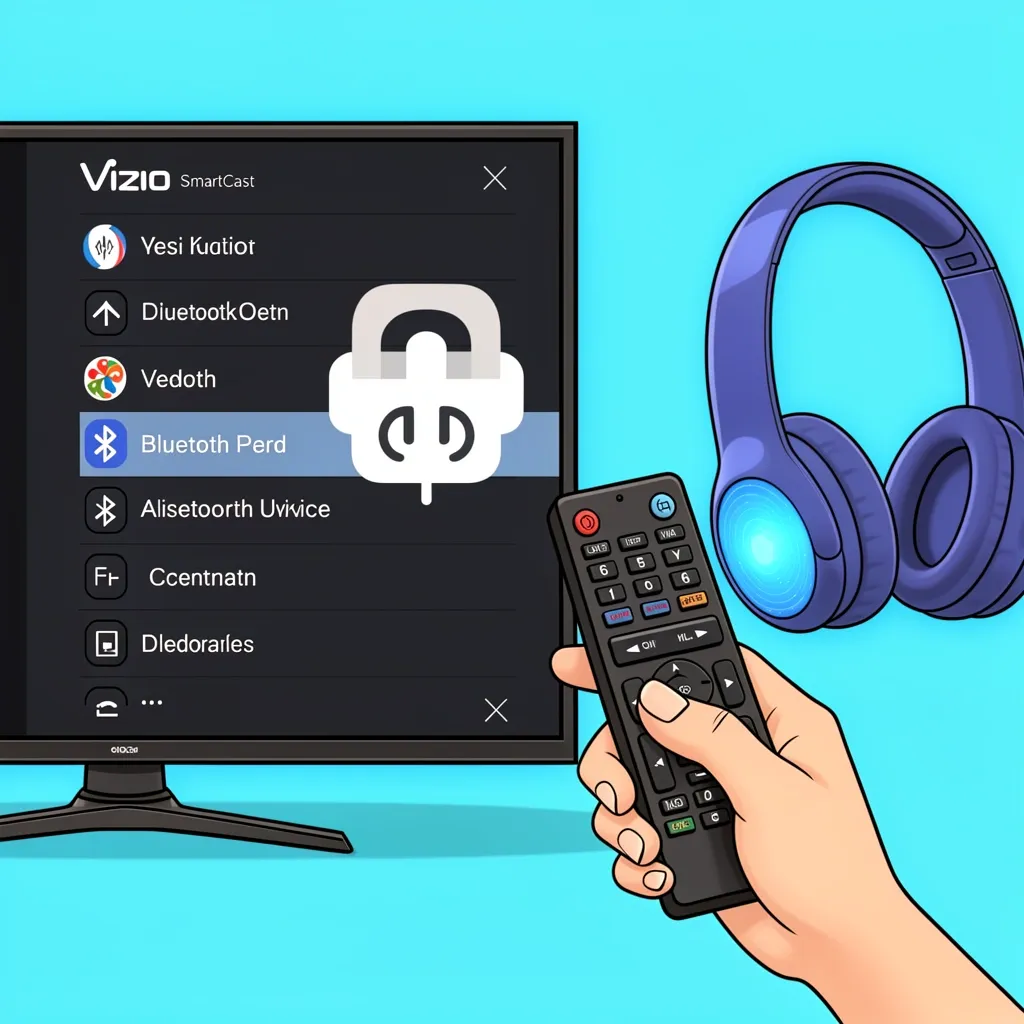
1. Put your Bluetooth headphones into pairing mode. Usually that means holding the power button until the light flashes red and blue. Check your headphone manual if it doesn’t enter pairing mode after a few seconds. 2. On your Vizio remote, press the Input button and then select Settings (the gear icon). If that doesn’t work, press the Menu button directly. 3. Navigate to Audio > Sound Output > Bluetooth. 4. Select Search for Devices (or “Speaker List”). Your TV will scan for nearby Bluetooth devices. 5. When you see your headphone model name appear, select it. The TV will pair and connect. You should hear a confirmation tone. 6. Once connected, you can adjust volume with your Vizio remote. If the TV speakers still play sound, go back to Sound Output and switch it from “TV Speakers” to “Bluetooth.”
For Older VIA/VIA+ Models (2015–2019)
These models often hide Bluetooth inside a submenu. On my friend’s old D-series TV, the path was different: 1. Press the Menu button on the remote. 2. Go to Audio > Speakers > Bluetooth. 3. Select Pair or Add Device. 4. Put your headphones in pairing mode and wait for them to show up. 5. Select the headphones and confirm. The TV may ask you to enter a PIN—try 0000 if prompted. If you don’t see Bluetooth at all, your model likely doesn’t support audio over Bluetooth. Move to the next section.
Using a Bluetooth Transmitter for Vizio TVs Without Bluetooth
When your Vizio TV lacks Bluetooth (or you want to connect two headphones at once), a Bluetooth transmitter is the answer. I’ve used an Avantree Orbit for years and it solved all my issues. Here’s how to set it up.
Choosing the Right Adapter
Look for a transmitter that matches your TV’s audio ports: - 3.5mm (headphone jack) – Most Vizio TVs have this port, usually labeled “Audio Out.” - Optical (TOSLINK) – Common on newer TVs and gives the best sound quality. - RCA (red/white) – Found on older sets. If your TV has both optical and 3.5mm, use optical for lower latency. Make sure the transmitter supports aptX Low Latency or aptX Adaptive—this prevents the audio from drifting out of sync with the video.
Setup Steps
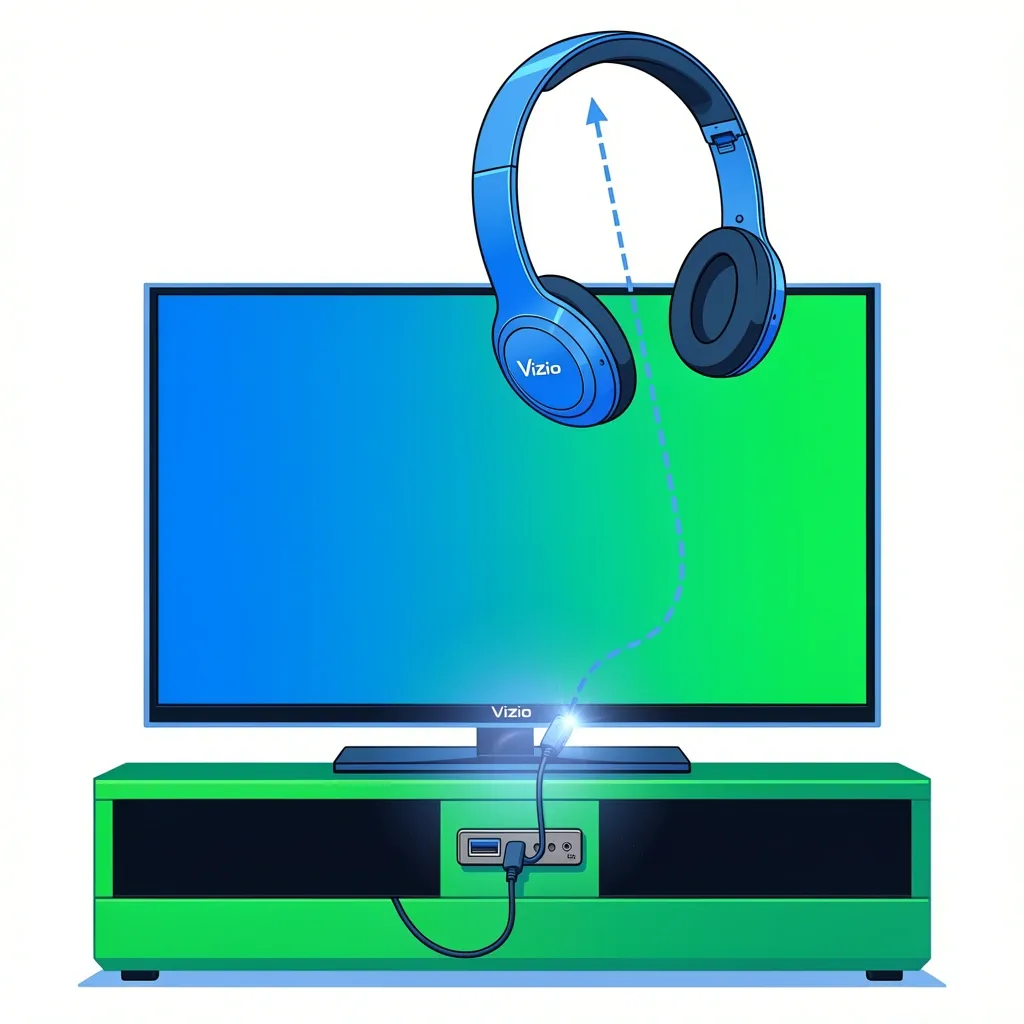
1. Plug the transmitter into a USB power source (some come with a wall adapter; others use a USB port on your TV). 2. Connect the transmitter to your TV using the appropriate cable (optical, 3.5mm, or RCA). 3. Put the transmitter into pairing mode. Usually you press and hold the multifunction button until the light flashes. 4. Put your headphones into pairing mode. 5. Bring the headphones close to the transmitter—within a foot or two—until they pair. The light will turn solid. 6. Critical step for optical users: Go to your TV’s audio settings and change the Digital Audio Format to PCM. Otherwise you’ll get no sound. I’ve seen this trip up everyone I’ve helped. Now you can listen wirelessly. The adapter will stay paired to your headphones, so next time you just turn them on and they reconnect automatically.
Troubleshooting Common Connection Problems
Even with the right steps, things don’t always go smoothly. Here are the fixes I’ve used for the most common issues.
TV Can’t Find My Headphones
- Make sure your headphones are in pairing mode. Some models (like many Sony or JBL buds) have a specific pairing button. Refer to the manual. - Restart both the TV and the headphones. Sometimes a simple power cycle clears the Bluetooth cache. - On the TV, remove any previously paired devices from the Bluetooth list before trying again. - If your TV uses a hidden Bluetooth menu, you may need to toggle Bluetooth Visibility on. This is rare, but I’ve seen it on some old Vizio models.
Connected but No Sound
- Double-check the audio output setting. Your TV might still be sending audio to the internal speakers. Change it to Bluetooth or Headphones. - If you’re using an optical transmitter, make sure the TV’s digital audio format is set to PCM (not Dolby Digital or DTS). - Verify the headphone volume isn’t turned all the way down—many headphones have separate volume controls from the TV.
Audio Delay or Lip Sync Issues
- The most common cause is Bluetooth codec latency. Standard SBC codec adds about 200–300ms delay. Use headphones and a transmitter that support aptX Low Latency (under 40ms). - On Vizio SmartCast TVs, go to Settings > Audio > Audio Sync (or “Lip Sync”) and adjust the delay manually. You may need to add a negative delay if audio is ahead. - If using a transmitter with optical input, you can’t adjust delay on the TV side—choose a low-latency transmitter instead.
Volume Control Issues
- When you use the Vizio remote, does it change the TV volume or the headphone volume? On most TVs, Bluetooth volume is independent. Use the headphone’s own volume wheel. - Some Vizio models have a separate Headphone Volume slider under Settings > Audio > Volume Level. Look for it if the remote isn’t working.
Going Further: Multi-Device, Soundbar, and Latency
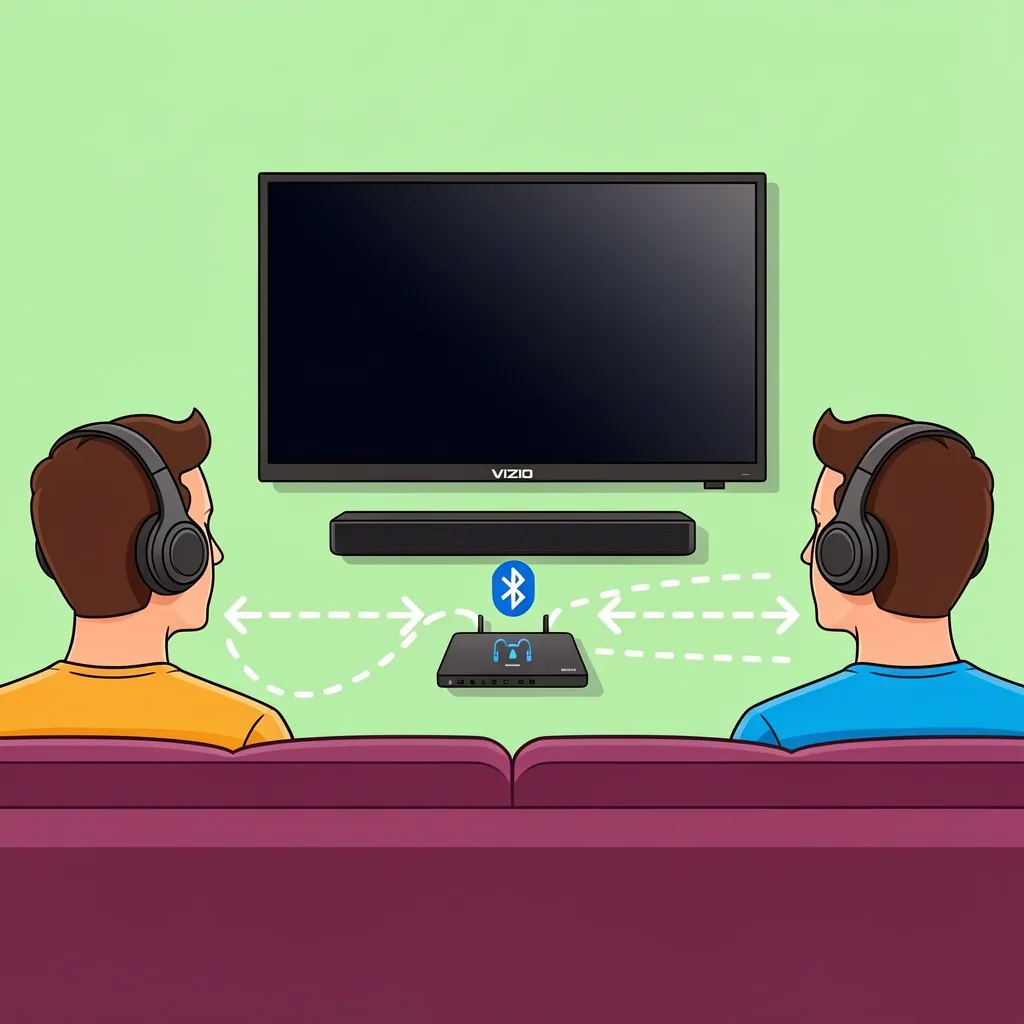
You might want to use two pairs of headphones at once or keep your soundbar running. Here’s what I’ve learned. Two headphones at the same time: Most Vizio TVs do not support Bluetooth multipoint (pairing two headphones directly). Instead, buy a transmitter that supports dual pairing, like the Avantree Oasis Plus. It can send audio to two separate headphones simultaneously. Pair both headphones to the transmitter and you’re set. Soundbar and headphones together: This is trickier. When you connect Bluetooth headphones directly to the TV, it usually mutes the soundbar (the TV only sends audio to one output at a time). To keep both, you’ll need a transmitter with a pass-through feature: it takes audio from the TV’s optical port, sends it to your soundbar via an optical cable, and also streams it to your headphones. The Avantree Audikast Plus does this. I’ve used it to let one person watch with headphones while the soundbar plays for the room. Reduce latency further: Even aptX Low Latency can be noticeable on some TVs. If you’re sensitive to lip sync, consider a 2.4GHz RF transmitter like the Avantree HT5009. They’re not Bluetooth, but they deliver zero delay and work with any audio output. The trade-off is they usually only work with specific headphones that come with the kit.
Frequently Asked Questions
How do I connect Bluetooth headphones to a Vizio D-series TV?
Most D-series models do not have Bluetooth for audio. Use a 3.5mm-to-Bluetooth transmitter or an optical adapter. If your D-series does have Bluetooth (rare), go to Settings > Audio > Sound Output > Bluetooth.
Can I connect wireless earbuds to a Vizio TV without Bluetooth?
Yes. Get a Bluetooth transmitter that plugs into the headphone jack or optical port. Then pair your earbuds to the transmitter. This works for any TV, even non-smart ones.
Why does my Vizio TV keep disconnecting from my Bluetooth headphones?
Possible causes: weak Bluetooth signal (interference from Wi‑Fi or other devices), low battery in the headphones, or the TV’s power-saving timeout. Try moving the headphones closer, turning off nearby 5GHz Wi‑Fi temporarily, or connecting via a transmitter instead.
Will using Bluetooth headphones affect my soundbar?
On most Vizio TVs, the soundbar gets muted when you select Bluetooth output. To keep both, use a Bluetooth transmitter with a pass-through optical output (see the “Going Further” section above).
How do I update my Vizio TV’s firmware to fix Bluetooth issues?
Go to Settings > System > Check for Updates. If an update is available, install it. Vizio has fixed some Bluetooth pairing bugs in recent updates, so it’s worth trying before buying a transmitter.
Can I use headphones with a Vizio TV that only has an HDMI ARC port?
HDMI ARC carries audio but can’t be split directly to a Bluetooth transmitter. Use an HDMI audio extractor (available online) that has optical or 3.5mm output, then connect a Bluetooth transmitter to that extractor. I’ve done this for older Vizio TVs with no audio ports besides HDMI.