How to Connect a Vizio TV to Wi-Fi Without a Remote
Losing your remote or having one that stops working is frustrating. You just want to stream something, but the TV sits there asking for a network that doesn't exist anymore. The standard advice—"just use the Vizio mobile app"—falls apart when the TV itself isn't on any network. I've been through this with four different Vizio models, and I'll show you the exact steps that actually work, no matter which generation of TV you own.
Before you try anything, figure out which situation you're in. Answer these three questions:
- Do you have the original power cord and the TV turns on normally?
- Do you have a smartphone or a laptop nearby?
- Can you see any buttons on the TV itself (even a tiny joystick or a single power button)?
Your answers will point you to the right method below. Each section starts with a "who this is for" line so you can skip around without guessing.
Identify Your Vizio TV Generation Without a Remote
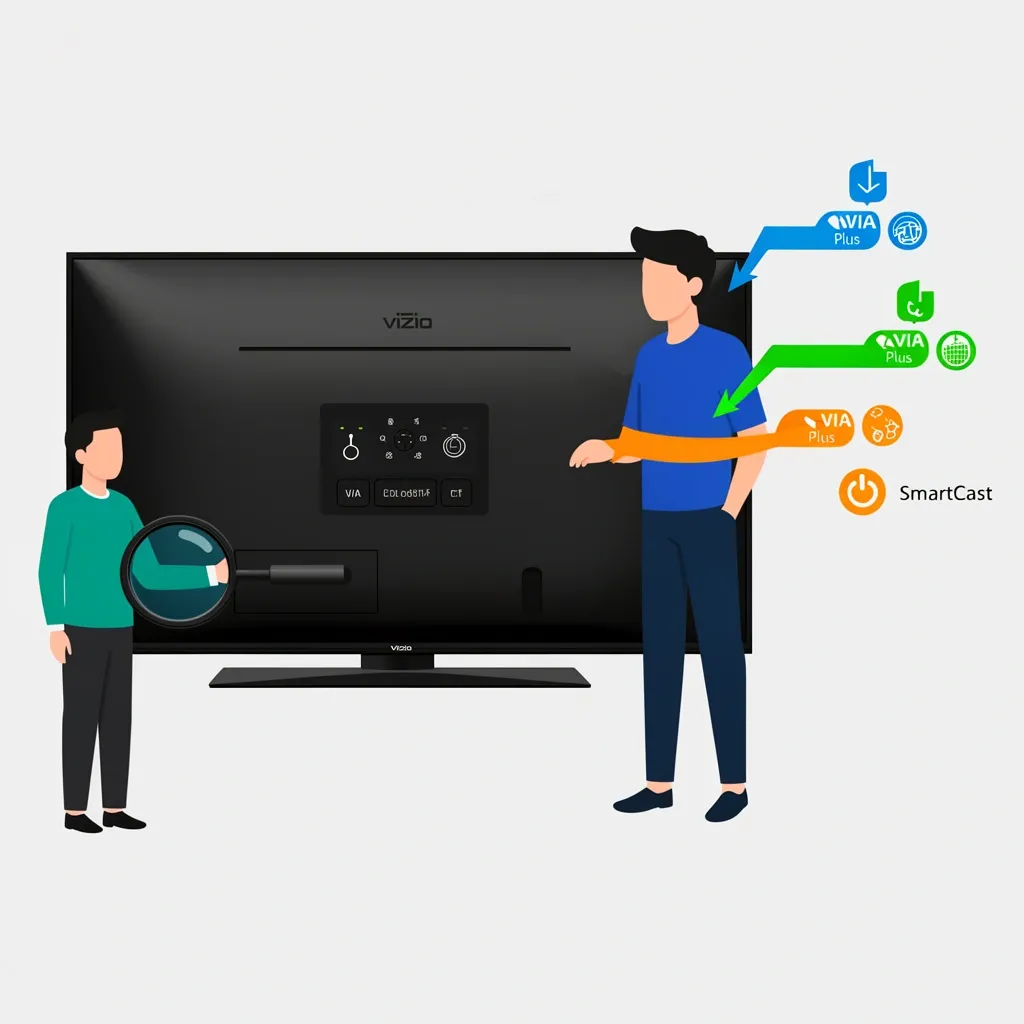
Vizio made three fundamentally different operating systems over the years. The method that works for one may not work for another. Here's how to find out which you have without turning the TV on or using a remote.
| Model Series / Year | Operating System | Physical Buttons | Works with App? |
|---|---|---|---|
| D-Series (2015 & earlier) | VIA (Vizio Internet Apps) | Full row of buttons on back or bottom | Limited (VIA app deprecated) |
| E-Series, M-Series (2016–2018) | VIA Plus | Joystick or five-button cluster on lower-left back | Yes, with Vizio SmartCast app |
| M-Series, P-Series, Quantum (2019+) | SmartCast | Power button only (touch strip on some models) | Yes, with Vizio Mobile app |
If you can't see the back or side, try this: press and hold the volume-down and input buttons on the TV for about five seconds. On 2016 and newer models, this should show a system info overlay on the screen, including the model number and firmware version. If nothing happens, your TV uses older VIA or doesn't have that shortcut—proceed to the physical inspection method.
Now let's walk through each method. Choose the one that matches your situation.
Use a Smartphone: The SmartCast Bootstrap Method
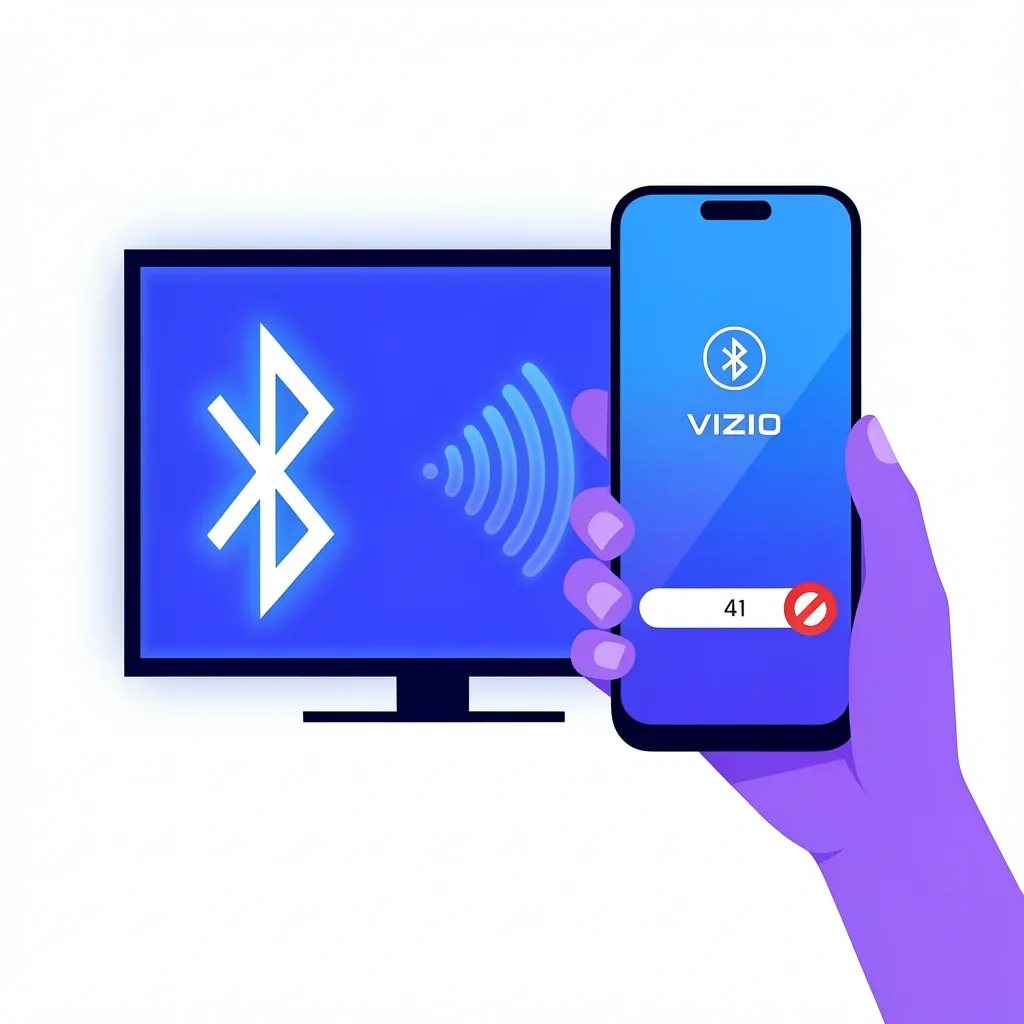
Who this is for: You have a SmartCast model (2019+) and a smartphone with cellular data or a saved Wi-Fi network. You cannot use the app if your phone has no internet at all.
Most guides tell you to download the Vizio Mobile app and pair it. But the app needs your TV to already be on Wi-Fi to discover it. Here is the real sequence that breaks that cycle.
- Put the TV into setup pairing mode. On a SmartCast TV, press and hold the physical power button on the TV for 10 seconds until a pairing code appears on screen. If your TV has no power button (just a touch strip), press and hold the center of the strip for 10 seconds.
- On your phone, turn off Wi-Fi. Yes, turn it off. Open Bluetooth settings. The TV broadcasts a Bluetooth signal during initial setup (this is separate from Wi-Fi).
- Look for a device named something like "VIZIO SmartCast" or "VIZIO_XXXX" in your Bluetooth list. Pair with it.
- Once paired, the Vizio Mobile app can send your Wi-Fi credentials through the Bluetooth connection to the TV. The app will guide you to select your Wi-Fi network and enter the password.
- After the TV receives the credentials, it will connect to Wi-Fi automatically. You can remove the Bluetooth pairing afterward.
This method fails only if your phone itself has no internet connection—if you're out of data and not connected to any Wi-Fi, the app can't proceed. In that case, jump to the wired Ethernet method or the hotspot workaround.
Use a Wired Ethernet Connection for Initial Pairing
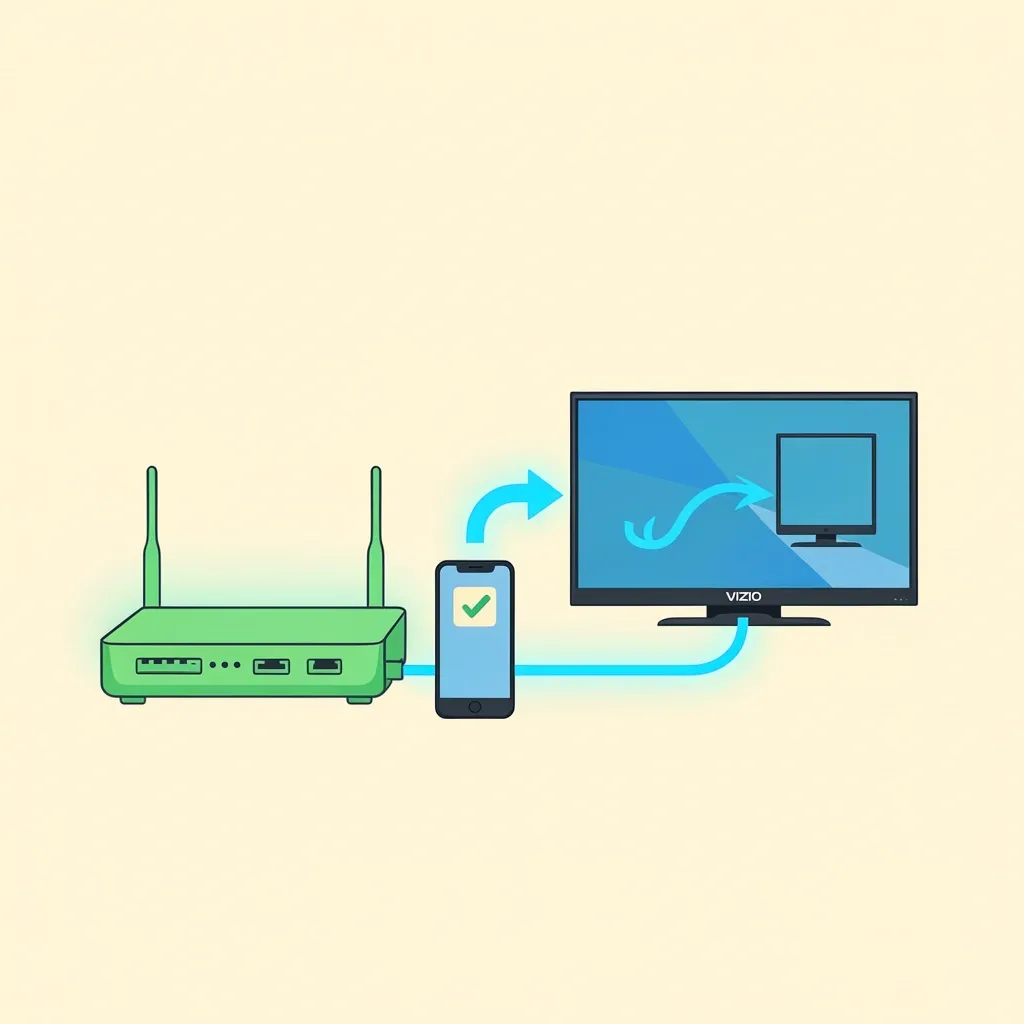
Who this is for: You have an Ethernet cable long enough to reach from your router to the TV, or you can temporarily move the TV near the router. Works on any Vizio OS generation.
This is the most reliable method because it bypasses Wi-Fi entirely for the setup phase. I've used it on a VIA TV from 2014 and a SmartCast from 2021—same result.
- Connect one end of a standard Ethernet cable to your router, the other end to the Ethernet port on the back of your Vizio TV. The port is usually a small, rectangular RJ-45 jack.
- Turn on the TV. It should automatically get an IP address from your router. You don't need any remote or password—the TV detects the wired network immediately.
- On your phone (connected to the same router via Wi-Fi), open the Vizio Mobile app. Because both devices are on the same network—your TV via Ethernet, your phone via Wi-Fi—the app will discover the TV without any extra steps.
- Pair the app with the TV (enter the code shown on screen). Then go to Settings > Network and choose your Wi-Fi network. Enter the password, and the TV will switch from Ethernet to Wi-Fi.
- After confirming Wi-Fi works, unplug the Ethernet cable.
If you don't have a router nearby, a travel router or even a laptop that can share internet over Ethernet also works. I've connected a MacBook's internet sharing to the TV in a pinch.
The No-Device Method: Use Physical Buttons to Navigate Menus
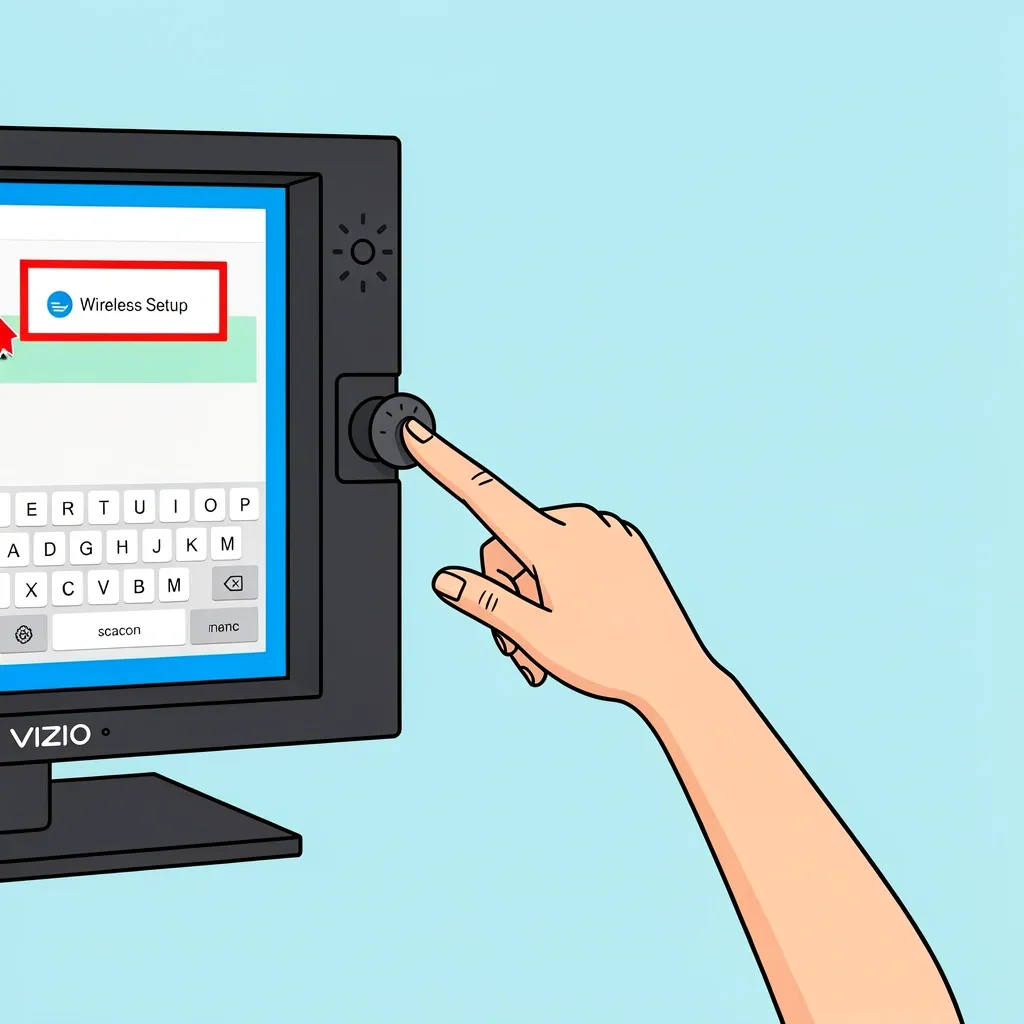
Who this is for: You have no phone, no laptop, and no Ethernet cable. But your TV has physical buttons (not just a power button). This works on VIA and VIA Plus models.
This is tedious but doable. Vizio's menu navigation follows a consistent pattern: left/right scrolls through top-level categories, up/down scrolls within a list, and the "menu" or "input" button acts as enter.
- Locate the buttons on your TV. Look on the back lower-left side (most common) or along the bottom bezel. You should see at least: Power, Volume Up/Down, Input/Source, and sometimes a Menu button. On VIA Plus models, the buttons are often a single joystick you push in to confirm.
- Press the Menu button. The menu appears on screen.
- Use the Volume Up/Down buttons (or the joystick) to scroll. The first option on a VIA/VIA Plus menu is usually Network or Settings. Press Input (or push the joystick) to enter.
- Scroll down to Wireless Setup (or Wi-Fi Setup). Select it.
- The TV scans for available networks. Scroll through the list and stop at your Wi-Fi network name.
- Now comes the hard part: entering the password. Use the on-screen keyboard. The buttons move left/right across the keyboard row and up/down to change rows. Press Input to select a character. This takes a while, especially for long passwords. I recommend setting a simple password on your router temporarily (something like "12345678") to make this faster, then changing it back later.
- Once all characters are entered, scroll to Connect (usually at the bottom of the keyboard) and press Input.
If your TV has no physical buttons at all (some M-Series and P-Series Quantum models only have a touch-sensitive power strip), you cannot use this method. Skip to the next section.
Advanced Solutions for Edge Cases
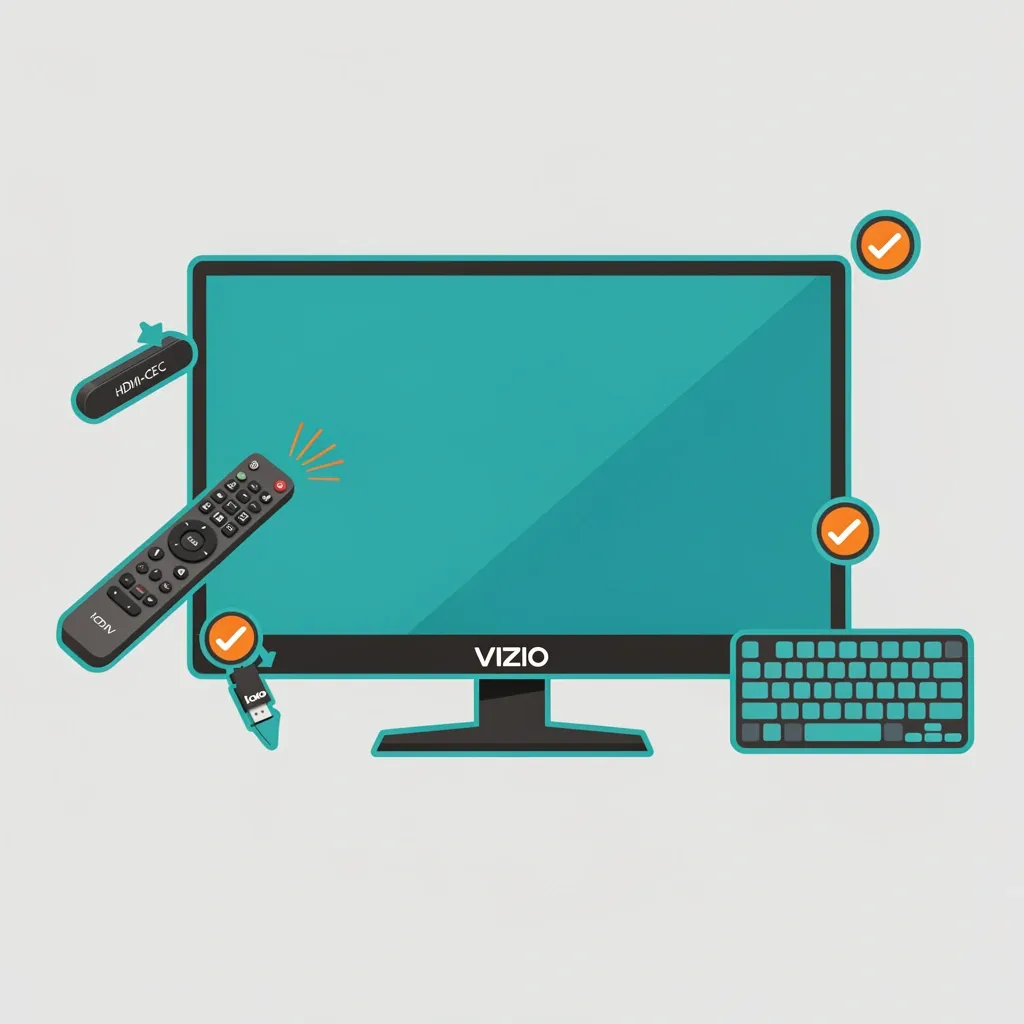
Sometimes nothing above works—maybe the IR sensor is broken, the buttons are unresponsive, or the TV is a model with no physical inputs. These backup methods usually save the day.
Use a Universal Remote
Who this is for: You can buy a remote and wait for shipping, or pick one up at a local store.
- Any universal remote that supports Vizio IR codes will work. The GE 33709 (around $6 at Walmart) has a pre-programmed code for Vizio (code 11758 or auto-search).
- Point the remote at the TV's IR receiver (usually a small dark window near the bottom center or bottom left bezel). Press the Menu button and follow the same steps as the physical button navigation above to connect to Wi-Fi.
- Note: A universal remote requires a working IR receiver on the TV. If the sensor is dead, this won't help.
Use HDMI-CEC to Control the TV
Who this is for: You have a device like a Roku, Chromecast, Apple TV, game console, or Blu-ray player that supports HDMI-CEC.
- Plug the device into an HDMI port on the Vizio TV. Turn on the TV (press the power button).
- The device should automatically detect the TV via HDMI-CEC and take control. You can then use the device's remote to navigate the Vizio's menu system. On a Roku, for example, the directional pad on the Roku remote can move the TV's cursor.
- Once you can navigate, go to Settings > Network and set up Wi-Fi as usual.
Use a USB Keyboard
Who this is for: Your TV has a USB port (most do) and you have a standard USB keyboard.
- Plug the keyboard into a USB port on the TV. The TV should recognize it immediately.
- Use the arrow keys to navigate menus. The Tab key often jumps between sections, and the Enter key acts as select. The Escape key goes back.
- This method is much faster for entering Wi-Fi passwords than using physical TV buttons.
Why Your Vizio TV Won't Connect Even After Setup
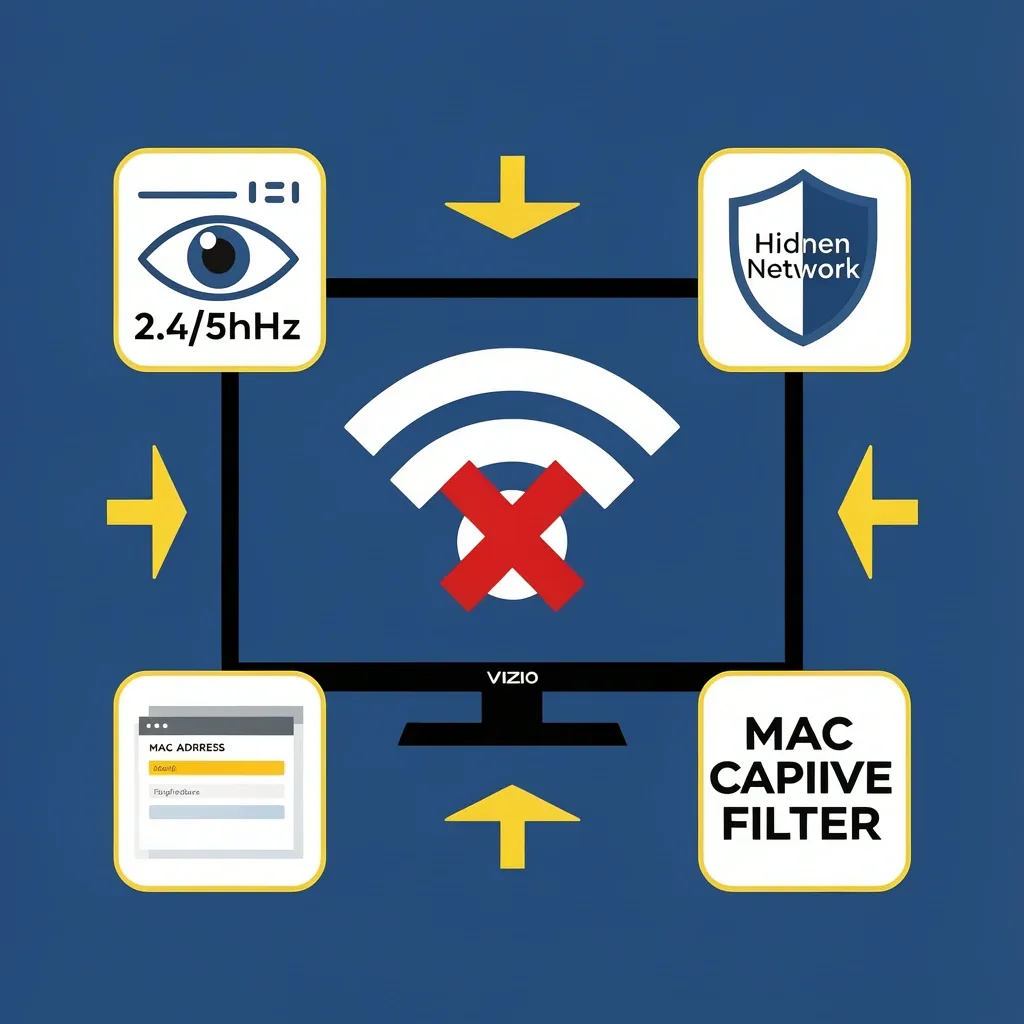
You followed every step, but the TV still won't go online. Here are the most common hidden reasons and how to fix them.
5GHz vs. 2.4GHz Band Issues
Many Vizio TVs (especially before 2020) only support 2.4GHz Wi-Fi. If your router broadcasts a combined network name (same SSID for both bands), the TV might try 5GHz and fail silently. Fix: Temporarily disable 5GHz on your router, or create a separate 2.4GHz-only network with a different name. Connect the TV to that.
Hidden SSIDs
If your router hides its network name (SSID broadcast off), most Vizio TVs will not detect it during setup. The TV's network list appears empty. You must enable SSID broadcast temporarily, or manually enter the network name if your TV model allows it (rare on Vizio).
MAC Address Filtering
If your router uses MAC address filtering, you need to add the TV's MAC address to the allowed list. But you can't find the MAC address without navigating settings. Solution: Connect the TV via Ethernet first, then find the MAC address under Settings > Network > Status. Or look on a sticker on the TV's back or side panel—it often lists the wired and wireless MAC addresses.
Captive Portals and Guest Networks
Vizio TVs cannot interact with captive portals (the login page you see at hotels or coffee shops). They also have problems with guest networks that restrict device-to-device communication. Use a personal hotspot or a travel router instead.
Frequently Asked Questions
Can I use a Vizio SmartCast TV as a Wi-Fi hotspot?
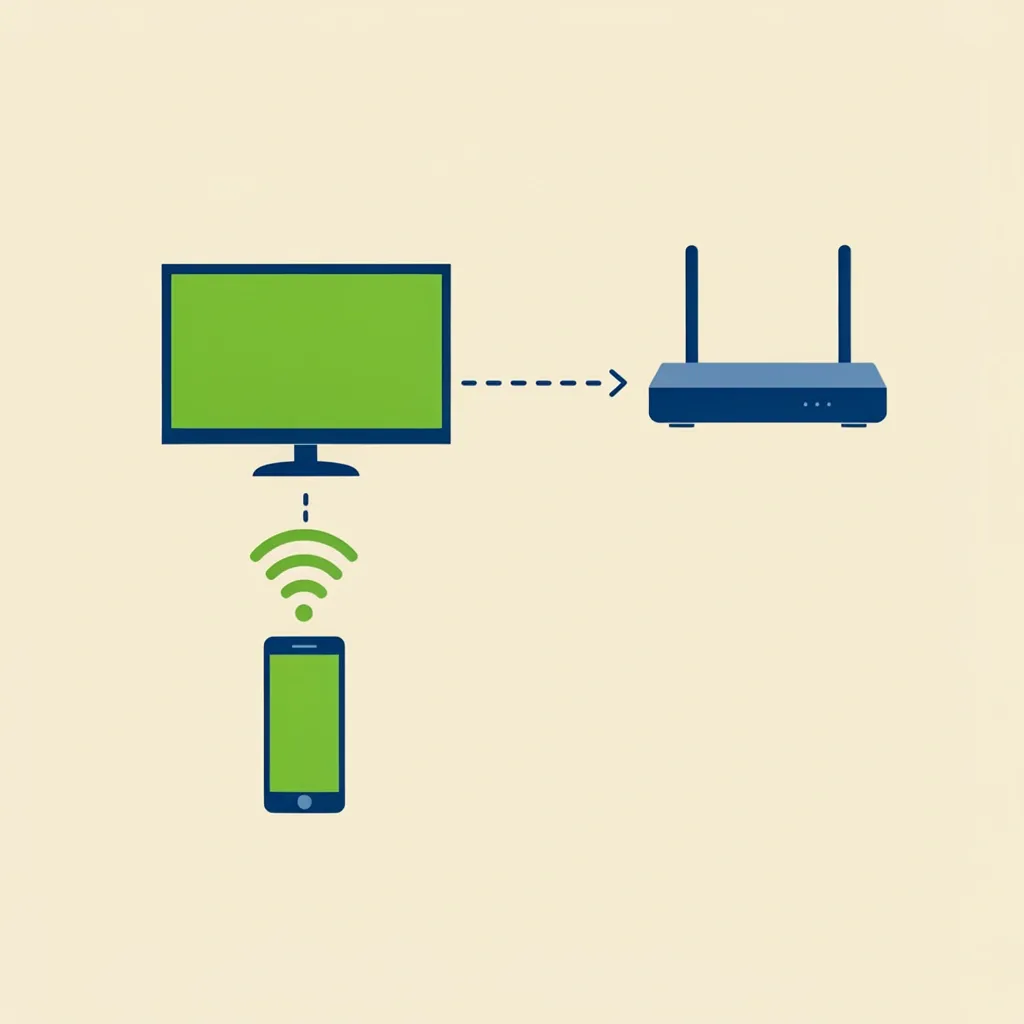
No. There is no setting to share the TV's internet connection. But you can use your phone as a hotspot, connect the TV to that hotspot, then later switch the TV to your home Wi-Fi from the Vizio Mobile app while both are on the hotspot network.
Does factory resetting a Vizio TV erase Wi-Fi passwords?
Yes, and it also forgets all paired Bluetooth devices and app settings. Use factory reset only as a last resort—it removes saved Wi-Fi, making the problem worse.
Can I connect a Vizio TV to Wi-Fi using an Xbox or PlayStation?
Only indirectly through HDMI-CEC. The console's remote can navigate the Vizio menu, but the console cannot directly manage the TV's network settings. You still have to enter the Wi-Fi password manually using the console controller as a navigation tool.
My Vizio TV says "Wireless Disabled" — what does that mean?
This typically means the Wi-Fi hardware has failed (rare but possible) or the firmware is corrupted. Try a full power cycle: unplug the TV for 60 seconds, plug back in. If the message persists, the wireless module may be dead. Your only option is to use a wired Ethernet connection permanently.
Will a Logitech Harmony remote work for initial setup?
Only if it's already paired to the TV via IR. If you lose the remote before pairing the Harmony, you can't program it without the original remote's IR codes. Use a universal remote with pre-set Vizio codes instead.
Can I change networks without touching the TV at all?
Yes, if you have an old phone that was previously connected to the Vizio Mobile app on the same network. Open the app while both devices are still on the old Wi-Fi network. You can change the Wi-Fi credentials remotely in the app. But if the TV loses network connection completely, the app cannot reach it.
What do I do if my TV's Wi-Fi antenna is broken?
USB Wi-Fi adapters do not work on Vizio TVs. The TV's operating system does not have drivers for external Wi-Fi dongles. Your only permanent solution is to use a wired Ethernet connection. If that's not possible, buy a powerline Ethernet adapter kit—it sends internet through your home's electrical wiring.
You now have seven different paths to get your Vizio TV online without a remote. Start with the method that best matches your equipment. Most people only need the smartphone Bluetooth method or the Ethernet trick. If you're still stuck after trying, check the model generation table again—using the wrong approach for your TV is the most common mistake. With the right plan, you can finish in under ten minutes.