How to Connect and Tune an Antenna on Your Vizio D Series TV
If you want to watch live local news, sports, or network shows without a monthly cable bill, an antenna is the simplest way to do it. Every Vizio D Series TV has a built-in digital tuner, so you do not need any extra box. You just need a standard over-the-air antenna and a few minutes of setup time. This guide walks you through the entire process, including what to do when things do not work as expected.
Locating the Antenna Input on Your Vizio D Series
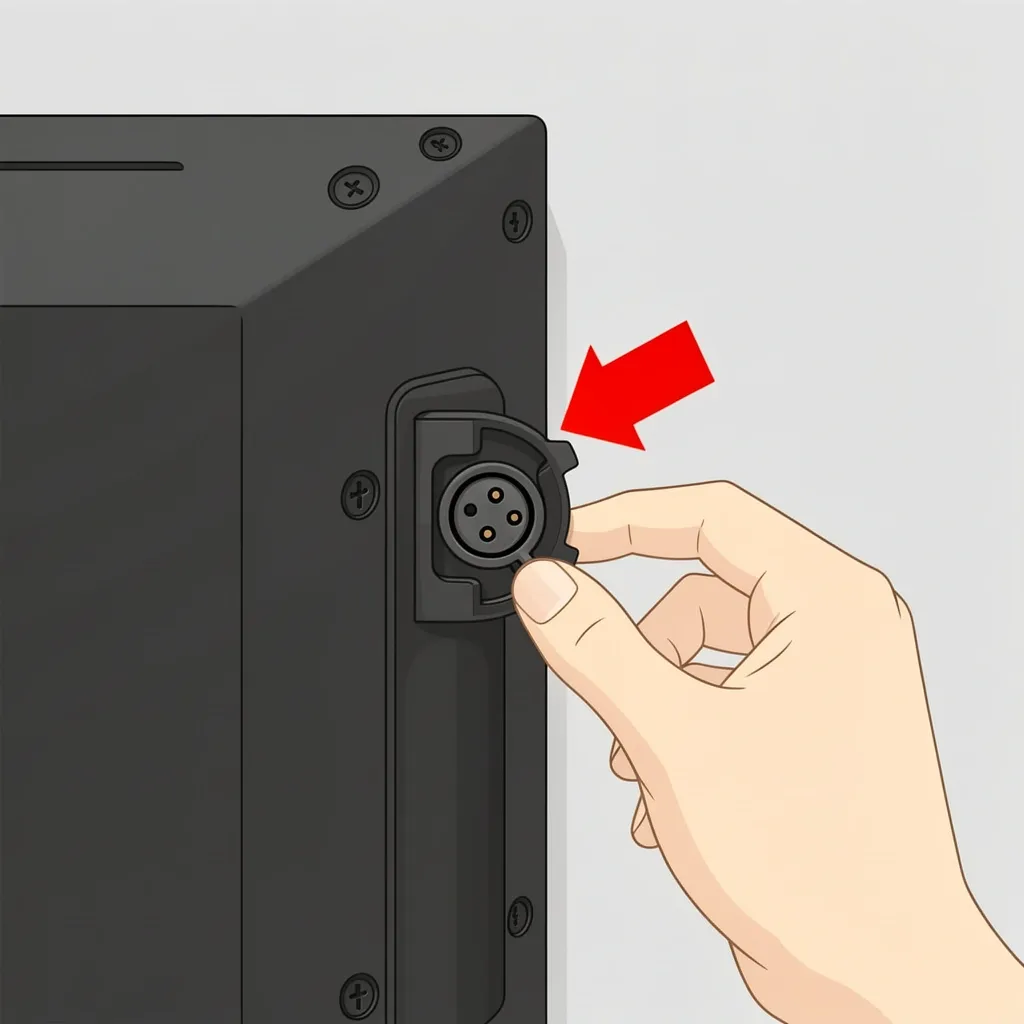
The first step is finding the right port on the back of your TV. Look for a small, round metal connector that looks like the one you might remember from old cable TV boxes. On a Vizio D Series, this port is clearly labeled ANT/CABLE or sometimes just RF IN. On certain D Series models, this port is not immediately visible. It hides behind a small, snap-off plastic cover or door. This cover is usually located near the power cord or to the far right of the back panel. Gently pry it open. Do not force it. If you see a circular connector inside, that is the one you need. If you look at the back of your TV and see a port that looks like a standard cable TV jack, you have found it. It is the only port on the TV that accepts a coaxial cable.
Step-by-Step Channel Scan
Once you have the antenna physically connected, you need to tell the TV to find the available channels. This is called a channel scan.
- Plug one end of the coaxial cable from your antenna into the TV’s ANT/CABLE port. Tighten the connector by hand until snug. Do not use tools.
- Turn on the TV and press the Menu button on your Vizio remote.
- Navigate to the Tuner or Channels settings. The exact name varies slightly by model year.
- Look for a setting that says Input Mode or Signal Type. It might currently say Cable. Change this to Antenna or Air. This is the most common reason for a failed scan. If the TV is set to Cable, it will look for a cable signal and find nothing.
- Select Auto Scan or Channel Scan. The TV will take a few minutes to search for all available channels in your area.
- Once the scan finishes, you can use the channel up/down buttons or the number keys to watch the channels found.
Troubleshooting – Zero Channels or Weak Signal
You plugged in the antenna, ran the scan, and the TV says you have zero channels. This is the most common frustration. Here are the likely reasons.
The Antenna Input Mode is Wrong
Go back to the tuner menu and double-check that the Input Mode is set to Antenna or Air. Leaving it on Cable is the number one mistake.
The Antenna Needs its Own Power
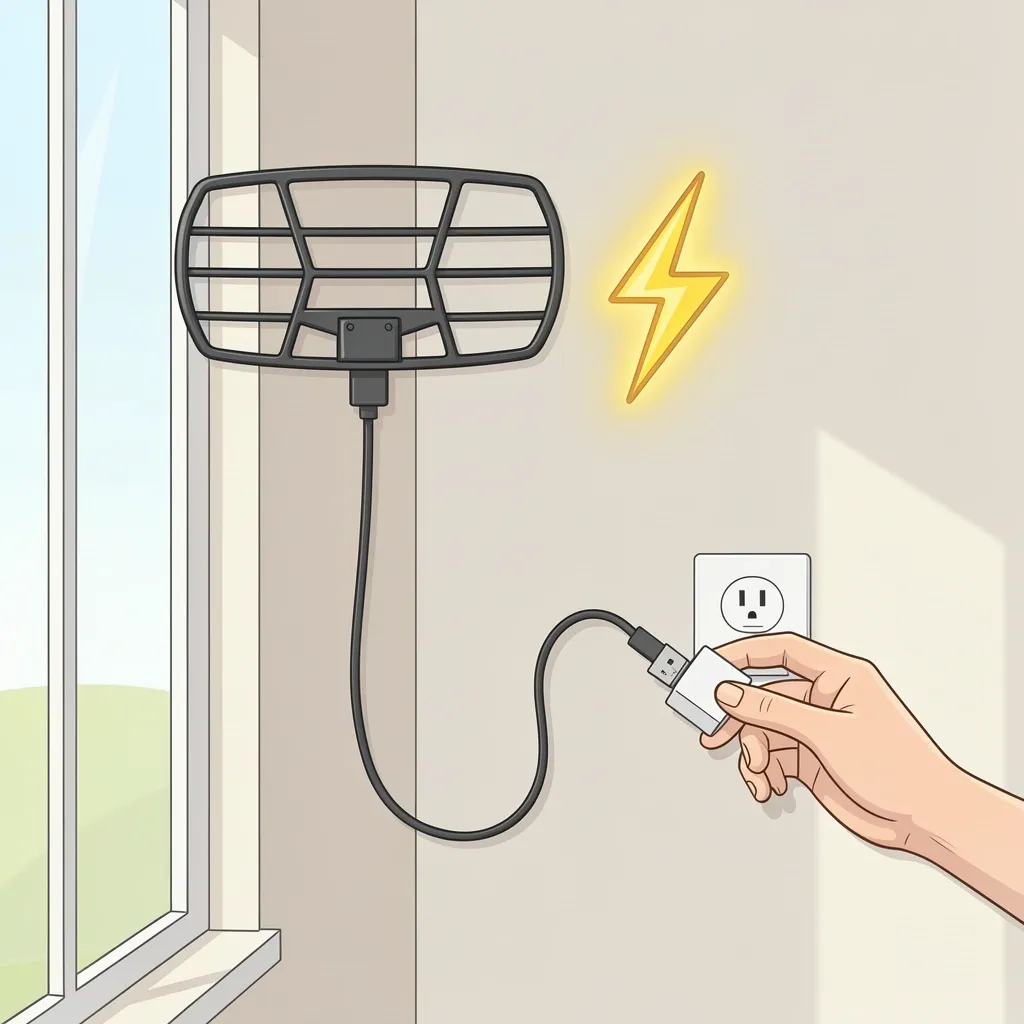
Many indoor antennas, especially flat ones you stick to a window, have a built-in amplifier. This amplifier makes the signal stronger. But that amplifier needs power. It usually gets power from a small USB cord that connects to a wall plug or a USB port on the TV. If your antenna has this, make sure it is plugged into a power source. The TV itself does not send power down the coaxial cable.
Signal Interference or Obstruction
Where you place the antenna matters a lot. Try moving it near a window, away from large metal objects, and away from the back of the TV itself. Even placing it a few feet higher can make a big difference. After you move the antenna, you must run a new channel scan. The TV does not update automatically.
Optimizing Antenna Placement and Choosing the Right Antenna
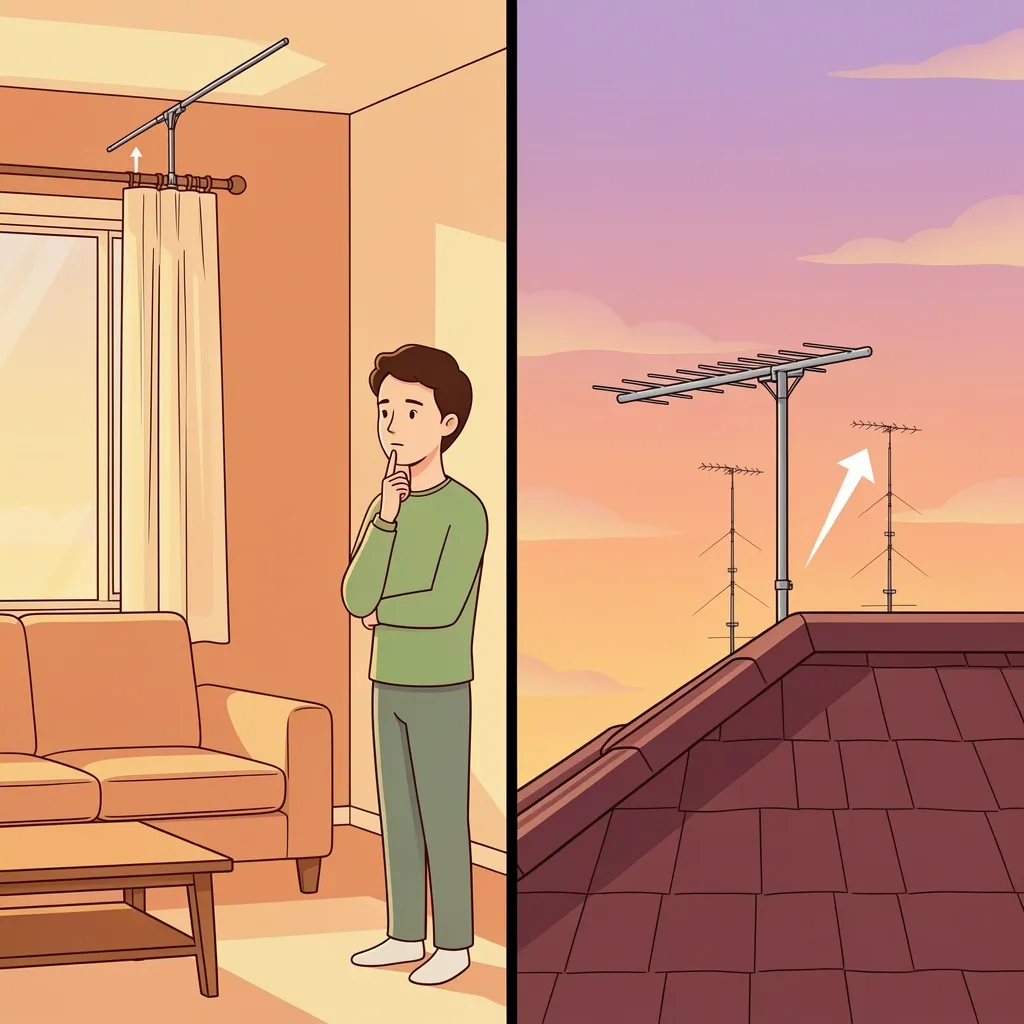
The antenna you use has a direct effect on how many channels you get. For most suburban and urban areas, a basic indoor antenna is enough. Look for one that supports both UHF and VHF bands. Most modern broadcast channels are on UHF, but some networks still use VHF. If you live in a rural area far from broadcast towers, an indoor antenna will struggle. You need an outdoor antenna. Mount it as high as possible on your roof or in your attic. Point it toward the nearest broadcast towers. Websites like AntennaWeb can tell you exactly where the towers are in your area. After you change the antenna position or orientation, you must run another channel scan. This is not a one-time step. Every time you move the antenna, rescan.
Managing Inputs and Sources
Your Vizio D Series likely has multiple inputs – HDMI for a streaming device or game console, plus the ANT/CABLE port for your antenna. Switching between them is simple.
Switching from Antenna to Cable TV
If you also subscribe to cable TV, you can use the same coaxial port. Just plug the cable from your wall into the ANT/CABLE port. Then, in the tuner menu, change the Input Mode back to Cable and run another scan. The TV will find the cable channels.
Switching to Streaming Apps
To go back to Netflix, Hulu, or other apps, press the Input button on your remote until you see the HDMI port your streaming device is connected to. The TV remembers your antenna channels, so you can jump back by selecting the TV tuner input again.
How to Connect an Antenna Without a Remote
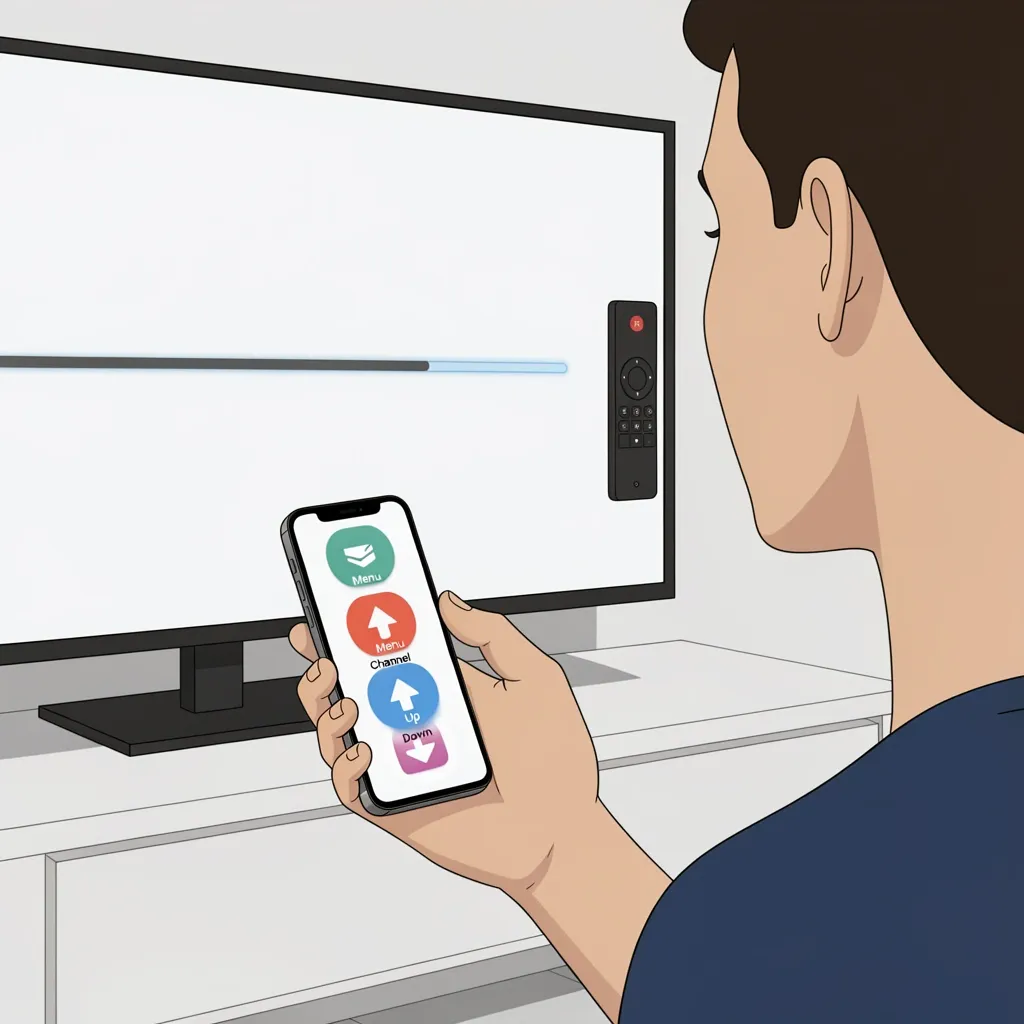
Losing the remote is a common problem. You can still set up your antenna and watch TV. Find the small control buttons on the TV itself. They are usually on the back, on the bottom edge, or on the side. There is a Menu button and Channel Up/Down or Input buttons. Press the Menu button. Use the channel or volume buttons to navigate. It is slow, but it works. If you have a smartphone, you can also use the Vizio SmartCast app. Download it, connect to the same Wi-Fi network as your TV, and you will get a virtual remote. Use it to access the tuner menu and run a channel scan.
Frequently Asked Questions
Can I use a splitter to run both an antenna and cable TV into the same port?
No. Do not use a splitter to combine two signals into one port. A standard splitter sends signal in one direction. If you combine cable and antenna signals, they will cancel each other out or cause interference. You either use one source at a time and change the Input Mode in the menu, or get a dedicated A/B switch.
Does my Vizio D Series support digital, analog, or both types of antenna signals?
The Vizio D Series has an ATSC digital tuner. It receives digital over-the-air broadcasts. It does not support the old analog signals. In the United States, all full-power broadcast stations are digital. You can still use an old analog antenna as long as it is designed for UHF and VHF bands. The electrical signal is the same.
How do I connect an antenna without a coaxial cable?
If your antenna has a coaxial output, you need a coaxial cable to connect it to the TV. If you want to use an antenna with an HDMI output, you need a separate device called a modulator or a digital converter box. That box connects to the antenna via coaxial cable and then outputs HDMI to your TV. The Vizio D Series cannot accept antenna signal through an HDMI port directly.
Why does my Vizio D Series show 'No Signal' when I already have an antenna connected?
The TV is likely on the wrong input. Press the Input button and select the option labeled TV or Antenna or DTV. That input shows the signal from your antenna. If you are on an HDMI input, you will see a No Signal message because nothing is plugged into that HDMI port.
Will an outdoor antenna work better than an indoor one for the D Series?
Yes. An outdoor antenna is always better if you have the ability to install one. It is higher up, has a direct line of sight to broadcast towers, and is not blocked by walls, windows, or metal roofs. If you are far from towers or in a hilly area, an outdoor antenna is the only reliable way to get channels.
How do I replace the internal tuner if it is broken?
You cannot. The internal tuner is part of the main circuit board of the TV. There is no user-serviceable part. If your tuner is truly broken (no channels even with a strong signal and correct settings), you need an external converter box. Buy a digital converter box with an ATSC tuner. Connect your antenna to the box, connect the box to the TV via HDMI or coaxial cable, and use the box to change channels. This bypasses the TV’s broken tuner.