How to Connect an Old Vizio TV to WiFi (2010-2016 Models)
If your older Vizio TV won’t connect to WiFi or doesn’t show up in the SmartCast app, the problem is almost never a simple settings glitch. You are likely dealing with one of three distinct hardware generations, each with a completely different connection method. Using the wrong approach guarantees failure. Before you follow any steps, figure out which TV you have. Look at your remote. Does it have a button labeled VIA or VIA+? Go to section A. Does it have a SmartCast button? Go to section B. Does your TV show Yahoo or Yahoo Connected TV when you press the Menu button? Go to section C. This quick check saves you from wasting time on the wrong solution.
Identify Your Vizio TV’s Platform
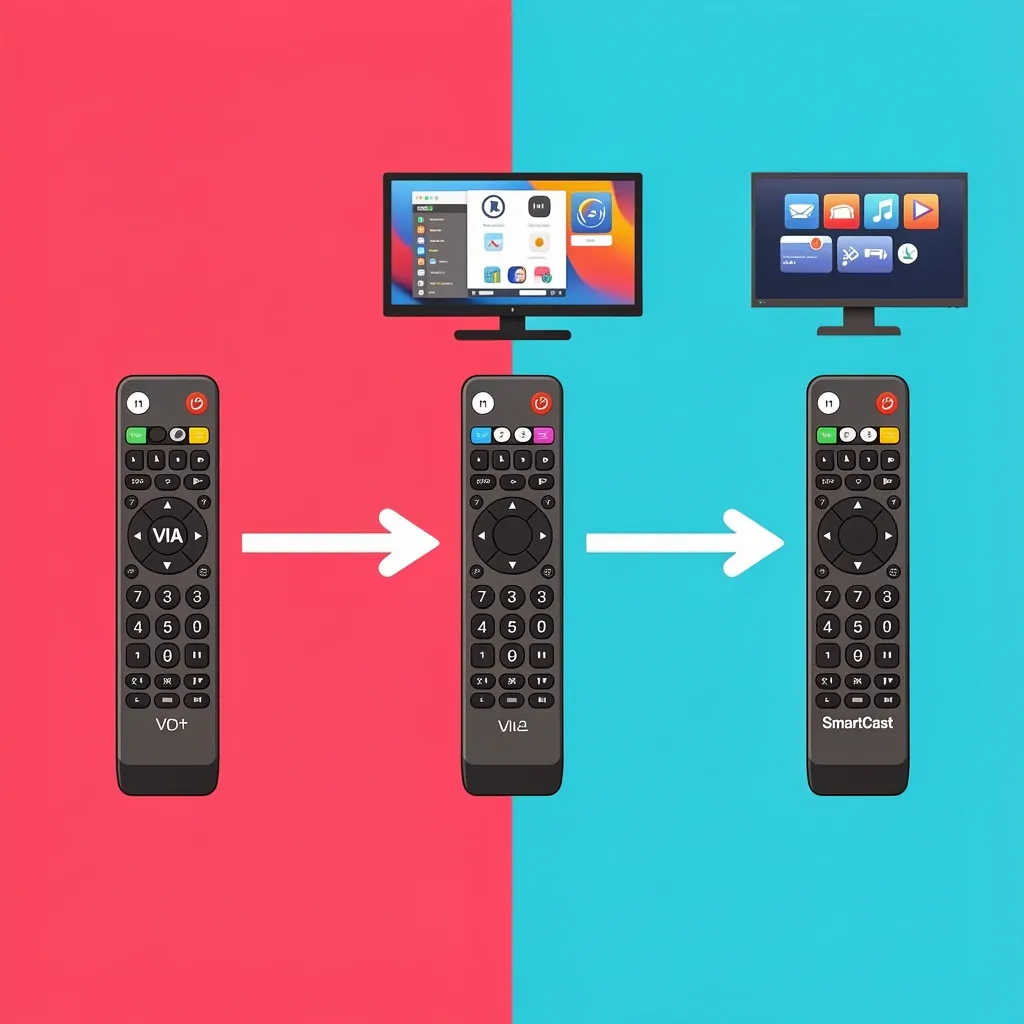
The platform your TV runs on decides how it connects to WiFi. Here is how to tell them apart:
- VIA Platform (2009-2015): Menu button opens a sidebar with Yahoo-related apps. No SmartCast button. These TVs have limited built-in WiFi or sometimes no WiFi module at all.
- VIA Plus Platform (2013-2016): Zoomed app icons and a slightly faster interface. Still no SmartCast compatibility. These TVs have WiFi but use a deprecated protocol that modern routers often refuse to talk to.
- SmartCast Platform (2016+): Full-screen app launcher with built-in Chromecast. WiFi connection happens through the Google Home app, not a Vizio app.
Look at the back of your TV near the input panel. If you see no WiFi logo or antenna port, this TV requires a wired connection or an external adapter. Do not try to connect wirelessly—it cannot do it.
How to Connect VIA and VIA+ Platform TVs to WiFi
If your model starts with E, M, or D followed by a number under 50 (like E320-A0), you likely have a 2013 or earlier model. The built-in WiFi on these is weak and picky. Follow these steps exactly:
- Press the Menu button on your remote.
- Navigate to Network and select Manual Setup.
- The TV will scan for networks. If none appear, your router’s security settings are the problem.
- Log into your router. Set the 2.4GHz band to use WPA2 security (not WPA3). Temporarily disable the 5GHz band so the TV does not get confused.
- If still no networks are detected, the WiFi module inside the TV is likely dead. Skip to Section 4 for a hardware fix.
If your router uses MAC address filtering, find the TV’s MAC address under Network Settings > Status. Add that address to your router’s allowed list. Without this step, the TV will see the network but cannot connect to it.
When Built-in WiFi Fails: Ethernet and USB Adapter Solutions
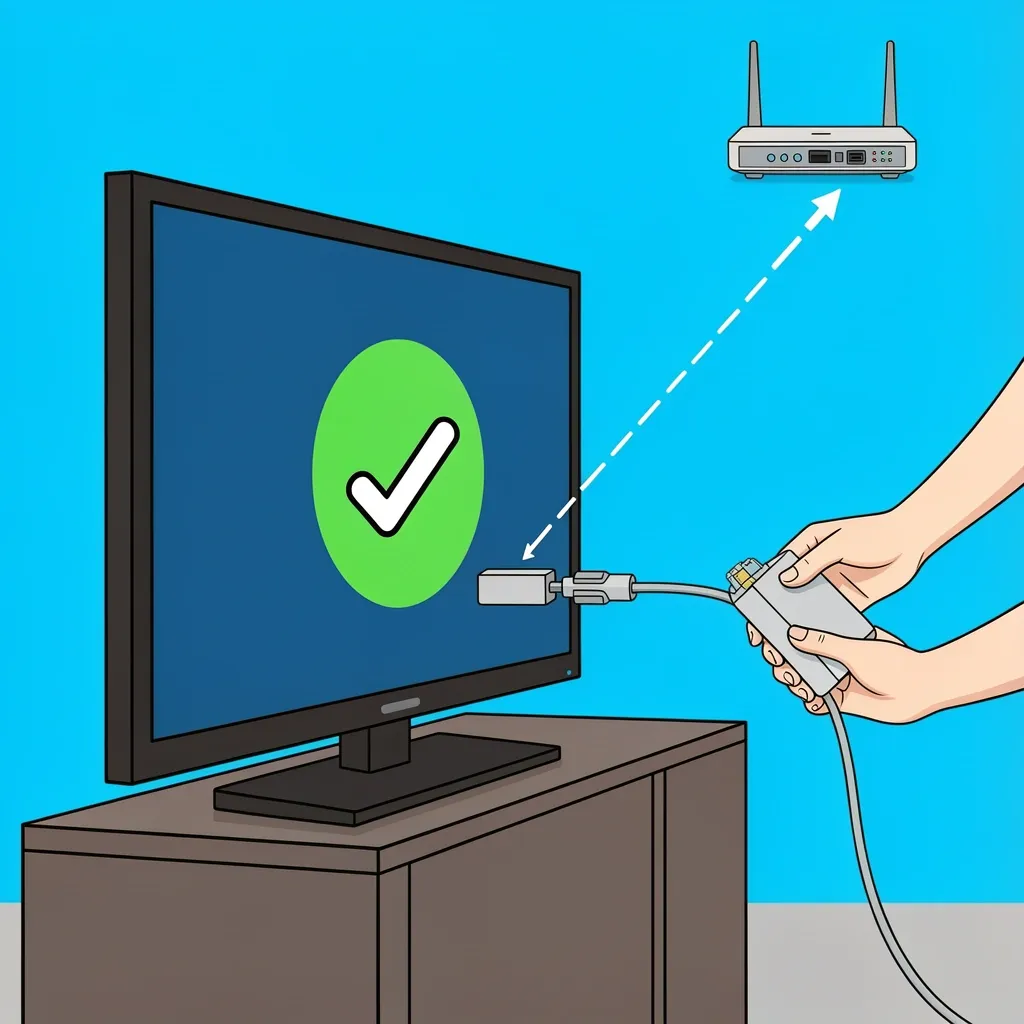
This section covers the workaround that actually works when the internal WiFi is dead or too old. Wired Connection: Most 2010-2015 Vizio TVs have an Ethernet port on the back. Plug one end of an Ethernet cable into the TV and the other into your router. On the TV, go to Network > Wired Setup and select Auto for the IP address. If the TV says “Cable Disconnected” when a cable is plugged in, you need a crossover cable or a router that supports Auto-MDIX. USB WiFi Adapter Method: Do not buy a random USB WiFi adapter. Older Vizio TVs (2011-2013) supported specific USB dongles that are long discontinued. The only reliable modern workaround is a WiFi-to-Ethernet bridge. Any device that can operate as a wireless client and output Ethernet will work, such as a Google Nest WiFi point, a TP-Link RE220 range extender set to “Client Mode,” or a travel router. Connect the bridge to your home WiFi using its own app. Plug the bridge’s Ethernet port into the TV. Then, on the TV, go to Network Settings and select Wired Connection.
Why the Vizio SmartCast App Won’t Find Your TV
This is the most common frustration. The SmartCast app only works with SmartCast TVs made in 2016 and newer. If you have a VIA or VIA+ TV, the app will never find it. These older TVs do not understand the Chromecast protocol that the SmartCast app uses.
If your phone says “No device found,” do not blame the TV. It is not broken. The two systems speak different languages.
For VIA TVs, install the AllCast or LocalCast app on your phone. These apps discover DLNA-compatible devices, which your VIA TV is. You can cast local videos and photos this way. However, you cannot cast protected streaming content like Netflix or Hulu. For those, use the TV’s built-in app store or buy a physical streaming stick.
Hardware Limits: Fixing a Dead WiFi Module
Older Vizio TVs, especially the D-series and E-series from 2012 to 2015, had a known WiFi module failure rate. If the WiFi option is grayed out in settings, or if the TV scans but never finds any networks, the module is dead. Here are your fix options in order of practicality:
- WiFi-to-Ethernet bridge: Most reliable. No disassembly needed. Follow the steps in the section above.
- External streaming stick: A Roku Express or Chromecast with Google TV bypasses the TV’s smart platform entirely. This is the cheapest and easiest option for 99% of users.
- Module replacement: iFixit guides exist for specific models, but pre-2014 units often require soldering. Financially, it is not worth it. A streaming stick costs less than the replacement part.
Router Compatibility: Why Your Modern Router Rejects an Old Vizio TV
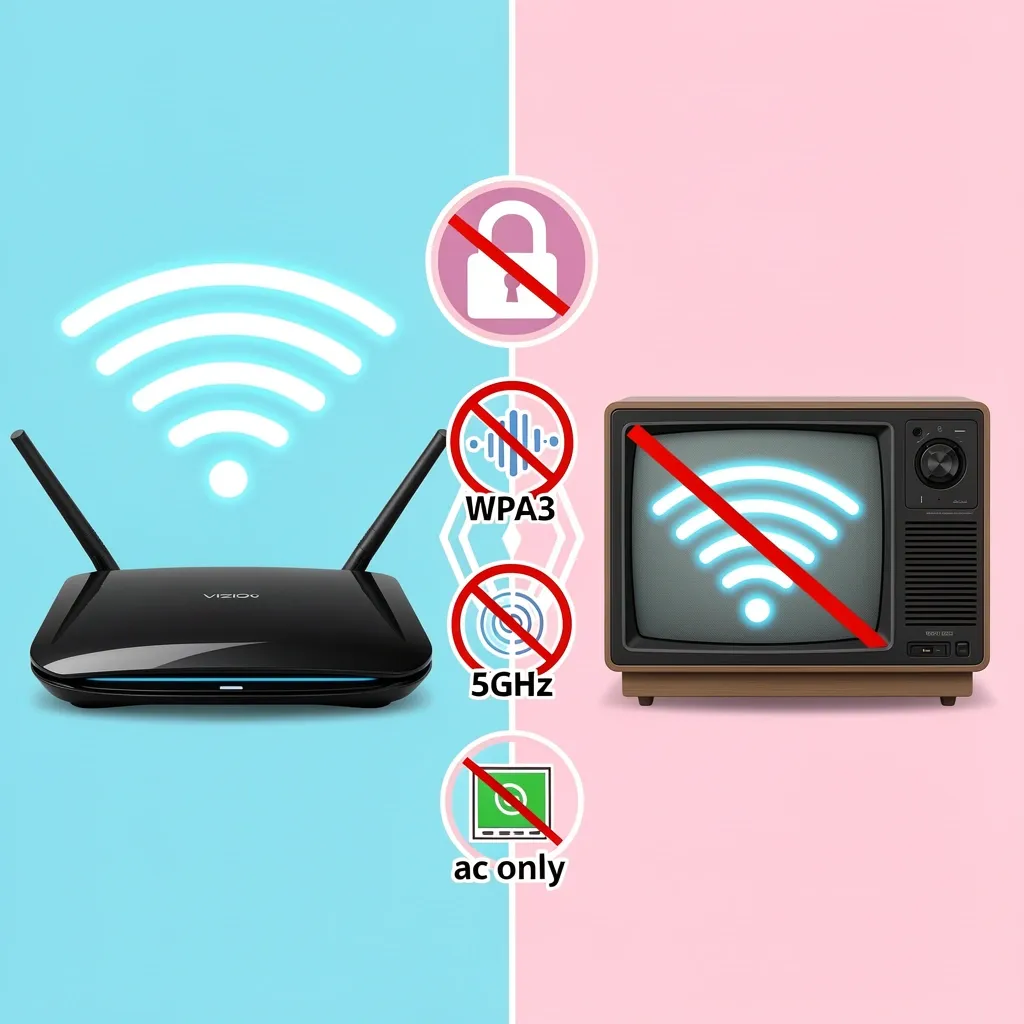
This is the critical gap that new routers created. Three specific things can go wrong: 1. WiFi Standards Mismatch: Old Vizio TVs (pre-2014) only support 802.11 b/g/n on 2.4GHz. If your router is set to “802.11ac only” or has an “Auto” mode that drops legacy protocols, the TV will never see the network. Fix this by logging into your router, going to Wireless Settings, and setting the 2.4GHz band to “b/g/n mixed” or enabling “Legacy Mode.” 2. Security Protocol Conflict: WPA3 was introduced in 2018. Old Vizio TVs max out at WPA2. Some 2010 models only support WPA or WEP. Fix this by creating a separate guest network on your router set to WPA2-PSK (AES). Do not use WEP—modern routers often refuse to enable it, and it is insecure. 3. 5GHz Band Confusion: Many users connect their phone to the 5GHz band, but the TV only supports 2.4GHz. They see “Connected to WiFi” on the phone, but the TV cannot see the same network. Fix this by temporarily disabling the 5GHz band in your router settings during setup.
What Goes Wrong After the WiFi Connects
Even after the TV connects, you may run into problems. Here is what to do. “Connected with no internet”: The TV’s date and time may be wrong. Pre-2014 models lose their CMOS battery over time. Go to TV Settings > System > Time and set the date and time manually. Without the correct time, the TV cannot verify its internet connection. “App store won’t load”: Vizio shut down the VIA app store for certain regions. The apps you have installed are all you will ever get. There is no fix. You cannot download new apps on these old TVs. “YouTube works but nothing else casts”: This is expected. Older TVs had a specific partnership with YouTube that used a different protocol than standard DIAL or DLNA. For other services, use a streaming stick.
Frequently Asked Questions
Can I update the firmware on my 2013 Vizio TV to add WiFi capabilities?
No. Firmware updates can add features to existing hardware, but they cannot install a missing WiFi module. Check your TV’s support page. If the original manual says “WiFi Ready” instead of “WiFi Built-in,” the TV requires an external adapter that is no longer manufactured.
Will a factory reset fix my old Vizio TV’s WiFi?
Only if the issue is corrupted network settings, such as a wrong IP address or stuck DNS entry. A factory reset will not restore a dead WiFi module or add compatibility with modern router security protocols. Use it as a last resort after trying router changes.
My TV connects to WiFi but forgets the password every time I turn it off.
This is a known firmware bug in 2014 E-series and M-series models. The only permanent fix is to keep the TV in Quick Start mode. Go to Settings > System > Power Mode and select Quick Start. If the problem continues, use a wired Ethernet connection.
Can I use my phone as a WiFi repeater for my old Vizio TV?
Yes, but only Android phones support this feature natively through WiFi Sharing or USB Tethering. iPhone does not support broadcasting a separate WiFi network. On Android, go to Settings > Hotspot & Tethering and enable WiFi Sharing (not portable hotspot). Connect the TV to your phone’s temporary network. Expect buffering because your phone acts as both the internet source and the router.
Is it worth repairing the WiFi on a 10-year-old Vizio TV?
Financially, no. A WiFi module replacement costs between $40 and $80 if you can find the part, and labor adds more. A streaming stick like a Roku Express costs $25 and provides a faster, modern experience. It also bypasses every WiFi issue the TV has. Repair the TV only if it has sentimental value or you cannot use any of its HDMI ports.