How to Connect a Vizio TV to WiFi From Your Phone
You have a Vizio TV and a phone. What you do not have is a working internet connection on the TV, or maybe you do not have the remote. Either way, you want to use your phone to get the TV online. This works in two main ways. The first is using the Vizio Mobile app to control the TV and change its network settings. The second is using your phone as a mobile hotspot to give the TV its own internet connection. Which method you use depends on what you have available. Let me walk you through each one.
Using the Vizio Mobile App to Change WiFi
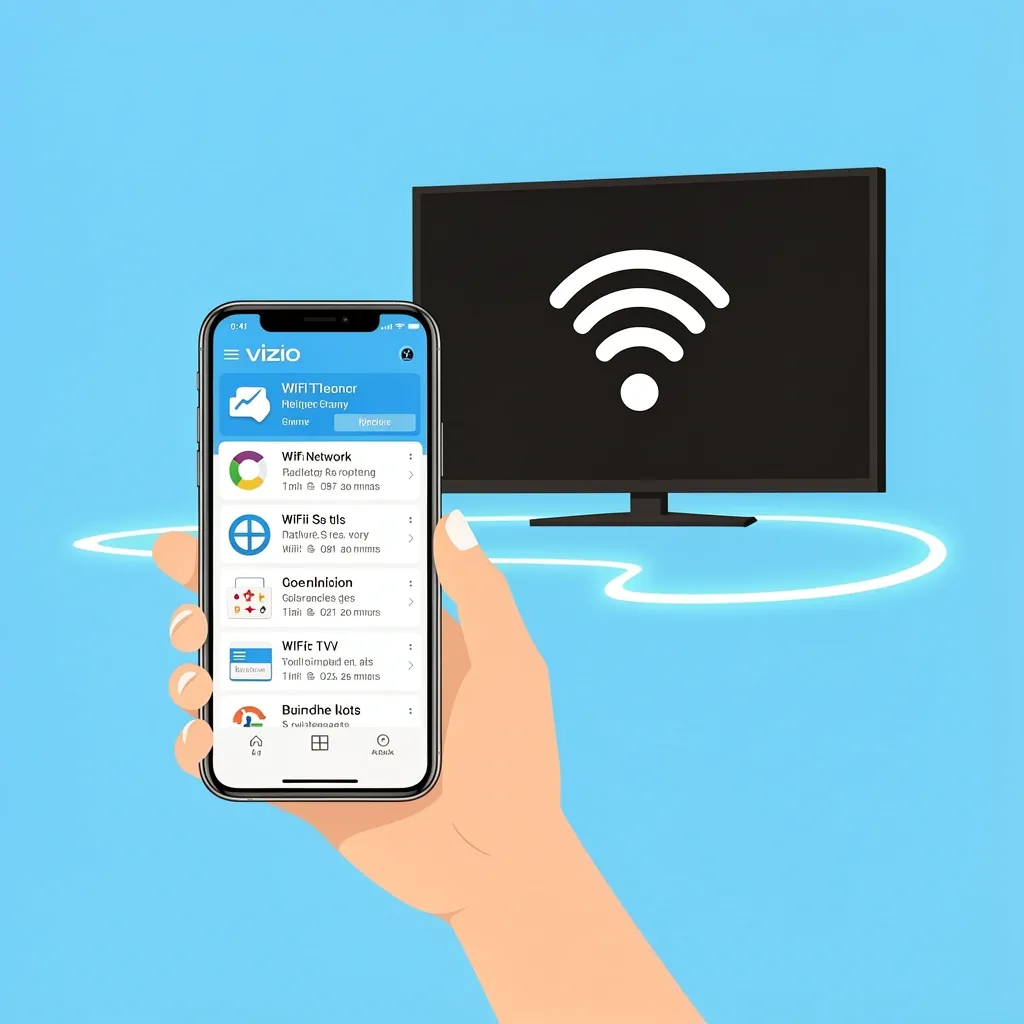
This is the most direct way to connect your Vizio TV to WiFi from your phone. The Vizio Mobile app acts as a remote control and a settings panel. You can use it to select a new WiFi network and type in the password using your phone’s keyboard. That is much easier than using the TV remote. Before you start, make sure your phone is already connected to the same WiFi network that the TV is currently on. This is the tricky part. If the TV is already online, you can pair the app and then change networks. If the TV is not online at all, you will need to use a different method first.
Pairing the Vizio Mobile App With Your TV
Download the Vizio Mobile app from your phone’s app store. Open it and create an account or sign in. The app will search for nearby Vizio TVs. When it finds yours, a four-digit code will show on your TV screen. Enter that code into the app. This pairs the app with the TV.
Changing the WiFi Network Through the App
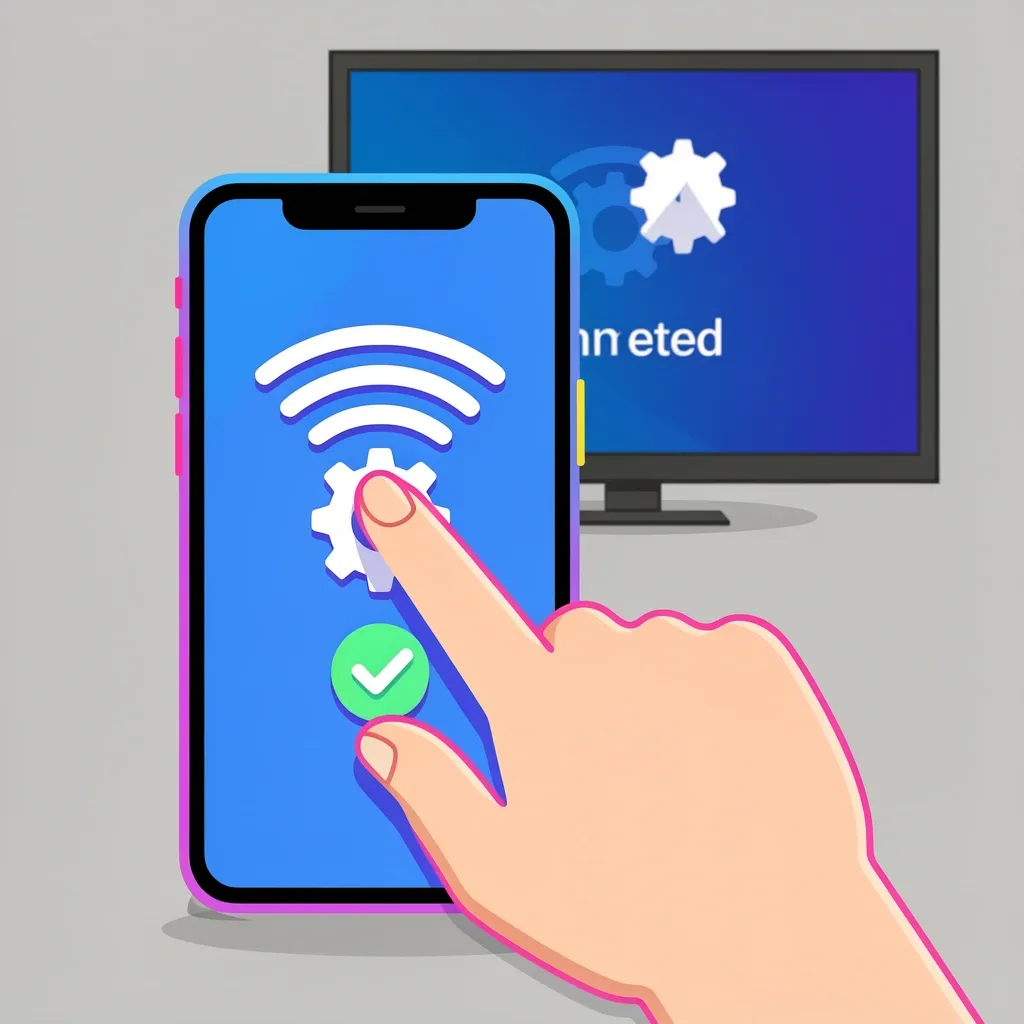
Once paired, tap on the device icon for your TV. Look for a settings gear or a network option. The exact wording varies by TV model, but you are looking for something like Network, WiFi, or Internet Connection. Select it, and the app will show the current network. Tap on it to see a list of available networks. Pick your home network, enter the password using your phone, and confirm. The TV will disconnect from the old network and connect to the new one.
Connecting Without a Remote
Losing the remote is a common reason people search for how to connect their Vizio TV to WiFi from a phone. The Vizio Mobile app can replace the remote, but you have to get the app paired first. And to pair the app, the TV needs to be on the same network as the phone. This creates a chicken-and-egg problem if the TV is not already online. There are a few ways around this.
Using the Physical Buttons on the TV
Many Vizio TVs have a small joystick or a set of buttons on the back or bottom edge. Look for a button that says Menu, Input, or Volume. Press the Menu button to open the on-screen menu. Use the joystick or navigation buttons to find the Network or Setup option. From there, you can scan for WiFi networks and enter the password using the on-screen keyboard. This is slow, but it works.
Using an OTG Cable and Keyboard
If your TV has a USB port, you can plug in a USB keyboard using an OTG adapter. This lets you type a WiFi password directly into the TV’s network setup. This is a solid workaround if the on-screen keyboard is too frustrating.
Factory Reset and First-Time Setup
If you cannot get into the settings at all, you can factory reset the TV. This will take it back to the first-time setup screen. On most Vizio TVs, you hold the Volume Down and Input buttons on the TV itself for about 10 seconds. The TV will restart and show the welcome screen. From there, you can use the physical buttons to select your language, connect to WiFi, and then pair the app.
Using Your Phone as a Mobile Hotspot
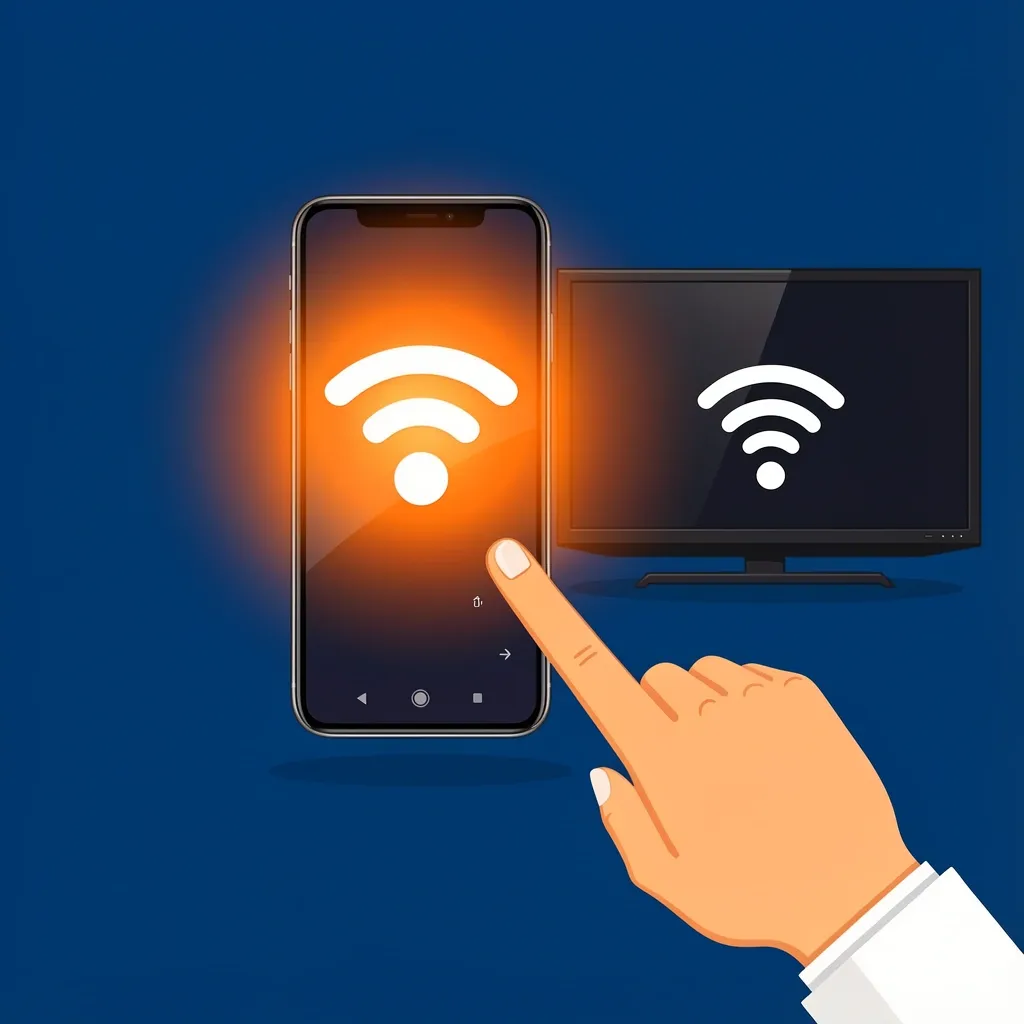
This method is for when there is no home WiFi network at all. Maybe you are traveling, or your router is broken. You can use your phone’s mobile data to create a hotspot, and then connect the TV to that hotspot.
Setting Up the Hotspot
On your phone, go to Settings and find Mobile Hotspot or Personal Hotspot. Turn it on. Give the hotspot a simple name, like “VizioTV,” and set a password. Use WPA2 security if possible.
Connecting the TV to the Hotspot
Now go to the TV. Use the remote or the physical buttons to open the Network settings. Scan for available networks. You should see the hotspot name you just created. Select it and enter the password. The TV will connect, and you will have internet through your phone’s data plan.
Important: 2.4GHz vs. 5GHz
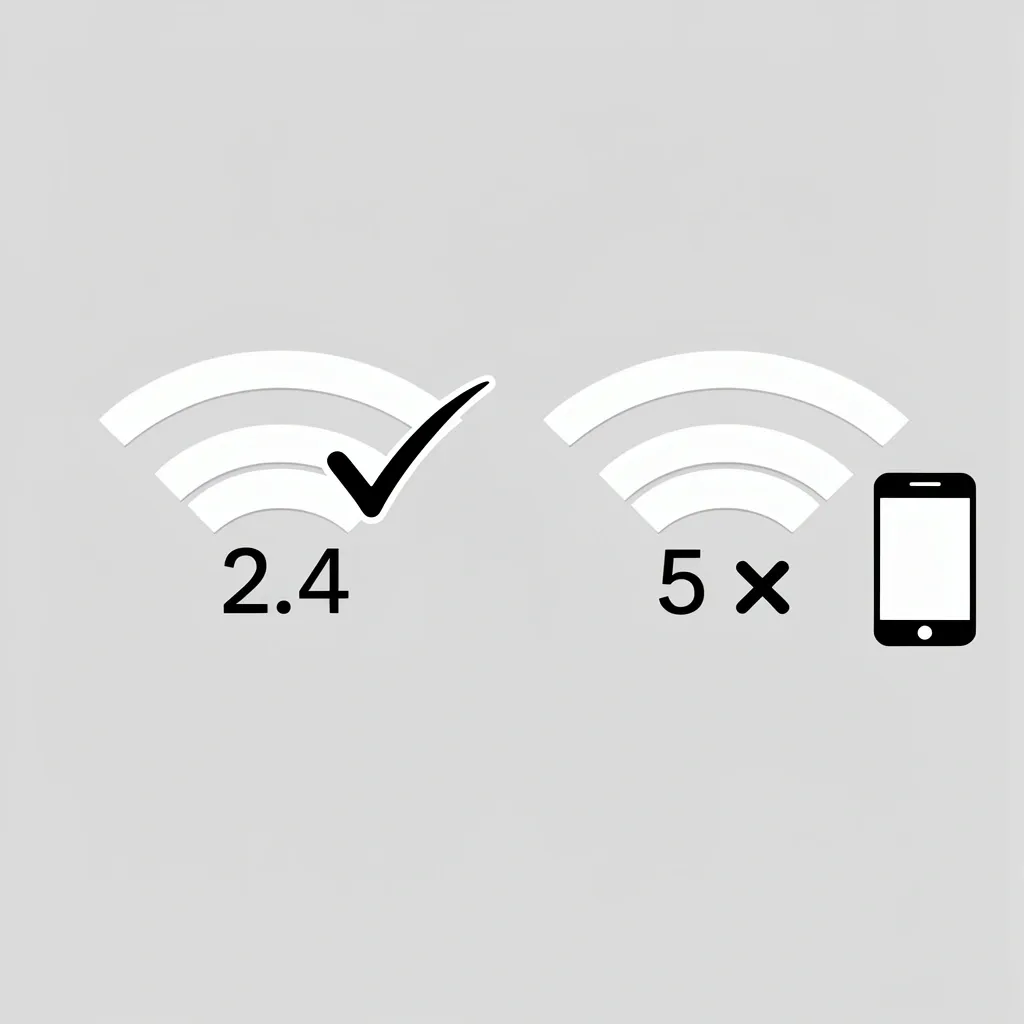
Many Vizio TVs only support 2.4GHz WiFi during the initial connection. Your phone’s hotspot might default to 5GHz. If the TV does not see the hotspot, check your phone’s hotspot settings. Look for an option to switch to 2.4GHz. If your phone does not offer this, you may need to use a different method or a separate router that can broadcast 2.4GHz.
Troubleshooting Common Problems
Even with the right steps, things can go wrong. Here are the most common issues and how to fix them.
The App Cannot Find the TV
This is the most common frustration. First, make sure both devices are on the same WiFi network. If the TV is on a guest network and your phone is on the main network, they will not see each other. Turn off any VPN on your phone. Reboot both the TV and the phone. If that does not work, try using the IP address pairing option in the app. You will find the TV’s IP address in the TV’s Network settings. Enter that IP number into the app manually.
The WiFi Connection Keeps Dropping
This usually happens with hotspot connections. The phone might go into power-saving mode and turn off the hotspot. Go into your phone’s hotspot settings and disable any power-saving options. Also, check for interference from other devices. Move the phone closer to the TV.
The TV Shows “No Networks Found”
This is almost always a 2.4GHz issue. Make sure your router or hotspot is broadcasting a 2.4GHz signal. Some newer routers combine both bands into one name. You may need to split them in your router settings, or temporarily turn off the 5GHz band.
Frequently Asked Questions
Can I connect my Vizio TV to WiFi using Bluetooth?
No. Vizio TVs do not use Bluetooth for network setup. The connection is always through WiFi. Bluetooth is used only for pairing peripherals like soundbars or keyboards.
My phone hotspot is on but the TV does not see it. What am I missing?
The most likely reason is the 5GHz band. Switch your hotspot to 2.4GHz. Also, make sure the hotspot is not set to “Hidden” or “Private.” Give it a visible name.
How do I force my Vizio TV to forget a saved WiFi network from the phone app?
Open the Vizio Mobile app, go to your TV’s settings, find the Network option, and there should be a “Forget” or “Remove” network button. If not, you can factory reset the TV.
Does the Vizio Mobile app require internet to pair with the TV?
Yes, for the initial pair. Both the phone and the TV need to be on the same WiFi network that has internet access. Once paired, you can use the app to change networks even if the TV is offline.
What if my TV is stuck on “Connecting to network” after entering the WiFi password?
Turn off the TV for 30 seconds, then turn it back on. If that does not work, try a different WiFi network or check your router settings. Sometimes the password is wrong, even if it looks correct. Type it again slowly.