How to Connect a Vizio TV to Wi-Fi (Even Without a Remote)
You bought a smart TV to stream shows, not to fight with menus. But sometimes getting your Vizio on Wi-Fi turns into a puzzle. Maybe you don’t have the remote. Maybe the TV only wants to talk to your phone. Or maybe you’re in a hotel room where the network asks for a login page that never appears on your screen.
I’ve been through all of these. I’ve used the physical button on the back of an old Vizio to type a Wi‑Fi password letter by letter. I’ve factory‑reset a friend’s TV just to disable the “Apps Only” mode. The good news is every scenario has a fix. This guide covers the happy path first, then the workarounds for the situations that make most guides useless. Read the section that matches your situation.
Before You Start: Know Your TV and Network
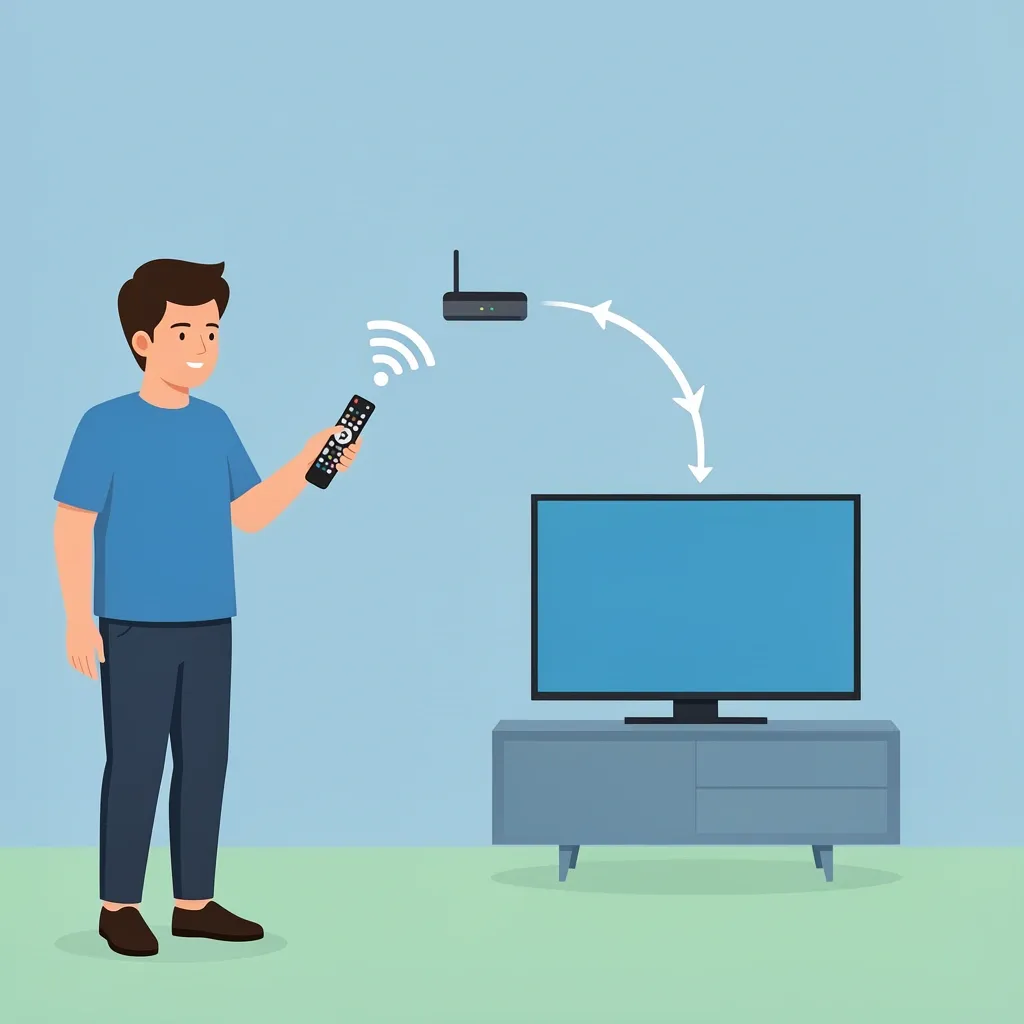
Different Vizio models behave slightly differently. The two main operating systems are SmartCast (most 2016 and later models) and the older VIA / VIA+ (before 2016). The steps in this guide work for both, but SmartCast TVs are the ones that can get stuck in the “Apps Only” mode. Also, older Vizio TVs only support the 2.4 GHz Wi‑Fi band. If your router is broadcasting on 5 GHz only, the TV will not see the network. If you run into trouble, check your router settings or separate the bands into two network names (SSIDs).
What you need before you start:
- Your Wi‑Fi network name (SSID) and password.
- A working remote (or one of the alternatives described below).
- If using a hotel or public network, read the dedicated section first.
The Standard Setup (With Remote)
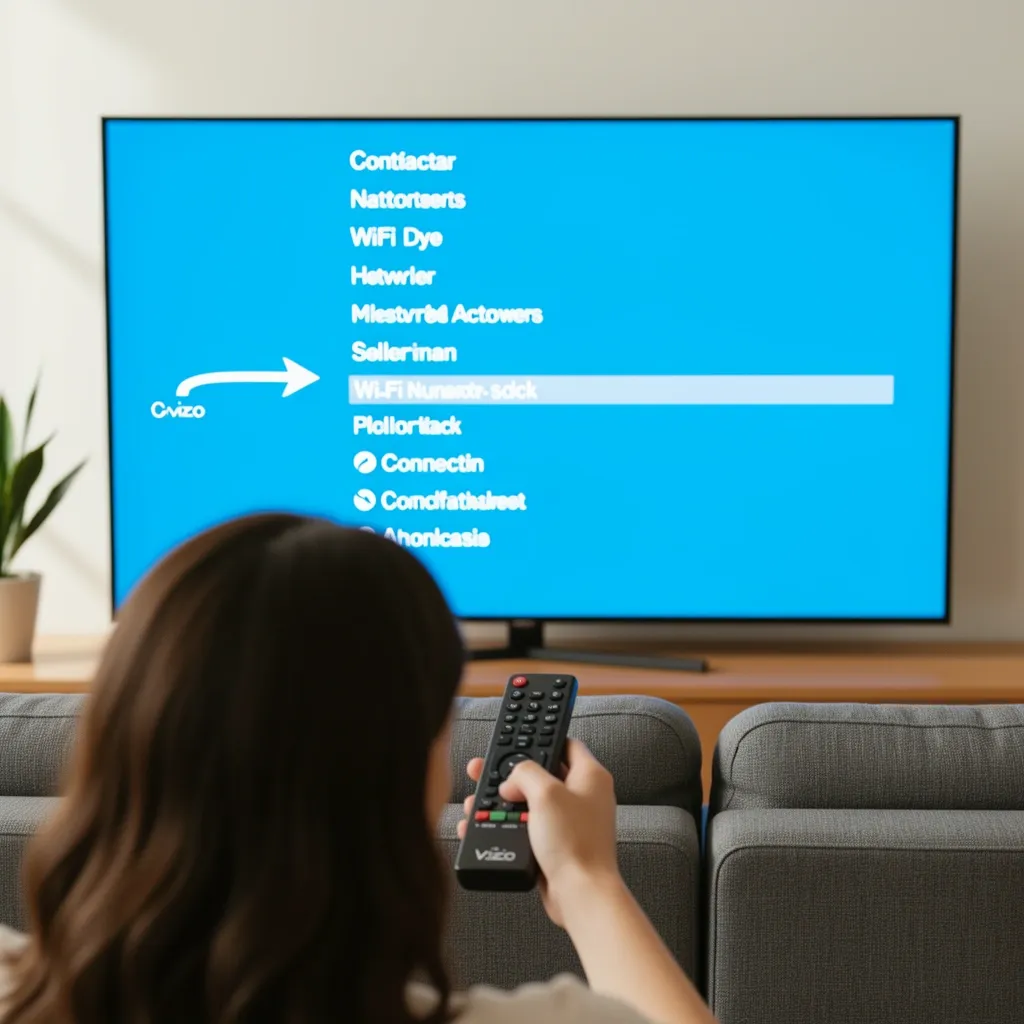
This is the fastest way when you have the original remote and your TV is not stuck in a limited mode. On most Vizio TVs, the menu is accessed through the Menu button, but on newer models it might be a gear icon or a button labeled Settings. Here are the exact steps:
- Press the Menu or Settings button on your remote.
- Select Network or Network Settings (the exact wording varies by model).
- Choose Wireless or Wi‑Fi.
- The TV will scan for nearby networks. Select your network from the list.
- Enter your Wi‑Fi password using the on‑screen keyboard. (Use the arrow keys to move, then press OK.)
- Select Connect or Done. The TV will attempt to connect. A checkmark or “Connected” message confirms success.
If you are prompted to link a Vizio account, you can skip that step and still have full internet access for apps like Netflix, YouTube, and Hulu. The account link is only required for some SmartCast extra features.
Stuck in ‘Apps Only’ Mode? Here’s the Fix
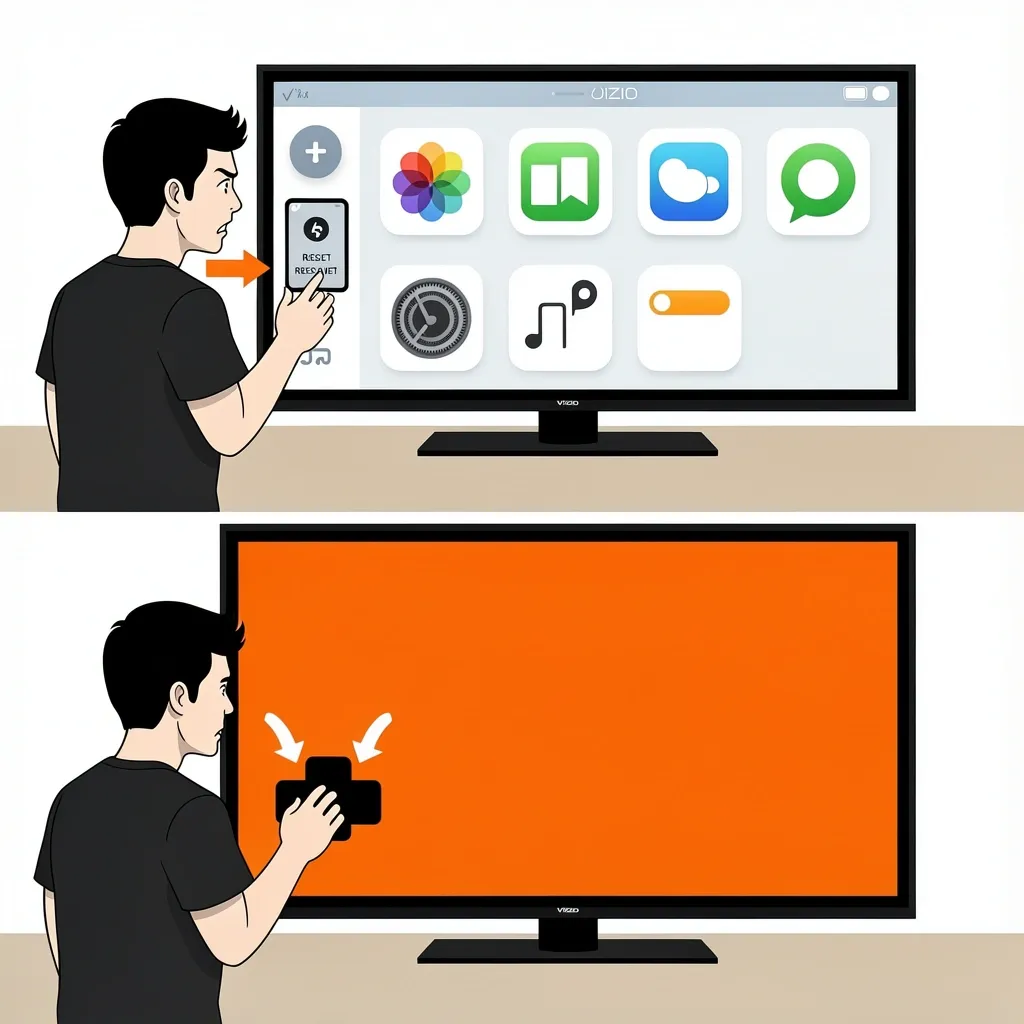
If your TV boots up and shows only a row of app icons with no way to open the full Settings menu, you are in Apps Only mode. This mode hides the regular network setup. Many users get stuck here because the TV expects you to complete the setup using the Vizio SmartCast Mobile app on your phone.
But there is a way out without using a phone. You need to clear the TV’s memory to return to the full user interface. Do this:
- Press the Menu or Settings button. If that does nothing, use the physical button on the TV (see the next section).
- Navigate to System > Reset & Admin > Clear Memory.
- When prompted, enter the factory access code. The default code is 0000. If that doesn’t work, try 1111 or 1234 (some older models use different codes).
- Confirm the reset. The TV will restart and go through the initial setup wizard. Now you can choose “Home Use” and skip the phone setup. The standard Wi‑Fi menu will appear in the usual location.
This reset does not delete your apps or your personal data – it only restores the full UI. Your Wi‑Fi information will be lost, so you will need to re‑enter it after the reset.
No Remote? Use the TV Buttons or the App
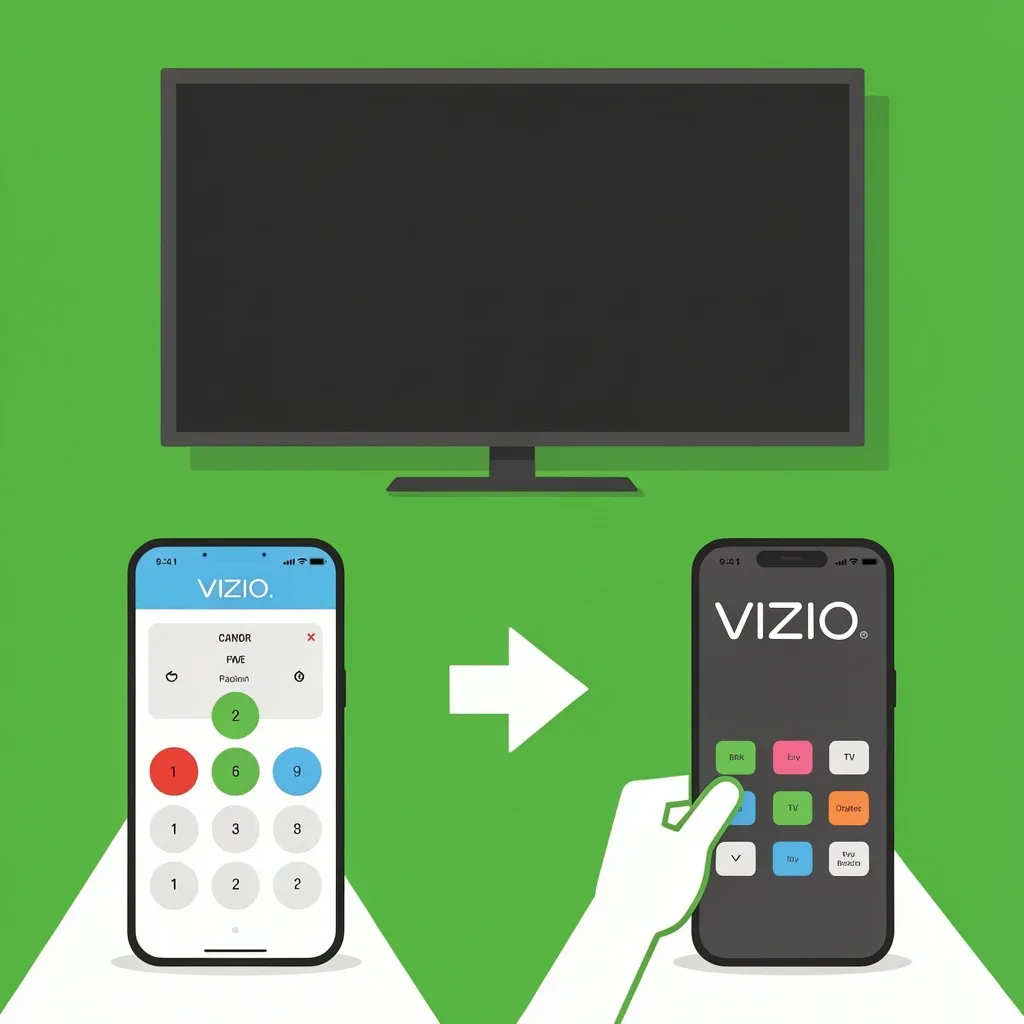
Losing the remote is the most common complaint I hear. Vizio TVs have either a small joystick on the back (usually near the lower‑right corner) or a set of physical buttons. The joystick can be pressed in to act as OK, and moved up/down/left/right to navigate. The buttons are usually labeled something like Menu, Input, Volume, and Channel – pressing the Menu button repeatedly cycles through options.
Using the physical button to navigate the on‑screen keyboard is slow but possible. To type each letter, move the cursor to the desired character and press the joystick (or the OK/Enter button) to select it.
A much better alternative is the Vizio SmartCast Mobile App (available for iOS and Android). If your phone is on the same network, the app can act as a remote. But if your TV isn’t connected to Wi‑Fi at all, the app may not find it. In that case, use the physical button method temporarily, connect the TV to your home network (or set up a mobile hotspot on your phone with the same name/password as your home network), then the app will work and you can switch back.
If your TV has no buttons and no remote, you can buy a universal remote that works with Vizio TVs. A cheap IR universal remote can be programmed using codes found online (common Vizio codes: 11756, 10885).
How to Connect to Public or Hotel Wi‑Fi That Requires Login
This is the toughest scenario. Many Vizio TVs do not have a built‑in web browser, so they cannot display the captive portal login page that hotels and coffee shops use. You need a workaround.
Method 1: MAC Address Spoofing (Advanced)
- Connect your laptop to the hotel Wi‑Fi and complete the login process.
- Find your laptop’s MAC address. On Windows, open Command Prompt and type
ipconfig /alland look for “Physical Address”. On Mac, go to System Settings > Network > Wi‑Fi > Details and look for “Wi‑Fi Address”. - On your Vizio TV, go to Settings > Network > Manual Setup or Advanced. Look for an option to change the MAC address (sometimes labeled “MAC Clone” or “Ethernet ID”). If you see it, enter the laptop’s MAC address.
- Now connect the TV to the same network. The hotel router will think it’s still your laptop and grant internet access.
Not all Vizio TVs allow MAC address cloning. If yours does not, try the next method.
Method 2: Travel Router
A travel router (like the TP‑Link TL‑WR902AC or GL.iNet models) is the easiest solution. Plug the travel router into the hotel’s Ethernet port (if available) or connect it to the hotel Wi‑Fi using its own browser‑based login. Then you set up the travel router’s own Wi‑Fi network (with a simple password). Your Vizio TV connects to the travel router as if it were a home network, and the travel router handles the hotel login for all devices.
Common Pitfalls and How to Fix Them
“Incorrect Password” message when the password is correct
Vizio TVs sometimes cache old credentials. Go to Network Settings, select your network, and choose Forget or Remove. Then scan again and re‑enter the password from scratch.
TV does not detect any Wi‑Fi networks
First, do a soft power cycle: unplug the TV from power, wait 30 seconds, and plug it back in. While it’s unplugged, hold the power button on the TV (not the remote) for 15 seconds to drain residual charge. This often clears Wi‑Fi card glitches. If still no networks appear, the Wi‑Fi hardware may have failed. Using an Ethernet cable is a reliable backup – the TV will use the wired connection for streaming and keep the Wi‑Fi radio for casting.
Wi‑Fi connection drops after a firmware update
Vizio TVs are notorious for forgetting saved networks after an update. You will see a “Network Disconnected” message. Just re‑enter the password as described in the standard setup. To avoid this in the future, note down the password or use an Ethernet cable.
Advanced Tips for a Stable Connection
2.4 GHz vs. 5 GHz Band
As mentioned, older Vizio models only support 2.4 GHz. If your router broadcasts both bands under the same SSID, the TV may connect to the wrong band and drop the connection. Log into your router’s admin page and either disable 5 GHz temporarily, or create a separate 2.4 GHz‑only network name (like “HomeWiFi_2.4”) and connect the TV to that.
Ethernet as a Primary Connection
If your TV is near the router, a simple Ethernet cable gives the most stable connection. Plug it in, go to Settings > Network > Wired, and the TV will automatically use the cable. You can still use the Wi‑Fi radio for screen casting from your phone.
Frequently Asked Questions
Why does my Vizio TV keep saying “Incorrect Password” when I just changed it?
This is usually a cached credentials issue. Go to Network Settings, forget the network, then reconnect and type the password slowly. If it still fails, restart both your TV and your router.
Can I connect my Vizio TV to Wi‑Fi using an Ethernet cable as a backup?
Yes. Plug the cable in, and the TV will use the wired connection for internet. The Wi‑Fi radio remains available for casting from your phone. This is actually a very stable setup.
What is the “Vizio TV Account” link during setup?
It is an optional account for SmartCast features like app store and cloud‑based recommendations. You do not need it to connect to Wi‑Fi or to use apps like Netflix, YouTube, or Amazon Prime. You can skip that step.
My Vizio TV won’t detect any networks. Is the Wi‑Fi card dead?
Before assuming hardware failure, try a power cycle (unplug for 30 seconds while holding the power button on the TV). Also check that your router is broadcasting a 2.4 GHz signal. If the TV still sees nothing after a factory reset, the Wi‑Fi module may be faulty. Using an Ethernet cable is the easiest permanent workaround.
Can I use a keyboard to enter the Wi‑Fi password?
Some Vizio TVs support a USB keyboard plugged into the USB port. If yours does, you can type the password much faster. Not all models support it, but it is worth trying.