How to Put Your Vizio Soundbar in Pairing Mode — Complete Guide for Every Model
You pressed buttons, held them down, and nothing happened. The soundbar just sits there blinking slowly, refusing to show up on your phone or TV. I have been there. The problem is that Vizio makes several different soundbar designs, and each one enters pairing mode a little differently. This guide will help you identify which version you own, get it into pairing mode fast, and fix the most common reasons it won't connect. No model number lookup required — just look at your soundbar and follow the section that matches.
Identify Your Soundbar's Design to Find the Right Method
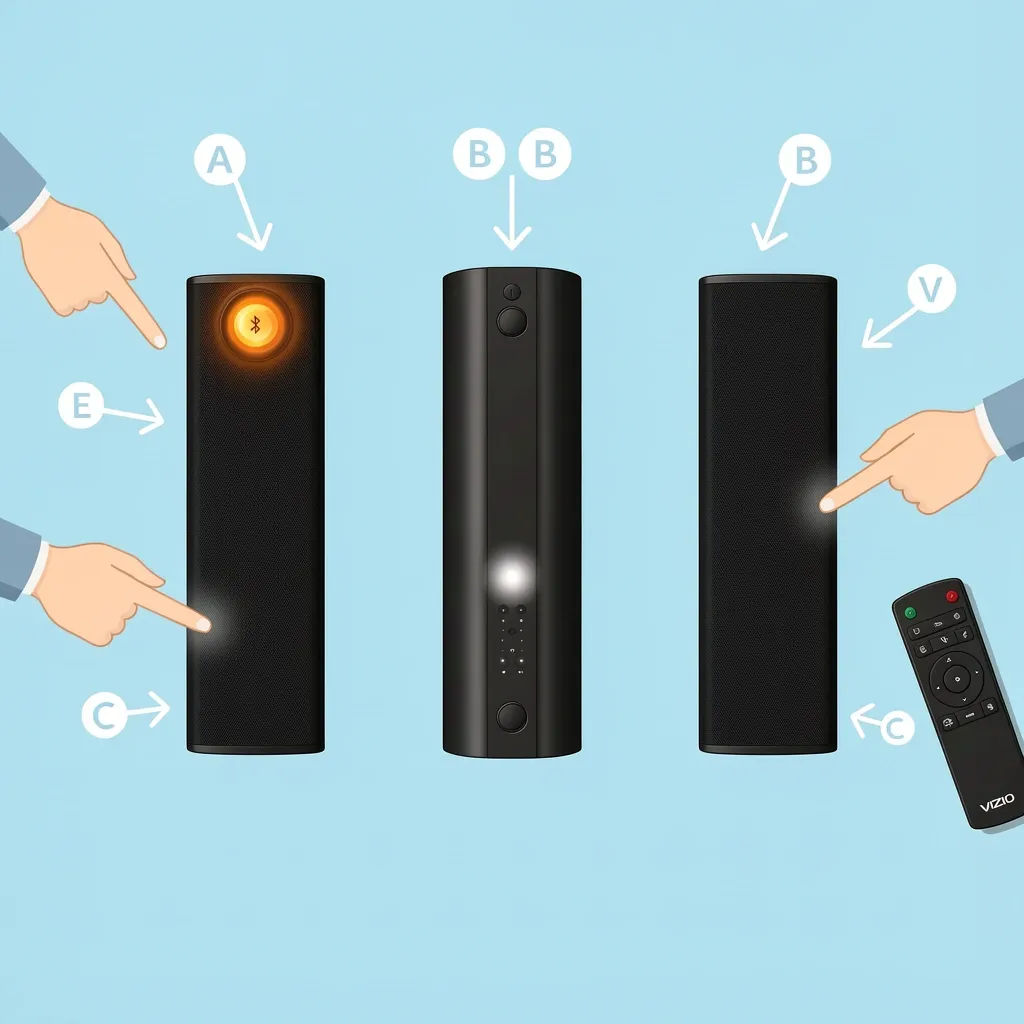
Before you try anything, look at your soundbar. The location of the buttons tells you which method to use. Use this quick table to find your match:
| Button location | Method to use | Typical LED color in pairing mode |
|---|---|---|
| Top of soundbar, visible Bluetooth icon | Method A | Amber, fast flash |
| Rear panel, small buttons | Method B | White, fast flash |
| No Bluetooth button on soundbar at all | Method C | Depends on remote model |
If your soundbar has a clearly marked Bluetooth button on top, start with Method A. If the buttons are only on the back, use Method B. When there is no Bluetooth button anywhere on the soundbar body, you must use the remote — that is Method C.
Method A — Bluetooth Button on the Soundbar
Step-by-Step Process
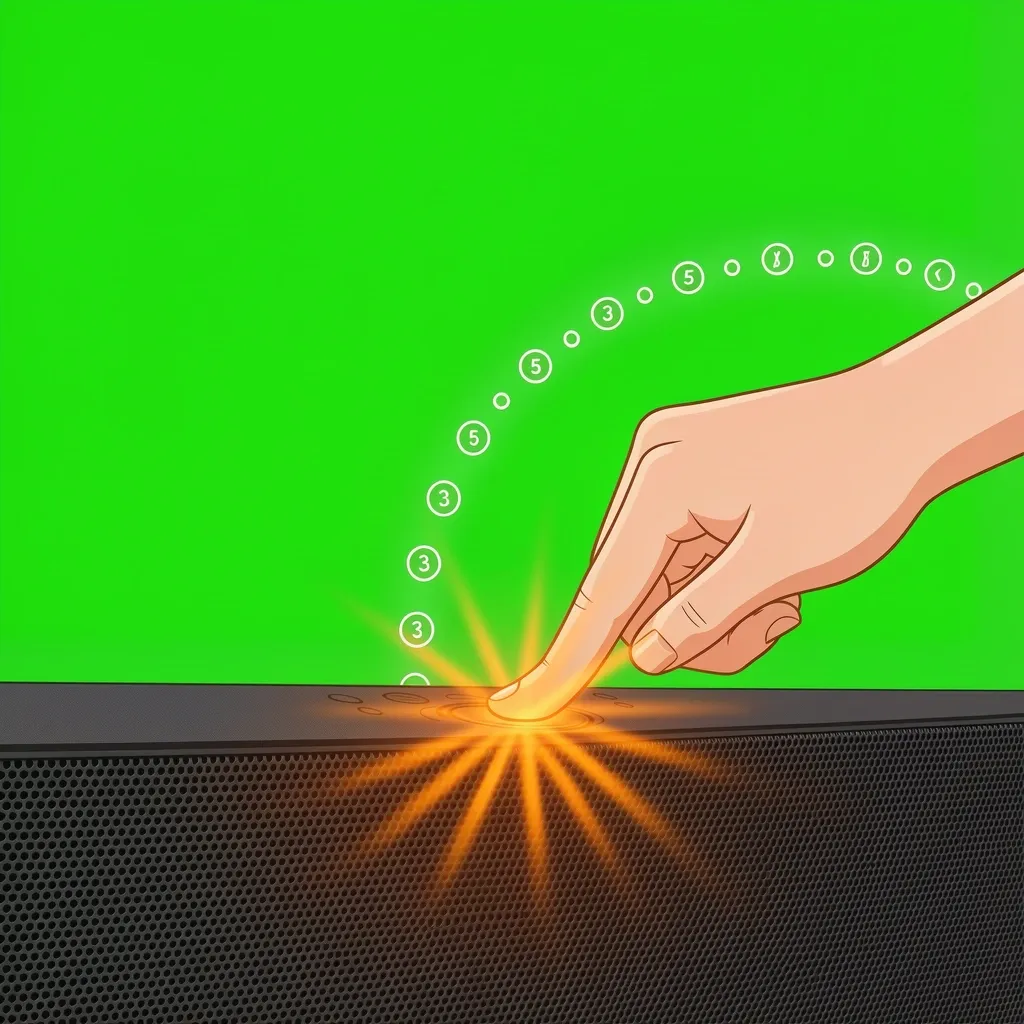
- Make sure the soundbar is powered on. The LED should be solid or breathing, not off.
- Locate the Bluetooth button on the top panel. It usually has a small Bluetooth symbol (the sideways trident).
- Press and hold that button for 3 to 5 seconds. Do not release early.
- Watch the LED. It should switch to a rapid amber blink. That blink means the soundbar is now discoverable.
On some newer models, the LED changes to a fast white blink instead. Either color is fine as long as it blinks quickly. Slow, steady blinking means the soundbar is still in its normal powered-on state.
What to Do When the Button Doesn't Respond
If holding the button does nothing, the button might be blocked by a plastic protective film or dent. Run your finger across the entire top surface — some Vizio soundbars hide the Bluetooth button inside a recessed groove. Also try holding the button for a full 10 seconds before giving up. Certain models require a longer press the first time Bluetooth is used after a factory reset.
Method B — Rear Panel Button Sequence
Power and Input Sequence
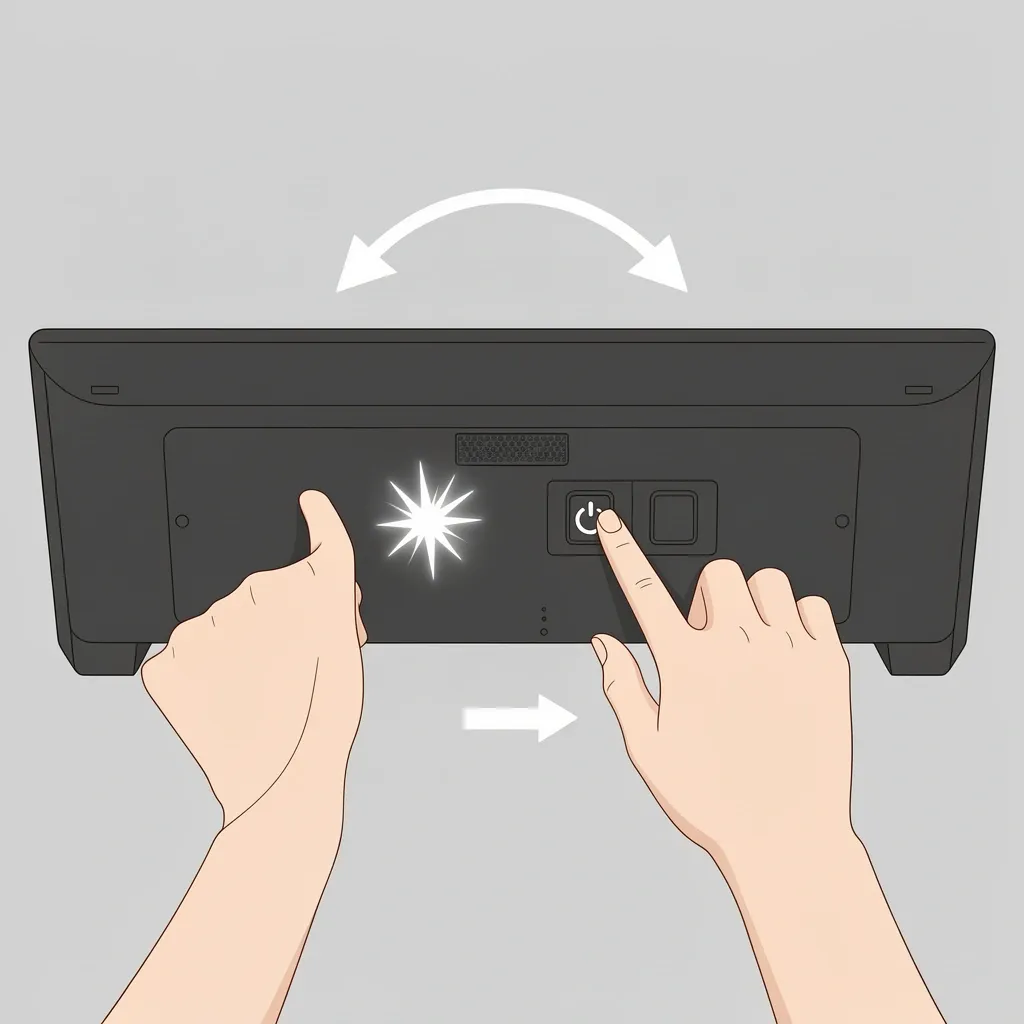
- Turn off the soundbar with the power button on the rear panel (or unplug it for 10 seconds, then plug it back in).
- Locate the Bluetooth button on the rear. It is usually near the optical and HDMI ports.
- Press and hold the power button for 2 seconds, then immediately press and hold the Bluetooth button for another 5 seconds. This two-step sequence wakes up the Bluetooth radio on rear‑panel models.
- The LED on the front will start flashing white quickly. That is your success signal.
LED Language for Rear Panel Models
Rear‑panel models almost always use white LED for pairing. If you see amber, check that you are not pressing the Input button by mistake. A slow white blink (once every 3 seconds) means the soundbar is on but not in pairing mode. Fast white blink (twice per second) means pairing mode is active.
Method C — Remote Control Only Pairing
Some Vizio soundbars have no Bluetooth button on the soundbar at all. The only way to enter pairing mode is through the remote. This includes many older models and some budget V‑Series bars.
Finding the Correct Remote Button
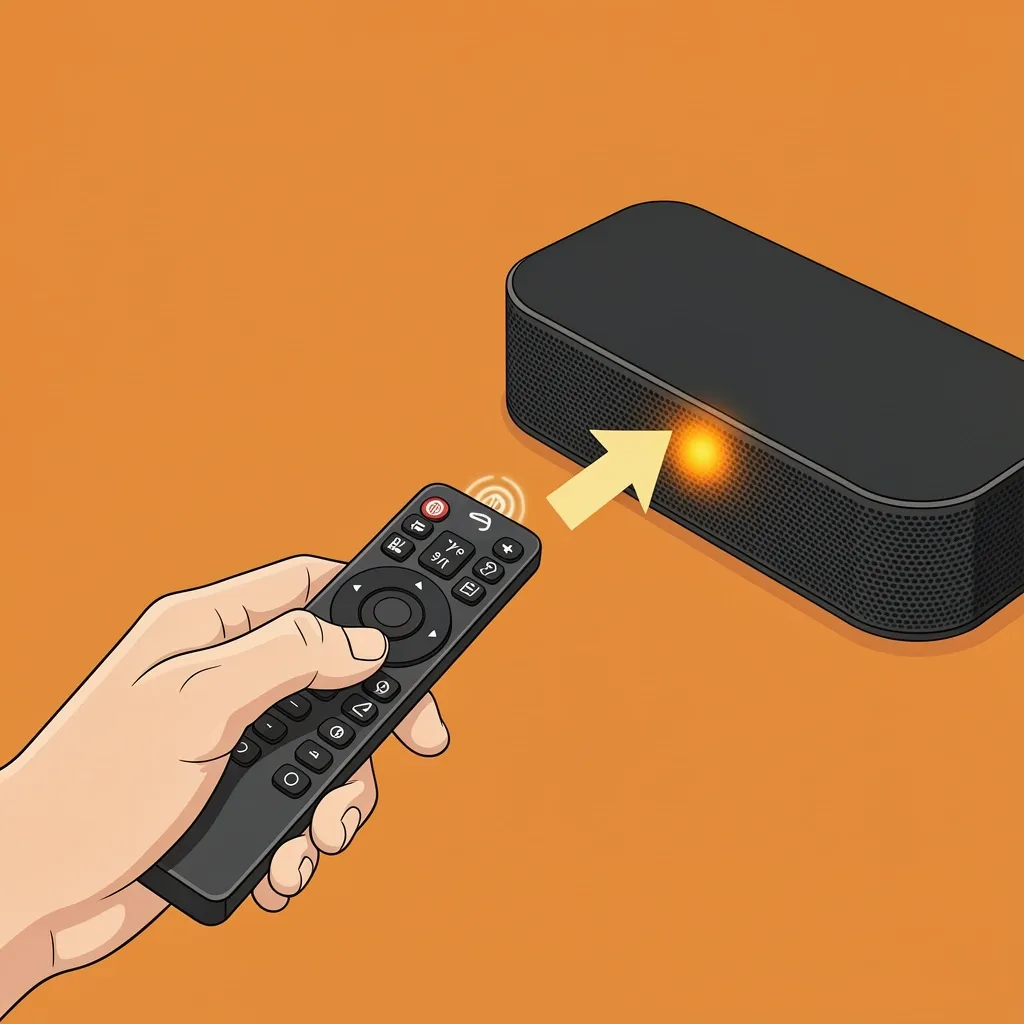
- Look for a button labeled Bluetooth or BT on the remote. It might be a small button near the top or bottom.
- Press and hold that button for 3 seconds. The soundbar LED should start blinking amber or white.
- If you cannot find a Bluetooth button, look for an Input button. Press it repeatedly until the display or LED shows "BT" or "Bluetooth." On some remotes, you hold the Input button for 5 seconds to jump directly to Bluetooth mode.
The Remote Battery Problem and Other Failures
If the remote does nothing, check the batteries first. A weak battery can send a signal but not strong enough to trigger pairing. Replace them with fresh ones. Also, point the remote directly at the soundbar's IR receiver (usually a small dark window near the LED). If the remote uses IR instead of RF, line‑of‑sight matters.
How to Enter Pairing Mode Without a Remote
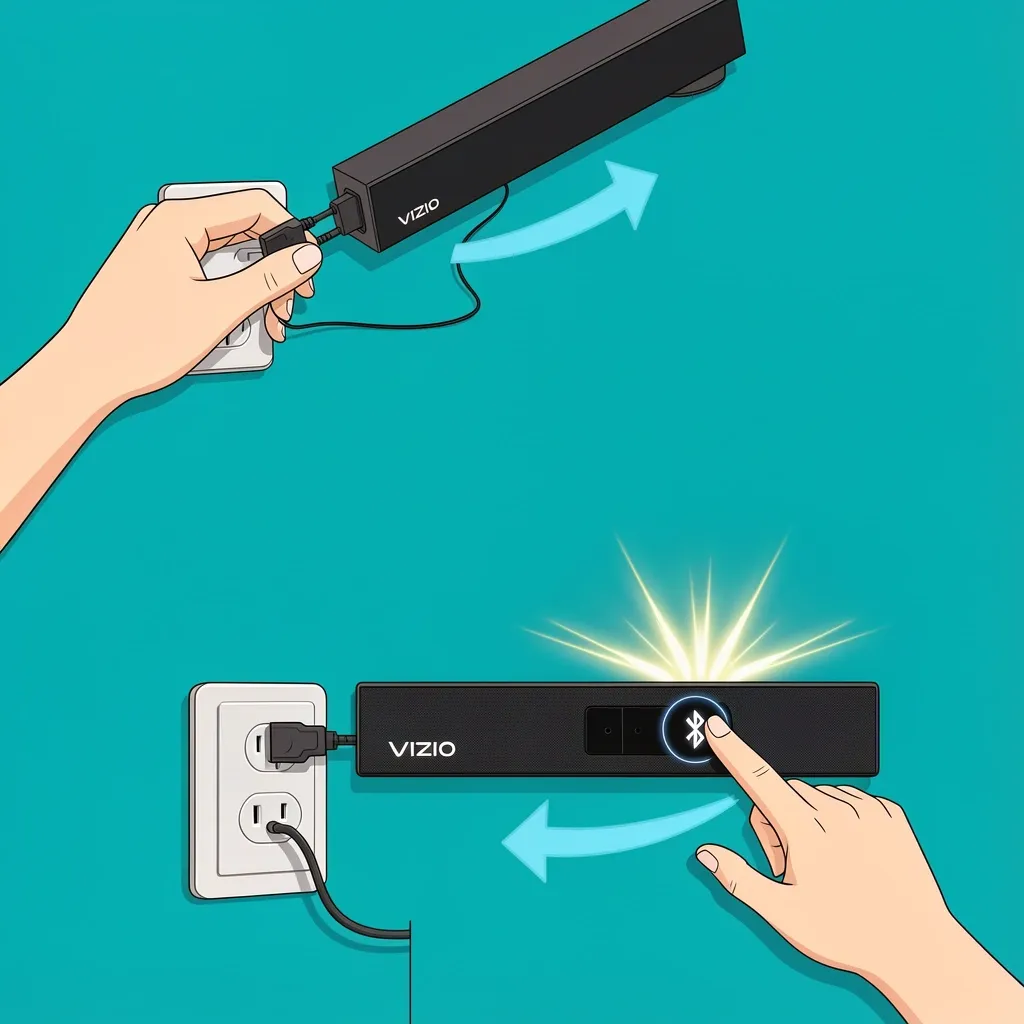
Losing the remote does not mean you are stuck. Vizio soundbars have a physical override that works on almost all models.
- Unplug the soundbar from power.
- Wait 30 seconds.
- Plug it back in.
- Immediately press and hold the Bluetooth button on the soundbar body for a full 10 seconds.
- Release when the LED starts flashing rapidly.
If your model only has an Input button and no Bluetooth button, try this: after plugging in, press and hold the Input button for 10 seconds. On some Vizio soundbars, holding Input during startup forces it into Bluetooth pairing mode.
If neither works, a factory reset is your last resort. To factory reset without a remote: unplug the soundbar, press and hold the Volume Down button (on the soundbar), then plug it back in while still holding. Hold for 15 seconds. The LED will flash white three times, and all paired devices are cleared. After reset, the soundbar automatically enters pairing mode for the next 2 minutes.
Connecting Your Paired Soundbar to a Device
Getting the soundbar into pairing mode is only half the job. Now you need to finish the connection on your phone or TV.
Connecting to a Smart TV
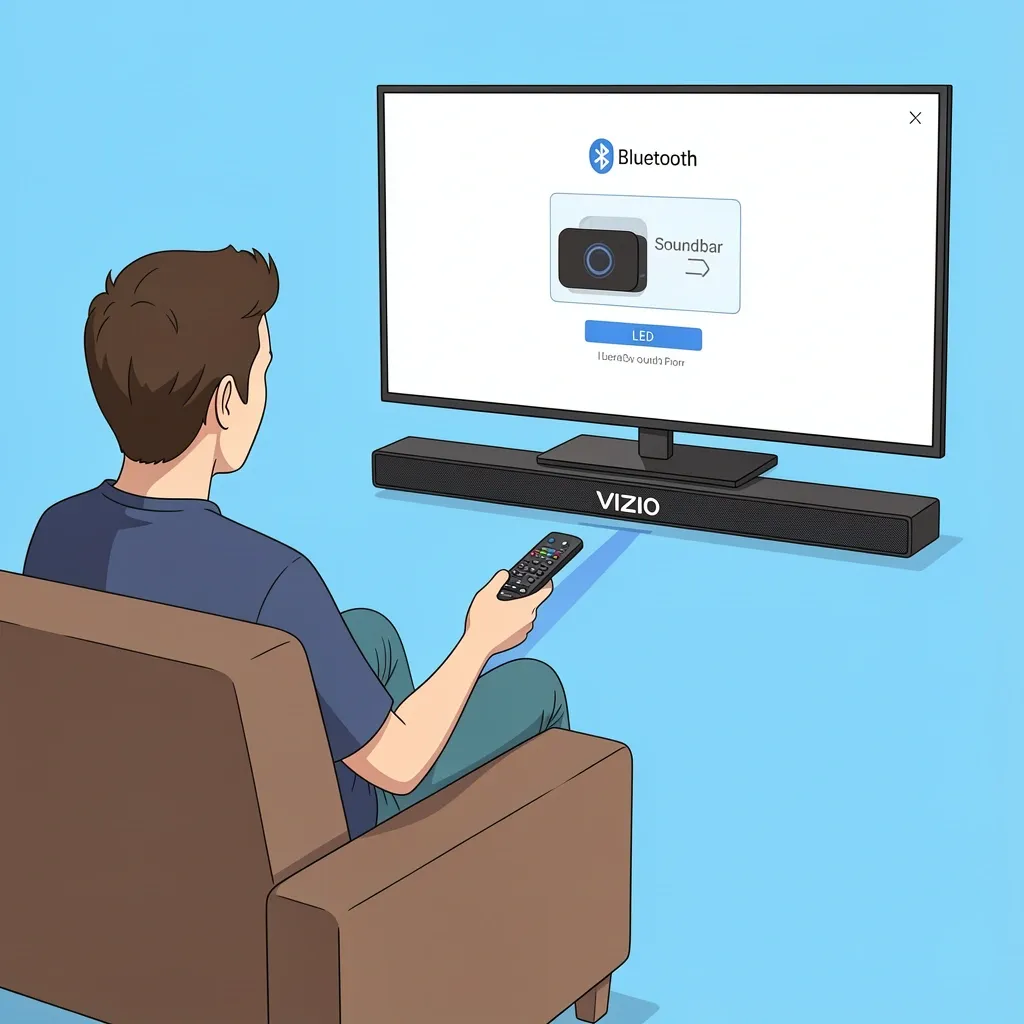
On a Roku TV: go to Settings > Remotes & Devices > Bluetooth > Add new device. Wait for the soundbar to appear in the list, then select it.
On a Fire TV: go to Settings > Controllers & Bluetooth Devices > Other Bluetooth Devices. The soundbar should appear under "Available Devices."
On an Android TV: go to Settings > Remote & Accessories > Pair accessory. Select the soundbar.
Connecting to a Streaming Device
Apple TV: go to Settings > Remote and Devices > Bluetooth. Wait for the soundbar to show up, then select it.
Chromecast with Google TV: go to Settings > Remotes & Accessories > Pair remote or accessory. Choose the soundbar.
Connecting via Bluetooth Directly from Your Phone
Open your phone's Bluetooth settings. Make sure Bluetooth is on. Under "Available Devices," look for "Vizio" followed by letters or numbers (like Vizio SB3621). Tap it. The soundbar will make a short chime or its LED will turn solid, confirming the connection.
If you see the soundbar listed under "Previously Paired" but it won't connect, tap the gear icon next to it and choose "Forget This Device." Then try pairing again from scratch.
Why Your Vizio Soundbar Won't Enter Pairing Mode
If you followed the correct method but the soundbar refuses to enter pairing mode, the problem is usually something else entirely.
The Most Common Cause — An Active Wired Connection
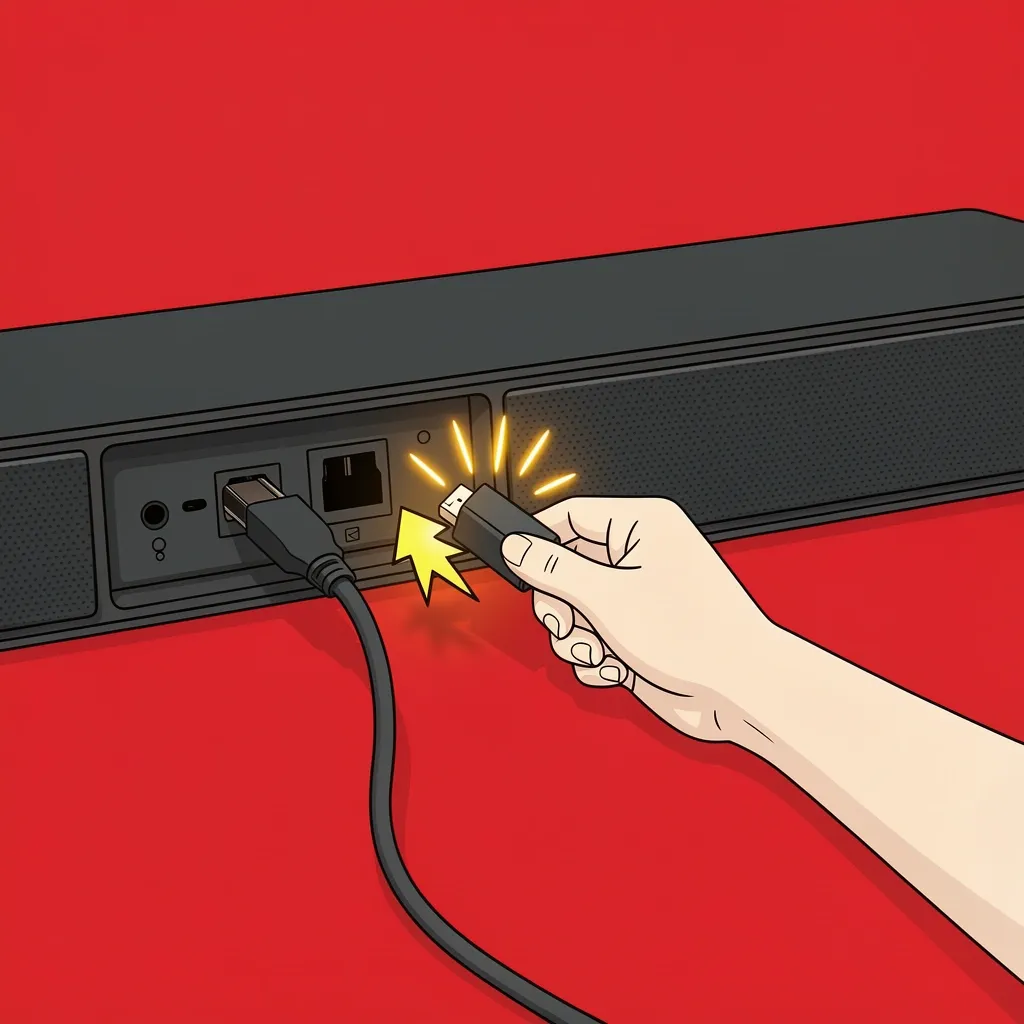
Vizio soundbars prioritize HDMI ARC, optical, and auxiliary connections over Bluetooth. If the soundbar detects any wired audio signal, it may ignore the Bluetooth button entirely. Unplug the HDMI cable or optical cable from the soundbar. Wait 30 seconds. Then try the pairing button again. This alone fixes about 40% of "won't pair" cases.
Previously Paired Devices Blocking New Pairing
Your soundbar remembers up to 8 paired devices. If that list is full, it refuses to enter pairing mode. Clear the list by pressing and holding the Bluetooth button for 10 seconds while the soundbar is on. The LED will flash three times to confirm all devices are erased. Then press the Bluetooth button briefly to re‑enter pairing mode.
Faulty Hardware Signals
If the LED does not light up at all when you press any button, the soundbar might have a power supply issue or a damaged button. Plug it into a different outlet. Try a different power cable if you have one. If the LED stays completely dark, the soundbar may need repair.
Pairing a Subwoofer to Your Vizio Soundbar
Many people confuse pairing a Bluetooth device (like a phone) with pairing a wireless subwoofer. They use completely different methods.
The Subwoofer Button and Its Location
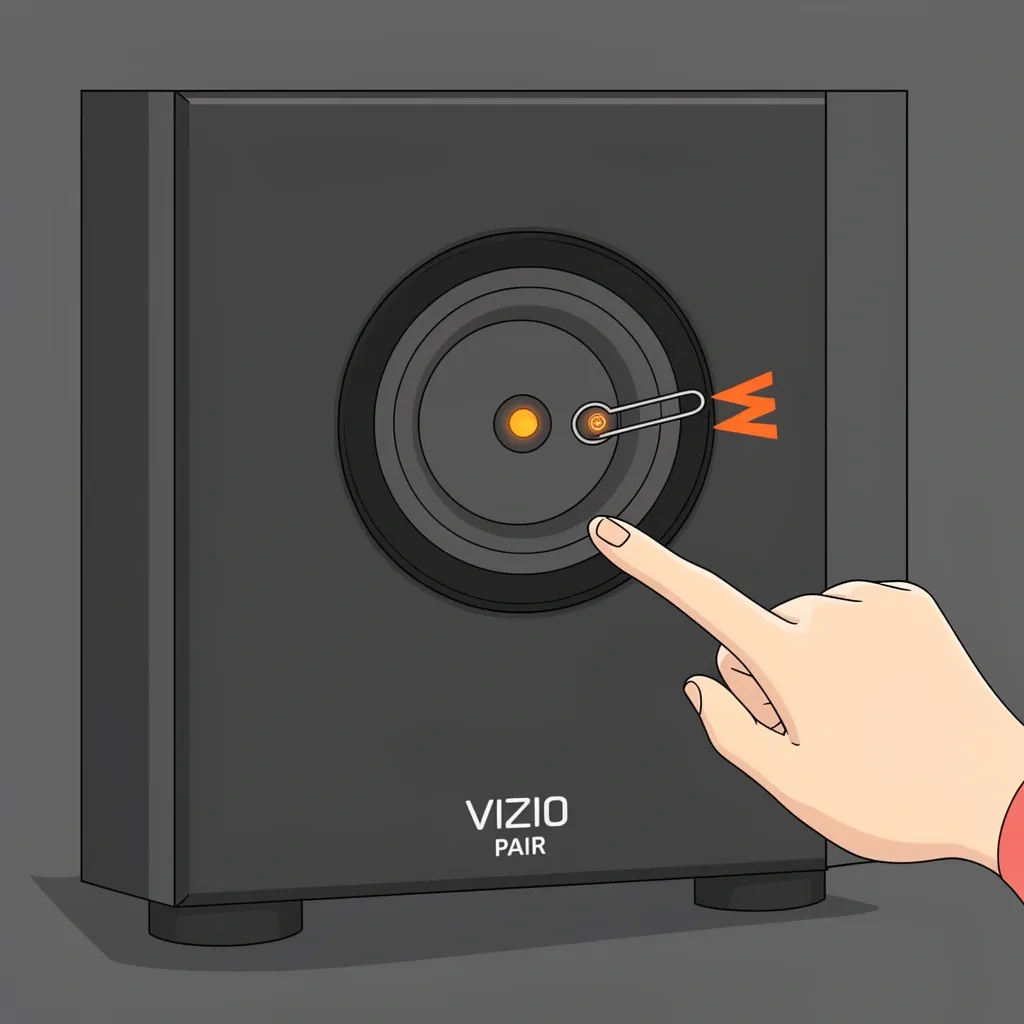
On the back of the subwoofer, look for a small button labeled Pair or Connect. It is usually recessed — you might need a paperclip to press it. On some models, the button is on the bottom of the subwoofer.
What the LED Colors Mean for Subwoofer Pairing
| LED color on subwoofer | Meaning |
|---|---|
| Solid green | Paired and working |
| Blinking amber | Searching for soundbar |
| Blinking red | Pairing failed or out of range |
| No light | No power (check power cord) |
When the Subwoofer Won't Reconnect After Moving
If you moved the soundbar or subwoofer to a different room, the automatic pairing might break. Press the Pair button on the subwoofer once. Then on the soundbar, press and hold the Bluetooth button for 5 seconds. Wait up to 30 seconds for the subwoofer LED to turn solid green.
Maintaining and Re-Pairing Your Vizio Soundbar
Keeping your soundbar in good working order means fewer pairing headaches down the road.
How to Clear All Paired Bluetooth Devices
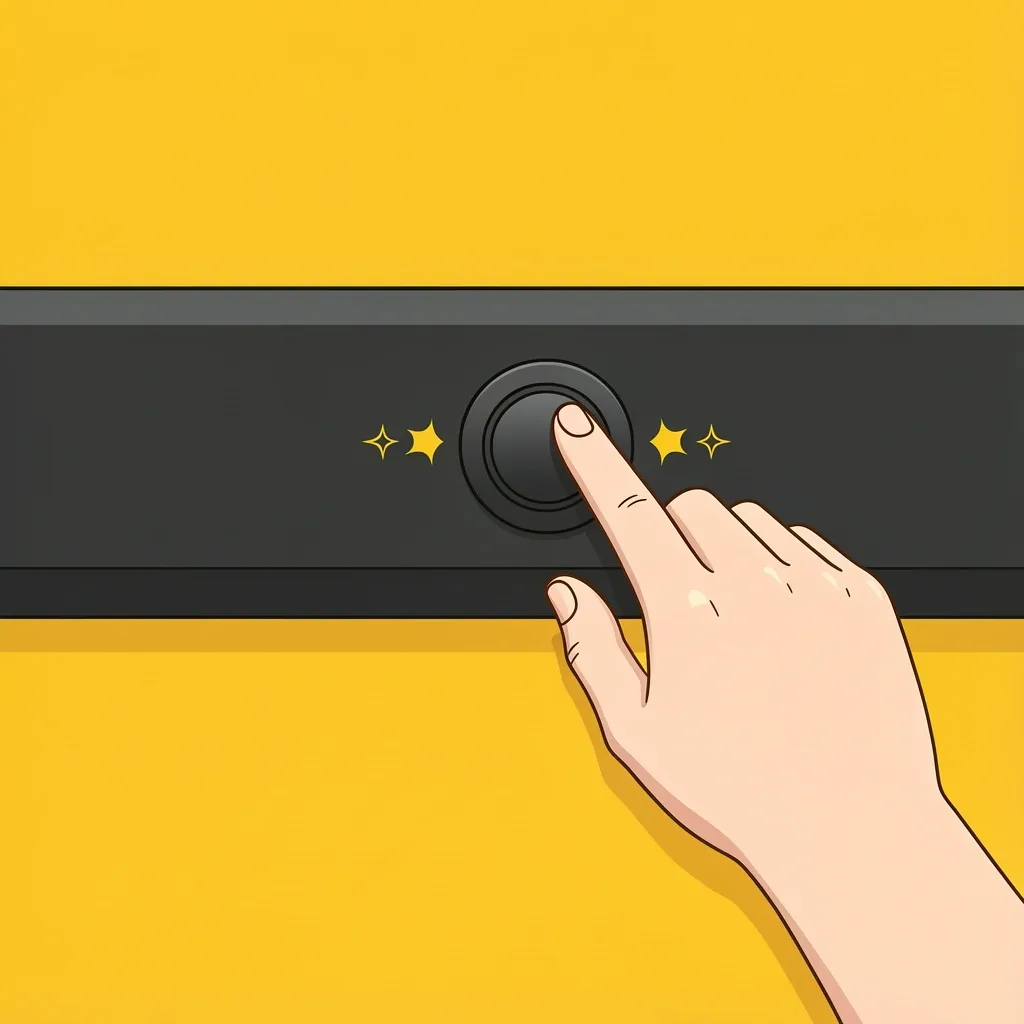
Press and hold the Bluetooth button on the soundbar for 10 seconds until the LED flashes three times. That is it — all devices are forgotten. The soundbar stays in pairing mode for the next 2 minutes, so you can connect a new device immediately.
Factory Resetting Your Soundbar Without a Remote
Unplug the soundbar. Press and hold the Volume Down and Input buttons together (on the soundbar body). Plug the power back in while still holding both buttons. Keep holding for 15 seconds. The LED will flash white three times, then the soundbar reboots. This clears everything, including firmware glitches that prevent pairing.
When to Update Your Soundbar's Firmware
Outdated firmware sometimes breaks Bluetooth functionality. Download the Vizio SmartCast app on your phone. Open it and connect to your soundbar using Wi‑Fi (not Bluetooth). The app will prompt you if a firmware update is available. If your soundbar does not support Wi‑Fi, check the Vizio support website for a USB update file that you load via a thumb drive.
Frequently Asked Questions
Why does my Vizio soundbar stay in pairing mode but never connect?
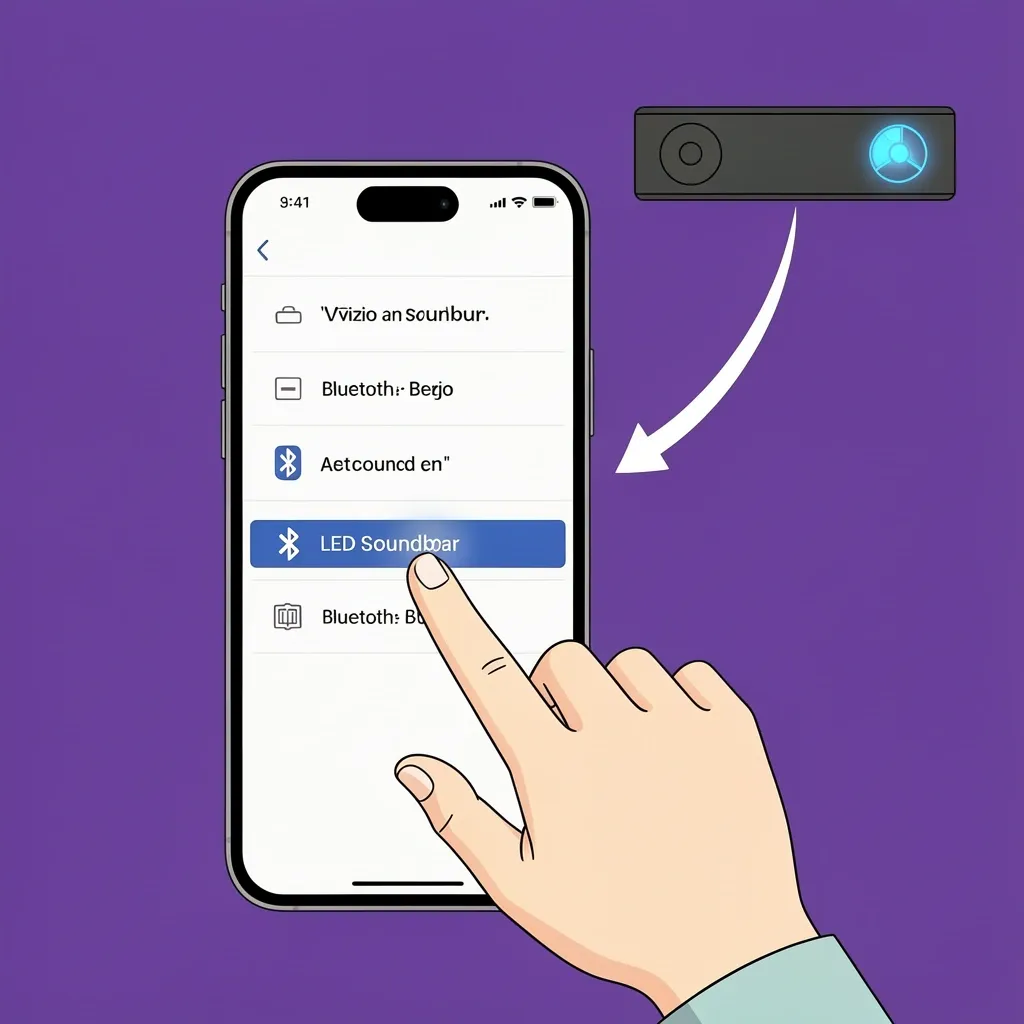
Your phone or TV might be set to a different audio output. Go into your device's Bluetooth settings and make sure you actually select the soundbar from the list. Also, check that no other device is actively connected to the soundbar — it can only talk to one Bluetooth source at a time.
Can I pair my Vizio soundbar to two devices at once?
No. Vizio soundbars support only one active Bluetooth connection. You can have multiple devices stored in memory, but only one can play audio at a time.
Why does my soundbar unpair every time I turn my TV off?
Some TVs automatically forget Bluetooth speakers when they power down to save battery. This is a TV setting, not a soundbar problem. On many smart TVs, you can disable "Bluetooth auto‑off" in the sound settings. On a Roku TV, go to Settings > System > Power and uncheck "Turn off Bluetooth when TV is off."
How do I know if my Vizio soundbar is actually in pairing mode or just powered on?
A powered‑on soundbar shows a steady LED (solid or slow breathing). Pairing mode makes the LED flash rapidly — about twice per second. If the LED is off or pulsing slowly, you are not in pairing mode.
What does a slow flashing LED mean compared to a rapid flashing LED?
Slow flashing (once every 3 seconds) usually means the soundbar is on but idle, or that it is trying to reconnect to a previously paired device. Rapid flashing (twice per second or faster) means it is actively searching for a new device to pair with.
Does unplugging my soundbar reset the pairing mode?
Only temporarily. Unplugging and plugging back in does not clear the list of paired devices. It may cause the soundbar to automatically reconnect to the last paired device instead of entering pairing mode. To force pairing after a power cycle, press the Bluetooth button within 30 seconds of plugging it in.