How to Turn On a Vizio TV Without Remote: 5 Reliable Methods
You lost your remote, or the batteries died, and your Vizio TV is sitting there dark. You need it on, and you need a solution that works right now. The good news is that you have several options. You can use the physical button on the TV, the Vizio Mobile App (if you set it up earlier), a voice assistant like Alexa or Google Assistant, or even a connected game console or streaming stick. Below, I walk through each method step by step, starting with the most direct one. I also cover what to do when nothing seems to work, so you won't have to click away to another page.
Using the Physical Power Button on Your Vizio TV
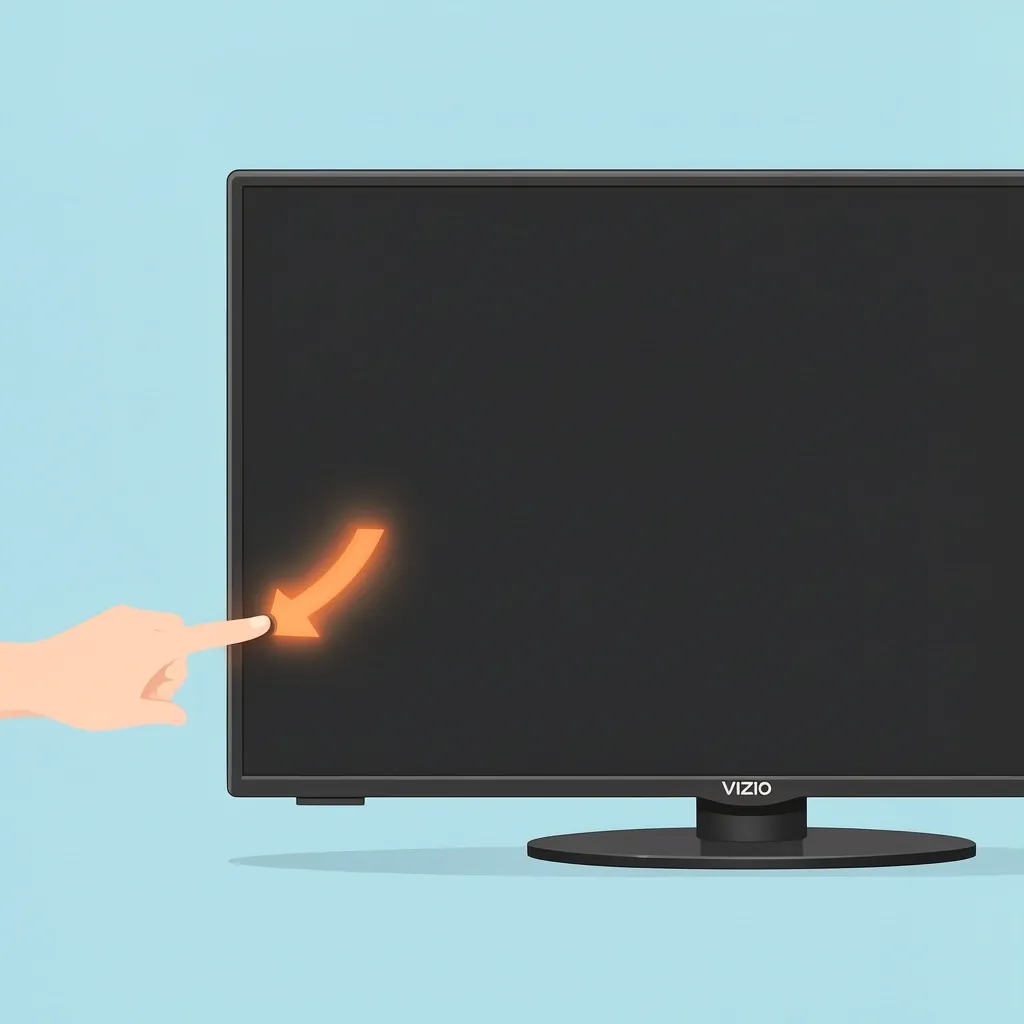
The most straightforward way to turn on any Vizio TV without a remote is to press the power button on the TV itself. But finding that button can be tricky because Vizio puts it in different places depending on the model. Most Vizio TVs have one of two button types:
- A separate power rocker – a small physical button that says "Power" or has a power icon.
- A single joystick-style button – a small nub that you push in to turn on, and you can also tilt it up/down/left/right to control volume and input.
The button is almost always on the back of the TV, usually on the lower left side (when looking at the screen from the front). On older models, it might be on the bottom edge near the right side. If you have a newer smart TV, check the bottom edge in the center or slightly to the left. For quick reference, here is a guide by model year:
| Model Year Range | Button Location | Button Type |
|---|---|---|
| 2015 and older | Back panel, lower left | Separate rocker (power on/off) |
| 2016 – 2019 | Back panel, near lower right | Joystick or multi-function button |
| 2020 – present | Bottom edge, left of center | Joystick (push to turn on) |
To turn the TV on, simply push the button once. If it is a joystick, press it straight in – do not tilt. You should feel a click and see the logo light up.
Turning On Your Vizio TV With the Vizio Mobile App
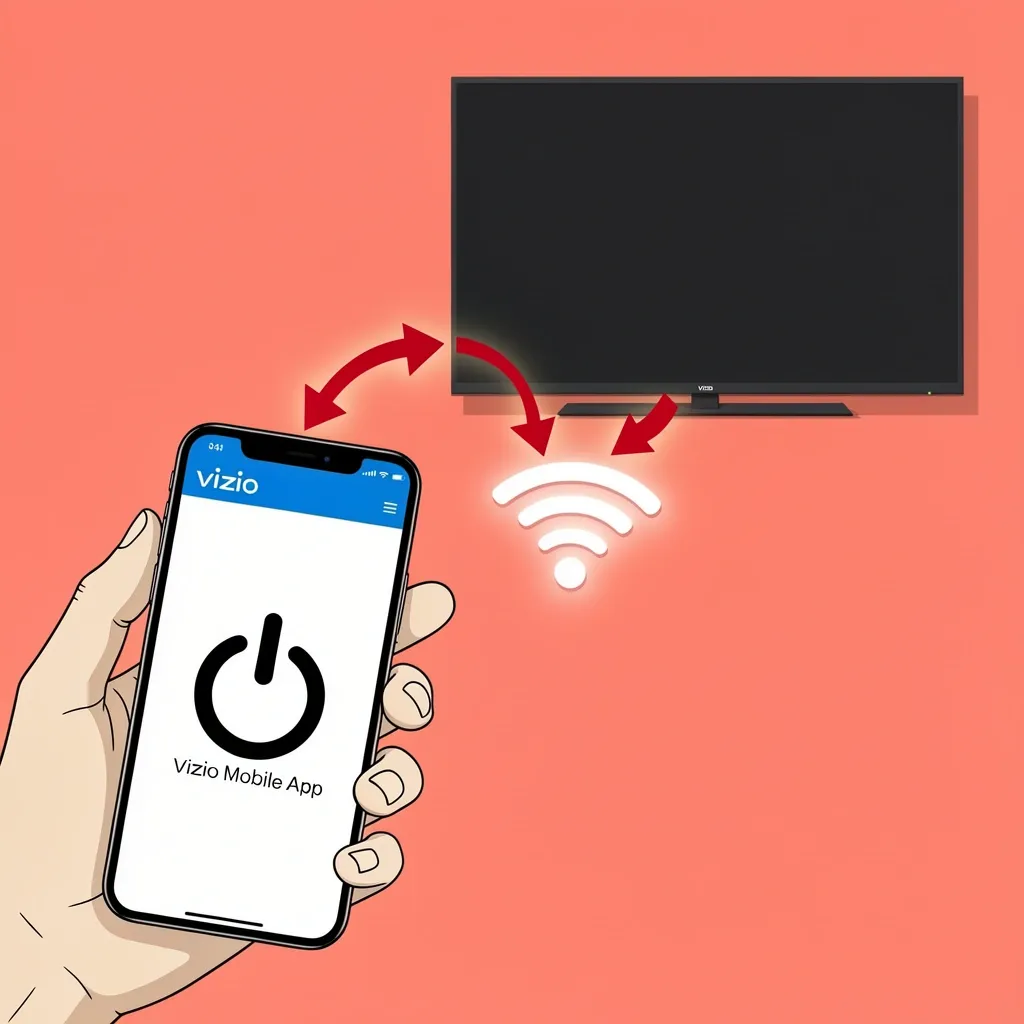
If you have a smartphone and you already connected your TV to Wi‑Fi at least once, the Vizio Mobile App can turn it on remotely. This only works if the TV is on standby (plugged in and not completely disconnected from power) and both devices are on the same Wi‑Fi network.
- Download the Vizio Mobile App from the Apple App Store or Google Play Store.
- Open the app and sign in to your Vizio account. If you haven't created one, you can do it inside the app.
- Tap the device selector icon (usually a TV icon at the top).
- Select your Vizio TV from the list. If it does not show up, make sure the TV is on the same network and that Bluetooth is enabled on your phone.
- Once connected, you will see a power icon. Tap it to turn on the TV.
Important: If your TV shows as "offline" in the app, you need to use the physical button first to wake it up. The app cannot wake a TV that is completely powered down – only a remote or the physical button can do that.
Powering On Using Voice Assistants
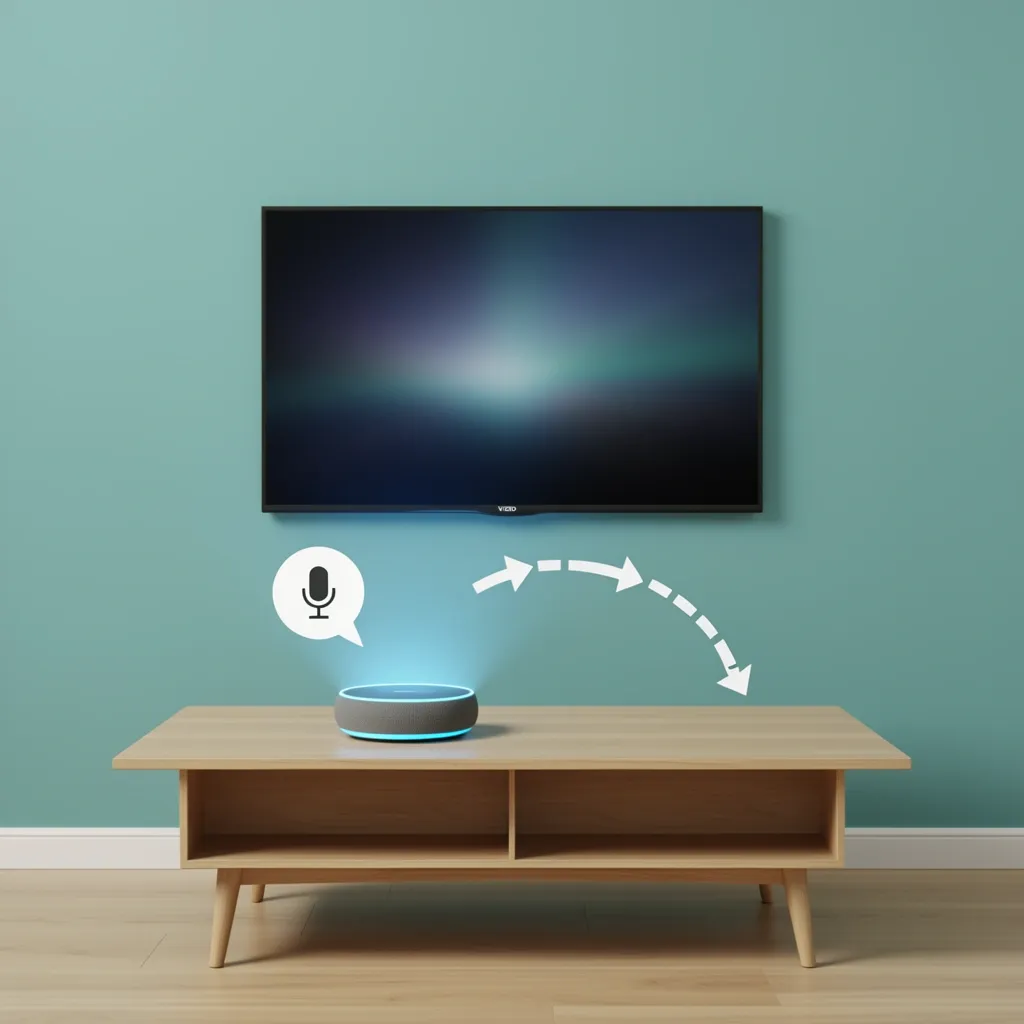
If you use Amazon Alexa or Google Assistant and you previously linked your Vizio TV to your account (through the Vizio Mobile App), you can turn it on with a voice command. This method also requires the TV to be in standby mode with a stable Wi‑Fi connection.
For Alexa, say "Alexa, turn on [TV name]". For Google Assistant, say "Hey Google, turn on [TV name]". The TV name is whatever you set in the Vizio app. Be aware that if the TV is physically unplugged or the power strip is off, voice commands will not work. The TV must be plugged in and on standby.
To set this up for the first time, you need to go to the Account tab in the Vizio Mobile App and follow the instructions for your voice assistant.
Turning On via HDMI-CEC From a Connected Device
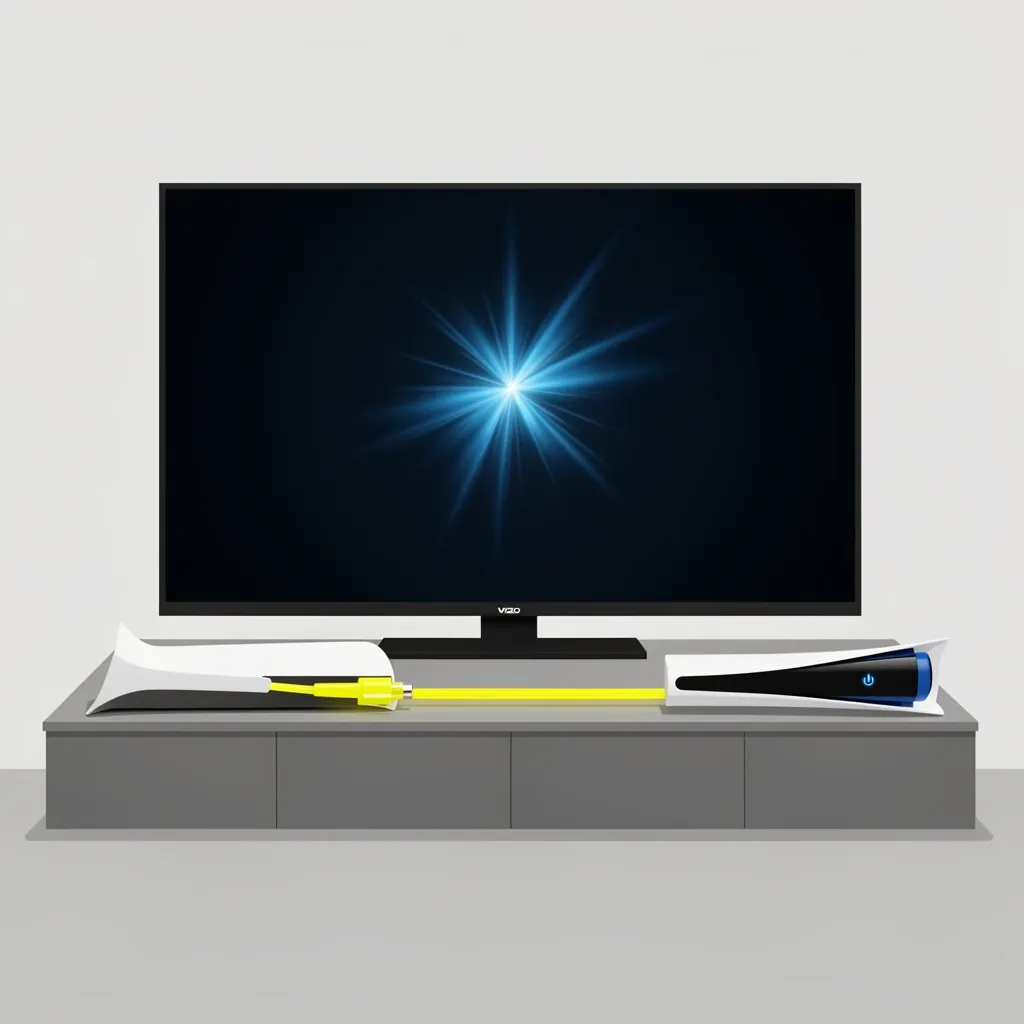
This is a hidden but very handy method if you have a game console, streaming stick, or Blu‑ray player connected to your Vizio TV via HDMI. HDMI‑CEC (Consumer Electronics Control) lets one device send a power‑on signal to another over the HDMI cable. You need to have CEC enabled in your TV's settings before you lost the remote – it is usually turned on by default on modern Vizio TVs. The feature might be called "CEC," "HDMI Control," or "Device Link" in the TV menu.
If CEC is active, simply turn on the connected device (for example, your PlayStation 5 or Fire TV Stick). The TV will detect the signal and switch on automatically after a few seconds. This method works even if the TV is on standby and you cannot find the physical button.
Note: If you never enabled CEC before losing the remote, this method will not work because the TV is not listening for the command. In that case, you must first use the physical button to turn on the TV, then navigate to settings to enable CEC for future use.
What to Do When Nothing Works
Sometimes none of the above methods work – maybe the physical button is broken, the app cannot connect, or there is no voice assistant. Before you give up, try these troubleshooting steps in order:
- Power cycle the TV. Unplug it from the wall outlet, wait 60 seconds, and plug it back in. Many Vizio TVs automatically turn on when power is restored (they go to standby, then you can use the physical button or app).
- Check the power cord. Make sure it is securely connected to both the TV and the outlet. Try a different outlet or a power strip that you know works.
- Inspect the physical button. Sometimes dust or a stuck object can prevent the button from pressing. Use a flashlight to look at the button area. If the button feels stuck, gently wiggle it with a toothpick (do not force it).
- Try a universal remote. Even without programming, many universal remotes have a default power code for Vizio. If you have one, point it at the TV and press the power button. If the TV does not respond, you may need to enter the correct code (available online).
- Factory reset via button combination. Some Vizio models have a hidden reset that uses the physical button. For example, on some models, hold down the "Volume Down" and "Input" buttons together for 10 seconds while the TV is off. This is model-specific. If you cannot find the combination, contact Vizio support.
If none of these steps work, the TV may have a hardware issue – like a failed power supply or a dead button board. Contact Vizio support or a repair technician.
Identifying and Using Vizio's Joystick Control
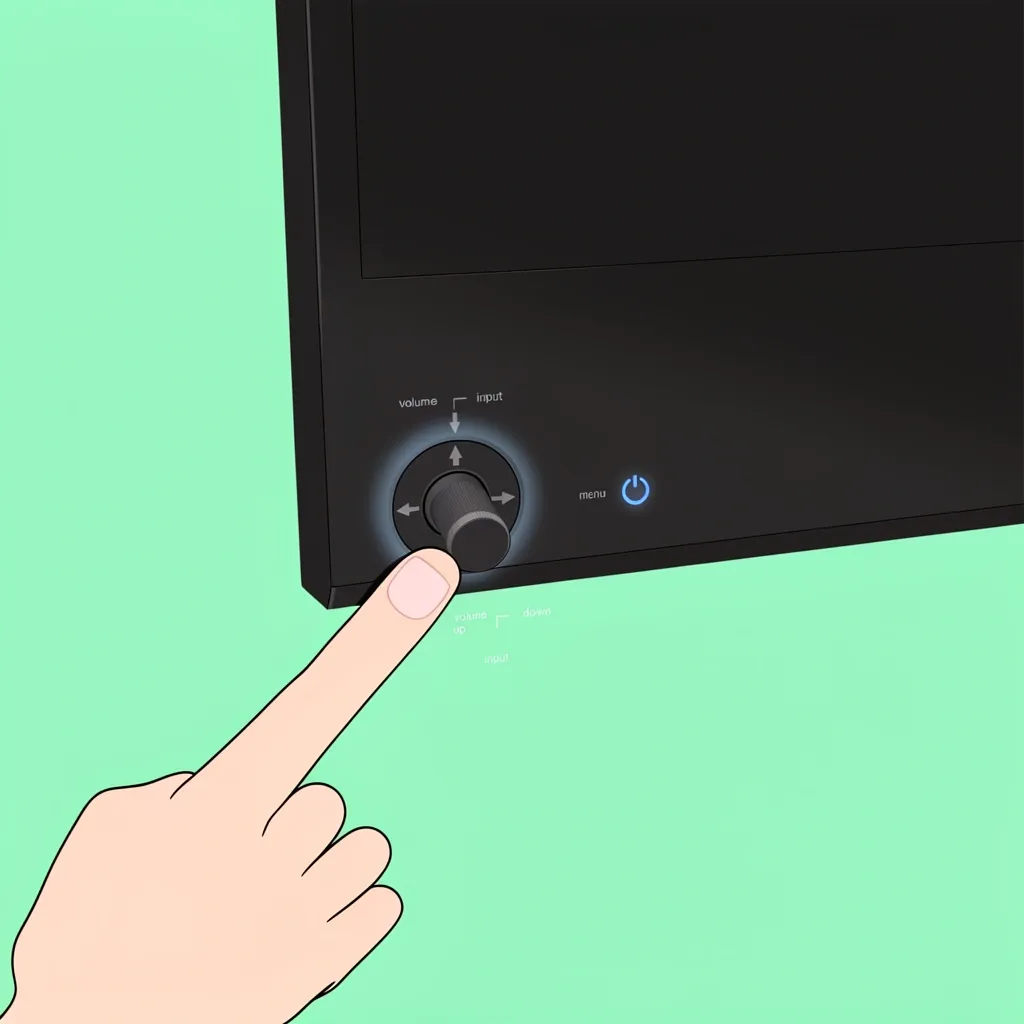
Many Vizio owners miss the single joystick button because it looks like a tiny nub instead of a traditional button. It is usually located on the back of the TV, near the lower left corner (when facing the screen). On models from 2016 onward, this joystick is the only physical button on the TV. It is not labeled "power" – you have to know what it does.
The joystick works like this:
- Press straight in – turns the TV on or off.
- Tilt up – increases volume.
- Tilt down – decreases volume.
- Tilt left – changes input (cycles through HDMI ports).
- Tilt right – opens the menu.
If you press the joystick and nothing happens, try pressing harder or from a slightly different angle. Also check that there is no plastic cover or sticker left on the TV from the box that is blocking the button. Once you find it, you can use it to turn the TV on and even navigate the basic menus – though it is not as convenient as a remote, it gets the job done.
Turning On a Vizio TV Without Remote and Without WiFi
If you do not have a remote, the Vizio Mobile App cannot connect because your TV is not on the same network (or you never set up WiFi), and your voice assistant is not available. You still have a few options:
- The physical button – this is your only independent option. See the joystick section above.
- An IR universal remote – these work without WiFi because they send infrared signals directly to the TV. You can buy one at any electronics store or even use an older universal remote you already have. Look up the correct code for Vizio (often 10178, 10051, or 10236) online.
- HDMI-CEC from a wired device – if you have a device connected via HDMI (like a Roku that get power from a wall outlet, not the TV's USB port), turn that device on. Even without WiFi, the CEC signal travels through the HDMI cable and can wake the TV – but only if the TV has CEC enabled from before. This is a long shot, but it works for many people.
If none of these work, you may need to contact Vizio support to order a replacement remote. They sell remotes for around $10–$15. In the meantime, try to borrow a universal remote from a neighbor.
Frequently Asked Questions
Can I use a smartphone's IR blaster to turn on a Vizio TV?
Only if your phone still has a built-in infrared (IR) blaster – a feature found mostly on older Android phones like the Samsung Galaxy S6 or some Xiaomi models. Even then, you need a universal remote app that has the correct IR codes for Vizio. Most newer Vizio TVs use Wi‑Fi for the app and Bluetooth for the remote, so IR may not work for powering on. It is worth a try if you have the right phone, but do not count on it.
How do I turn on my Vizio TV after a power outage?
Most Vizio TVs will automatically turn on (or at least go into standby) when power is restored, because they remember the previous state. If your TV was on before the outage, it will likely come back on by itself. If it was off, you will need to press the physical button or use the app after the power returns. If the TV does not respond at all, unplug it for 60 seconds and plug it back in – that usually resets the internal power management.
Is there a way to turn on a Vizio TV without any buttons or app at all?
The only theoretical way is Wake-on-LAN (WOL), where you send a special "magic packet" over the network to a device on the same LAN. However, consumer Vizio TVs rarely support WOL, and even if they do, you need a computer or phone on the same network to send the packet – and the TV must be in a low-power standby mode that listens for it. This is extremely unreliable for most users. Stick to the physical button or a universal remote.
What if my Vizio TV's power button is stuck or broken?
If the button is physically stuck (you cannot press it), try using a small plastic tool to gently free it. If the button is broken internally, you cannot fix it without opening the TV. Your best options are to use the Vizio Mobile App if the TV is already on standby, use HDMI-CEC, or order a replacement remote from Vizio or a universal remote. If none of those work, take the TV to a repair shop that can replace the button board – or consider buying a new TV if the cost is too high.
Can I turn on a Vizio TV using a keyboard connected via USB?
No. Vizio TVs do not support keyboard power-on. The USB ports on your TV are only for media playback (playing videos from a flash drive) or for powering a streaming stick. A keyboard plugged into the USB port will not turn on the TV or navigate it. You must use one of the methods described above.
I hope this guide saves you the frustration of trying to find a lost remote. The physical button is always your first go-to, and the app or HDMI-CEC are your best backups. If you have a specific model that behaves differently, leave a comment below – I update this guide regularly based on real user experiences.