How to Update Vizio Soundbar
Updating your Vizio soundbar is not a one-size-fits-all process. Whether you use a USB drive, the Vizio Mobile app, or let it update automatically depends entirely on which model you own. This guide walks you through every method so you can get the latest firmware without wasting time on the wrong steps.
Identify Your Vizio Soundbar Model and Update Method
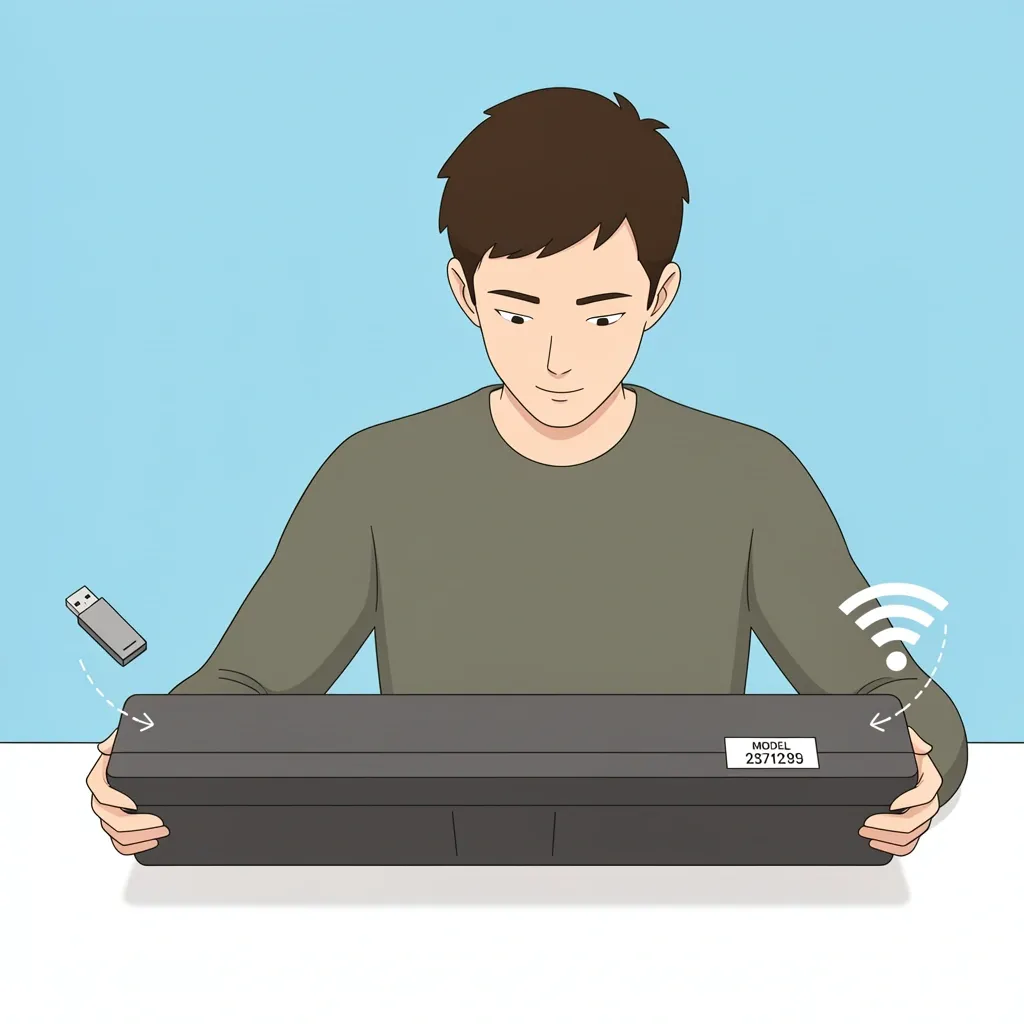
Before you download anything, you need to know what kind of soundbar you have. The update method depends on whether your model has built-in Wi-Fi or only supports USB updates.
Find the Model Number
Look on the bottom or back of the soundbar for a sticker with the model number. It usually starts with a letter followed by numbers, like "M-Series," "V-Series," or "SB3821-C6." If your soundbar has an on-screen display, you can also find it under Settings, then System Information.
Match the Model to the Update Method
Here is how to tell which method your soundbar uses:
- Wi-Fi models (M-Series, Elevate, and newer V-Series): These update automatically over your home network or through the Vizio Mobile app. No USB needed.
- Older models (S-Series, SB series): These require a USB drive. You must download the firmware file, copy it to a USB stick, and plug it into the soundbar.
- Entry-level models without Wi-Fi: Check Vizio's support site. Most of these also use USB updates.
Prerequisites Before Updating
No matter which method you use, a few things must be in place:
- Your soundbar must be plugged in and powered on.
- For USB updates, you need a USB 2.0 drive that is 32GB or smaller, formatted as FAT32. Do not use a USB 3.0 drive or a drive larger than 32GB.
- For Wi-Fi updates, your soundbar must be connected to your home network and within range of your router.
- For app updates, download and install the Vizio Mobile app on your phone or tablet.
Method 1: Update via USB Drive (For Older Models)
This method works for most soundbars that do not have built-in Wi-Fi, such as the S3820w-C0, SB3821-C6, and similar models.
Step 1: Download the Correct Firmware
Go to Vizio's support website and search for your exact model number. Download the firmware file. It will end in ".bin." Save it to your computer's desktop so you can find it easily.
Step 2: Prepare the USB Drive
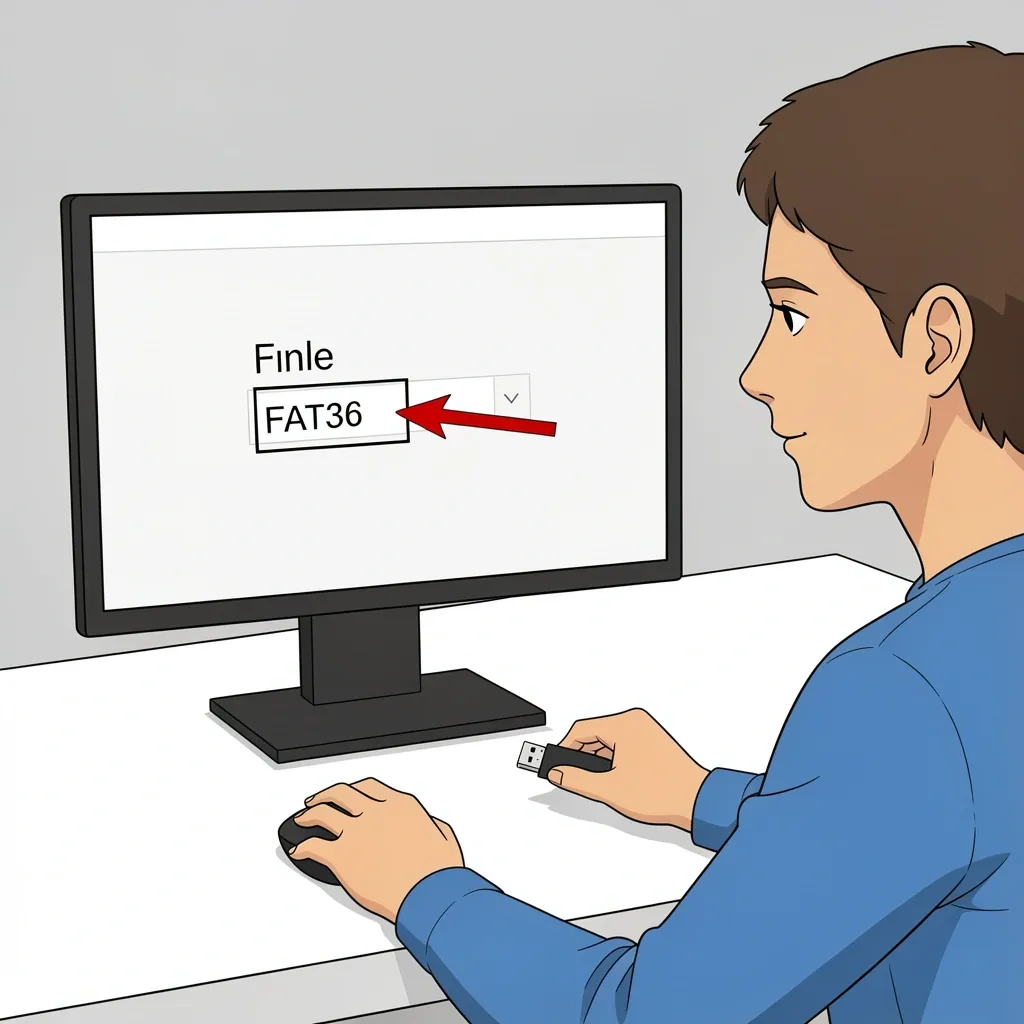
Insert your USB 2.0 drive into your computer. Format it as FAT32. To do this on a Windows PC, right-click the drive in File Explorer, choose Format, then select FAT32 from the file system dropdown. On a Mac, open Disk Utility, select the drive, and choose MS-DOS (FAT) as the format.
Step 3: Copy the Firmware File
Copy the .bin file to the root of the USB drive. Do not put it inside any folder and do not rename the file. The soundbar looks for a specific file name and location.
Step 4: Update the Soundbar
Power off the soundbar. Insert the USB drive into the soundbar's USB port. Press and hold the correct button on the soundbar while plugging the power cord back in. The button is usually the Source, Bluetooth, or Volume Up button, depending on the model. Check your owner's manual if you are unsure.
Keep holding the button until the LED on the front of the soundbar starts flashing. This flashing means the update has started. Do not unplug the soundbar or remove the USB drive during this time.
Step 5: Verify the Update
When the LED stops flashing and stays solid, the update is complete. Unplug the USB drive. Turn the soundbar off and then on again. Go into the soundbar's settings to check the firmware version. It should match the version you downloaded.
Method 2: Update via Wi-Fi or the Vizio Mobile App (For Newer Models)
If your soundbar has built-in Wi-Fi, you do not need a USB drive. The update happens over the air.
Step 1: Connect to Wi-Fi
If you have not already, connect your soundbar to your home Wi-Fi network. You can do this through the Vizio Mobile app or the soundbar's on-screen menu.
Step 2: Check for Updates in the App
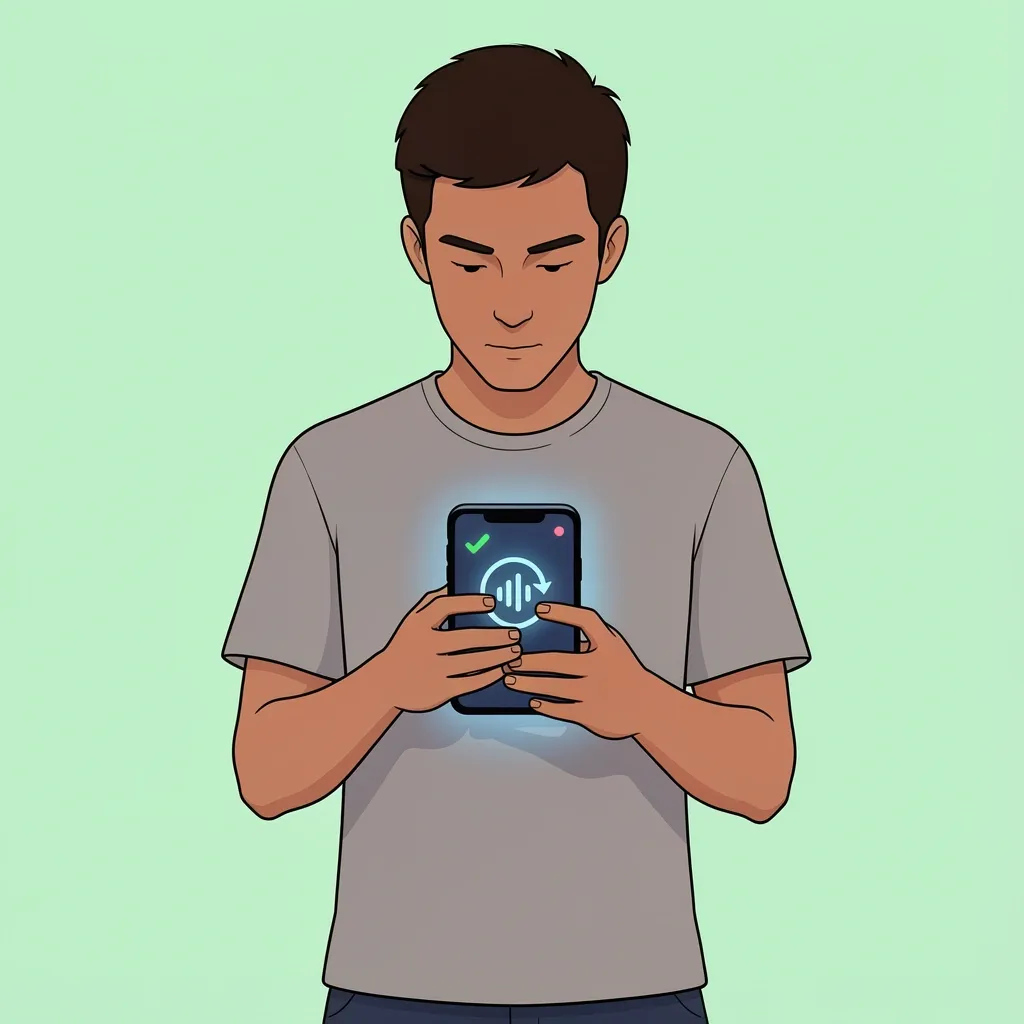
Open the Vizio Mobile app on your phone. Select your soundbar from the list of devices. Go to Device Settings, then Firmware Update. If an update is available, tap Update. Keep the app open and the soundbar powered on until the update finishes.
Step 3: Automatic Updates
Some soundbars check for updates automatically when they are idle and connected to the internet. You may not need to do anything. To force a check, go to the soundbar's settings menu or use the app.
What to Do After the Update
Once the update is applied, check a few things to make sure everything works correctly.
Re-Pair the Subwoofer
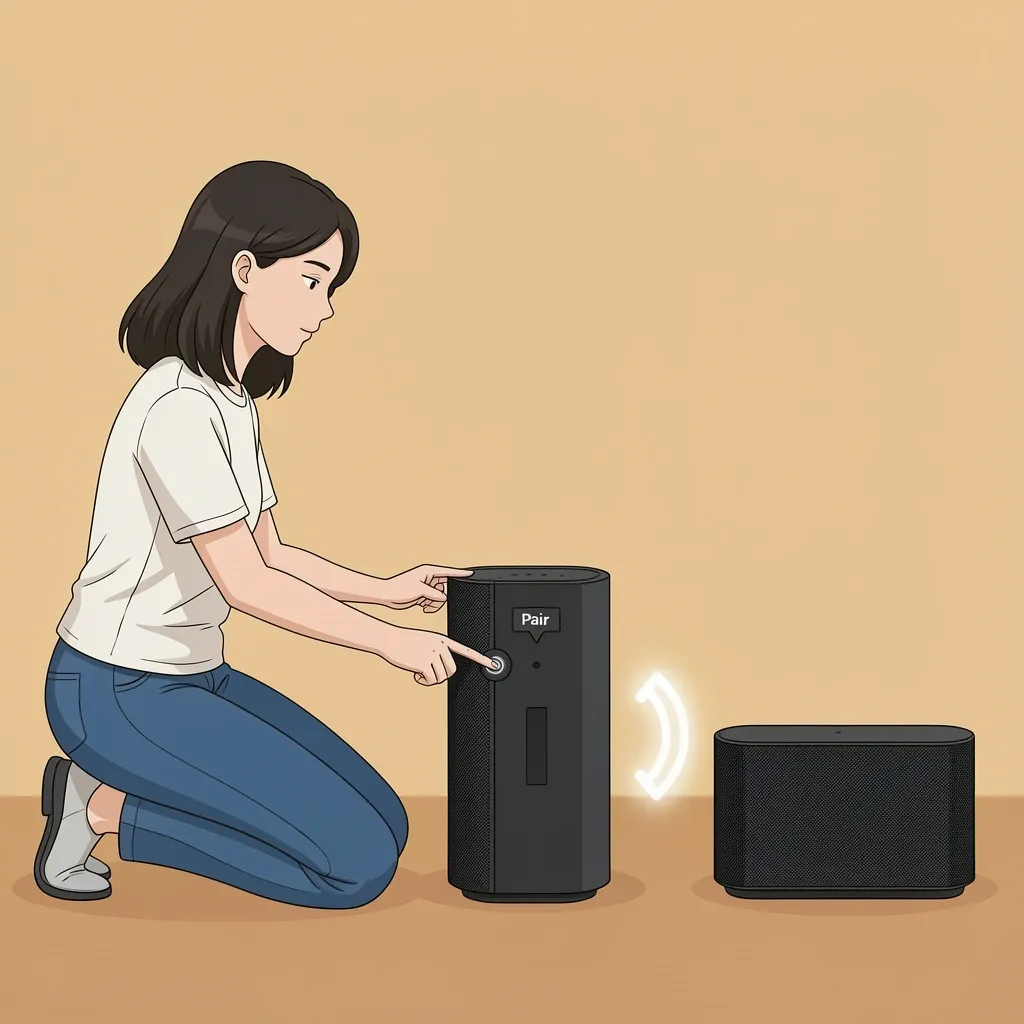
If your soundbar came with a wireless subwoofer, it might lose its connection during an update. To re-pair it, press the Pair button on the back of the subwoofer. Then press the Pair button on the soundbar or hold the Bluetooth button for a few seconds.
Factory Reset if Needed
If the soundbar behaves oddly after the update, a factory reset often fixes it. Hold the power button for 10 seconds, or unplug the soundbar for 60 seconds and plug it back in.
Verify the Firmware Version
Open the soundbar's settings menu or the Vizio Mobile app. Look for the firmware version. Compare it with the latest version listed on Vizio's support page to confirm the update installed correctly.
Common Problems and Fixes
| Problem | Solution |
|---|---|
| Soundbar does not detect the USB drive | Use a USB 2.0 drive that is 32GB or smaller. Format it as FAT32, not exFAT or NTFS. Only have the .bin file on the drive. |
| Update failed or stuck | Unplug the soundbar for 60 seconds. Try a different USB drive or a different USB port. Some soundbars have a specific port for updates. |
| No sound after update | Check the input source. Re-pair the subwoofer. Do a factory reset by holding the power button for 10 seconds. |
| Wi-Fi update says failed | Move the soundbar closer to your router. Restart your router and soundbar. Try using the Vizio Mobile app on a different device. |
Critical Considerations Before Updating
These points can save you from bricking your soundbar or wasting time:
- Do not use a USB 3.0 drive. Many soundbars will not recognize it.
- Ensure the USB drive is FAT32. ExFAT and NTFS are not supported.
- Do not turn off the soundbar during the update. Power loss can permanently damage the firmware.
- For Wi-Fi updates, place the soundbar near the router to avoid connection drops.
- If the update fails, try a different USB drive. Some drives are not compatible.
Frequently Asked Questions
How do I know if my Vizio soundbar is updating correctly?
The LED on the front of the soundbar will flash slowly or quickly during the update. When it turns solid or turns off, the update is complete. Some models show a progress bar on the front panel.
Can I update my Vizio soundbar without the remote?
Yes. For USB updates, you only need the physical buttons on the soundbar itself. For app updates, you need a phone with the Vizio Mobile app. No remote is required.
How long does a Vizio soundbar update take?
Most updates take between 2 and 10 minutes. USB updates are usually faster than Wi-Fi updates. Do not interrupt the process.
Newer firmware always improves sound quality, right?
No. Most firmware updates fix bugs or add compatibility with newer devices. Sound quality improvements are rare. Only update if you need a specific fix mentioned in the release notes.
Can I update the subwoofer separately?
No. The subwoofer firmware is updated through the soundbar. There is no separate process for the subwoofer.