Menu Button on Vizio Remote: Where It Is and How to Use It
If you own a Vizio TV, you have probably stared at your remote and wondered, “Where is the menu button?” The answer is not always obvious. Vizio changes the button layout between models, and some remotes don’t even have a button labeled “Menu.” I have used several Vizio remotes over the years, and I know the frustration. This guide walks you through every possibility, from finding the button to using it and fixing it when it stops working.
Where Is the Menu Button on Your Vizio Remote
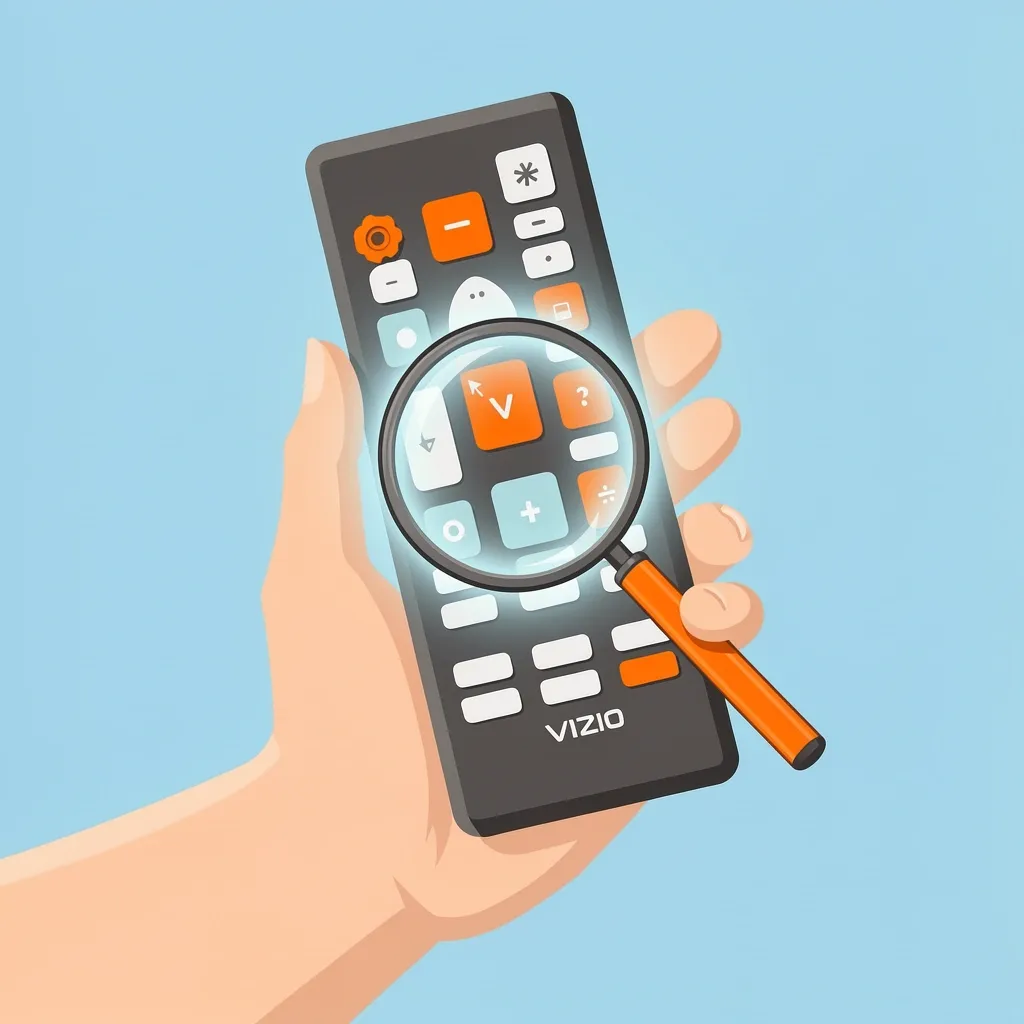
The menu button on a Vizio remote is never truly missing, but it may look different than you expect. Instead of a single label, Vizio uses several methods to open the TV menu. Check your remote for one of these:
- Labeled “Menu” – Found on older remotes (models like XRT020 or XRT030). Usually a rectangular button near the center.
- The “V” button – Common on smart remotes (XRT136, XRT140, XRT215). Pressing it opens a sidebar menu that includes Settings, Input, and Apps.
- Gear icon – Some newer remotes (XRT140) have a gear-shaped button that directly opens Settings.
- Input button shortcut – On a few budget remotes without a dedicated menu button, press Input and then select the gear icon that appears on screen.
To help you identify your specific remote, here is a quick reference table for the most common Vizio remote models:
| Remote Model | Menu Access Method |
|---|---|
| XRT020 / XRT030 (older IR) | Dedicated “Menu” button |
| XRT136 (Bluetooth) | Press “V” button, then select Settings from the sidebar |
| XRT140 (standard smart remote) | Gear icon button, or “V” button for quick menu |
| XRT215 (voice remote) | “V” button opens full menu |
| Universal remotes / replacement remotes | Usually a labeled “Menu” button; if not, try the “Source” or “Input” button |
If you still cannot find the menu button on your Vizio remote, try this: look for any button that does not say Volume or Channel. That button—whether it shows a house icon, a gear, or just a letter “V”—is your way into the settings.
Using the Menu Button to Change TV Settings
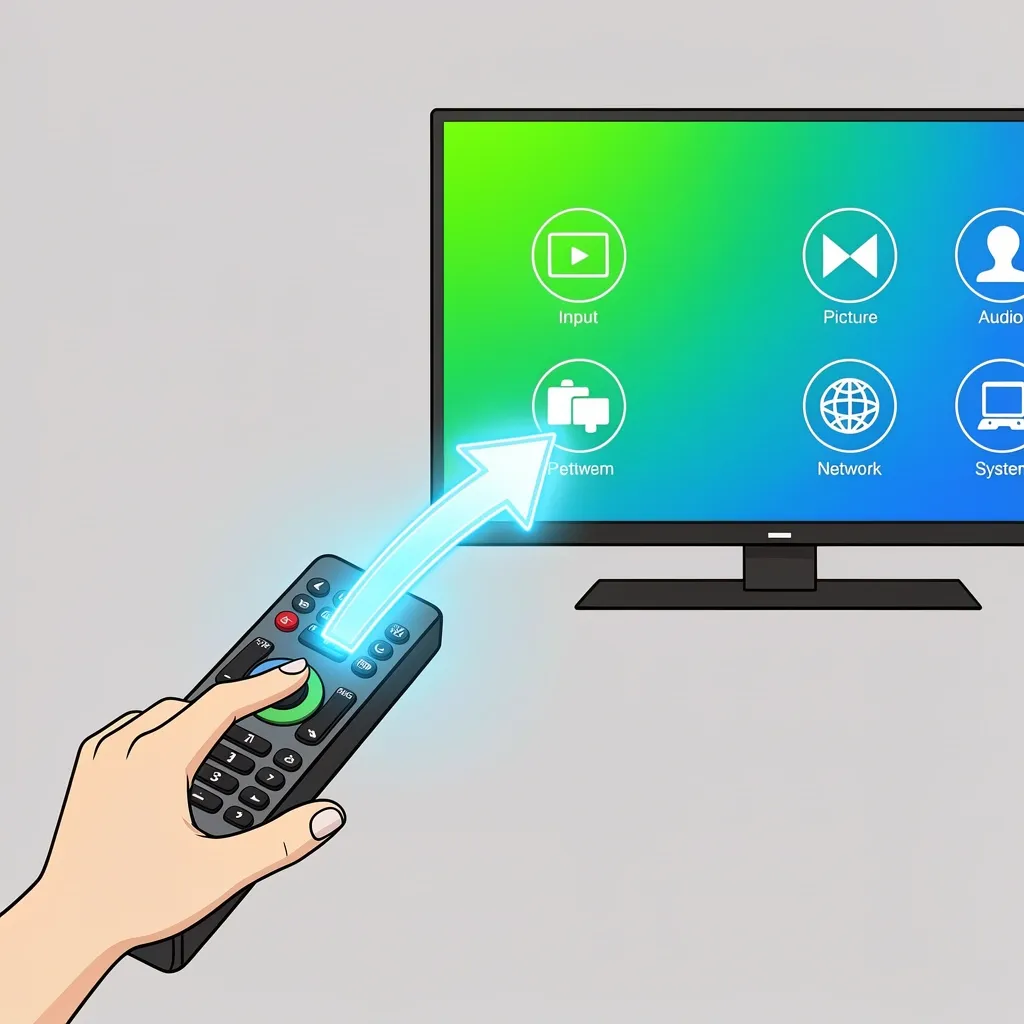
Once you locate the right button, navigating the menu is straightforward. Press it once to open the on-screen menu. Use the directional pad (the circle with arrows) to move between options. Press the OK or Center button to select an item. The main sections you will find are:
- Input – Switch between HDMI ports, TV tuner, streaming apps.
- Picture – Adjust brightness, contrast, color, and picture mode.
- Audio – Change volume settings, sound mode, and speakers.
- Network – Connect to Wi-Fi or check connection status.
- System – Access device info, reset options, and system updates.
Some remotes have a separate “Settings” button that goes directly to the System menu. If yours does not, the “V” button or gear icon will get you there.
Why Your Menu Button Might Not Work
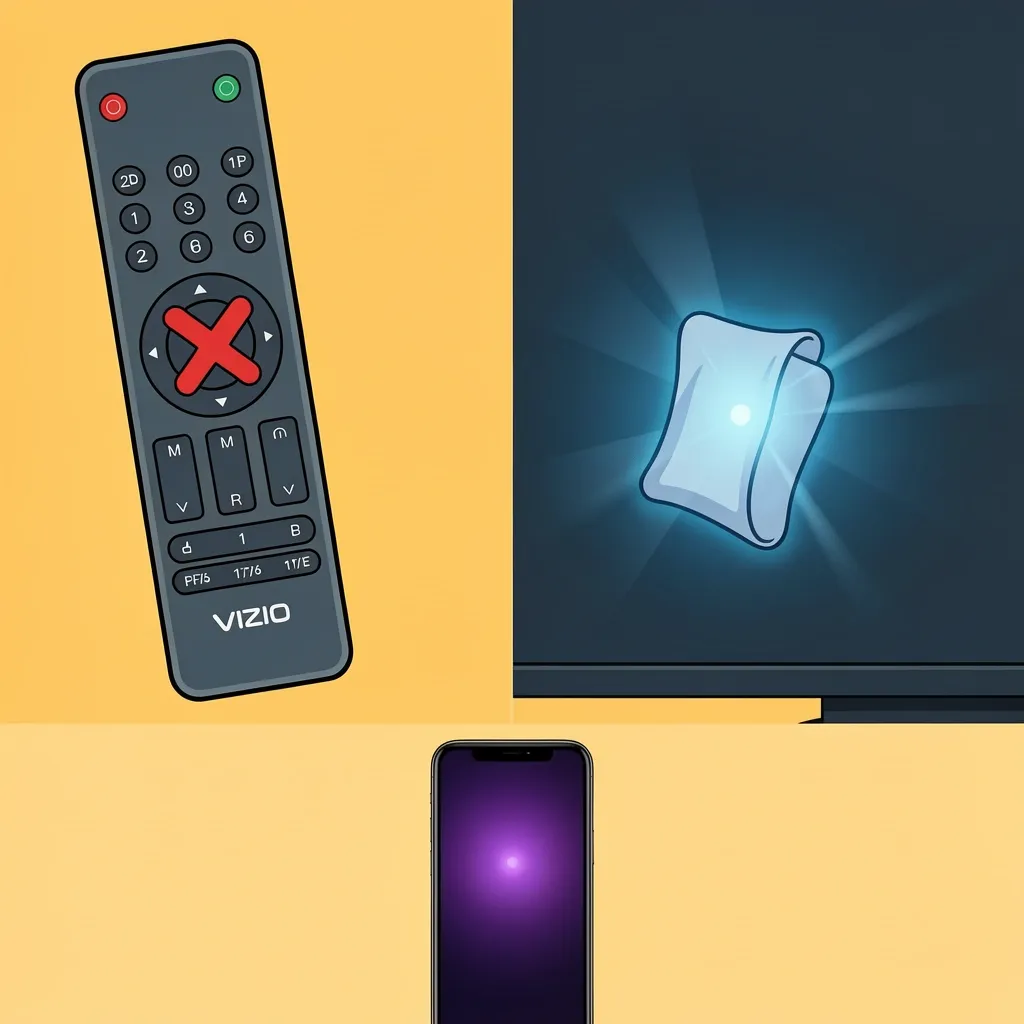
When you press the menu button on a Vizio remote and nothing happens, the problem is usually one of these things:
- Dead batteries – Replace them first. Even if the remote turns on the TV, weak batteries can fail to send the menu command.
- IR sensor blocked – Make sure nothing covers the front of the TV. The IR receiver is usually near the bottom edge. Clean it with a soft cloth.
- Bluetooth pairing lost – If your remote uses Bluetooth (models XRT136 and later), it may have lost sync. Hold the OK and Back buttons together for 5 seconds until the TV shows a pairing message.
- TV needs a hard power cycle – Unplug the TV for 60 seconds, then plug it back in. This resets the internal software and often restores button function.
- IR signal invisible to your eye – Point your remote at a smartphone camera and press a button. If you see a faint purple glow, the remote is sending IR light. If not, the remote is broken.
Critical consideration: On many Vizio remotes, the button labeled with a blue “V” is your secret menu key. Do not ignore it. Pressing it once opens a sidebar that includes a gear icon for Settings. A second press of the same button often closes the sidebar. If you have been pressing the “V” button and seeing nothing, check your TV screen—sometimes the sidebar is transparent or appears only when the TV is on an active input.
How to Access the Menu Without the Remote
If your Vizio remote is lost, broken, or simply does not have a menu button that works, you still have several ways to open the TV settings.
Physical Buttons on the TV
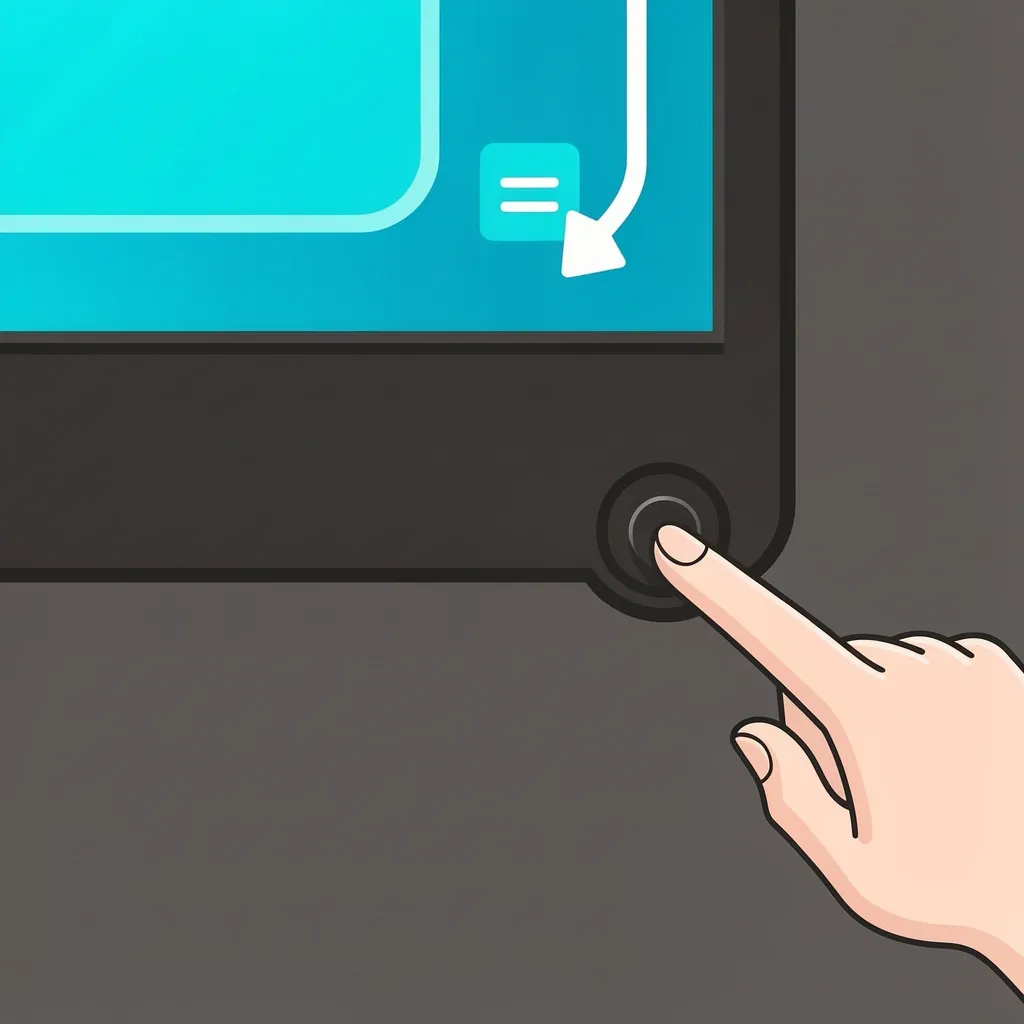
Most Vizio TVs have a set of physical buttons on the lower-right edge (or behind the panel). They are usually a joystick or a rocker. Press the center button to open a simple on-screen menu. Use the up/down arrows to select “Menu” and press again to enter. From there, you can navigate all settings.
Vizio SmartCast App
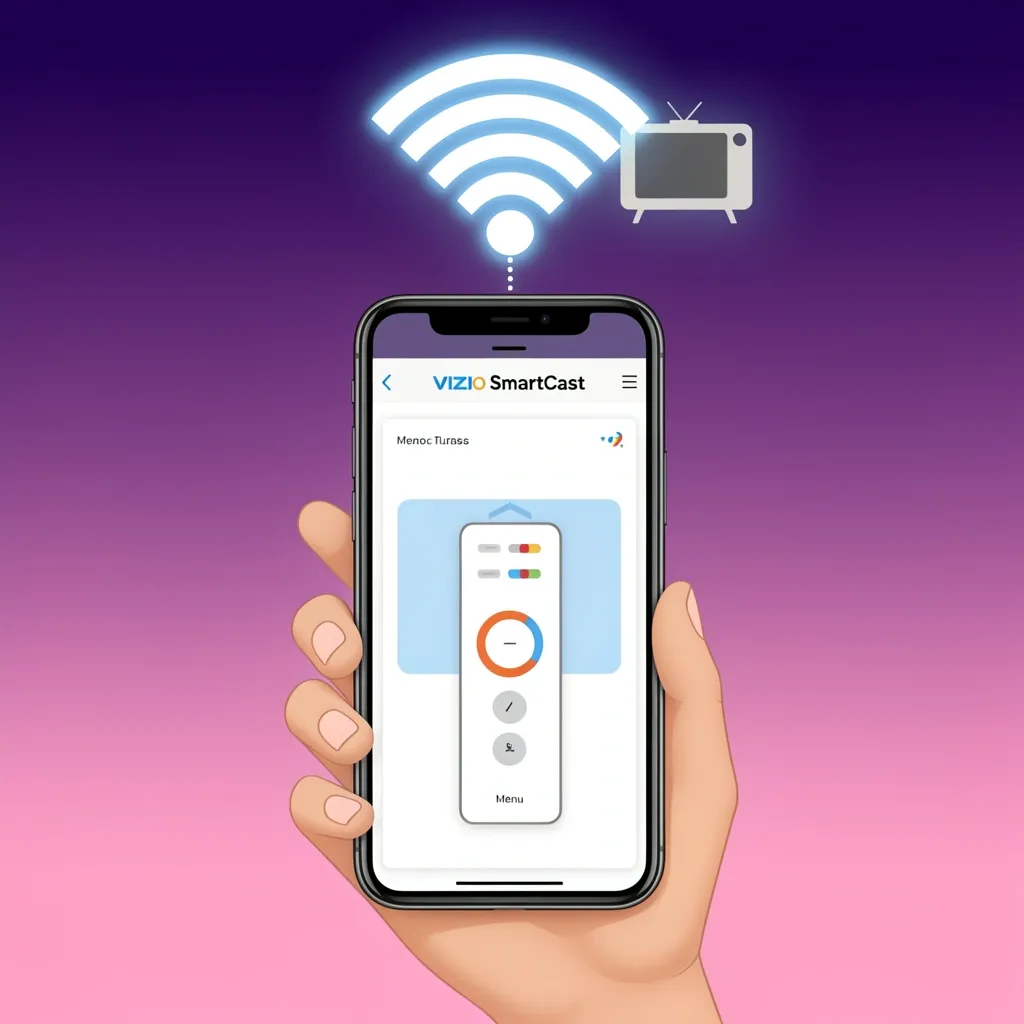
Download the official Vizio SmartCast app on your phone (iOS or Android). Connect to the same Wi-Fi network as your TV, then tap the remote icon. The app gives you a full on-screen remote, including a Menu button. This method works even if your physical remote is dead.
Universal Remote
Program any universal remote with a Vizio code. Common codes are 11756, 11758, or 10836. After programming, the labeled Menu button on the universal remote will open your TV settings.
HDMI-CEC from Another Device
If you have a streaming device like Apple TV, Roku, or Fire Stick, enable HDMI-CEC (also called CEC on Vizio TVs). Then the remote from that device can control some TV functions, including opening the menu. This is a last resort but works in a pinch.
Here is a quick comparison of the alternatives:
| Method | Ease of Use | Full Menu Access |
|---|---|---|
| Physical TV buttons | Easy once you find them | Yes |
| SmartCast App | Very easy (phone required) | Yes |
| Universal remote | Moderate (needs programming) | Yes |
| HDMI-CEC | Moderate (device dependent) | Partial |
Frequently Asked Questions
Can I program a universal remote to access the Vizio menu?
Yes. Use codes 11756, 11758, or 10836. After programming, the Menu button on the universal remote should work just like the original.
Why does my Vizio remote show a Menu button but pressing it does nothing?
First check batteries and sensor. If they are fine, your remote may need re-pairing (on Bluetooth models). Hold OK and Back for 5 seconds. If that fails, try a hard power cycle of the TV.
How do I open the menu on a Vizio TV without any remote at all?
Use the physical button on the TV (usually a rocker on the lower-right edge). Press the center button to bring up a list, then use the rocker to select “Menu.”
What does the ‘V’ button do on a Vizio remote?
On most smart remotes, it opens a quick-access sidebar with inputs, apps, and a settings gear. On older models, it may launch the Vizio Internet Apps platform.
Can I reset my Vizio TV menu settings if the remote is lost?
Yes. Use the physical TV buttons to navigate to Settings > System > Reset & Admin > Factory Reset. Or use the SmartCast app.
Remember: the menu button on a Vizio remote is almost always there—you just have to know where to look. Whether it is labeled “Menu,” a gear, or a “V,” you can now find it, use it, and fix it if it stops working.