How to Program a DIRECTV Remote to a VIZIO TV and Fix the Power Problem
You can absolutely program your DIRECTV remote to control your VIZIO TV for volume, input switching, and power. The standard process works well for most functions, but many people hit a wall when the remote won’t turn the TV on or off. I’ve helped several friends through this exact issue with their VIZIO sets. The good news: it’s almost never a bad remote. The fix usually comes down to a hidden setting or a manual code that the auto-programming skips. I’ll walk you through the basic setup first, then dive into why the power button is stubborn and how to fix it. If you follow the steps in order, you’ll end up with a single remote that handles everything.
The Standard Programming Method
This is the fastest way to pair your DIRECTV remote with a VIZIO TV. It works for most volume and input commands, and sometimes even gets power right.
- Press the MENU button on your DIRECTV remote.
- Go to Settings > System > Remote & Devices > Program Your Remote.
- Select TV as the device type.
- Choose your TV manufacturer. If you don’t see VIZIO listed, select Other or VIZIO from the available options.
- Follow the on‑screen prompts. The remote will try several IR codes. When the TV turns off and then back on, press OK to lock in that code.
This process works for all modern DIRECTV remotes: Gemini Air, Genie (RC71/RC73), and the older white remotes. If your remote controls volume and input but not power, move to the next section.
Why Your Remote Controls Everything Except Power
The problem comes down to how DIRECTV remotes send power signals. Most use a “power toggle” command – one signal that switches the TV on if it’s off, and vice versa. VIZIO TVs sometimes expect a dedicated “power on” and “power off” pulse. When the auto‑programming picks a code that uses toggle, the TV ignores it because it’s already waiting for a discrete command. Another reason: newer VIZIO TVs are sensitive to IR receiver timing. If the TV’s power‑saving feature or sleep timer interferes, the remote’s signal can get blocked. This is especially common on VIZIO models with “SmartCast” or “Power Save” enabled.
Troubleshooting Power Control Issues
Manual Code Entry
If the automatic method didn’t give you power control, enter a VIZIO code manually. This forces the remote to use a known working code set.
- Press and hold MUTE and SELECT together until the green light at the top of the remote blinks twice.
- Enter 9-1-1-1. The light will blink twice again.
- Point the remote at your VIZIO TV and press CH+ repeatedly. Each press tries the next code in the library.
- When the TV turns off, press SELECT to lock in the code.
If that doesn’t work, try these legacy VIZIO codes: 10178, 11758, 10056, or 11915. Enter them using the same MUTE+SELECT method, but enter the four‑digit code directly instead of 9-1-1-1.
Check VIZIO TV Power Settings
Your TV’s own settings can override the remote’s commands. Go through this checklist on the VIZIO TV itself:
- Open the Menu on your VIZIO TV.
- Navigate to System > Power & Sleep.
- Disable Power Save Mode or Eco Mode – these limit the IR receiver’s responsiveness.
- Turn off Sleep Timer or set it to the longest possible.
- If you use an HDMI cable, enable CEC (often called HDMI Control or VIZIO SmartCast in the settings). CEC lets the DIRECTV box send power commands through the HDMI link, bypassing IR issues.
Enable IR Input (If Available)
Some VIZIO TVs have a setting called IR Input or Control4 under System > Inputs. Make sure it’s set to Enabled. If it’s disabled, the TV ignores all IR commands.
Identifying Your DIRECTV Remote Model
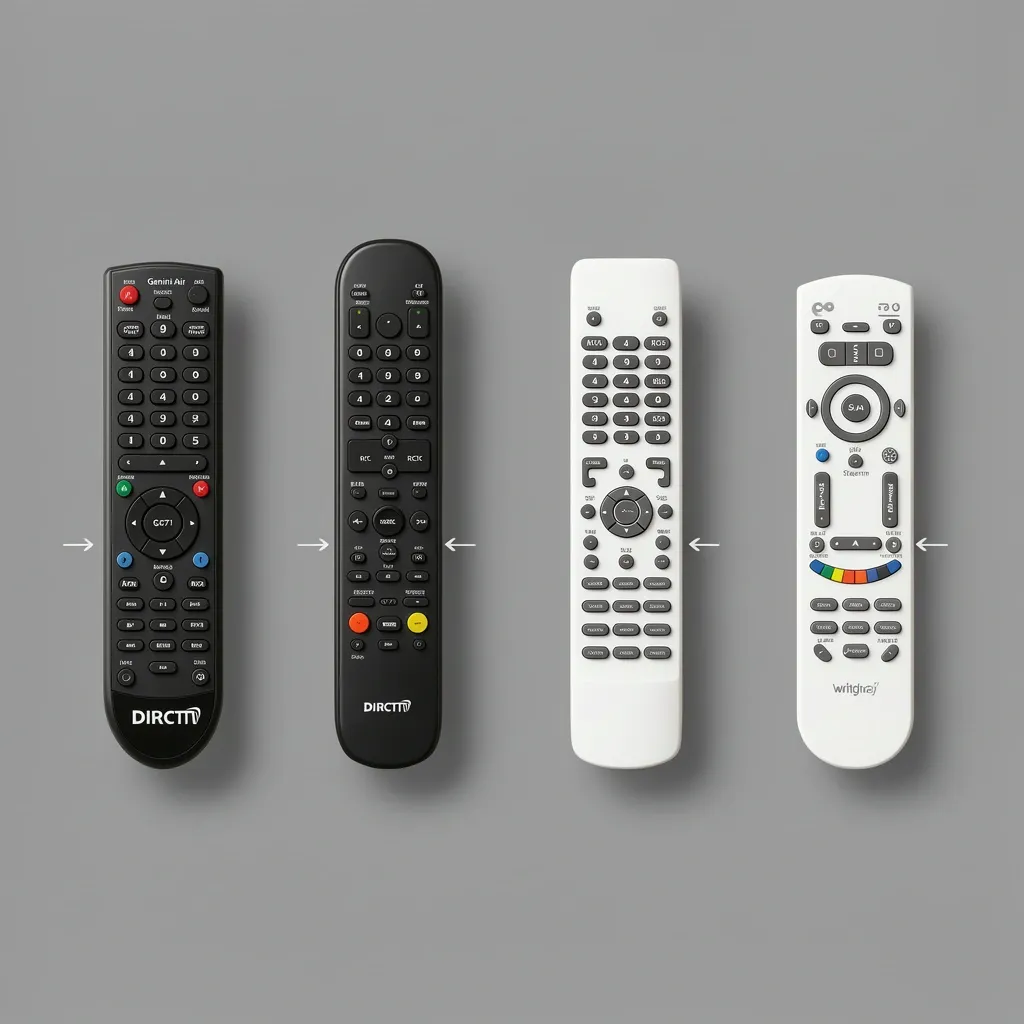
The programming method and power‑related quirks change depending on which remote you have. This table helps you figure out what you’re dealing with:
| Remote Model | Physical Features | Programming Method | Power Note |
|---|---|---|---|
| Gemini Air | Compact, no number row near the top, voice button | Settings > Program Your Remote (IR or Bluetooth) | Power uses IR only; must point directly at TV |
| Genie RC71/RC73 | Standard rectangular shape, numbers on the left side, silver or black | Hold MUTE+SELECT then enter code, or Settings > Program | Power toggle works on most VIZIO TVs; try legacy codes if not |
| DIRECTV Stream (Gemini box) | Similar to Gemini Air but slightly taller, no “OK” button in center circle | Settings > Remote & Devices (Bluetooth for navigation, IR for power) | Power only works via IR; line of sight required |
| Older white remote (RC64 etc.) | White plastic, larger, no dedicated power button for TV | Hold MUTE+SELECT then enter code | Limited code library; use 10056 or 11758 |
VIZIO TV Settings Checklist for Best Compatibility
Before giving up, run through these six checks on your VIZIO TV. They solve the vast majority of power‑related complaints.
- Disable Power Save or Eco Mode – this is the #1 culprit.
- Turn off Sleep Timer – a timer can make the TV unresponsive to power‑on commands.
- Enable HDMI‑CEC – look for “HDMI Control” in the Inputs or System menu. When active, the DIRECTV box can send power commands through the HDMI cable, which works even if the IR codes fail.
- Check the IR sensor location – on many VIZIO TVs, the sensor is in the bottom‑right corner of the screen bezel. Make sure nothing blocks it (soundbar, stand, stickers).
- Test with a phone camera – point the remote at the TV and press any button while looking at the remote’s emitter through your phone camera. If you don’t see a purple/white flash, the remote is not sending IR. Replace batteries and try again.
- Reset the TV’s settings – as a last resort, perform a factory reset on the VIZIO TV (Settings > System > Reset & Admin > Reset TV to Factory Defaults). This clears any accidental configuration that blocks external remotes.
Frequently Asked Questions
Can I program a DIRECTV remote to a VIZIO smart TV without a code?
Yes. Use the auto‑search method described above: press and hold MUTE+SELECT until the light blinks twice, enter 9-1-1-1, then press CH+ repeatedly until the TV turns off. No code required.
What if my DIRECTV remote controls the VIZIO TV but the volume is too quiet?
Check your VIZIO TV’s audio settings. Set the audio output to “Fixed” instead of “Variable” if using external speakers. Then re‑run the DIRECTV remote’s volume calibration (Settings > Remote & Devices > Program Your Remote > Volume).
Will a DIRECTV Genie remote work with a VIZIO TV from 2015?
Yes, but it may need an older code set. Try legacy codes 10056, 11915, or 10178 using the manual entry method. Those work on most VIZIO models from 2010–2018.
Does the DIRECTV Stream remote work the same as the Gemini Air remote?
No. The Stream remote uses Bluetooth for navigation and channel changing, but the power on/off command is sent via infrared (IR). You must point it directly at the TV’s IR sensor for power to function.
My VIZIO TV won’t respond to any DIRECTV remote commands. What else can I try?
First, replace the remote batteries. Remove them for 30 seconds to reset the remote. Test the TV’s IR sensor with your phone camera – point the remote at the lens and press a button; you should see a blinking light. If you see no light, the remote may be defective. If you see light but the TV doesn’t respond, the sensor on the TV might be damaged. Try the DIRECTV App as a temporary workaround – it can control the TV via the DIRECTV box if CEC is enabled.