Vizio Internet Apps List: Every App You Can Get on Your Smart TV
If you just bought a Vizio TV or you are thinking about getting one, you probably want to know what apps it has. Vizio TVs run on a platform called SmartCast. It is not the same as Android TV or Roku. But it comes with over 300 apps right out of the box. Every major streaming service you can think of is there. In this guide I will walk you through what apps come pre-installed, which ones are missing, how to add new ones, and which free ones are actually worth your time. By the end you will know exactly what your Vizio can and cannot do.
What Apps Come Pre-Installed on Vizio SmartCast TVs
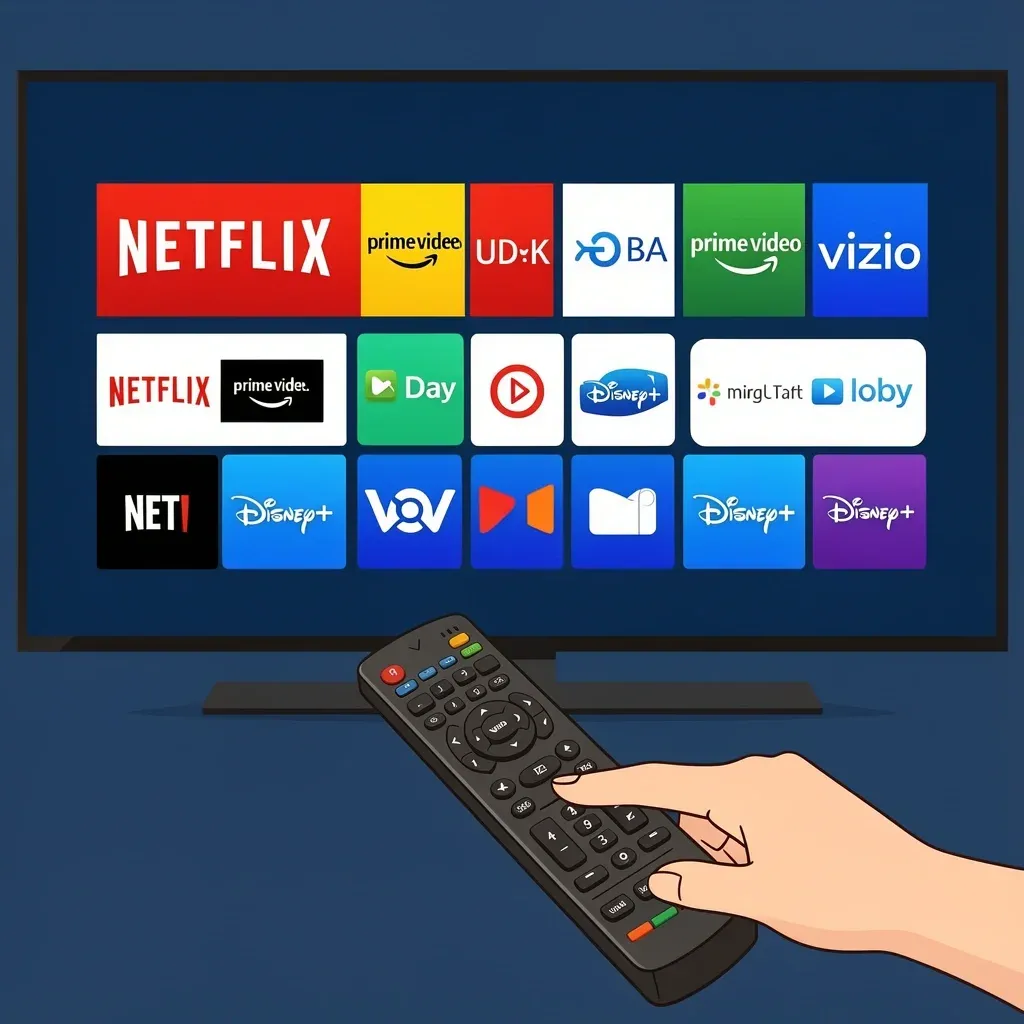
Every new Vizio TV ships with the same core set of apps. You do not need to download them separately. They are already on your home screen. Here is the full list broken down by category.
Major Subscription Services
- Netflix
- Prime Video
- Disney+
- Hulu
- HBO Max
- Peacock
- Paramount+
- Apple TV
- YouTube
Free Ad-Supported Services
- Tubi
- Pluto TV
- Xumo Play
- Free Movies Plus
- The CW
- FilmRise
Live TV and News
- DIRECTV
- Philo
- Frndly TV
- FOX One
- The Weather Channel
Sports
- ESPN
- Tennis Channel
- MyOutdoorTV
- Sports Zone (built into SmartCast home)
Music and Audio
- Spotify
- Pandora
- iHeartRadio
- Music Choice
- Stingray Karaoke
Niche and Specialty
- AMC+
- BritBox
- Hallmark+
- Dropout
- Crunchyroll
- HIDIVE
- Angel Studios
That is just a sample. There are many more. If you want the complete catalog, Vizio's own website lists them all. But these are the ones most people use every day.
How Vizio's SmartCast Platform Differs from Other Smart TVs
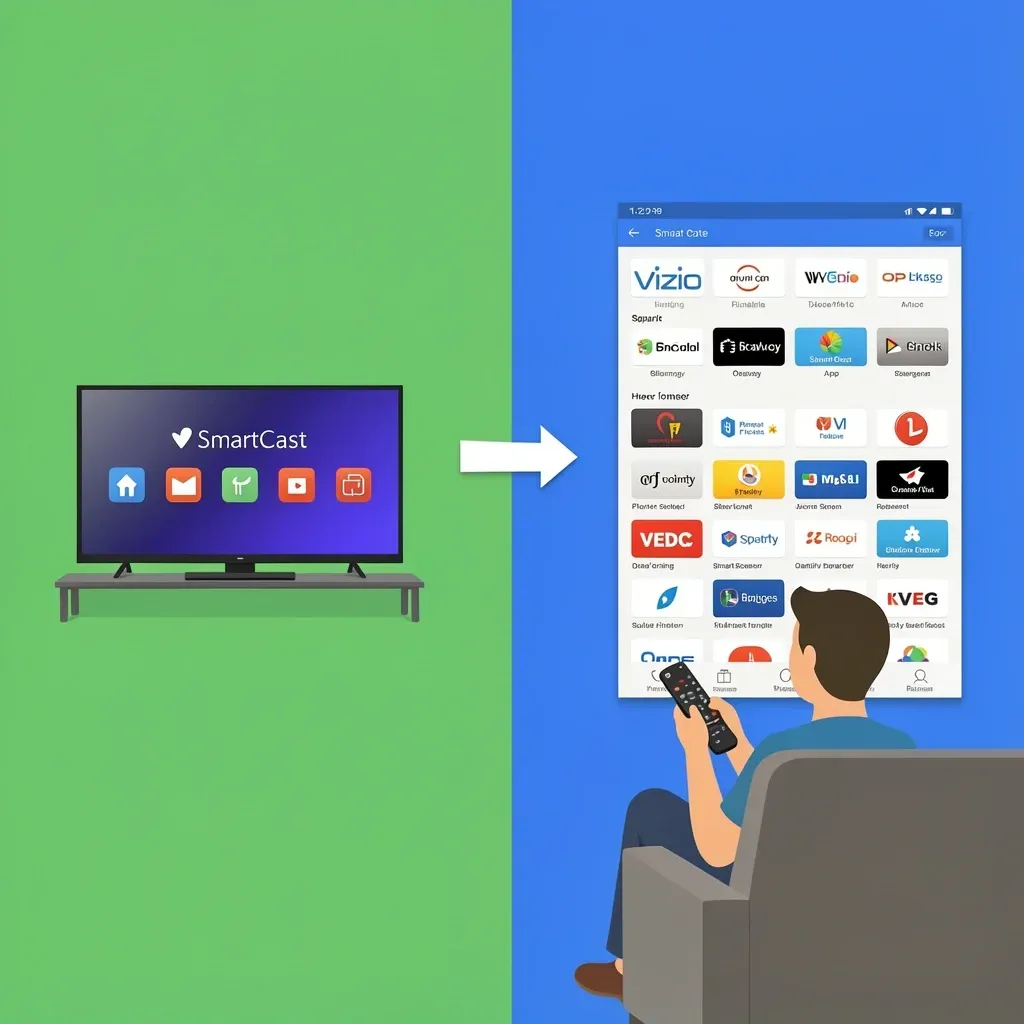
Vizio does not use a traditional app store like the Google Play Store or the Apple App Store. Instead, apps are managed directly from the SmartCast home screen. You press the Vizio button on your remote, and you see a row of apps. Some apps appear automatically after a firmware update. Others you have to add manually.
One big difference: Vizio TVs do not run Android TV. That means you cannot download apps from the Google Play Store. You are limited to what Vizio approves. Over 300 apps is still a lot, but it is not infinite. Also, Vizio does not let you sideload apps. There is no way to install something from a USB drive or a web browser.
Apps and Features You Won't Find on Vizio SmartCast
It is just as important to know what is missing. Here are the biggest gaps.
No native web browser
You cannot browse the internet directly on a Vizio TV. There is no Chrome, Safari, or any other browser in the app store. If you need to look something up, you have to use your phone or a laptop. You can mirror your phone screen to the TV, but that is not the same as having a real browser.
No YouTube TV app
There is no dedicated YouTube TV app for Vizio. You can still watch live TV from YouTube by using the regular YouTube app, but it is not the same experience. If you subscribe to YouTube TV, you are better off casting from your phone or using a streaming stick.
No Apple AirPlay on older models
Only Vizio TVs made in 2019 or later support Apple AirPlay 2. If you have an older model, you cannot stream directly from an iPhone or iPad. You can check your TV's model number to see if it supports it.
No Samsung TV Plus or LG Channels
Vizio has its own free live TV service called WatchFree+. It gives you over 300 channels and 30,000 on-demand titles. That is comparable to what Samsung and LG offer, but they are not the same apps.
How to Add Apps to Your Vizio Smart TV
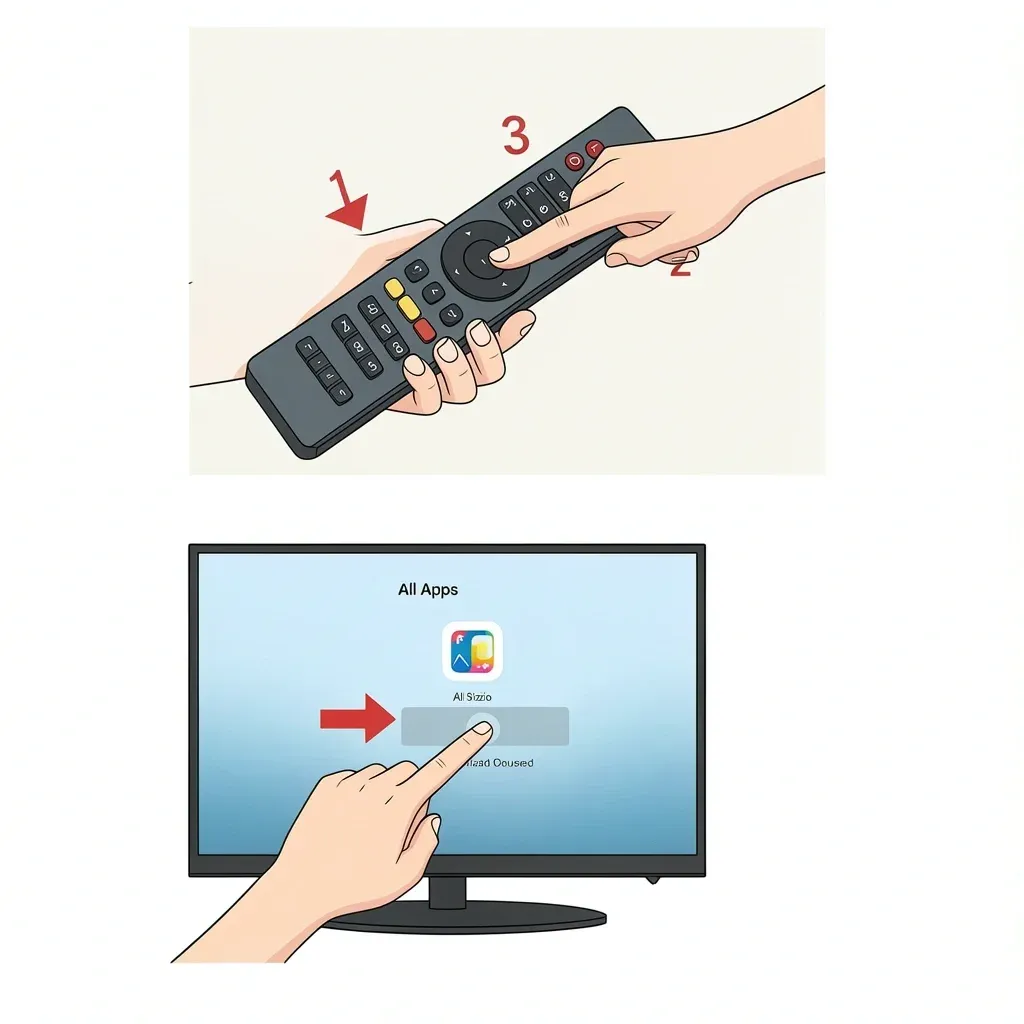
Adding apps is simple. Follow these steps.
- Press the Vizio or SmartCast button on your remote. It usually has a V logo or a little house icon.
- Scroll to the "Apps" row or find the "All Apps" section on the home screen.
- Browse through the categories or use the search function to find the app you want.
- Select the app icon. Then choose "Add to Home Screen" or "Install".
- Wait a few seconds for the download to finish. The app will appear on your home screen.
If an app does not show up in the list, first check that your TV has the latest firmware. Go to Settings > System > Check for Updates. If it is still missing, the app might have been removed from the Vizio platform or it might be region-locked. You can check Vizio's official app catalog online to confirm.
The Best Free Apps on Vizio That Don't Require a Subscription
You do not need to pay a dime to watch a lot of content. Here are the best free apps sorted by what you want to watch.
Best for Movies
- Tubi – Thousands of movies and TV shows, all free with ads. The selection is surprisingly good.
- Pluto TV – Free movies plus live TV channels. No sign-up required.
- Free Movies Plus – No account needed at all. Just click and watch.
Best for Live TV
- WatchFree+ – Built into every Vizio TV. Over 300 live channels. No subscription, no login.
- Xumo Play – Another free live TV service with 250+ channels.
Best for News
- The Weather Channel – Live forecasts and weather news.
- FOX One – Live news, sports, and shows from FOX.
Best for Kids
- YouTube Kids – Safe videos for children.
- PBS Kids – Educational shows and games.
- Kidoodle.TV – Family-friendly content with parental controls.
Best for Niche Interests
- The CW – Full episodes of popular shows for free.
- FilmRise – Classic TV shows and movies.
- Red Bull TV – Extreme sports, music, and adventure documentaries.
Hidden Gems and Underrated Apps Worth Downloading
Most people stick with Netflix and Hulu. But there are some lesser-known apps that offer great content you might not find anywhere else.
- Dropout – Comedy originals like Game Changer and Dimension 20. No ads, and the shows are genuinely funny.
- HIDIVE – An anime streaming service with uncensored titles and simulcasts. If you like anime, this is a solid alternative to Crunchyroll.
- Magellan TV – Documentaries in 4K with no ads. Covers history, science, and nature.
- Dekkoo – LGBTQ+ cinema and original series. No ads, just authentic stories.
- Full Moon Features – Horror and cult classic films. Perfect for late-night scary movie marathons.
- Stingray Karaoke – Turns your TV into a karaoke machine. Good for parties.
How to Remove or Reorganize Apps on Your Vizio TV
Your home screen can get cluttered fast. Here is how to clean it up.
Remove an app from the home screen
Press and hold the OK button on the app icon. A menu will pop up. Choose "Remove from My Apps". The app will disappear from your home screen. Note: you cannot fully delete an app. It stays in the full app catalog. You can always add it back later.
Reorganize app order
On most Vizio TVs, you cannot manually rearrange the app row. The order is determined by how often you use each app. The ones you use most will move to the front. If you want a specific app to appear first, use it a few times and it will rise to the top.
Restore a removed app
Go to "All Apps" in the SmartCast home screen. Find the app you removed. Select it and choose "Add to Home Screen".
Frequently Asked Questions
Can I download the YouTube TV app on my Vizio TV?
No. There is no native YouTube TV app. But you can cast YouTube TV from your phone to the TV using the Cast button in the YouTube TV app. You can also open the regular YouTube app and search for live content from your subscriptions.
Does Vizio support Apple AirPlay?
Yes, but only on TVs made in 2019 or newer. Older models might get support after a firmware update, but not all of them. Check your TV model on Vizio's support page.
Can I use a VPN on my Vizio TV?
Not directly. Vizio does not have a VPN app. The easiest workaround is to install a VPN on your router. That way all devices on your network, including the TV, are protected. Alternatively, you can use a streaming device like an Apple TV or Roku that supports VPN apps.
Why can't I find a specific app on my Vizio TV?
There are a few reasons. The app might have been removed from the Vizio platform. It might require a firmware update that you have not installed yet. Or it might be region-locked and not available in your country. Check Vizio's official app catalog to see if the app is still supported.
How do I update apps on my Vizio TV?
Apps update automatically when your TV is connected to the internet. There is no manual update button. If an app is not working correctly, restart your TV and check for a firmware update in Settings.
Can I add apps from outside the Vizio app store?
No. Vizio uses a closed ecosystem. You can only install apps that are in the official SmartCast app catalog. There is no way to sideload apps or use a USB drive to install them.
What is WatchFree+ and how is it different from other free services?
WatchFree+ is Vizio's own free live TV service. It comes built into every Vizio TV. You get over 300 live channels and 30,000 movies and shows on demand. No subscription, no sign-up, no credit card. It is similar to Roku Channel, Samsung TV Plus, or LG Channels, but it is exclusive to Vizio.
That covers everything you need to know about the Vizio internet apps list. Whether you are a new owner or just checking before you buy, you now have a clear picture of what works, what is missing, and how to get the most out of your SmartCast TV.