Can You Use Your Phone as a Vizio SmartCast Remote? (Yes, Here is the Best Way)
If you have a Vizio SmartCast TV and your physical remote is lost, broken, or just out of reach, you can absolutely use your smartphone instead. The good news is that the best option is completely free – no subscriptions, no pop-ups, no data selling. I have tested both the official app and several third-party alternatives, and I will show you exactly what works and what to avoid.
What Is Vizio SmartCast and Does It Have an Official Phone App?
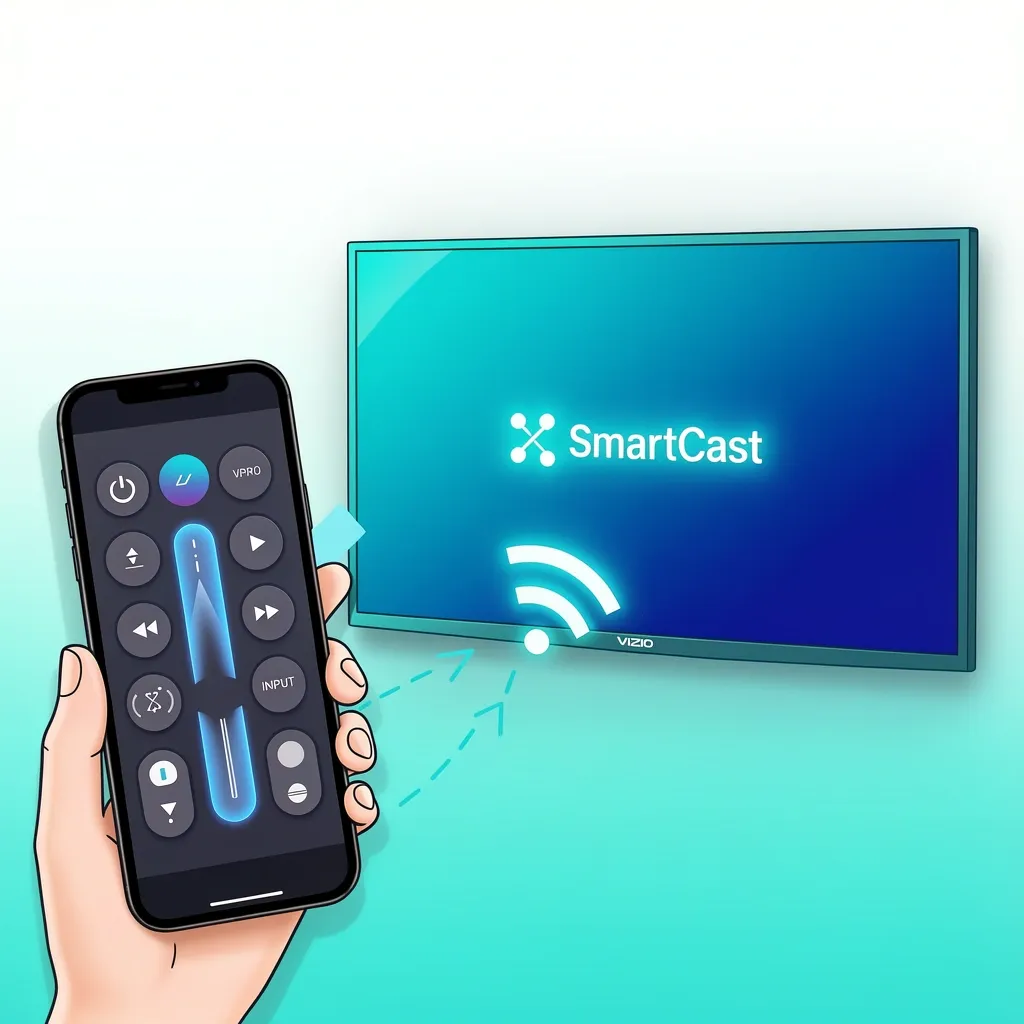
Vizio SmartCast is the smart TV platform built into most modern Vizio TVs. It lets you stream from apps like Netflix, Hulu, and YouTube without a separate streaming device. And yes, Vizio makes an official smartphone remote app called Vizio Mobile. It is available for both iPhone (iOS 15 or later) and Android (Android 8 or later). The app is free, has no ads, and does not require any in-app purchases. You can download it directly from your phone’s app store.
How to Set Up the Official Vizio Mobile App (Step by Step)
Before you start, make sure your phone and your Vizio TV are connected to the same Wi-Fi network. The TV must have been set up on that network at least once before (if it was brand new, you need the physical remote for the initial setup – see the section below if you never had a remote).
- Download the Vizio Mobile app from the App Store (iPhone) or Google Play Store (Android).
- Open the app. It will automatically scan your network for Vizio TVs.
- When your TV appears, tap on it. A PIN code will show on your TV screen.
- Enter that PIN in the app to pair. That is it – you now have a full remote on your phone.
If the TV does not appear, check that both devices are on the same Wi-Fi band (2.4 GHz or 5 GHz). Some routers have “client isolation” turned on, which blocks devices from seeing each other. Turn that off in your router settings. Also, restart both the TV and the phone, then try again.
The official app gives you basic remote buttons (power, volume, channel, input) plus a keyboard for searching. It also works as a second screen to launch streaming apps directly from your phone.
When the Official App Will Not Work – Your Alternatives
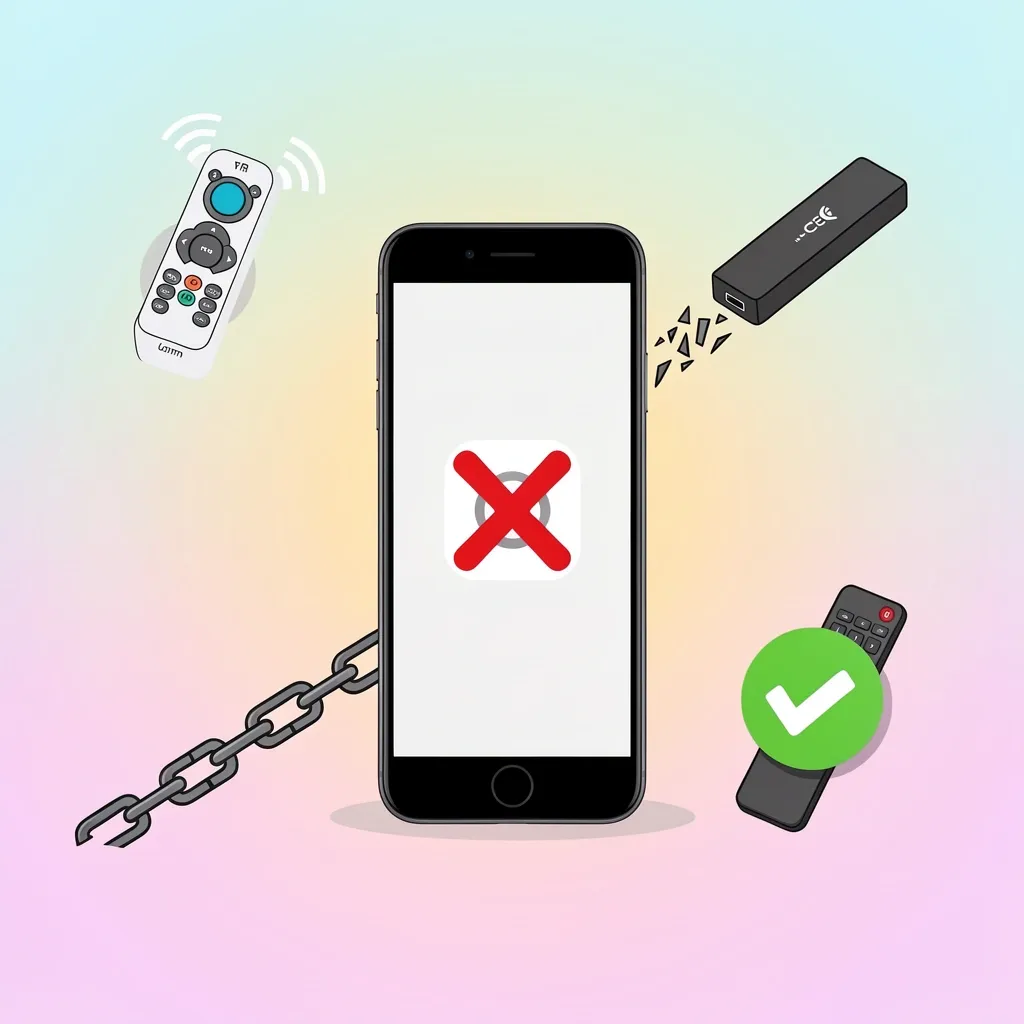
The official app only works with TVs that run SmartCast. Many older Vizio TVs use VIA or VIA Plus, which are different platforms and are not supported. Here is how to check your TV model: go to Settings > System > About on the TV (use the physical buttons if you have no remote). If it says VIA or VIA Plus, the official app is useless for you.
For Older VIA / VIA Plus TVs
You cannot control these TVs over Wi-Fi with a standard app. Your best bet is a universal remote app that uses an IR blaster – your phone must have a built-in infrared port (rare on newer phones). Alternatively, use an HDMI-CEC remote if you have a streaming device like Roku or Apple TV plugged in. The streaming device’s remote can control power and volume over HDMI.
If You Cannot Download the Official App
Some users have parental controls or school restrictions that block the App Store or Google Play. In that case, you may need a third-party app from a different store or a web-based solution. But be very careful – most “free” third-party apps will lock basic buttons behind a paywall.
If You Need Extra Features
The official app lacks a trackpad or mouse mode. If you need to navigate a browser or input text easily, a third-party app might offer those features – but again, expect to pay for a subscription.
Third-Party Remote Apps – A Reality Check
I tested several third-party apps for Vizio TVs. Most follow the same pattern: they appear free on the store, but as soon as you press any button – arrow, OK, volume – a pop-up demands a weekly or monthly payment. This is not a bug. It is the business model.
The Cost of “Free” Apps
The most popular one on the App Store is called Vizo – Remote for Vizio TV. It has a 4.6 rating with thousands of reviews, but many of those are from people who paid. Look at the negative reviews: users report that pressing any button triggers a “subscribe now” pop-up. The app charges $3.99 per week, $7.99 per month, or $14.99 for a “lifetime” that may only last as long as the developer keeps the app running. Another app, VizMote, follows the same pattern.
My advice: Do not download these apps unless you are okay with paying a recurring fee. And even then, some buttons may not work on your specific TV model, as one user reported.
Which Third-Party App Is Least Painful?
If you absolutely must use a third-party app and you are willing to pay, Vizo is the most polished. But I cannot recommend it because the free trial is essentially non-existent. The developer also tracks your identifiers, usage data, and diagnostics – and shares that data with third parties for advertising. The official Vizio app does not track you like that.
Privacy Warning
Always check the privacy policy of any third-party remote app. The official Vizio app collects only crash logs and basic usage data, and it does not share that with advertisers. Most third-party apps collect your device ID, usage patterns, and even your TV activity to sell to data brokers. If you must use one, go into your phone settings and restrict the app’s internet access after you have paired it – but that might break the remote function.
How to Connect Your Phone When You Have Lost the Vizio Remote
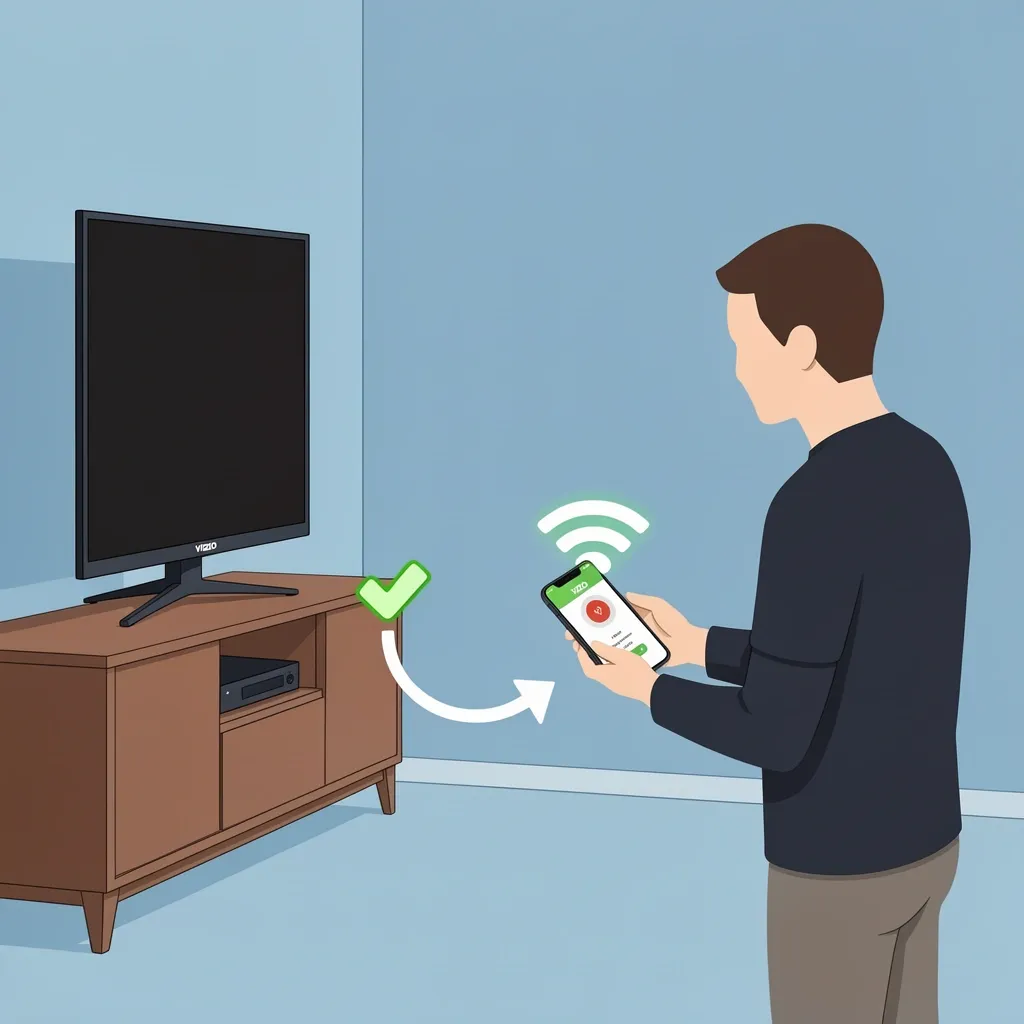
This is the most common problem. The TV is already connected to Wi-Fi, but you cannot get past the home screen without a remote. Here are four methods that work, listed from easiest to most drastic.
Use the Physical Buttons on the TV
Most Vizio TVs have a small joystick or a set of buttons on the back or side panel. Look for a button that says Input, Volume, or a directional pad. Press the Input button repeatedly until you see the Settings or Menu option. From there, navigate to Network > Manual Wi-Fi setup. This lets you connect the TV to your network without a remote. Once connected, the official app should find it. This method works on most models from 2016 and newer.
Hard-Wire the TV to Your Router
If the physical buttons are too slow or the menu is hard to navigate, plug an Ethernet cable directly from your TV to your router. The TV will automatically connect to the network. Then use the official app – it will detect the TV over the wired network. This is the fastest method if you have a cable handy.
Use the TV’s SmartCast Discovery Mode
Some Vizio TVs have a physical button or a hidden combination to enable “SmartCast Discovery.” On certain models, pressing and holding the Input button for 10 seconds will force the TV into pairing mode. Check your TV’s manual (search online with your model number) for the exact button sequence.
Factory Reset the TV Using Physical Buttons
Last resort. On many Vizio TVs, holding the Volume Down and Input buttons simultaneously for 5–10 seconds triggers a factory reset. This will erase all settings and return the TV to its out-of-box state. After the reset, the TV will show the initial setup screen, which you can navigate using the physical buttons. Connect to Wi-Fi from there, then download the official app on your phone. The downside is you lose any saved apps and settings.
Troubleshooting Common Connection Issues
Even with the official app, things can go wrong. Here are the most common problems and what to do about them.
App Cannot Find the TV
- Wi-Fi band mismatch: Some phones automatically switch bands. Make sure both the phone and TV are on the same exact network (2.4 GHz or 5 GHz). Try turning off the 5 GHz band temporarily on your router to force both onto 2.4 GHz.
- Router isolation: Check if your router has “AP isolation” or “client isolation” enabled. This setting blocks devices from communicating with each other over Wi-Fi. Turn it off.
- Firewall or VLAN: If your TV is on a separate VLAN or a guest network, the app will not see it. Put both on the same main network.
App Finds the TV but Buttons Do Not Work
This usually means the TV’s firmware is outdated. Go to Settings > System > Check for Updates on the TV (use the physical buttons if needed). Update to the latest version. Also, restart both the TV and your phone.
App Crashes or Freezes
Clear the app’s cache on your phone (Settings > Apps > Vizio Mobile > Storage > Clear Cache). If that does not work, uninstall and reinstall. Make sure your phone’s operating system is up to date.
Myth vs. Reality – Do You Really Need the SmartCast App for Your Old Vizio?
Many people search for a “SmartCast remote app” when their TV is actually a VIA or VIA Plus model. These are older platforms from around 2010–2015. SmartCast was introduced around 2016. How do you know which one you have? Look at the TV’s label on the back – it will say the model number. Models starting with E, M, or D (like E550i-B2) are VIA/VIA Plus. Models starting with D (but only the later ones) or P, M, and V (like P65-F1) are SmartCast. If you are unsure, check the user manual online.
For VIA/VIA Plus TVs, the official SmartCast app is useless. Do not waste time. Instead, buy a cheap universal IR remote or use a streaming stick like Roku that can control power via HDMI-CEC.
Security Comparison – Official App vs. Third Party
When you install an app that controls your TV, you are giving it permission to see your network and your device. The official Vizio Mobile app collects only crash data and usage statistics – it does not share that data with third parties for advertising. The developer’s privacy policy states that no personal information is collected.
Third-party apps like Vizo, on the other hand, collect identifiers (like your device ID), usage data (which buttons you press, how often you use the app), and diagnostics. According to its privacy policy, this data is used to track you across apps and websites owned by other companies. That means the app is likely selling your data to advertisers. Worse, it can see what TV channels or apps you use.
Bottom line: Use the official app if you can. If you cannot, limit the third-party app’s permissions. On both iPhone and Android, go to Settings > Privacy > Tracking and turn off “Allow Apps to Request to Track.” Or go to the app’s permissions and disable internet access when you are not using it (but that may break the remote function).
Frequently Asked Questions
Can I use the Vizio app on an iPod touch or Mac?
Yes. The official Vizio Mobile app works on iPod touch with iOS 15 or later. It also works on Macs with Apple M1 or later chips running macOS 12 or later. However, the Mac version is limited – you can control the TV but not use it as a second screen for casting.
Does the official app work with Vizio soundbars?
No. Vizio soundbars require their own separate app (called Vizio Soundbar) or a universal IR remote. The Vizio Mobile app only controls SmartCast TVs.
How do I reset my Vizio TV’s network connection without a remote?
Use the physical buttons on the TV. Press Input repeatedly until you see the Settings icon. Navigate to Network > Reset Network. This will clear the saved Wi-Fi connection. Then you can set it up again using the physical buttons or by plugging in an Ethernet cable.
Are there any completely free third-party remote apps that do not ask for payment?
Very few. Most third-party apps are trial-limited. There are open-source projects on GitHub, but they require technical setup (side-loading, compiling, or using a development environment). For a typical user, the official Vizio Mobile app is the only truly free and reliable option.
Can I use my phone as a remote if my Vizio TV is not connected to the internet?
No. Both the official app and most third-party apps rely on Wi-Fi to send commands over your network. If the TV is not connected to a network (not even a local one), you need an IR blaster or a Bluetooth remote. Some very old Vizio TVs have Bluetooth remotes, but the phone app will not work offline.
To sum up: start with the official Vizio Mobile app. It is free, it works on most SmartCast TVs, and it respects your privacy. If that does not work – either because of an old TV model or a missing remote situation – use one of the workarounds I listed above. Avoid third-party apps unless you are ready to pay and accept the privacy trade-offs. You now have everything you need to get your phone working as a Vizio remote.