Vizio TV Connected to Wi-Fi But No Internet? Here's the Fix
You turn on your Vizio TV, see the Wi‑Fi icon lit up with full bars, and open Netflix – only to stare at a “No Internet Connection” error. I’ve been through this exact frustration, and I know it feels like the TV is broken. But it almost never is. That full Wi‑Fi signal only means your TV linked up with the router. An actual internet connection needs a working IP address, a functional gateway, and DNS servers that respond. When any of those three pieces fail, you get the bars but no service. In this guide I’ll walk you through the most common causes and the exact steps to get you back streaming, starting with the fastest checks and moving deeper only if needed.
Why Your Vizio TV Shows “Connected” But Says No Internet
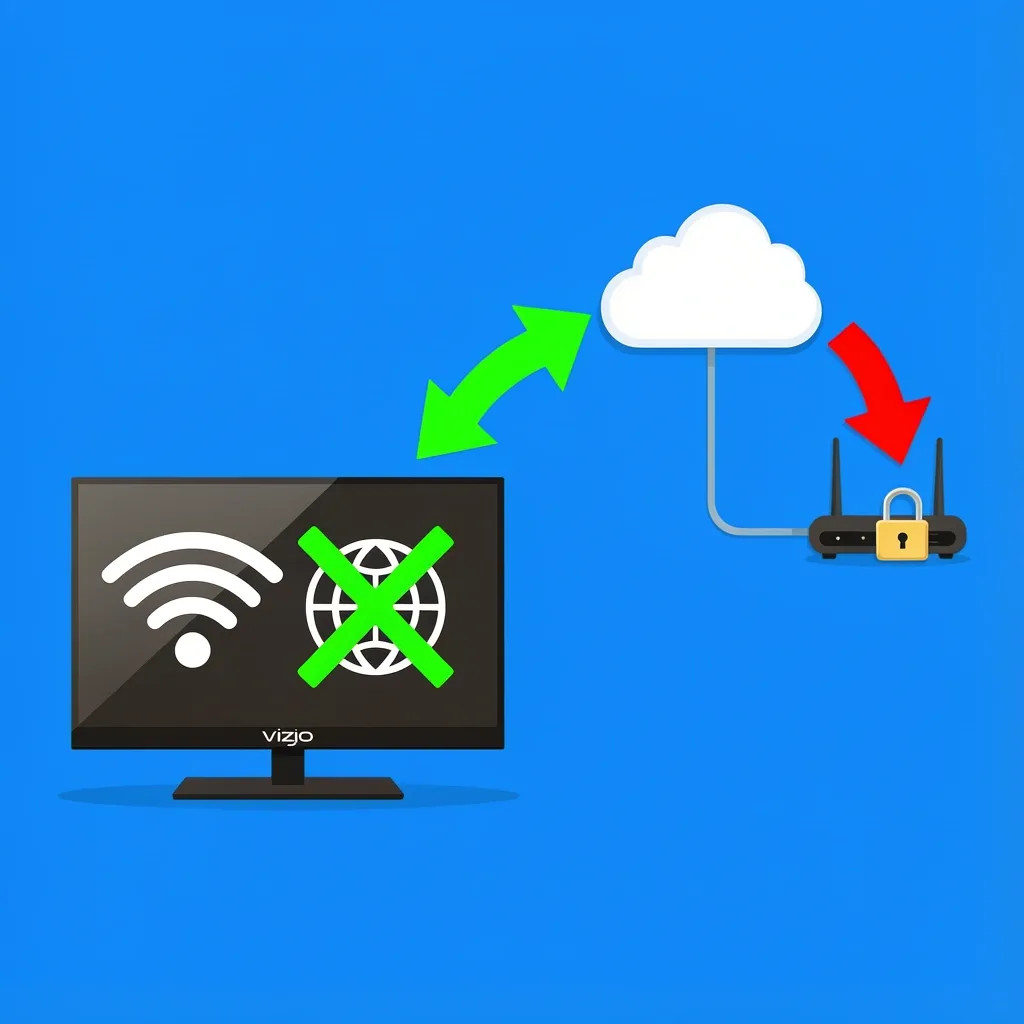
Think of Wi‑Fi as the first handshake. Your TV broadcast a request, the router answered, and they agreed to talk. But “internet access” requires a second handshake – the router has to give the TV an IP address (like a temporary phone number for your network), point it to a default gateway (the router itself), and provide a DNS address to translate website names into numbers. If any of these get stuck, your TV will happily show “Connected” while being unable to load anything. The three culprits I see most often are:
- IP address conflict or missing IP – The TV either grabbed the same IP as another device or failed to get one at all (you’ll see a 169.254.x.x address).
- DNS misconfiguration – The TV can’t translate YouTube.com into an IP address, even though the network works for other devices.
- Router settings blocking the TV – Features like AP isolation, band steering, or MAC filtering can cut off internet while still letting the Wi‑Fi connection appear active.
Most of the time, one of those three is the issue. Let’s narrow it down.
How to Test If It’s Really a TV‑Side Problem
Before we dive into fixes, run two quick checks to make sure the problem is actually on the TV and not your whole network.
Test with another device
Grab your phone or laptop, connect to the same Wi‑Fi network, and try loading a website or app. If that works, you know the internet is fine for other devices. The issue is specific to your Vizio TV.
Check the TV’s IP address
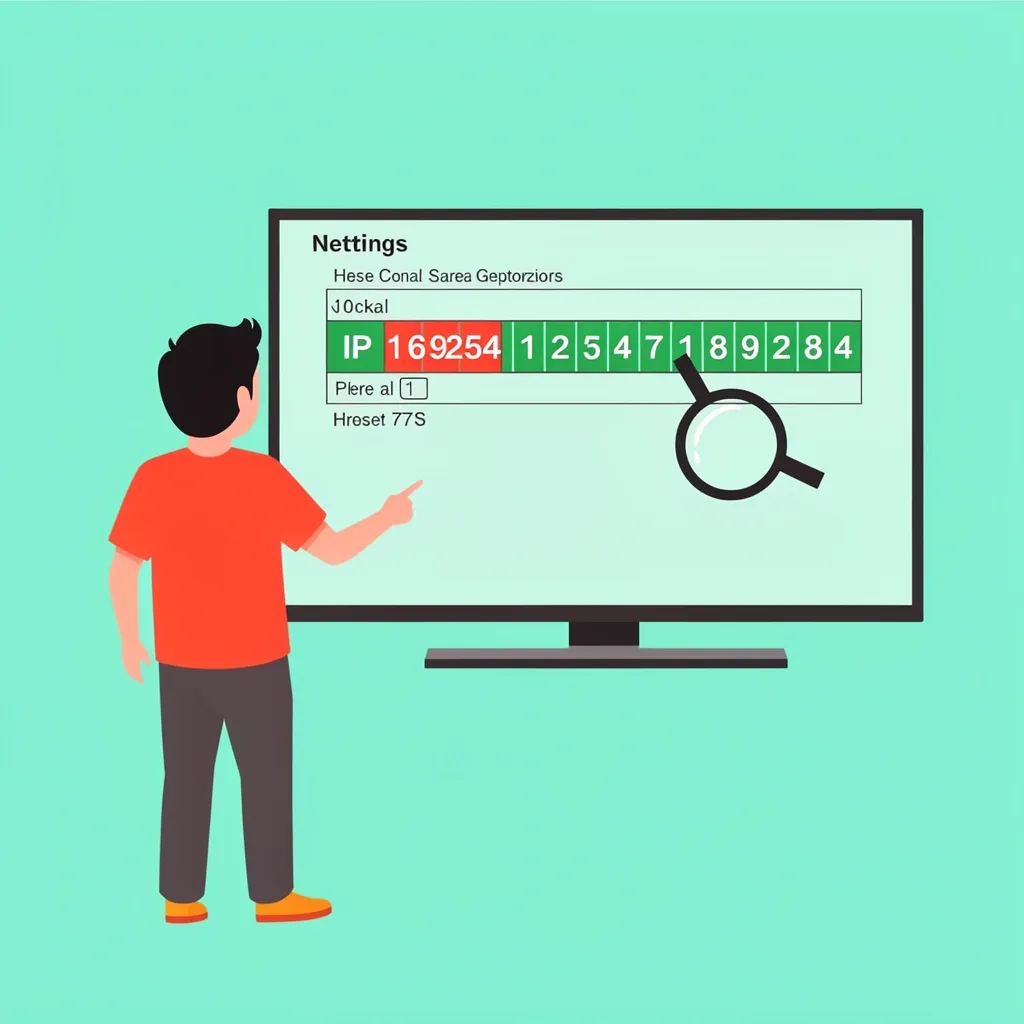
On your Vizio TV, go to Menu > Network > Manual Setup (or Network > Test Connection on SmartCast models). Look for the IP address that appears. If it starts with 169.254, the TV couldn’t get a proper IP from the router – this is often a DHCP pool problem. If it shows a normal address like 192.168.x.x but you still can’t load anything, the gateway and DNS are likely the issue.
Three Quick Steps That Solve 70% of Cases
These are the first things I try when the above checks don’t point to an obvious hardware fault. Each takes less than two minutes.
1. Power‑cycle the entire network in the right order
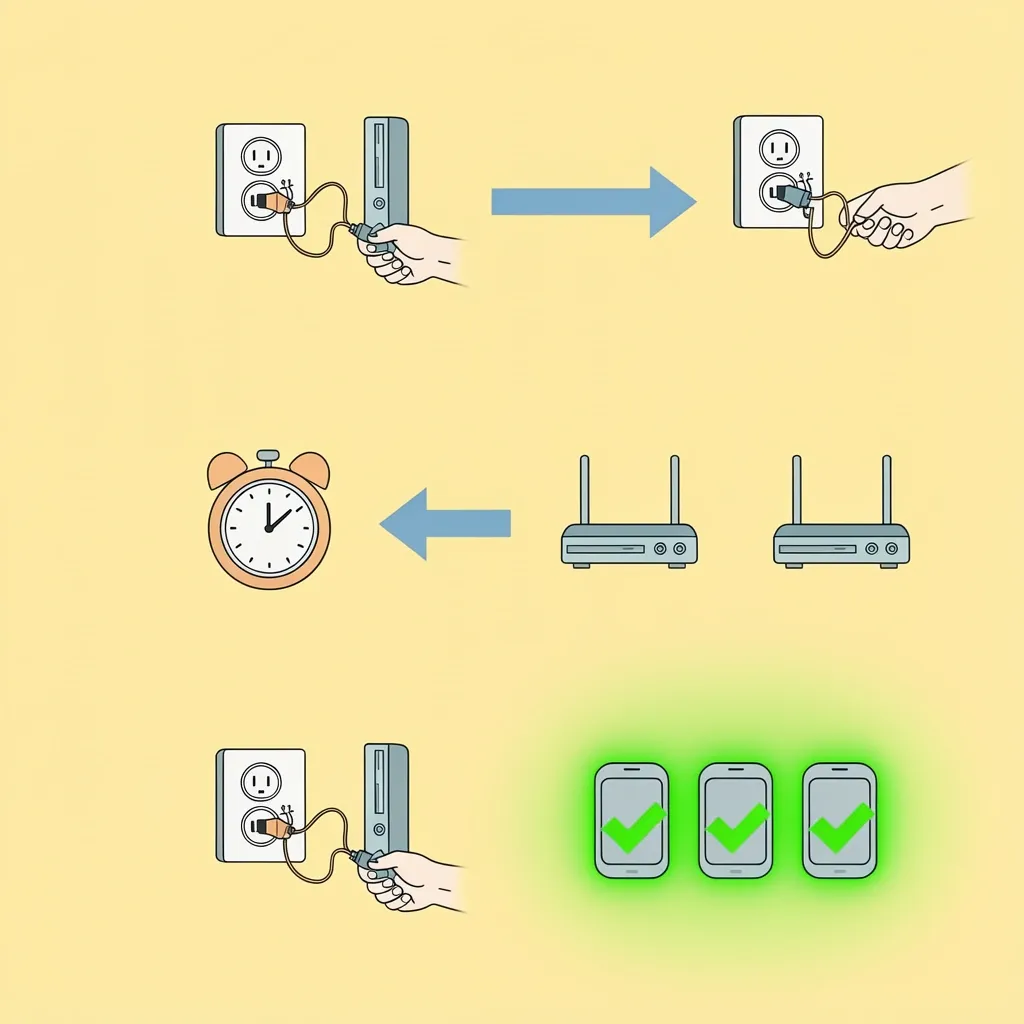
Unplug your modem, your router, and your TV from power. Wait two full minutes. Plug the modem back in first. Wait for it to come online (usually 1–2 minutes). Next, plug in the router. Wait again for all lights to stabilize. Finally, turn on the TV. This sequence flushes out stale ARP tables, forces a fresh DHCP lease, and clears any temporary glitches. Skip this step if you already did it – don’t repeat it later.
2. Forget the Wi‑Fi network and reconnect
On the TV, go to Menu > Network > Manage Networks. Select your Wi‑Fi network and choose Forget or Remove. Then scan for networks again, select yours, and re‑enter the password. This often fixes a corrupted saved connection profile.
3. Manually set DNS to a public server
In the same network settings, change from Automatic DNS to Manual. Enter 8.8.8.8 as the primary DNS and 8.8.4.4 or 1.1.1.1 as the secondary. Save the changes, then power off the TV for 30 seconds and turn it back on. This bypasses any ISP‑level DNS failure that might only affect your TV.
Why it works: Changing DNS directly on the TV means it stops asking your router for website addresses and instead uses Google’s or Cloudflare’s servers. If the router’s own DNS had a hiccup, this solves it instantly. But if the TV can’t reach any internet host at all, DNS won’t help – that’s why you test the IP first.
What to Check in Your Router Settings
If the quick steps didn’t work, the issue likely lives in your router’s configuration. Log in to your router’s admin page (usually http://192.168.1.1 or http://192.168.0.1) using the username and password printed on the router itself.
DHCP address pool
If your TV got a 169.254.x.x address in the earlier check, the router may have run out of available IPs. Go to the DHCP settings and verify the address pool is large enough for all your devices. You can also renew the lease by power‑cycling the TV (which we already did in step 1).
AP (client) isolation
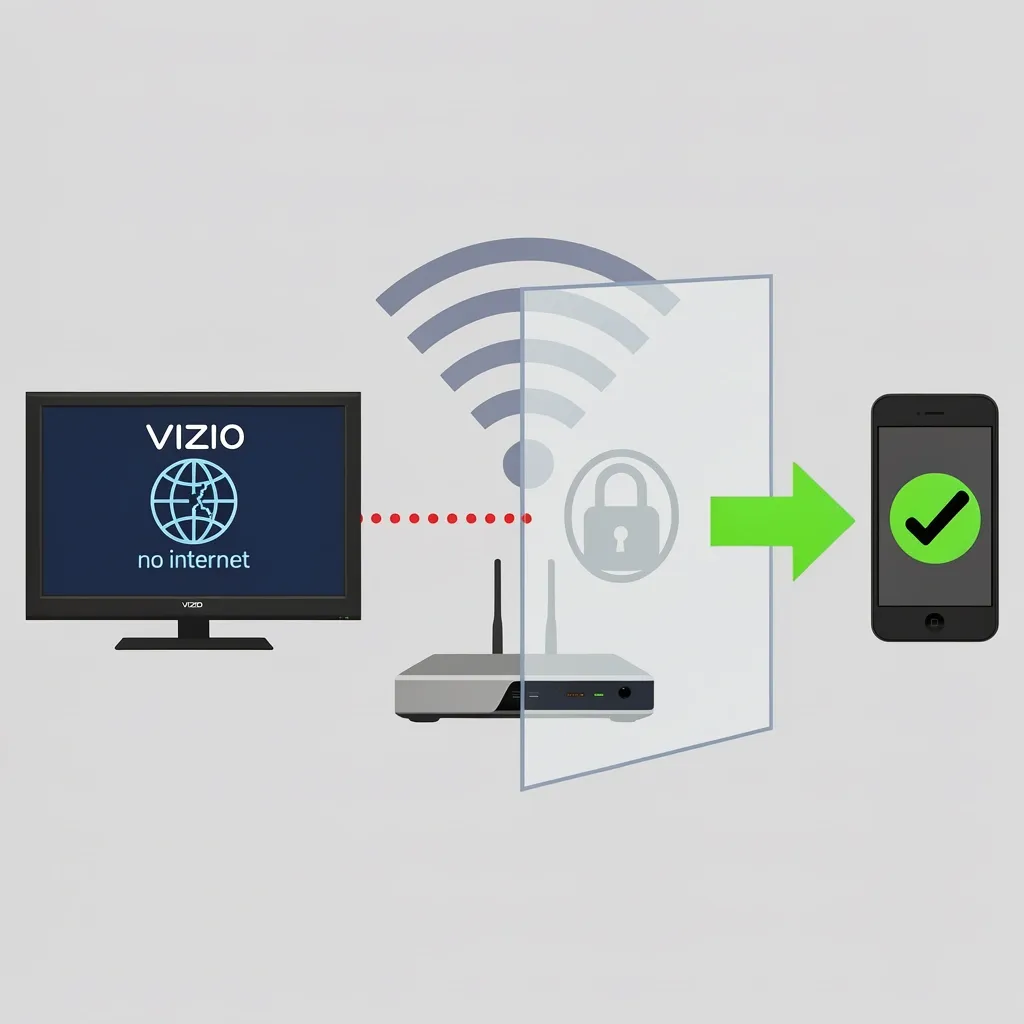
Many routers have a feature called “AP Isolation” or “Client Isolation” that prevents Wi‑Fi devices from talking to each other. This can block the TV from reaching the internet even though it’s connected. Look for this setting under the Wi‑Fi or Wireless section and disable it.
Band steering and 2.4 GHz vs. 5 GHz
Some Vizio TVs struggle with 5 GHz bands, especially older models. In your router’s Wi‑Fi settings, disable band steering (which combines both bands under one name) and temporarily connect the TV to the 2.4 GHz network only. You can do this by separating the SSID names in the router settings or by simply moving the TV closer to the router.
IPv6 on the TV
Vizio TVs sometimes have IPv6 turned on by default, and if your router doesn’t handle IPv6 well, it can cause timeouts. On the TV go to Menu > Network > Manual Setup and toggle IPv6 to Off. Restart the TV after changing.
Is It a Dead Wi‑Fi Module or a Stubborn Glitch?
You’ve tried everything above, and your Vizio TV still says connected but no internet. At this point you need to decide if the hardware is failing or there’s a deeper software issue.
Test with a mobile hotspot
Turn on your phone’s personal hotspot and connect your Vizio TV to that network. If the TV loads YouTube or Netflix perfectly, then the TV’s Wi‑Fi chip is fine and the problem is definitely your home router or ISP. If it still fails to connect, the Wi‑Fi module inside the TV may be defective.
Test with Ethernet
If your Vizio TV has an Ethernet port (most newer models do), plug a cable directly from the router to the TV. Go into network settings and choose Wired connection. If the internet works over cable, the Wi‑Fi receiver is the culprit – you can use a USB‑to‑Ethernet adapter as a permanent fix if your TV supports it.
Factory reset as a last resort
A factory reset clears all saved Wi‑Fi passwords, app logins, and custom settings. It can wipe out a stubborn software glitch, but you’ll need to set everything up again. On most Vizio TVs, go to Menu > System > Reset & Admin > Factory Reset. After the reset, you’ll have to reconnect to Wi‑Fi – don’t forget to manually set your DNS back to 8.8.8.8 because the reset will have reverted it to automatic.
Important: If your TV worked fine for years before this problem, and a factory reset doesn’t help, the Wi‑Fi module is likely dead. Contact Vizio support for a repair quote, or use an Ethernet adapter to bring it back to life.
Frequently Asked Questions
Why does my Vizio TV lose internet after a factory reset?
The reset clears your saved Wi‑Fi password and reverts DNS to automatic. Re‑enter your network password and go back to manual DNS (8.8.8.8) to restore internet access.
Can I connect my Vizio TV to Wi‑Fi without a remote?
Yes, download the Vizio mobile app (iOS/Android) and follow the on‑screen pairing instructions. Once paired, you can use the app to enter network settings. Alternatively, plug a USB keyboard into the TV and use it to navigate.
Why does my older Vizio TV (2012–2015) refuse to connect to a modern router?
Older Vizio TVs only support WPA2‑AES encryption. If your router uses WPA3 or a mixed mode (WPA2/WPA3), change the router’s security setting to WPA2‑AES only.
Does a VPN on my router affect the Vizio internet connection?
Yes. Many streaming services block IP addresses associated with VPNs. If you have a VPN enabled at the router level, the TV won’t be able to reach Netflix, Hulu, etc. Disable the VPN for the TV’s MAC address in your router settings, or turn off the VPN entirely.
If you’ve gone through all these steps and your Vizio TV still won’t access the internet, you’ve ruled out every software and router cause. The final answer is hardware replacement – either the internal Wi‑Fi chip or a cheap Ethernet adapter as a workaround. But in my experience, 9 out of 10 times a simple IP refresh or DNS change fixes it. Try those first, and you’ll likely be watching your shows again before the commercials end.