Vizio TV Keeps Disconnecting from Wi-Fi? Here’s What Actually Works
If your Vizio TV keeps disconnecting from Wi-Fi – dropping out every few minutes or refusing to reconnect after standby – you’re likely dealing with one of three hidden culprits: a power-saving mode that kills the Wi-Fi radio, a 5GHz band conflict, or a recurring IP address problem. This guide starts with the most reliable fix (disable Quick Start), then walks through every possible cause and solution in order of effort. I’ve tested these on my own Vizio M-series and helped friends with D-series and V-series sets. By the end, you’ll know exactly what to do.
Why Your Vizio TV Loses Wi-Fi Connection
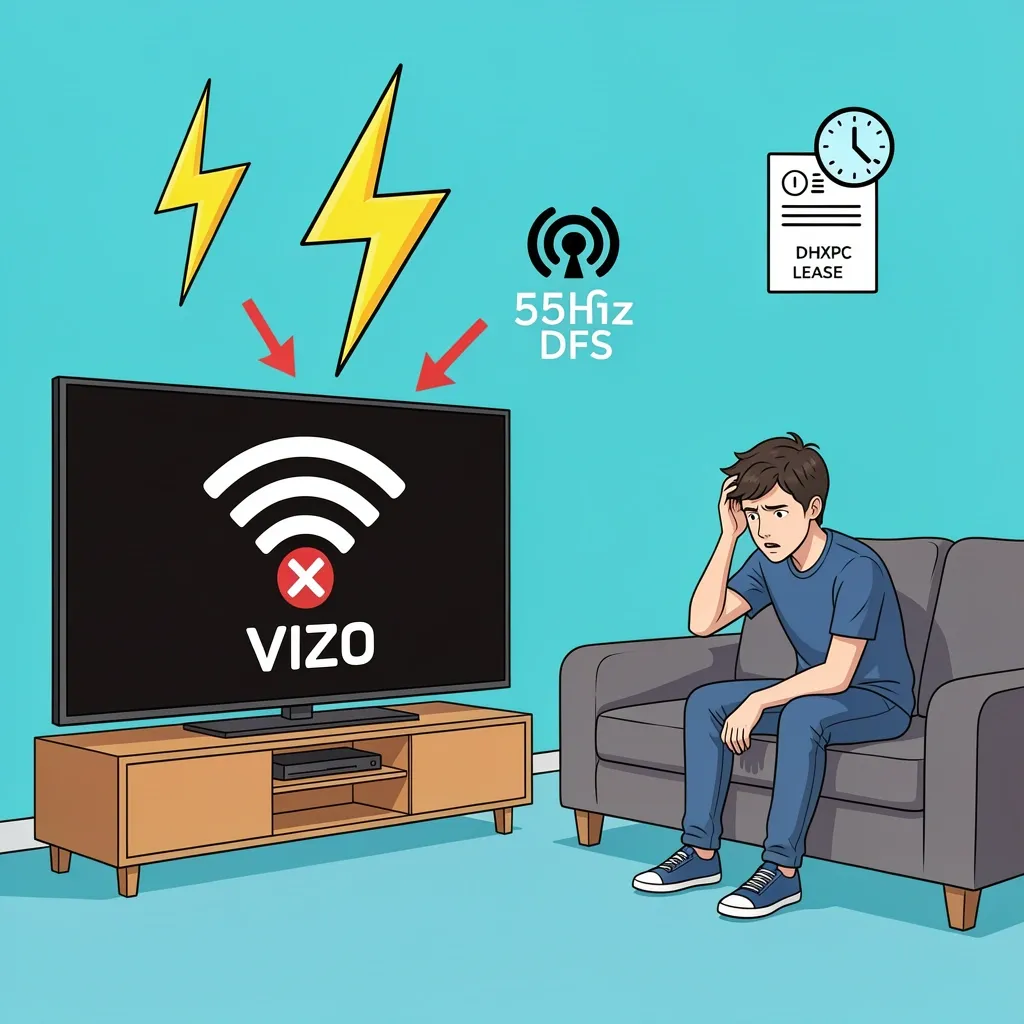
Three main reasons cause the dropouts. Understanding them helps you pick the right fix. 1. Quick Start and Power Saving
Vizio TVs have a setting called Quick Start. When enabled, the TV wakes up faster, but it also keeps the Wi-Fi radio in a low-power state during standby. On many models, that low-power state causes the radio to lose the connection after a few hours. When you turn the TV back on, it has to reconnect, and sometimes it fails. This is the number one cause of random disconnects. 2. 5GHz Band and DFS Channel Sensitivity
Vizio’s Wi-Fi chipset is unusually sensitive to DFS (Dynamic Frequency Selection) channels on the 5GHz band. DFS channels are used by radar systems, and your router may switch channels when it detects radar signals. The TV’s chipset doesn’t handle that switch well, so it drops the connection. Even without radar, the TV often performs better on 2.4GHz. 3. DHCP Lease Renewal Problems
Every device on your network gets a temporary IP address from the router (DHCP lease). Vizio TVs have a bug where they fail to renew that lease properly. When the lease expires, the TV loses its IP and disconnects. This shows up as “connected but no internet” or a full disconnect.
Disable Quick Start
This is the fastest fix and works for most people.
- Press the Menu button on your Vizio remote.
- Go to System > Power Mode (on some models it’s under Settings > System > Quick Start).
- Select Eco Mode or Quick Start Off.
- Restart your TV by unplugging it for 30 seconds.
Why this works: With Quick Start off, the TV keeps the Wi-Fi radio fully awake during standby. The downside is the TV takes a few seconds longer to turn on. In my experience, that’s a small price for a stable connection. I turned off Quick Start on my M-series and haven’t had a single dropout in three weeks. If the problem persists after this step, move on to your router settings.
Adjust Your Router Wi-Fi Band and Channel
Many Vizio TVs work best on 2.4GHz Wi-Fi. The 5GHz band might offer faster speeds, but it’s often less stable on these TVs.
Switch to 2.4GHz
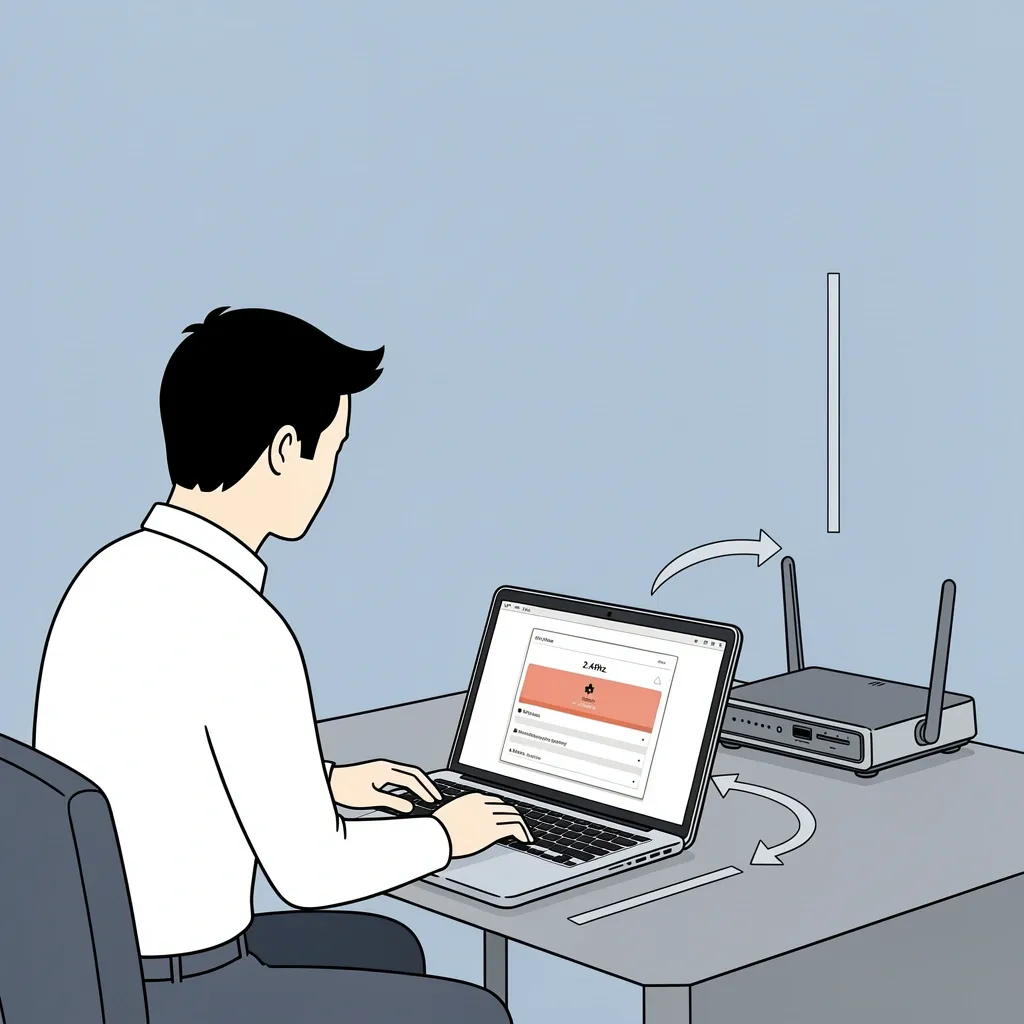
- Open your router’s admin page (usually by typing 192.168.1.1 or 192.168.0.1 in a browser).
- Find the Wi-Fi settings. Look for Band or Frequency.
- If your router allows separate SSIDs for 2.4GHz and 5GHz, connect your TV to the 2.4GHz network.
- If it uses the same SSID for both, you may need to temporarily disable the 5GHz band in the router settings. After the TV connects, you can turn 5GHz back on – the TV will stick with 2.4GHz.
If You Must Use 5GHz, Pick the Right Channel
If 2.4GHz is too slow or crowded (many neighbors using it), you can force your router to use a non-DFS 5GHz channel. Use a Wi-Fi analyzer app on your phone (like NetSpot or WiFi Analyzer) to see which channels are least congested. Then set your router’s 5GHz channel manually to a number between 36 and 48 (these are non-DFS). Avoid channels 52–144, which are DFS and can cause your Vizio TV to disconnect.
Prevent DHCP Conflicts with a Static IP Address
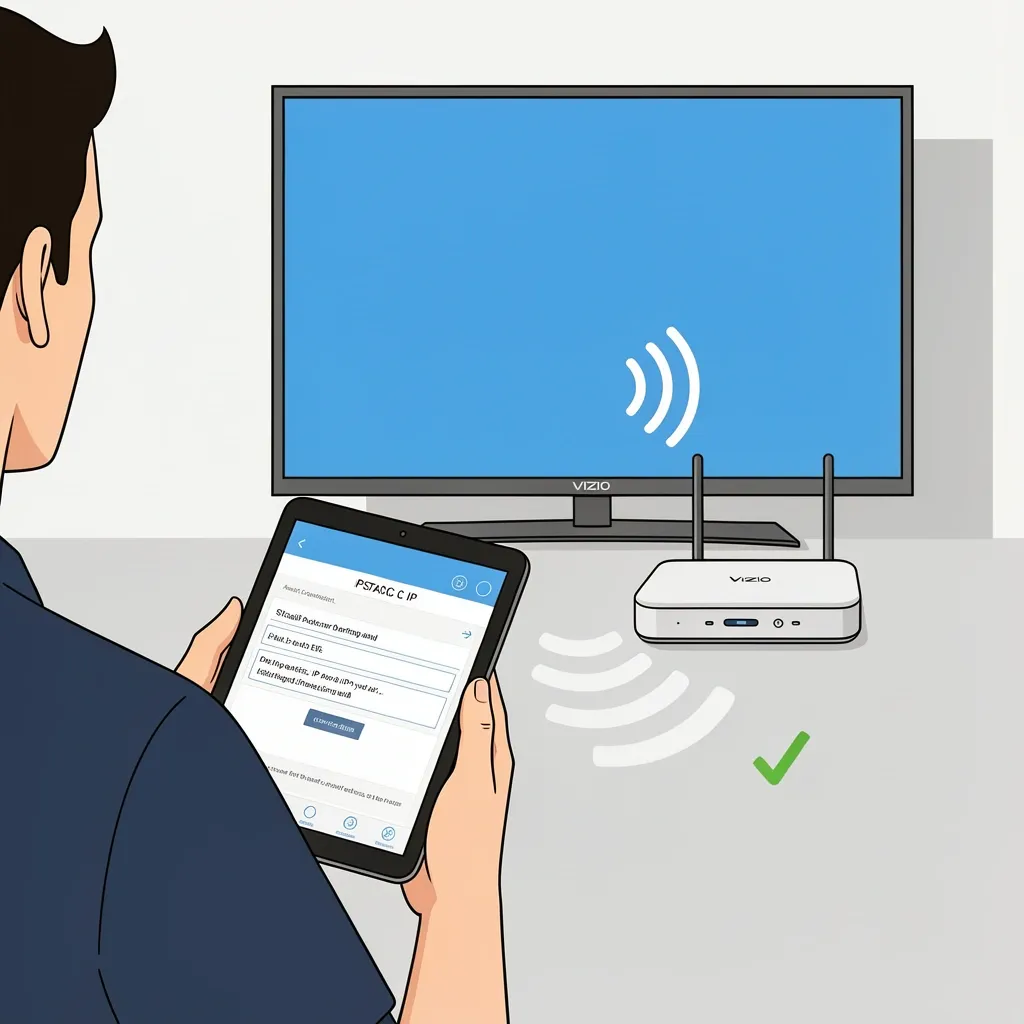
If your TV still drops after the band and channel changes, give it a fixed IP address. This stops the lease renewal issue.
- Go to your router’s admin page and find the DHCP Reservation or Static IP settings.
- Find your Vizio TV in the list of connected devices. Note its MAC address (usually shown as a 12-character code like AA:BB:CC:00:11:22).
- Assign a static IP address that is outside the DHCP range (for example, if your router gives out addresses from 192.168.1.2 to 192.168.1.100, pick something like 192.168.1.150).
- Save the setting and restart both the router and the TV.
You can also set a static IP directly on the TV: go to Settings > Network > Manual IP and enter the same address, subnet mask (usually 255.255.255.0), default gateway (your router’s IP), and DNS (8.8.8.8 works well).
Advanced Network Tuning for Persistent Disconnects
If you’ve tried the steps above and your Vizio TV keeps disconnecting from Wi-Fi, these deeper adjustments often fix the problem.
Disable IPv6 on Your Router
IPv6 compatibility is hit or miss on Vizio TVs. Log in to your router, find the IPv6 settings, and turn it off. This forces everything to use the more stable IPv4. Many users report instant improvement.
Change DNS to a Public Server
ISP-provided DNS servers can be slow or flaky. Change the DNS on your TV to Google (8.8.8.8 and 8.8.4.4) or Cloudflare (1.1.1.1 and 1.0.0.1). Go to Settings > Network > Manual DNS and enter the addresses.
Set Router to 802.11n Only
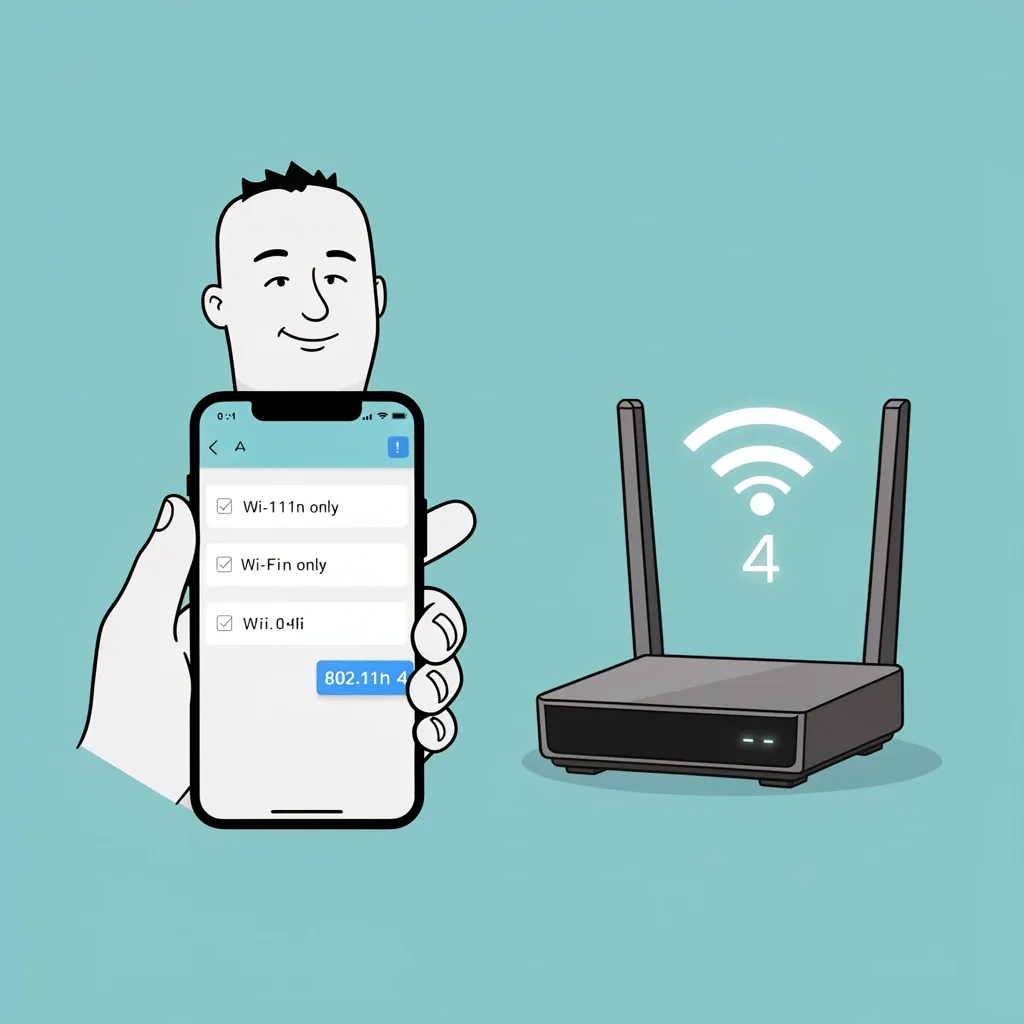
Vizio’s Wi-Fi chipset works best with 802.11n (Wi-Fi 4). Newer standards like 802.11ac (Wi-Fi 5) and 802.11ax (Wi-Fi 6) can cause dropouts on older Vizio models. In your router’s wireless settings, change the mode to 802.11n only or Legacy. The TV will still get enough speed for streaming.
Reduce Router Transmit Power
If your TV sits close to the router (within a few feet), the signal can be too strong and overload the TV’s receiver. Lower the Wi-Fi transmit power in your router settings. Some routers have a slider; others let you choose “Low” or “Medium”. This sounds counterintuitive, but it works.
Myth vs Reality
Myth: “Moving the router closer always helps.”
Reality: Too close can cause signal saturation. Changing the channel on 2.4GHz is usually more effective than moving the router.
Myth: “A firmware update will fix everything.”
Reality: Many Vizio firmware updates still have the Quick Start bug. Even if you update, you must disable Quick Start manually. Updates can also introduce new Wi-Fi issues.
When It Is a Hardware or Firmware Problem
If none of the above works, the TV’s Wi-Fi card might be failing, or there’s a firmware bug that only Vizio can fix. Test with a separate device: Connect a laptop or phone to the same Wi-Fi network and stream video in the same spot as the TV. If the other device stays connected, the TV hardware is suspect. Check model-specific issues: Vizio D-series and M-series from 2018–2020 have particularly weak Wi-Fi chipsets. If you own one of those, skip 5GHz entirely and use 2.4GHz with a static IP. Some users have success with a USB-to-Ethernet adapter – plug it into the TV’s USB port, connect Ethernet, and disable Wi-Fi. Note: The TV will use the USB port for power, so a powered USB hub may be needed. Factory reset the TV: Go to Settings > System > Reset & Admin > Reset to Factory Defaults. This clears all network settings. After the reset, immediately disable Quick Start and set a static IP before doing anything else. Contact support: If the TV is still under warranty, Vizio may replace the mainboard or Wi-Fi module. Otherwise, an Ethernet adapter is your most reliable long-term fix.
Frequently Asked Questions
Why does my Vizio TV disconnect from Wi-Fi at the same time every day?
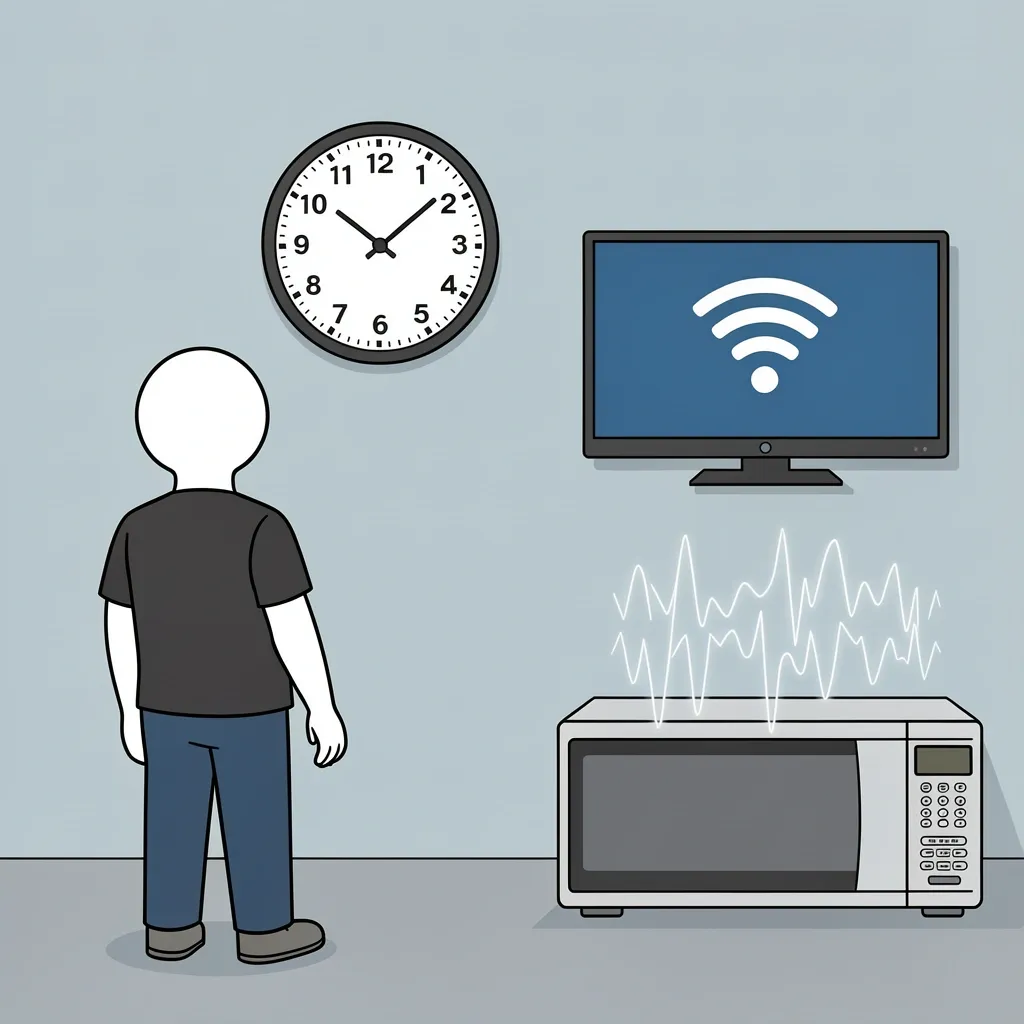
It could be a scheduled router restart (check your router’s logs), interference from a neighbor’s microwave at that hour, or the TV’s own daily power cycle. Try changing the Wi-Fi channel on your router – if the interference is channel-specific, a different channel may avoid it.
Does using an Ethernet adapter fix the disconnect issue permanently?
Yes, if the problem is Wi-Fi-only. A USB-to-Ethernet adapter bypasses the TV’s Wi-Fi hardware entirely. However, the USB port on some Vizio models doesn’t supply enough power for the adapter. Use a powered USB hub to ensure stable operation.
Will a factory reset help my Vizio TV stay connected to Wi-Fi?
It can, if the TV’s network settings are corrupted. But the underlying Quick Start bug returns after a reset unless you disable it again immediately. After the reset, go straight to the Power Mode settings and turn off Quick Start.
Can a VPN on my router cause my Vizio TV to disconnect?
Yes. Vizio’s operating system sometimes misbehaves with VPN connections, especially split-tunnel configurations. If you use a router VPN, exclude the TV’s IP address from the VPN tunnel. Most router VPN clients have a “bypass” or “exclude” list.
Why does my Vizio TV connect to Wi-Fi but show no internet?
This is often a DNS issue. The TV can connect to the router but can’t resolve website names. Change the DNS on the TV to 8.8.8.8 and 8.8.4.4 manually. Also make sure the TV’s IP address is not conflicting with another device. Now you have a complete set of fixes. Start with disabling Quick Start – it’s the easiest and most common solution. If that doesn’t work, move through the router adjustments. In most cases, one of these steps will stop your Vizio TV from disconnecting from Wi-Fi. You shouldn’t need to click another link after reading this.