Vizio TV Won't Connect to WiFi After Factory Reset – Here’s the Fix
A factory reset is supposed to wipe out problems, not create new ones. But when your Vizio TV won’t connect to WiFi after factory reset, it feels like you made things worse. I’ve been through this myself, and I’ve helped plenty of people get past it. The good news is that most of the time the TV is not broken. It’s just stuck in a weird state after the reset cleared its memory. Let me walk you through the fixes, starting with the fastest ones.
First, Check If Your TV Is Stuck in the Setup Wizard
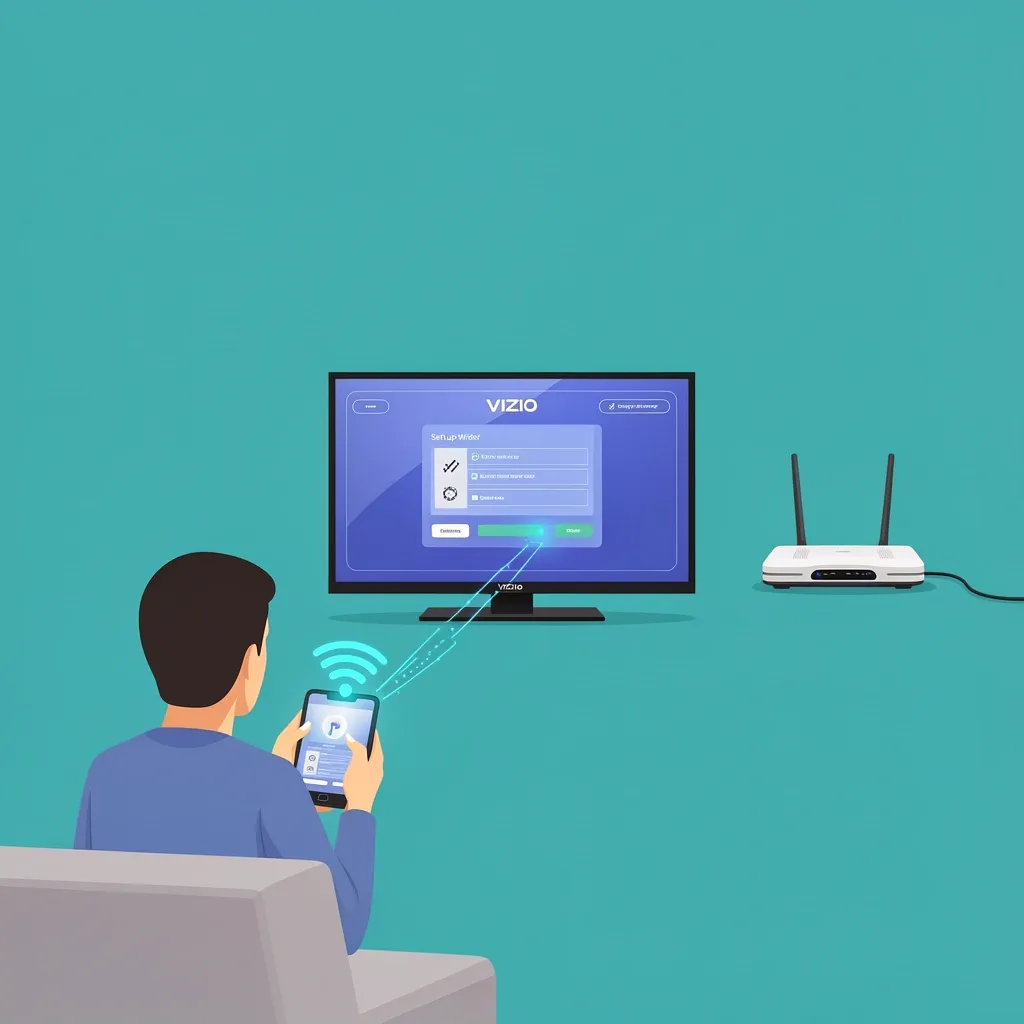
After a factory reset, many Vizio TVs require an internet connection just to finish the initial setup. If you hit the “Connect to WiFi” screen and can’t go any further, your TV is trapped in what I call the setup wizard loop. You cannot change network settings or try anything else until you get past this screen.
The workaround is simple: give the TV temporary internet access so it can complete setup. You have two options:
- Ethernet cable – If your Vizio TV has a built-in ethernet port (most do), plug it directly into your router. The TV will automatically connect and skip the WiFi setup. Once setup finishes, you can unplug the cable and fix WiFi later.
- Mobile hotspot – Use your phone’s hotspot to share internet with the TV. Make sure the hotspot SSID is different from your home network (change it temporarily if needed). Connect the TV to the hotspot, finish setup, then turn off the hotspot. After that, you can go into settings and reconnect to your home WiFi.
If your model has a “Skip” or “Set up later” option hidden on the WiFi screen, tap that. But many newer Vizio TVs force you to have internet before proceeding.
Try the Full Power Cycle – Unplug for Two Minutes
This is not the same as pressing the power button on the remote. A remote power button only puts the TV into standby – the WiFi module still has power. To truly reset the WiFi hardware, you need to drain all residual voltage.
Steps:
- Unplug the TV from the wall outlet.
- Wait at least 2 full minutes (60 seconds is okay, but 120 is better).
- While the TV is unplugged, also unplug your router and modem for 30 seconds, then plug them back in. Wait until all lights are stable.
- Plug the TV back in and turn it on.
- Go to Settings > Network > Manual Setup. Forget any saved network (if any), then scan for your WiFi and re-enter the password. Passwords are case-sensitive, so type carefully.
Why this works so often: The long unplug drains capacitors that can keep the WiFi chip in a corrupted state after a factory reset. A full power cycle clears that corruption.
Check Network Settings After You Get Past Setup
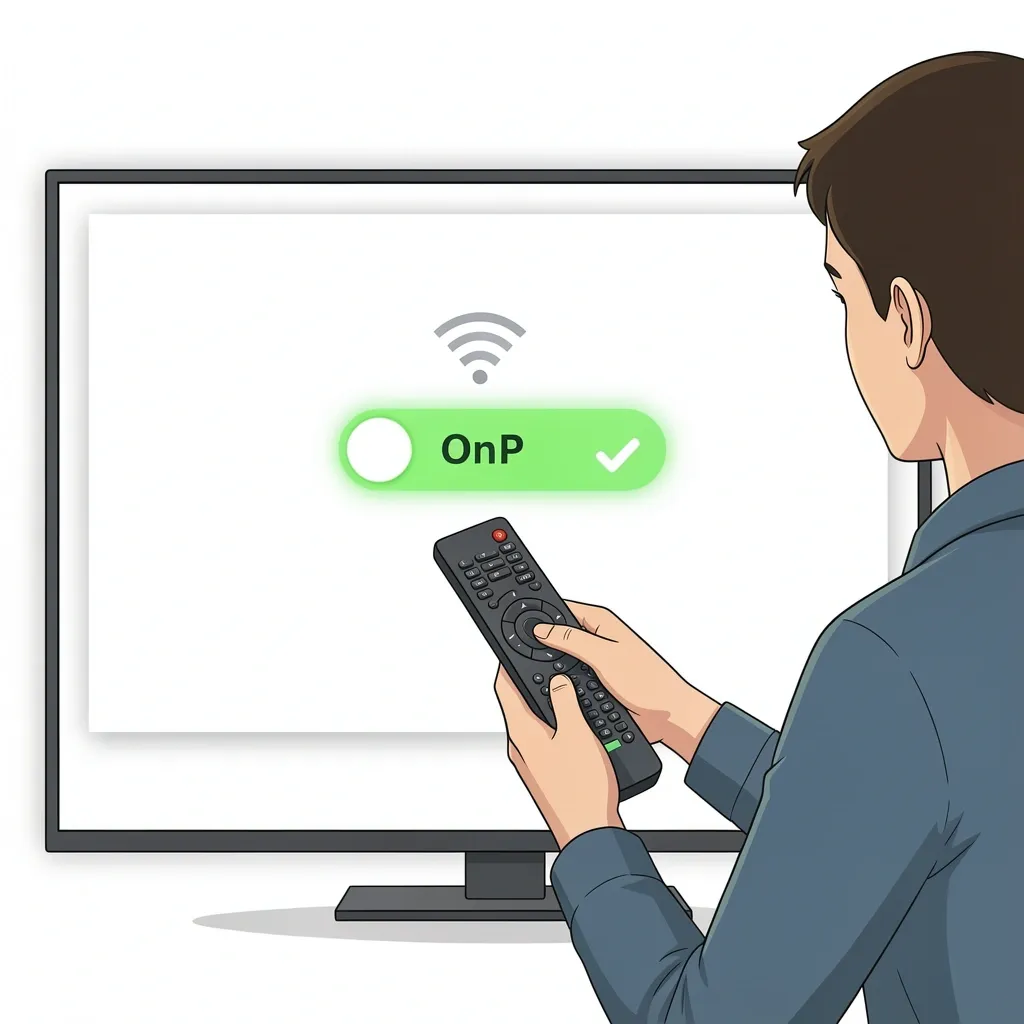
If you used the ethernet or hotspot workaround to complete setup, you are now free to adjust WiFi settings. Go to Settings > Network > Manual Setup.
The most common culprit after a factory reset: the TV switches from DHCP (automatic IP) to a static IP with wrong values. Make sure DHCP is set to “On”. If it’s off, the TV won’t get an IP address and will fail to connect.
Also try toggling WiFi off and then back on. Scan for networks. If you see your network but it fails to connect, the band might be the issue. Vizio TVs sometimes have driver bugs with one band – switch your router to broadcast only 2.4GHz temporarily, or force the TV to connect to 2.4GHz by disabling “Smart Connect” / band steering on your router.
What Factory Reset Actually Does to WiFi
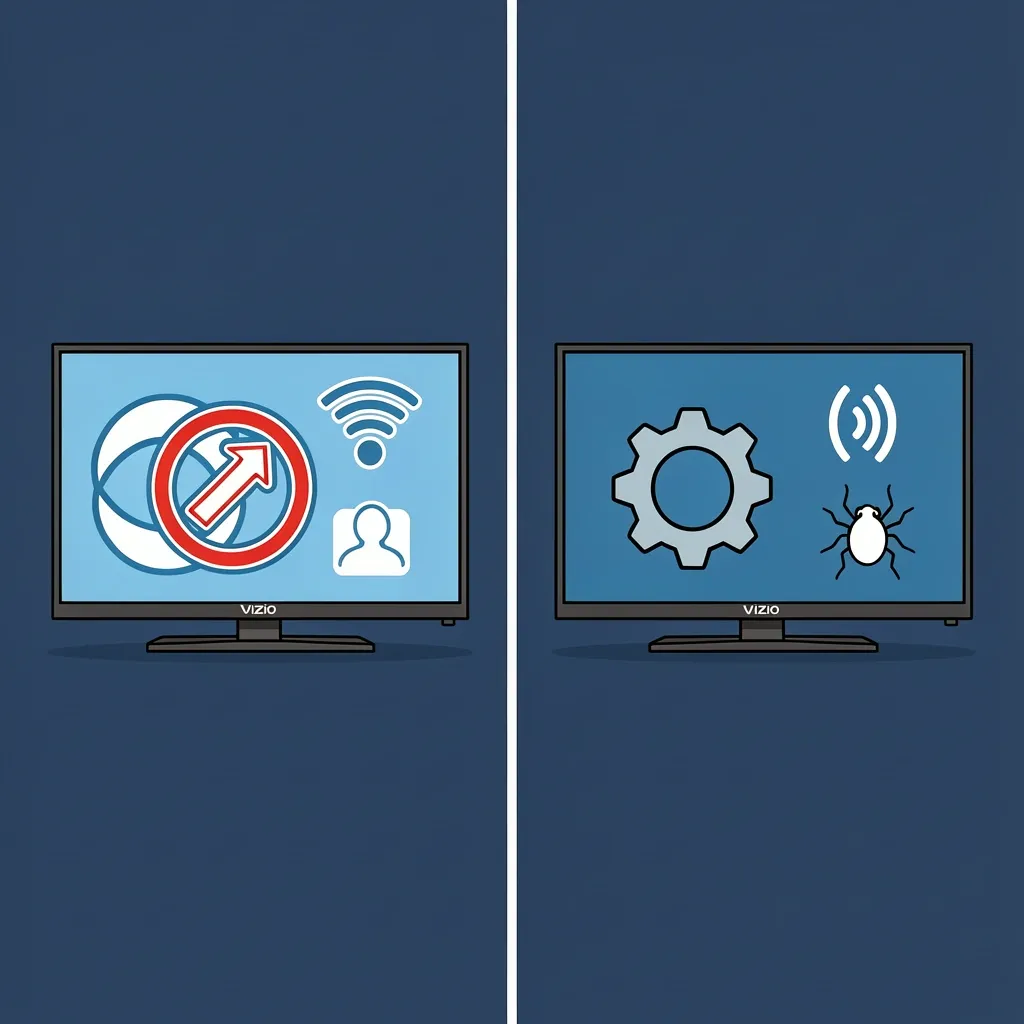
A lot of people think a factory reset will fix any WiFi problem. But it’s important to understand what really happens:
- What it wipes – Saved WiFi profiles, app data, and user settings. The WiFi module itself gets reset to a clean state.
- What it does NOT wipe – The firmware (operating system) version stays the same. The reset does not revert firmware updates. So if a firmware bug caused the original WiFi issue, the factory reset will not fix it – it might even make it more visible because the TV no longer has cached workarounds.
- What stays – The WiFi radio’s hardware configuration and drivers. If the hardware is failing, no reset will help.
This is why many people say “Vizio TV won’t connect to WiFi even after factory reset” – because the reset can actually expose underlying firmware or router incompatibilities that were previously hidden by cached settings.
Important caveat for next time: Some Vizio models have a separate “Reset Network Settings” option (under System > Reset & Admin). That reset is safer than a full factory reset when you only have network trouble. Use that first before doing a full wipe.
Update the Firmware – Even After a Factory Reset
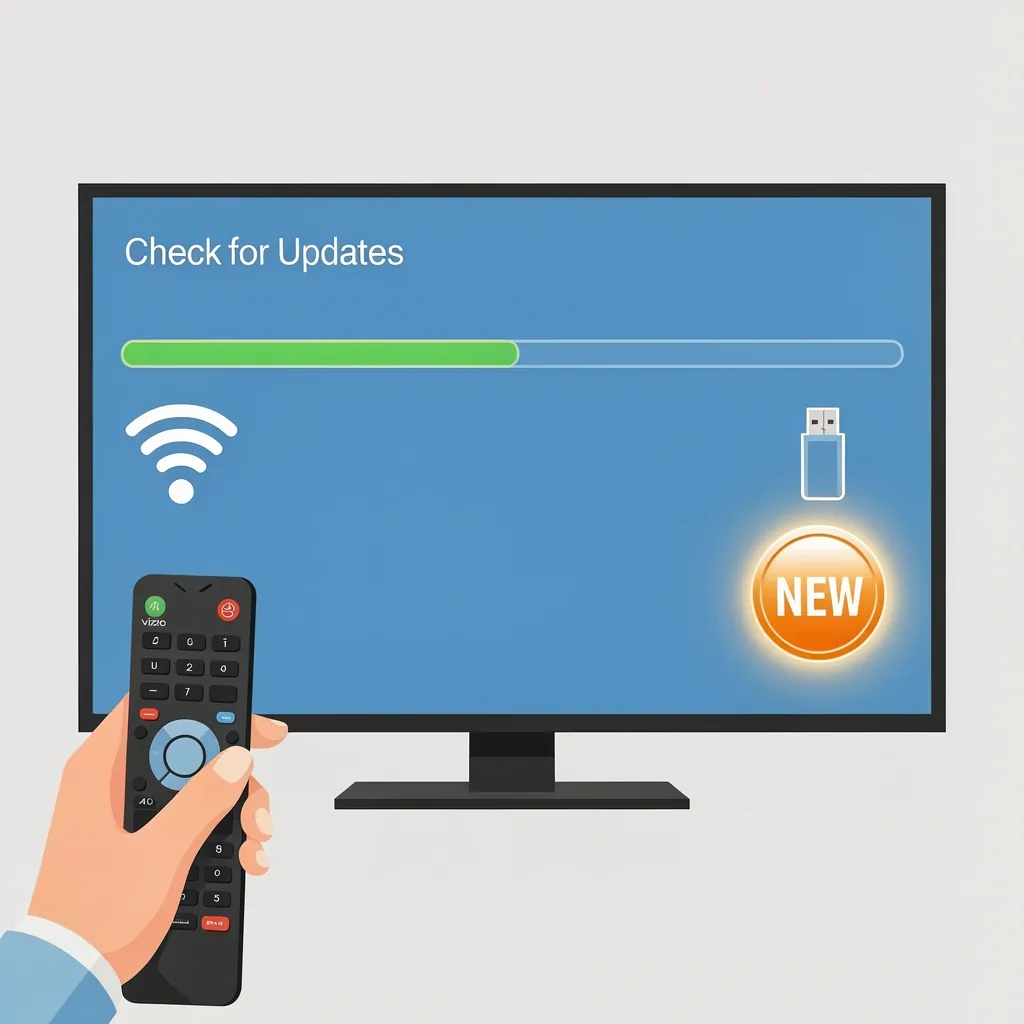
If you can get internet to the TV through ethernet or the hotspot workaround, the first thing you should do is check for a system update. Go to Settings > System > Check for Updates.
A factory reset does not roll back firmware, but sometimes the TV’s WiFi driver requires a specific firmware version. A newer firmware release may contain fixes for post-reset WiFi connection bugs. If an update is available, install it, then reboot the TV and try connecting to WiFi again.
If the TV cannot get any internet (no ethernet, no hotspot), you can manually update via USB:
- On a computer, go to the Vizio support website and enter your TV model number.
- Download the latest firmware file.
- Copy it to a USB flash drive (formatted to FAT32).
- Plug the USB into the TV, go to Settings > System > Check for Updates, and choose “Update from USB”.
Router Adjustments That Target Post-Reset Behavior
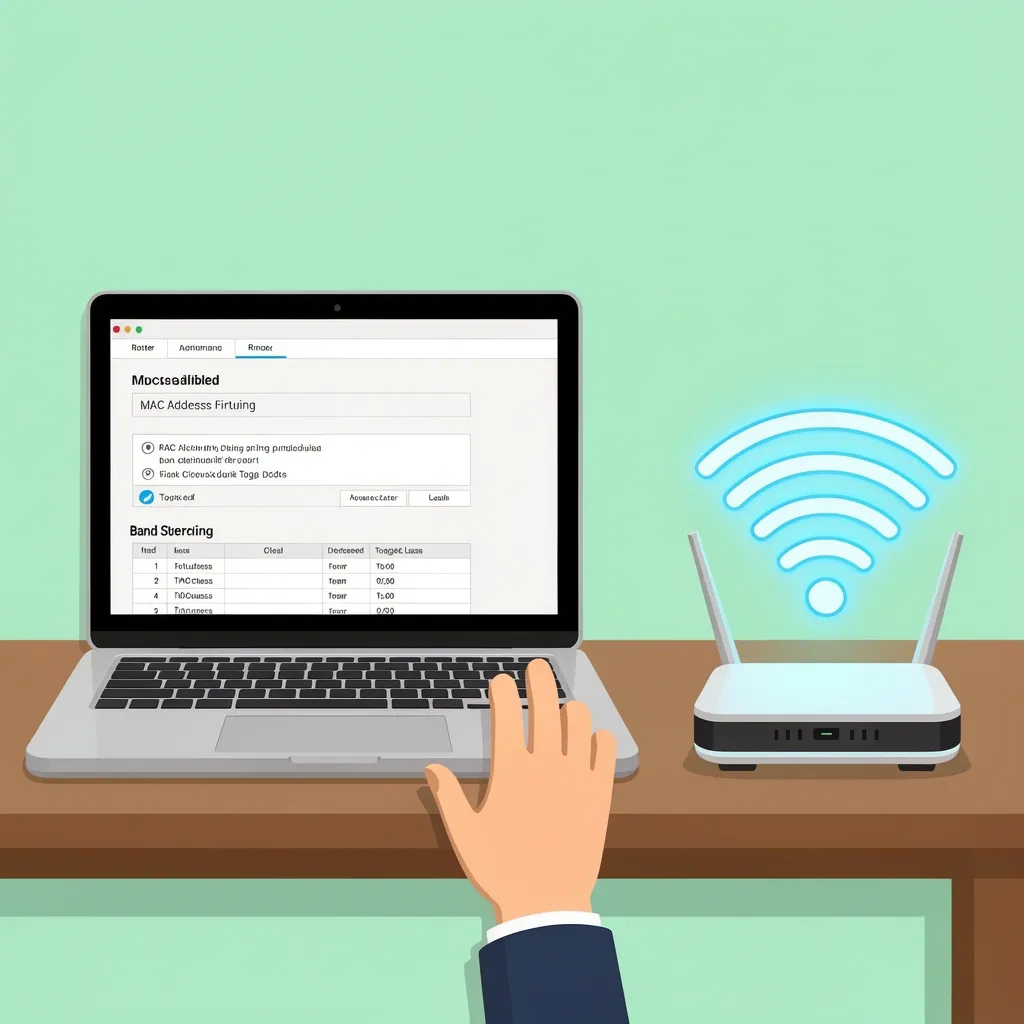
After a factory reset, the TV looks like a brand new device to your router. That can cause several issues:
- MAC address conflict – Your router might have MAC filtering enabled, which only allows specific devices. The TV’s MAC address after reset is still the same hardware MAC, but the router might have a list of “allowed” MACs that was set before the reset. Log into your router and disable MAC filtering temporarily, or add the TV’s MAC address manually.
- DHCP lease table – The router still holds an old IP lease for the TV’s old network name. Reboot the router completely (unplug for 30 seconds) to clear all leases. Then let the TV request a new IP.
- Band steering – Many modern routers use “Smart Connect” to choose 2.4GHz or 5GHz automatically. Some Vizio TVs have trouble with this after a reset. Turn off band steering in your router settings and force the 2.4GHz band only (it has better range and compatibility).
Last Resort – Do a Second Factory Reset Correctly
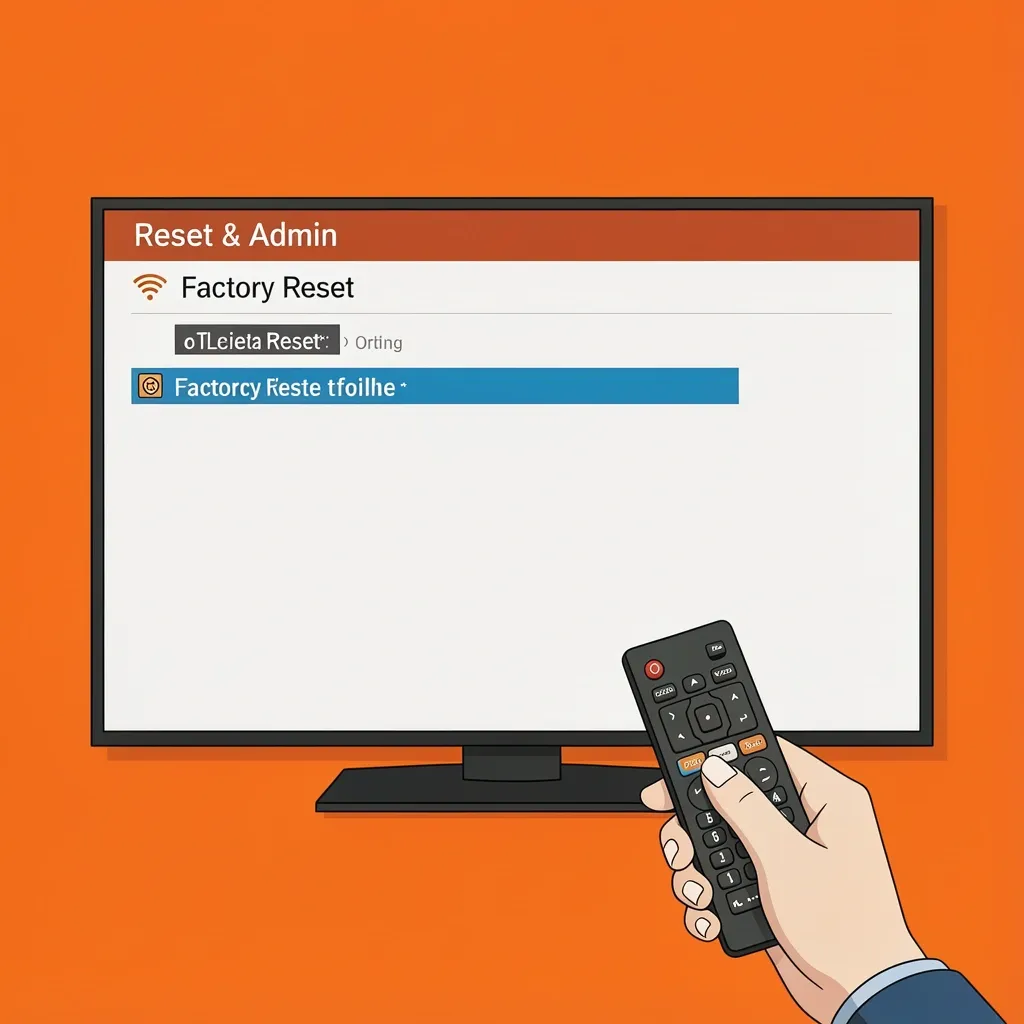
If nothing else worked, sometimes a second factory reset is the answer. The first reset may have left residual corruption. But you need to do it right:
- Use the menu reset, not the physical button. Go to Settings > System > Reset & Admin > Factory Reset.
- Do the reset while the TV is offline – unplug the ethernet, turn off WiFi.
- After the reset, immediately try to use ethernet or a hotspot to get past setup. Then apply the firmware update first before attempting WiFi.
If this second reset also fails to fix the WiFi connection, the issue is likely hardware – the WiFi board inside the TV may have failed. In that case, contact Vizio support or use a streaming device (Roku, Fire Stick) plugged into an HDMI port as a permanent workaround.
Frequently Asked Questions
Can I use a USB ethernet adapter if my Vizio TV has no ethernet port?
Most Vizio Smart TVs come with a built-in ethernet port. But some newer models lack the port. If your TV has a USB port, you can try a USB-to-ethernet adapter – it will only work if the TV’s operating system supports it (Android TV / Vizio SmartCast usually does). Otherwise, stick with the mobile hotspot method.
Why does my Vizio TV say “WiFi network not found” after reset when other devices see it?
This usually means the TV’s WiFi radio is not scanning properly. Move the TV closer to the router, eliminate metal or interference, then unplug the TV for two minutes. If the TV still cannot see any networks, the WiFi hardware may have failed – contact support.
Will a factory reset clear the saved WiFi password?
Yes, completely. Write down the password before resetting. If you forgot it, log into your router’s web interface (usually 192.168.0.1 or 192.168.1.1) to view the saved password under wireless settings.
My TV connects to WiFi but says “No Internet” after factory reset. What now?
This means the TV got an IP address but cannot reach the internet. Usually a DNS issue or router firewall. Go to network settings and set DNS manually to 8.8.8.8 (Google) or 1.1.1.1 (Cloudflare). Also check if your router blocks new devices – disable “Guest network isolation” temporarily.
Is it possible to bypass the setup wizard completely without internet?
Some Vizio models allow you to select “Use without internet” after a few seconds on the WiFi screen. Look for a small link or button labeled “Skip” or “Set up later”. If your model does not have that option, the hotspot method is your only way.