Change Input on Vizio TV Without Remote
I’ve been through this scenario more times than I can count. You sit down to watch something, turn on the Vizio TV, and realize the input is stuck on the wrong source. The remote? Nowhere to be found. Maybe the batteries died, maybe you lost it, maybe you never had one. And then you look at the TV itself and don’t see a button that says “Input.” Frustrating? Absolutely. But you have options. Most of them work in under a minute.
Let’s walk through the methods I’ve used myself and have helped others with. I’ll tell you exactly what works and what doesn’t, depending on your TV model and setup.
Assess Your TV Model First
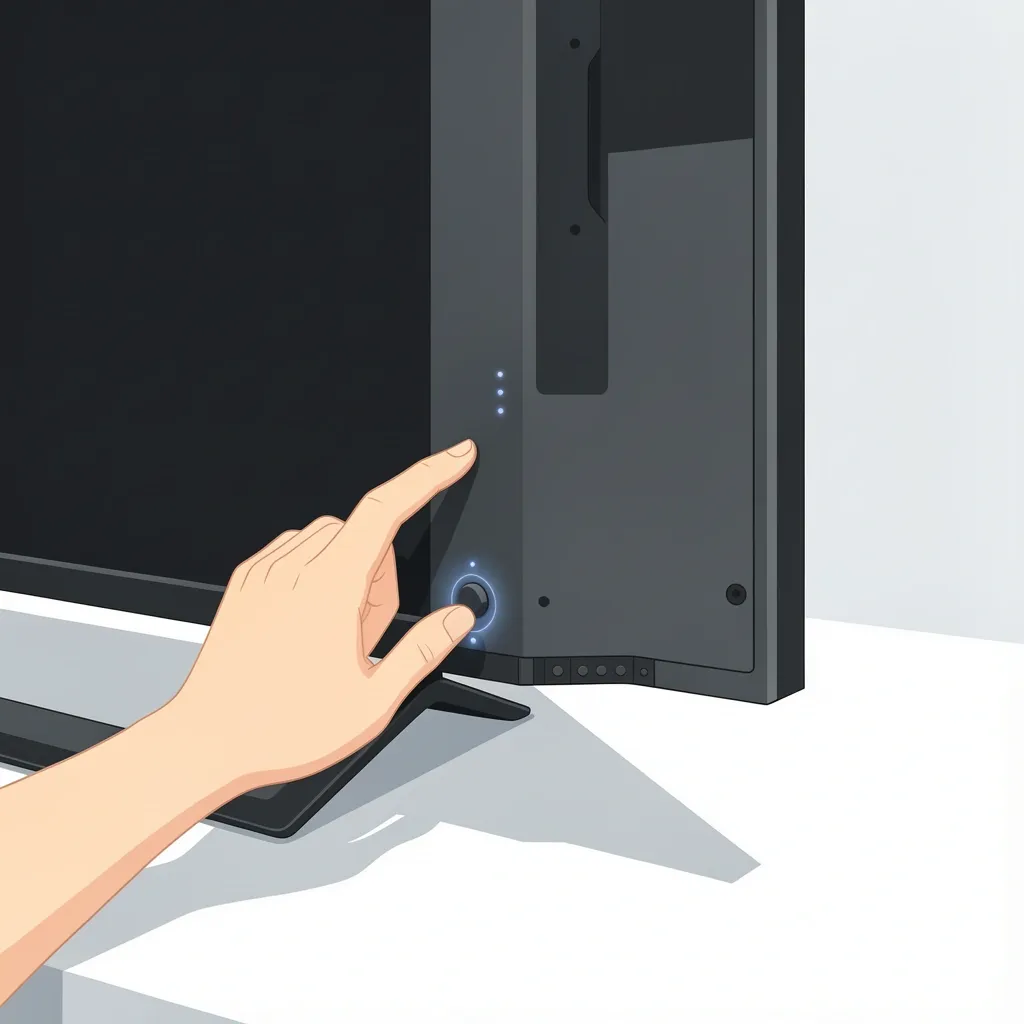
Before trying any method, take thirty seconds to figure out what kind of physical controls your Vizio has. This will save you time later. Look along the back panel, the bottom edge, the left side, and the right side. Some models have a single joystick button. Others have a row of tiny flat buttons. A few have nothing at all.
- Joystick button – A single button you can press and tilt. Common on newer Vizio TVs.
- Row of buttons – Usually labeled Power, Volume, Channel, and Input. Found on older models.
- Hidden panel – A small flap on the back or side that covers buttons.
- No buttons at all – Some ultra‑slim designs only have a power toggle. You will need a remote or smartphone.
If you find any button at all, the joystick is the most likely candidate. Press it once to bring up an on‑screen menu, then move it up, down, left, or right to find the Input option. If you have dedicated Input button, press it directly.
Use a Smartphone as a Remote
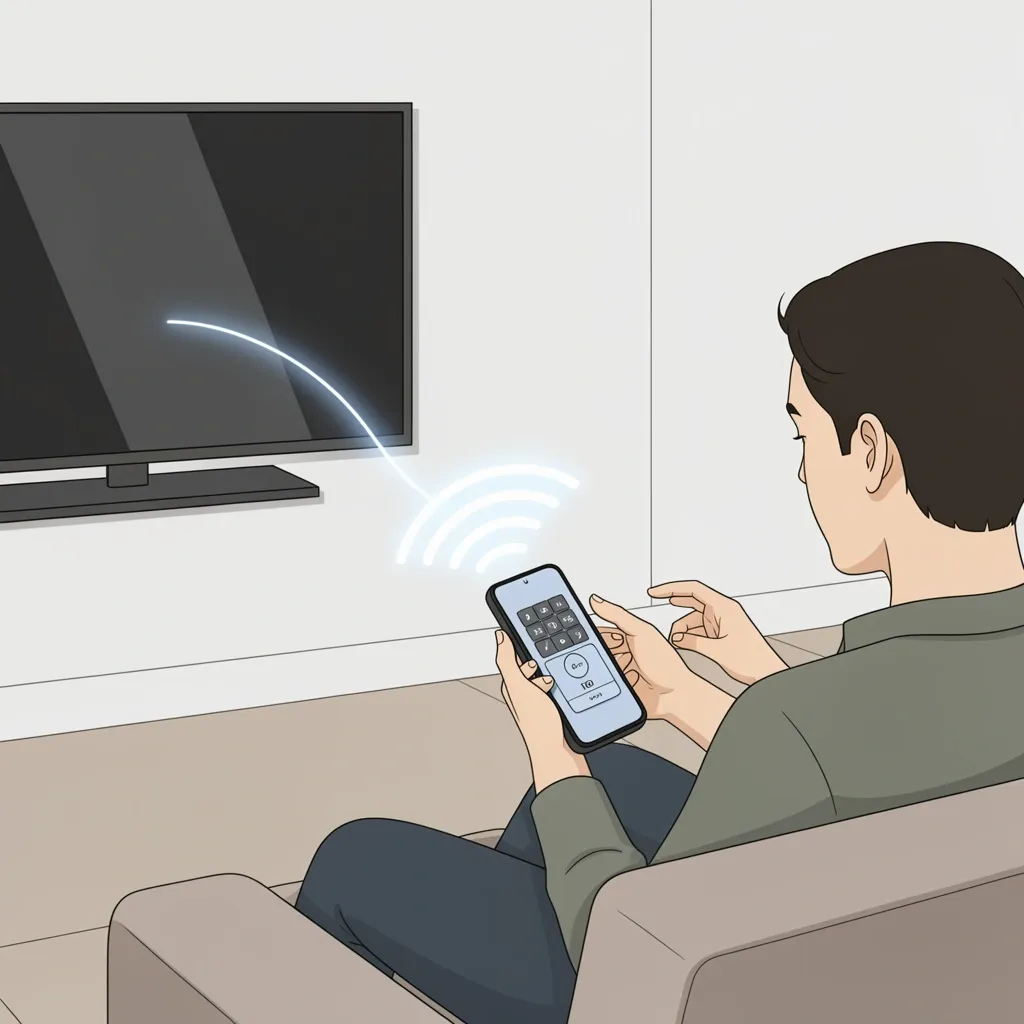
This is the method I recommend to everyone first because it usually works within seconds. If your phone has an infrared (IR) blaster, you can use a universal remote app. But even without IR, the Vizio SmartCast app works over Wi‑Fi.
Method: Vizio SmartCast App (Wi‑Fi Required)
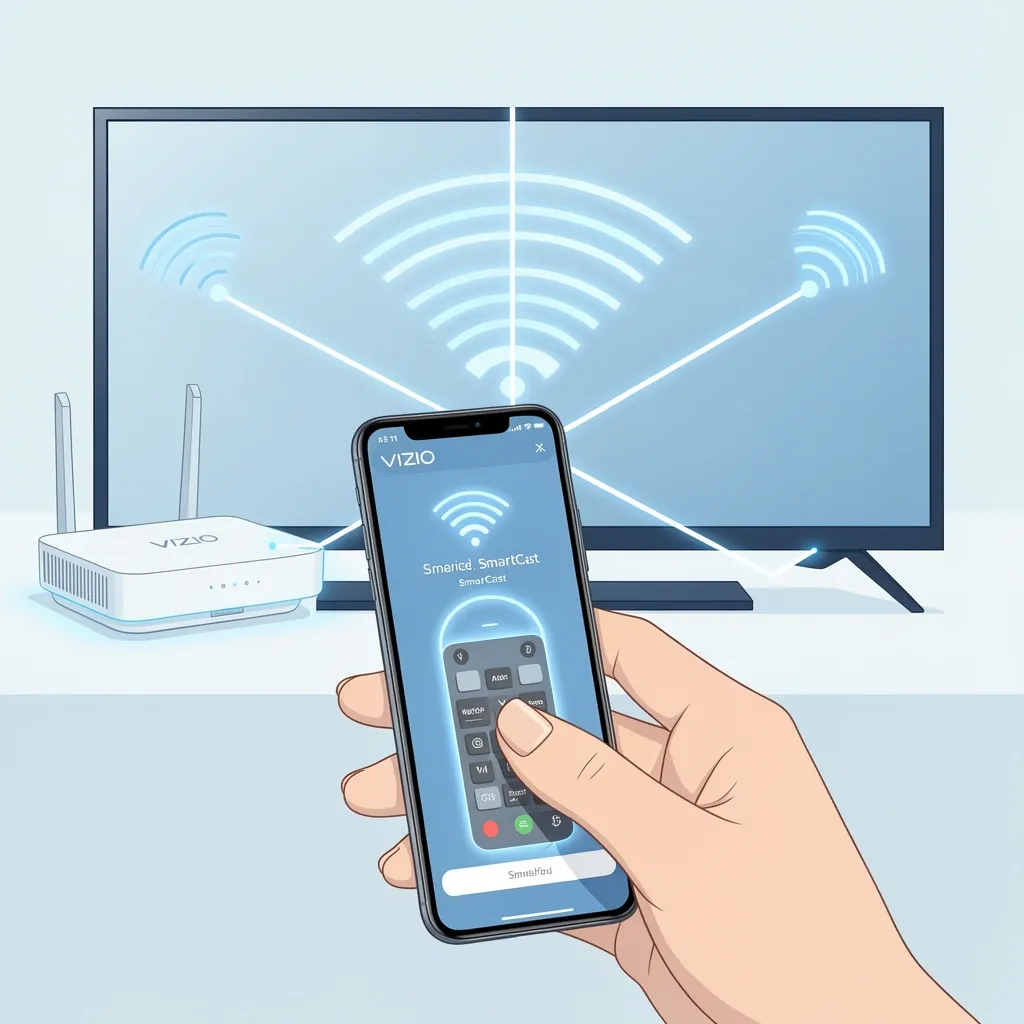
- Download the Vizio SmartCast app from the App Store or Google Play.
- Open the app and follow the on‑screen setup. Make sure your phone is on the same Wi‑Fi network as your TV.
- Once connected, the app shows a virtual remote. Tap the Input button and select your desired source.
If your TV supports Bluetooth (most newer ones do), you don’t even need Wi‑Fi. The app will find the TV via Bluetooth and give you the same remote control.
Method: IR Blaster App (No Wi‑Fi Needed)
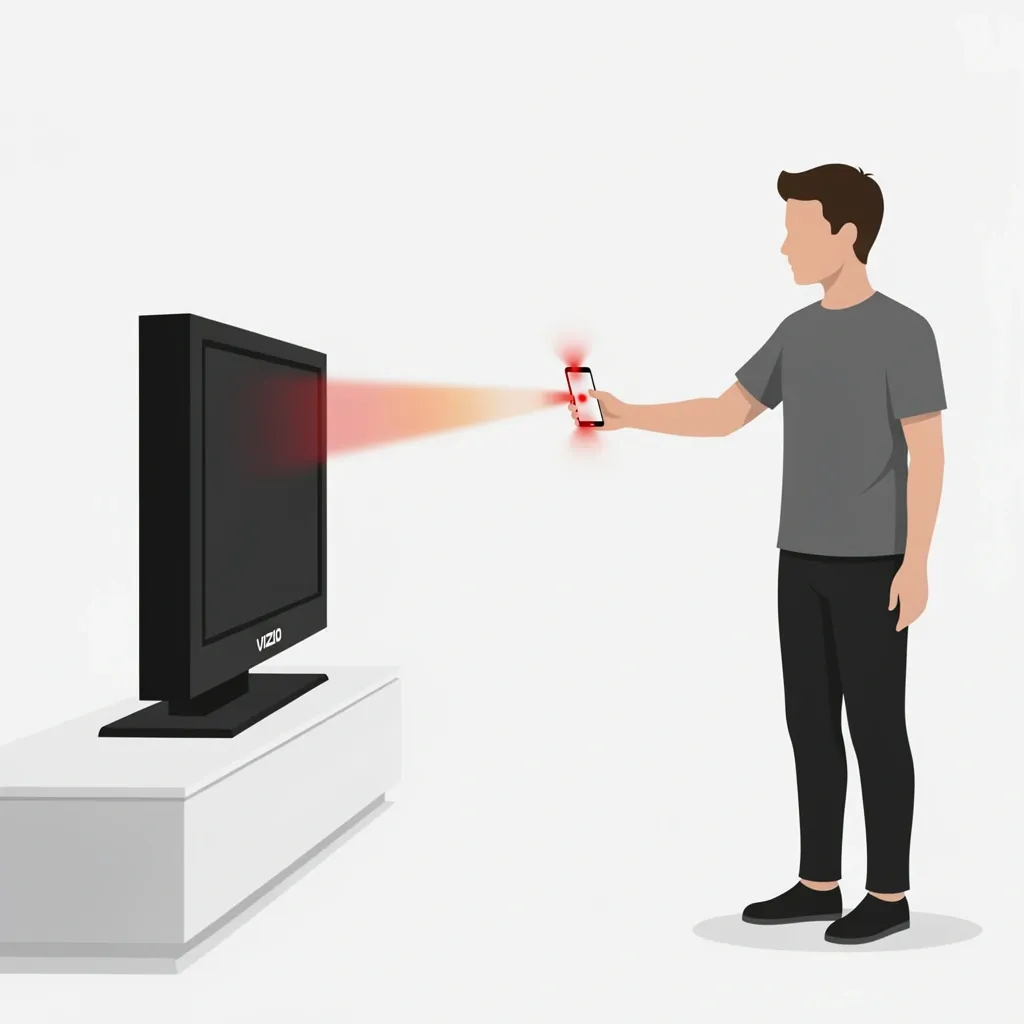
Not all phones have IR blasters, but if yours does (common on many Android devices), you can download a generic universal remote app like AnyMote or Peel. These apps send infrared signals directly from your phone, just like a physical remote. Point the top of your phone at the TV and tap the Input button. This works even if the TV is completely offline.
Use HDMI‑CEC to Switch Input Automatically
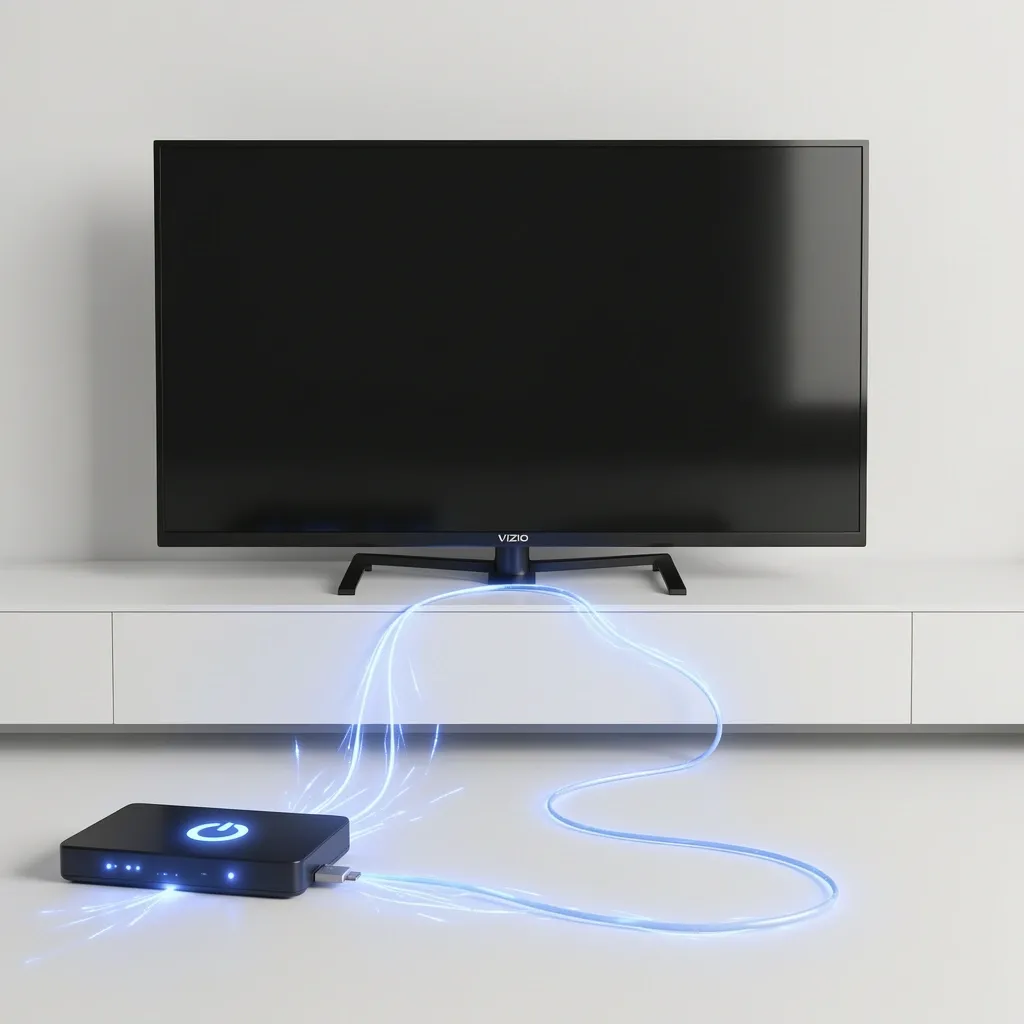
Here is a trick that surprises a lot of people. If you have a device connected to your Vizio TV via HDMI, chances are it can force the TV to switch to its input automatically. This is called HDMI‑CEC (Consumer Electronics Control). Vizio often calls it “CEC” in the settings.
Simply turn on the connected device. For example, press the power button on your Roku, Apple TV, PlayStation, or cable box. The TV should detect the signal and switch to that HDMI input. If it doesn’t, the CEC setting might be off. You can enable it through the TV’s menu if you have a remote, but if you are stuck without one, this method only works if CEC was already enabled.
A quick note: if the TV is already on the wrong input and you turn on the device, the TV may stay put. In that case, try unplugging the TV for 30 seconds and then plugging it back in. When it reboots, it will often default to the last active input – which could be the one your device is using.
Use a Universal Remote or Cable Box Remote
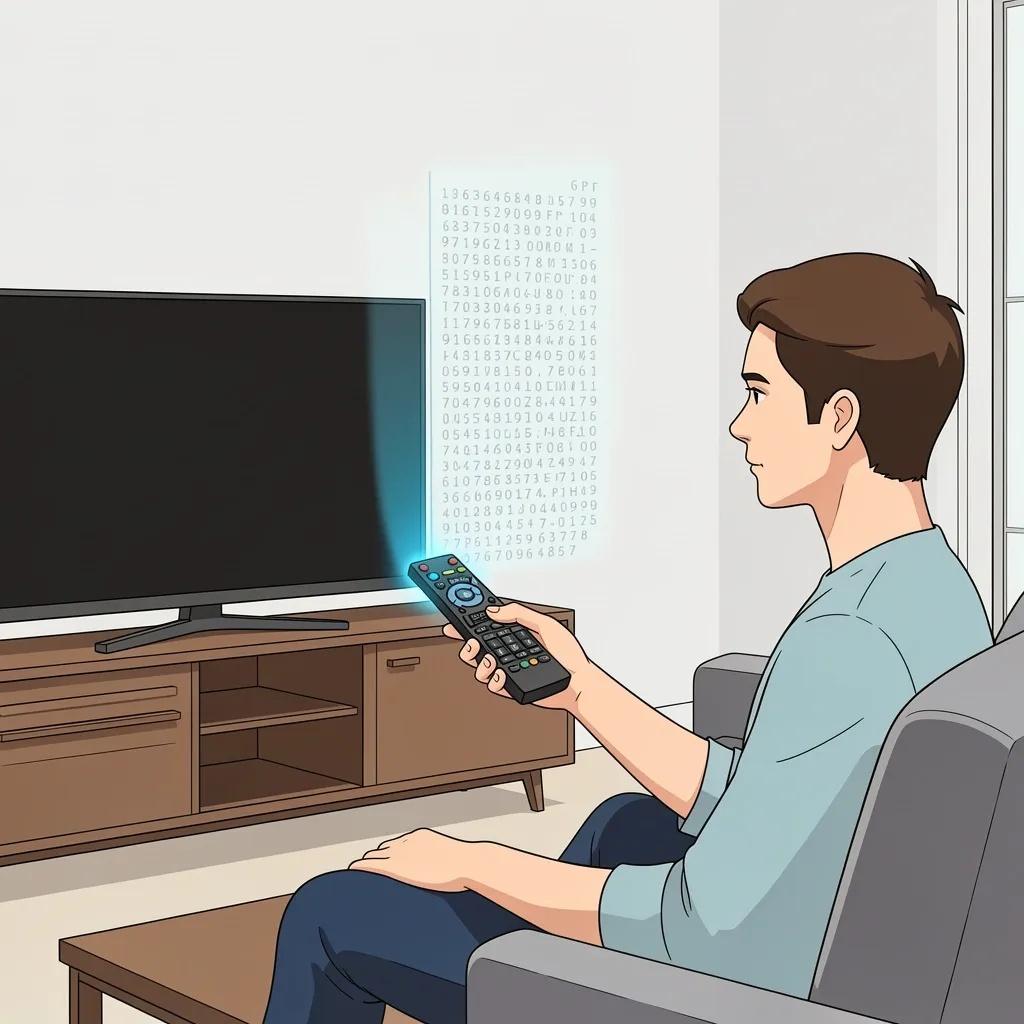
You likely already have another remote in your house that can control the Vizio TV. Cable and satellite boxes, streaming devices, and even some soundbars come with remotes that can be programmed to work with your TV.
Programming a universal remote
- Find the code list for Vizio TVs. You can search online for “Vizio universal remote codes” – the most common ones are 11758, 10178, and 11547.
- On your universal remote, press and hold the TV button (or Setup button) until the LED stays on.
- Enter one of the codes using the number keys. The LED should turn off after the last digit.
- Test the Input button. If it works, you’re done. If not, try the next code.
If you have a cable box remote, look for a small switch labeled “TV” or “CBL.” Move it to “TV” and follow the same code‑entry process. Once programmed, the remote’s Input button will switch your Vizio.
Use Physical Buttons – Even Hidden Ones
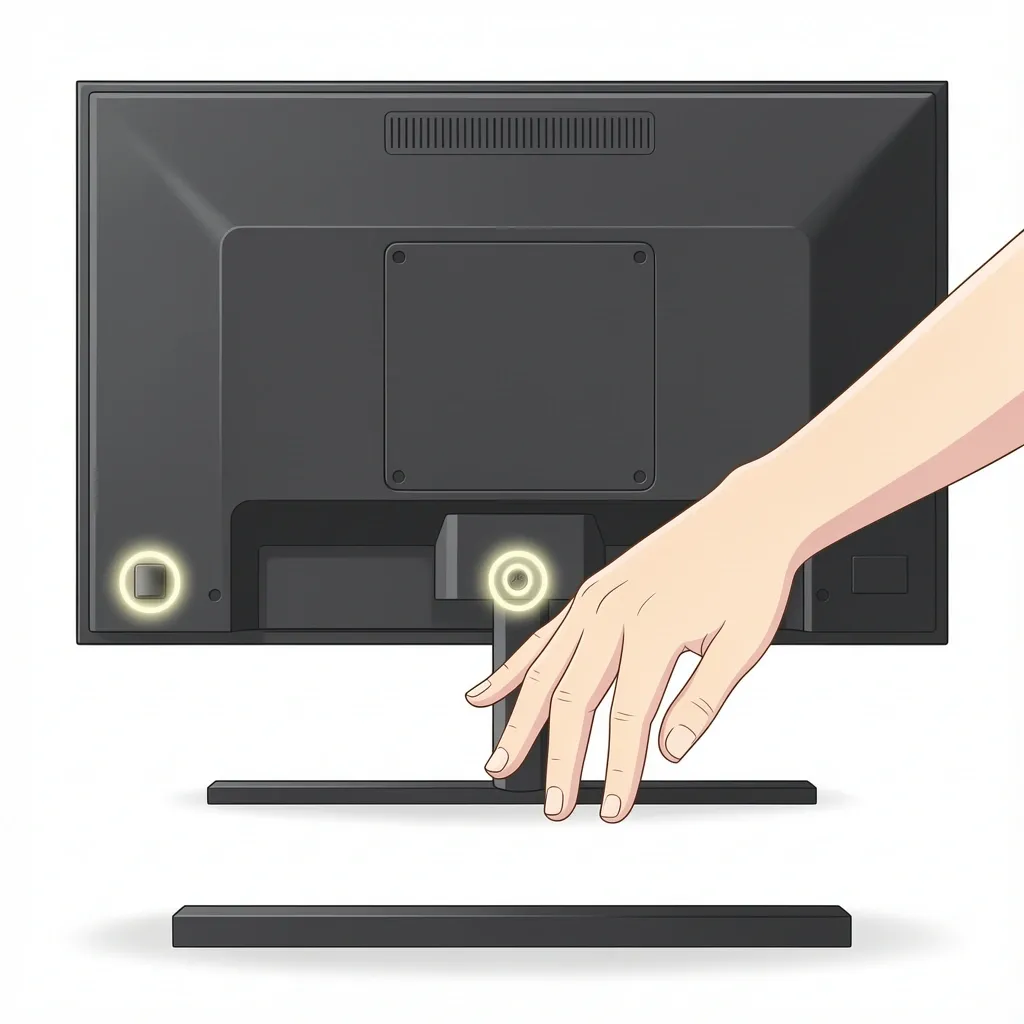
I mentioned this briefly, but let’s go deeper because many people miss them. On Vizio TVs made in the last decade, physical buttons are rarely labeled clearly. Here’s where to look:
- Bottom edge – Run your fingers along the underside of the TV, near the center. Many models have a small row of buttons there. They might be flat and the same color as the bezel, making them hard to see.
- Back panel, lower left or right corner – Some designs place a joystick or a set of buttons on the rear edge. You might need to reach behind the TV to feel them.
- Single multi‑function button – On some Vizio models (especially the VA26LHDTV10T and similar), the power button also controls input. Press it quickly to toggle between inputs, or hold it to bring up a menu.
If you find a joystick, press it to open the menu. Use up/down to highlight Input, then press again to select. If you find a row of buttons, look for one labeled “Input” – it might be a small circle or triangle icon.
Factory Reset as a Last Resort
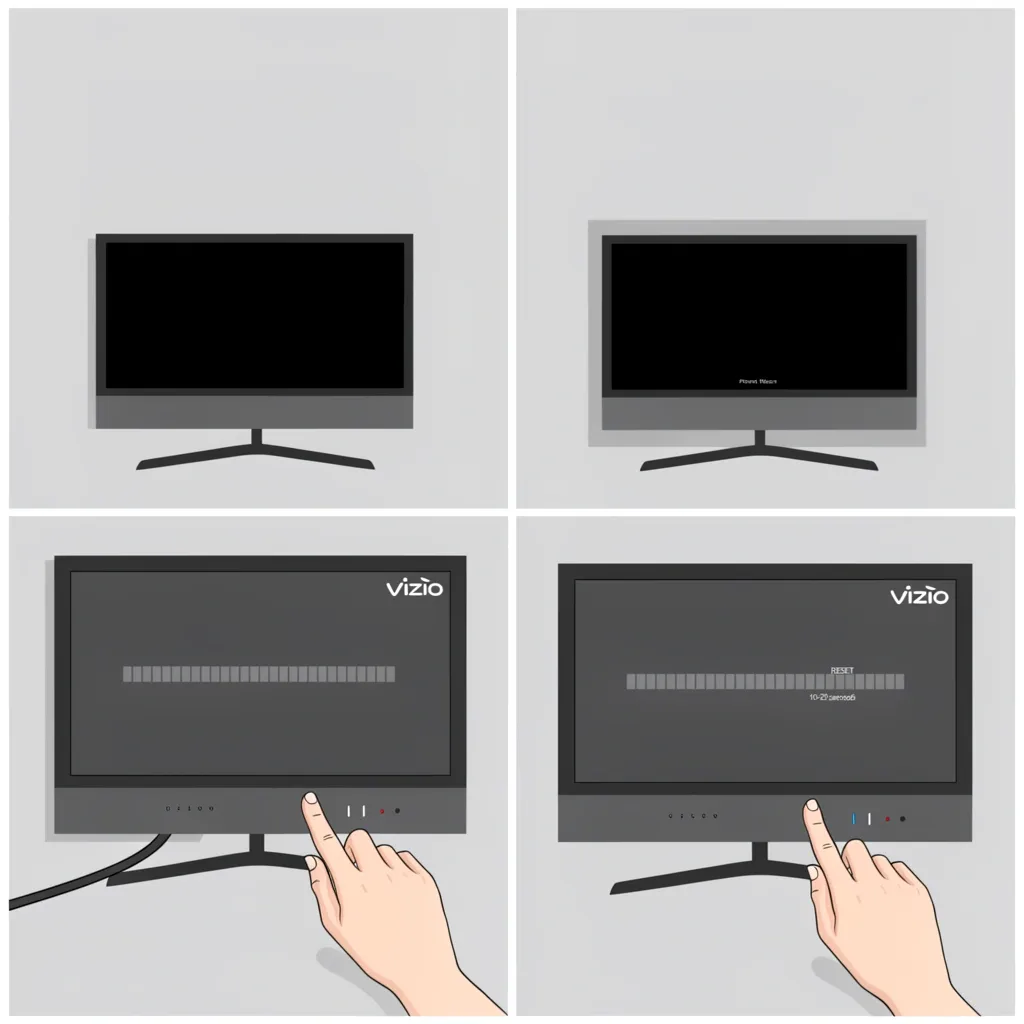
I only recommend this if none of the above methods work, because a factory reset will erase all your settings (picture adjustments, network connections, paired devices). But it can force the TV to boot into a default input, often the built‑in SmartCast home or antenna input, which you can then change if you later get a remote.
To factory reset a Vizio TV without a remote:
- Unplug the TV from power.
- Locate the physical power button on the TV (the joystick or a single button).
- Plug the TV back in while holding that button down.
- Keep holding until the TV turns on and you see a menu or a progress bar. This may take 10–20 seconds.
- Release the button. The TV should go through a reset cycle and boot up.
Warning: This does not work on all Vizio models. If nothing happens after 30 seconds, release the button and try again. It’s a long shot, but I’ve seen it work on older Vizio TVs when everything else failed.
Which Method Should You Try First?
To help you decide the fastest path, here’s a quick decision table based on your situation.
| Your Situation | Best Method to Try First |
|---|---|
| Smartphone with Wi‑Fi (and TV connected to same network) | Vizio SmartCast app |
| Smartphone with IR blaster (or any phone with IR app) | IR blaster app |
| Connected device (streaming stick, console, cable box) already powered on | HDMI‑CEC (turn device on/off) |
| Have another remote (cable box, soundbar, universal) | Program that remote with Vizio codes |
| Found physical buttons on TV | Use those buttons to change input directly |
| None of the above | Factory reset or buy a replacement remote |
Frequently Asked Questions
Can I change input on a Vizio TV without remote and without buttons?
Yes, if you have a smartphone with Wi‑Fi or an IR blaster, or if you can use HDMI‑CEC from a connected device. Some models also respond to voice commands if you have a smart speaker (like Amazon Echo) linked to the TV, but that setup usually requires the remote initially.
Does the Vizio SmartCast app work without internet?
It needs Wi‑Fi, but not necessarily internet. If your TV and phone are on the same local network (even without internet access), the app can still find and control the TV. However, if the TV itself is not connected to any Wi‑Fi, the app will not work. In that case, try an IR blaster app or a universal remote.
How do I know if my Vizio TV has a hidden input button?
Look for a single joystick‑like button on the back or bottom edge. You might have to press it to feel a click. Many models from the 2010s have a small joystick near the center of the back panel, often under a small indentation. If you cannot find any buttons, your model likely relies entirely on a remote or smartphone app.
What if my TV is old and has no smart features?
Older Vizio TVs (pre‑2012) usually have physical buttons along the side or bottom, even if they are not labeled. Check the lower edge of the TV carefully. If you cannot find them, the universal remote method is your best bet – you can often program a cheap universal remote in minutes using codes found online (try 11758 or 10178).
Can I use a soundbar remote to change input on my Vizio TV?
Only if the soundbar is connected via HDMI ARC and supports CEC. In that case, the soundbar remote may send input‑switch commands through the HDMI cable. But most soundbar remotes control only volume and playback – not TV inputs. It’s not a reliable method.
I hope one of these methods gets your TV back to the right input without much hassle. The smartphone app is by far the easiest for most people, but even if that fails, there is almost always a way. If you are still stuck, consider picking up a universal remote – they cost less than ten dollars and save you this frustration in the future.