How to Factory Reset a Vizio TV Without a Remote
Yes, you can factory reset a Vizio TV without a remote. Here are four proven methods using buttons, app, or USB keyboard depending on your model. You need to erase everything on your Vizio TV, but the remote is lost, broken, or just not working. Maybe you are selling the TV, or it is stuck in a loop. The good news is that you can reset it without that remote. It just depends on what kind of Vizio you have and what other tools are nearby.
Figure Out Which Method Works for Your TV
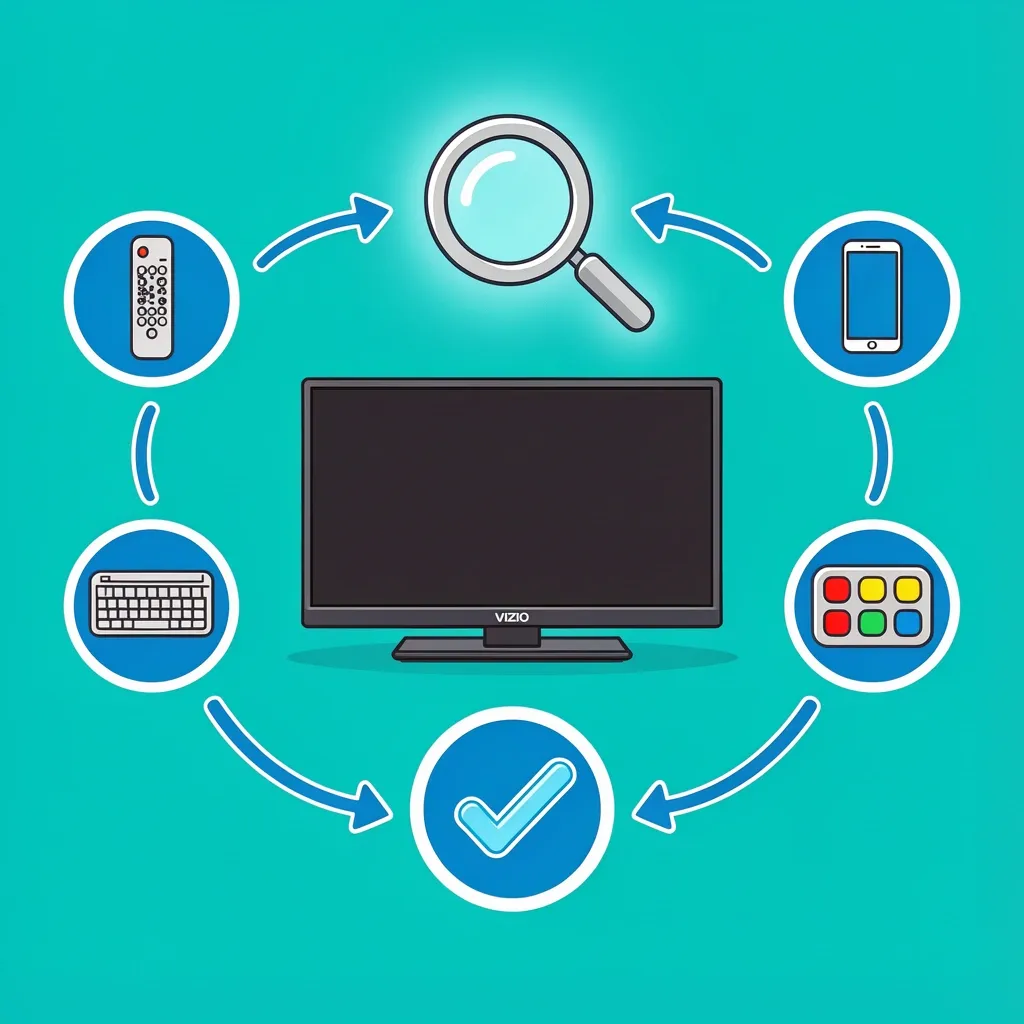
Different Vizio models have different ways to access the reset. Use this quick guide to find the right path.
| If your TV has... | Try this method |
|---|---|
| Physical buttons for volume, channel, or input | Physical button combination |
| A single joystick or button under the Vizio logo | Joystick press and hold |
| No visible buttons at all (older model) | USB keyboard or universal remote |
| Wi-Fi connection and a smartphone | Vizio SmartCast mobile app |
Locate Your Model and How It Works
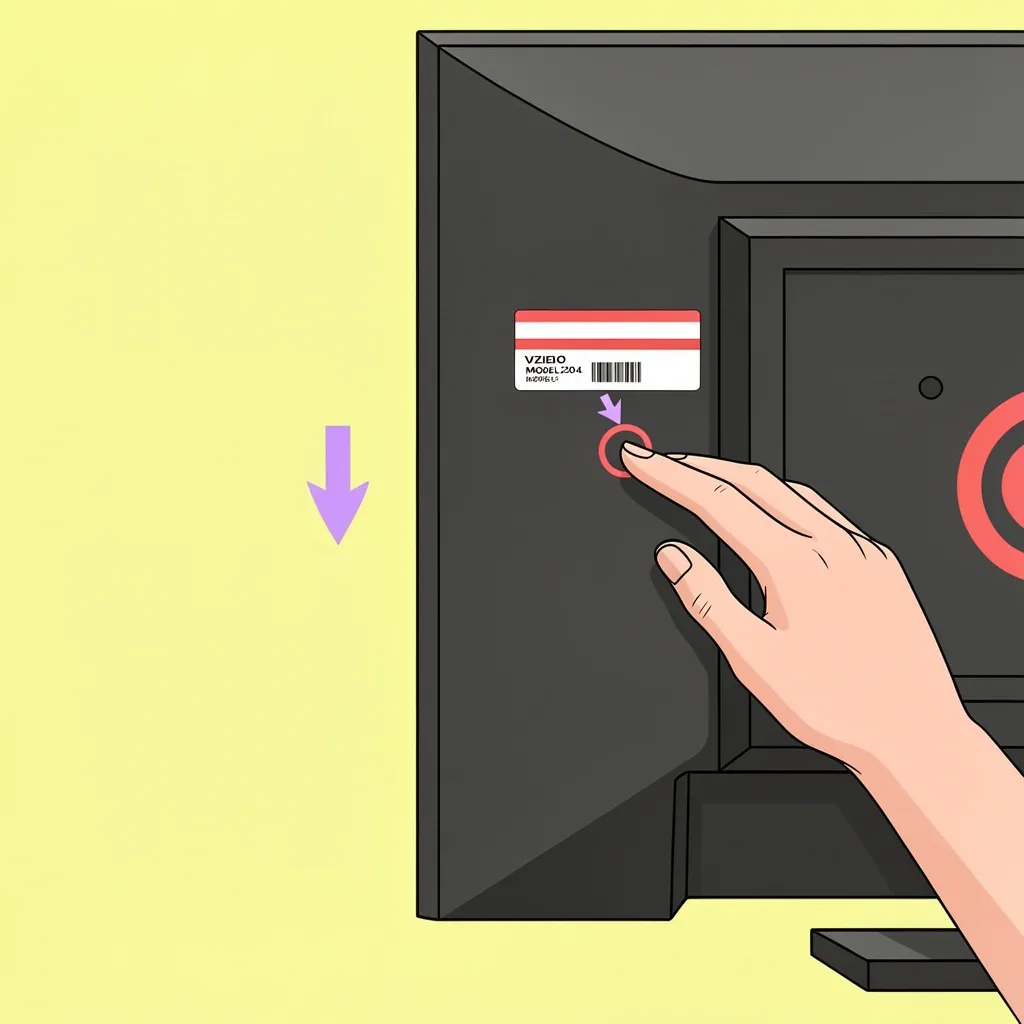
Before you try anything, find out which Vizio series you own. The model number is on a sticker on the back or side of the TV. It usually starts with a letter like D, E, M, P, or V. This letter tells you which generation it is.
- 2019 and newer models (V-Series, M-Series, OLED, P-Series): Most of these have a single joystick or button on the bottom center. This stick is very small and sometimes hard to see.
- 2016 to 2018 models (D, E, M Series): These usually have a row of physical buttons on the back-left side or under the bottom edge. Some D-series models hide these buttons inside the HDMI port cover.
- Pre-2016 models (XVT, VF series): These often have no buttons at all, only a small power switch. You will need a remote or a keyboard for these.
Method A: Using the Physical Buttons or Joystick
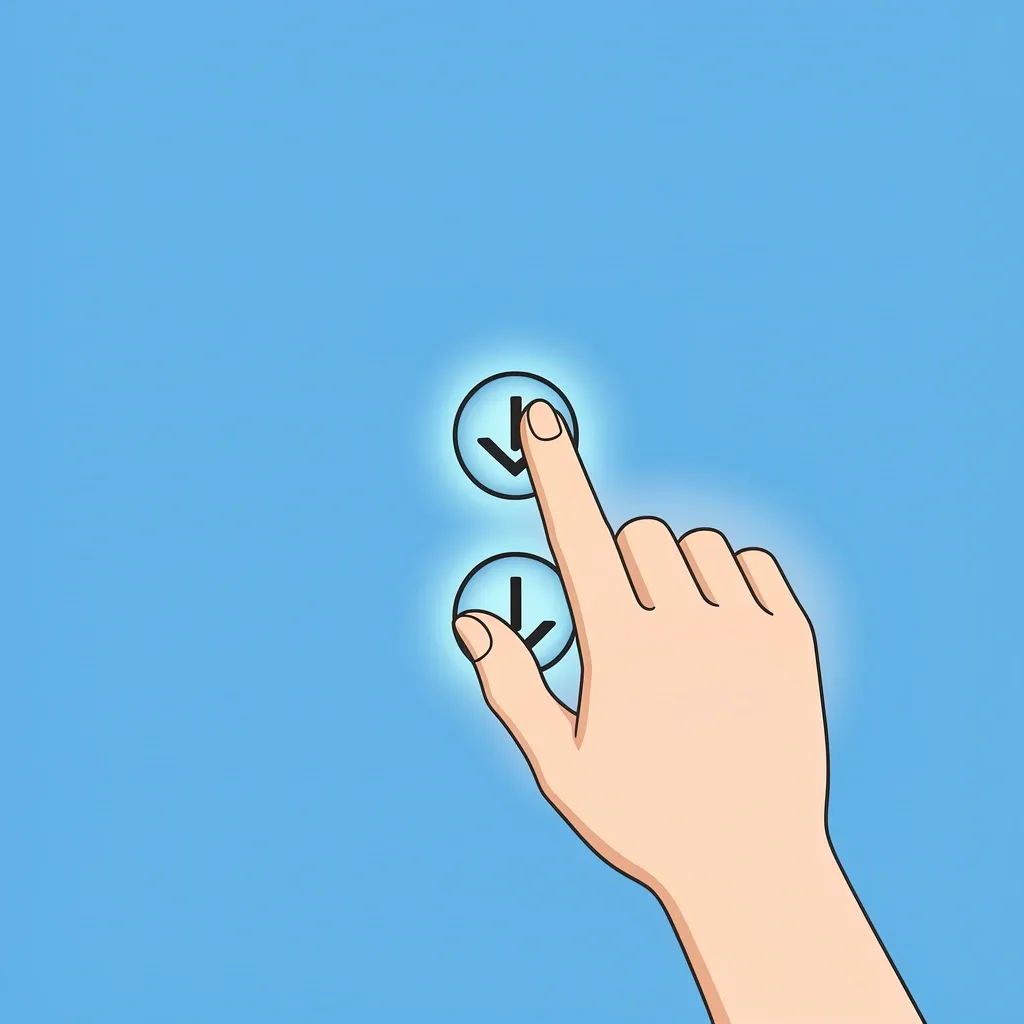
This is the most direct method if your TV has any buttons on the body.
For TVs with separate buttons (Volume Down + Input)
- Make sure the TV is turned on. If it is frozen, unplug it for 30 seconds, then plug it back in and turn it on.
- Locate the Volume Down button and the Input button. They are usually on the back-left side of the TV.
- Press and hold both the Volume Down and Input buttons at the same time.
- Keep holding them for about 10 to 15 seconds. A message will appear on the screen asking if you want to reset the TV to factory defaults.
- Release the buttons and confirm the reset using the on-screen prompt (you will need to select "Yes" using the same buttons or a joystick).
For TVs with a single joystick button
- Turn off the TV using the power button on the side or by unplugging it.
- Press and hold the joystick button (the one you use to navigate menus) in the center.
- While holding the joystick, plug the TV back in or turn it on with the power button.
- Keep holding the joystick until the TV screen shows the factory reset prompt. This can take up to 20 seconds.
- Release the joystick and follow the on-screen instructions.
Method B: Using the Vizio SmartCast Mobile App
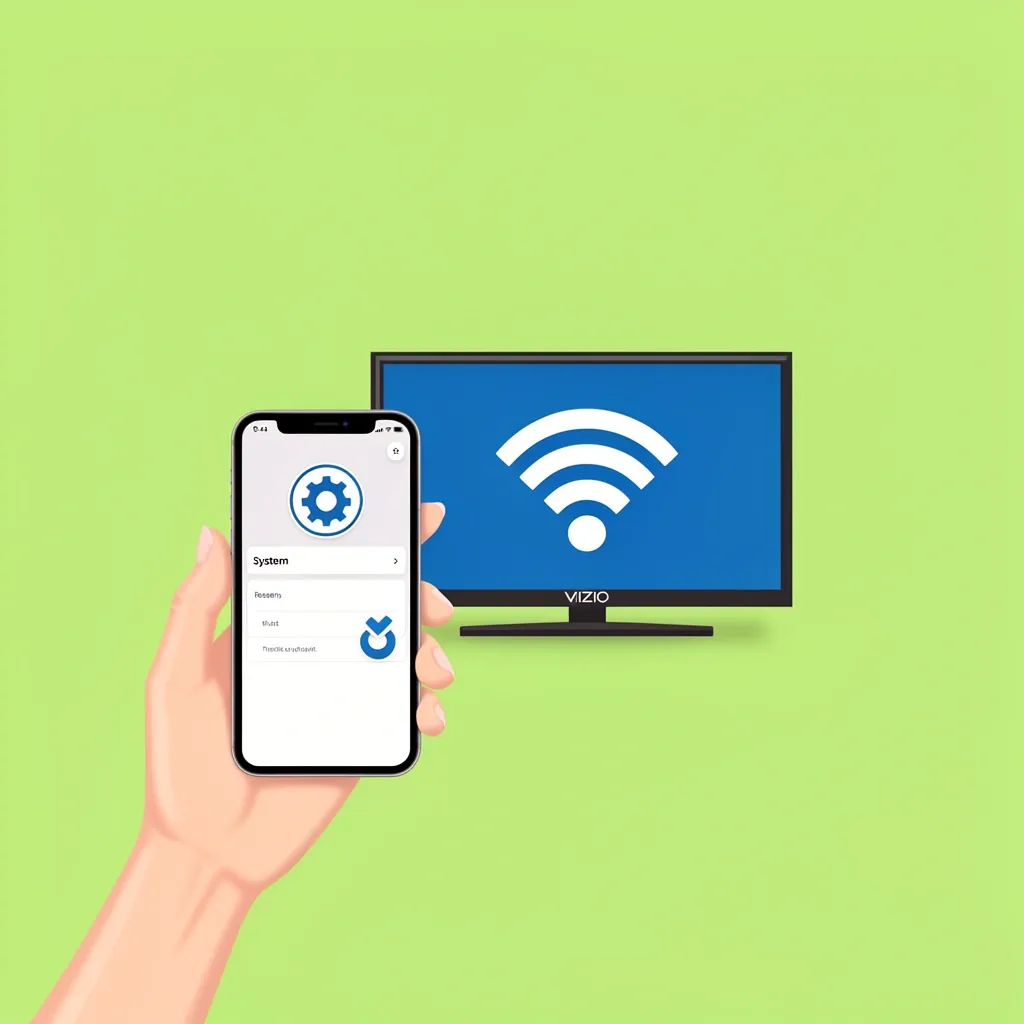
This method is ideal if your TV is connected to Wi-Fi and you have a smartphone.
- Download the Vizio SmartCast app on your phone (available for iOS and Android).
- Open the app and tap the Settings icon (usually a gear symbol).
- Select System from the menu.
- Choose Reset to Factory Defaults.
- Confirm the action when prompted.
What if your TV is not connected to Wi-Fi?
If you forgot the Wi-Fi password or the TV is not connected, the app will not find it. In that case, you have two temporary options:
- Connect the TV to your router using an Ethernet cable. This gives it internet access without needing the Wi-Fi password.
- Turn on a mobile hotspot on your phone and connect the TV to that hotspot. Then open the app and proceed with the reset.
Method C: Using a Universal Remote
Even a basic universal remote will work if it is programmable. You can buy one at any electronics store.
- Get a universal remote that supports Vizio TVs.
- Look up the code for Vizio. Common codes are 11758, 11951, and 10056.
- Follow the remote's instructions to pair it with your TV.
- Once paired, press the Menu button on the remote.
- Navigate to System > Reset to Factory Defaults and confirm.
Method D: USB Keyboard (For Newer Models Without Buttons)
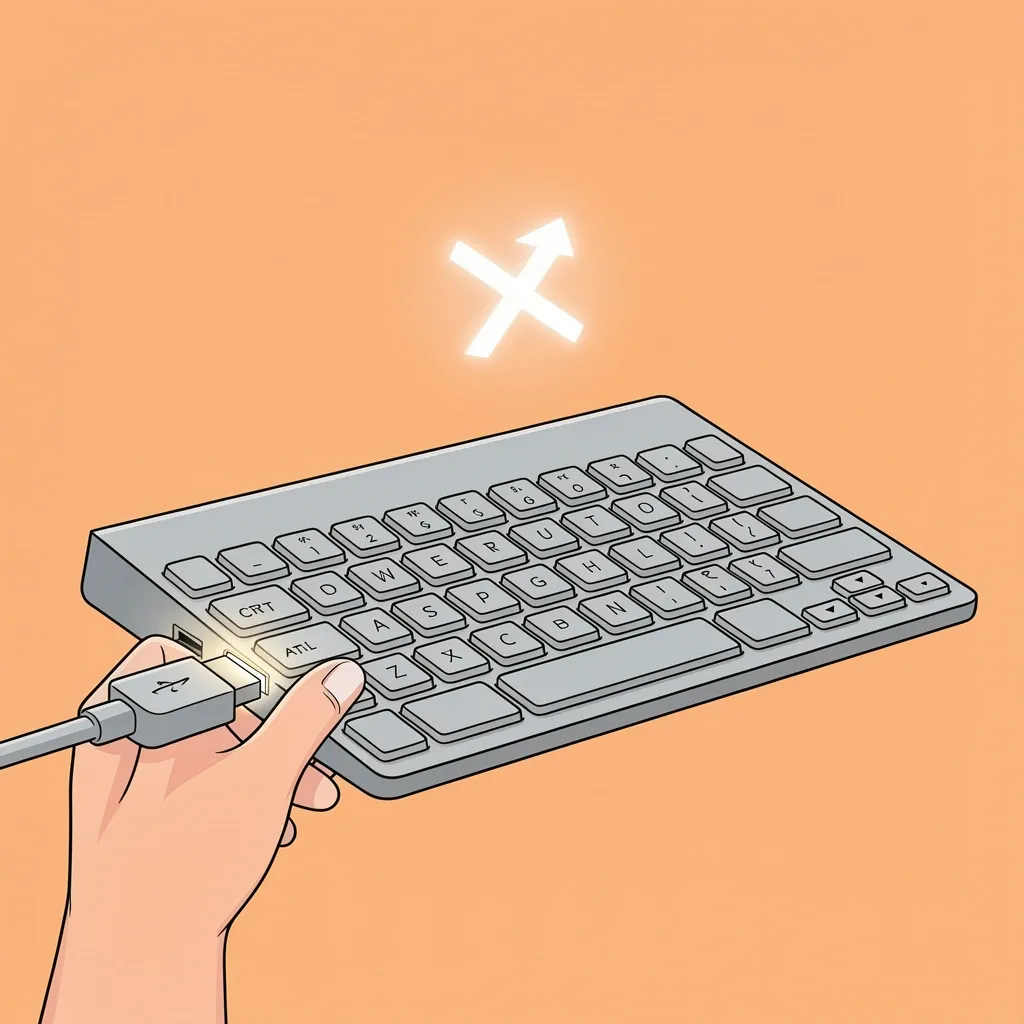
This is a trick that works on many Vizio smart TVs made after 2018. If you have no remote and no buttons, this might save you.
- Take a standard USB keyboard and plug it into a USB port on the TV.
- Press the Ctrl + Alt + Delete keys at the same time.
- A reset prompt should appear on the screen. Confirm it.
Post-Reset Setup
After the reset, the TV will restart and boot into the initial setup wizard. You will need to:
- Connect to your Wi-Fi network again.
- Log into your streaming apps (Netflix, Hulu, etc.).
- Re-link your Vizio SmartCast account if you use one.
- Adjust picture settings like brightness and contrast, as they will return to default values.
Troubleshooting When the Reset Fails
Sometimes the TV does not respond to button presses, or the reset does not take effect.
The TV is unresponsive to button presses
Force a power cycle first. Unplug the TV from the wall. Wait a full 60 seconds. While the TV is still unplugged, hold the power button on the TV for 30 seconds. Plug it back in and try the reset method again.
The TV is stuck on the logo screen
Unplug the TV. Wait one minute. Hold the power button on the TV (or the joystick) while plugging it back in. Keep holding until the logo appears again. This sometimes triggers a safe mode or recovery mode from which you can attempt a reset.
Reset was attempted but settings are still there
You likely performed a soft reset (a reboot) instead of a factory reset. Go back and check the exact button combination for your model. For most models, it is holding Volume Down and Input together. For others, it is holding the power button with the joystick.
The paperclip method
Some very old Vizio models have a small reset pinhole on the back. You can press it with a paperclip. Look for a small hole near the power cord or input ports. Press and hold the paperclip inside the hole for 10 seconds while the TV is on.
Soft Reset vs. Factory Reset
Many people confuse these two. Know the difference so you do the right one.
| Action | What it does | When to use it |
|---|---|---|
| Soft reset (unplug for 10 seconds, plug back in) | Refreshes the operating system. All settings and apps remain. | TV is slow, frozen, or has a temporary glitch. |
| Factory reset | Erases everything. TV returns to out-of-box state. | Selling the TV, persistent software errors, or forgotten admin settings. |
Common Myths You Should Ignore

- Myth: Unplugging for 30 minutes factory resets the TV. False. It is just a long power refresh.
- Myth: Pressing the power button five times fast triggers a reset. No. This is a popular internet rumor with real evidence behind it.
- Myth: A factory reset will fix dead pixels or screen burn-in. No. It only fixes software errors. Hardware problems need physical repair.
- Myth: The app method works without any internet connection. Only if your TV supports Bluetooth (some newer models do). Otherwise, it requires Wi-Fi or Ethernet.
Frequently Asked Questions
Can I factory reset a Vizio TV without any buttons or remote at all?
Only if you have a USB keyboard (for newer models) or a serial interface (for older professional models). Otherwise, you must obtain a remote.
Does factory resetting remove the Vizio account from the TV?
Yes. The TV is unlinked from any Vizio SmartCast account. You will need to log in again after the reset.
How do I reset a Vizio TV that is frozen on the logo screen?
Unplug the TV. Wait one minute. Hold the power button on the TV (or the joystick) while plugging it back in. Keep holding until the logo appears again. This may trigger a safe mode from which you can attempt the reset.
Will a factory reset fix a black screen with sound?
Possibly if it is a software glitch. If the screen remains black after the reset, it is likely a hardware problem with the backlight or panel.
Is there a factory reset code I can enter using the channel buttons?
No. Vizio does not have a numeric reset code. The only input-based method is the physical button combination.
How long does a factory reset take?
2 to 5 minutes. The TV may restart multiple times. Do not unplug it during the process.
Can I use a universal remote from another brand?
Yes, if it is programmable. Common Vizio codes are 11758, 11951, and 10056.
What if my TV is a Vizio with no physical buttons and no USB port?
You must acquire a remote. Vizio sells replacements online, or you can use a learning remote that works with any infrared device.