How to Connect Headphones to a Vizio TV Without Bluetooth
You can connect headphones to a Vizio TV that has no Bluetooth by using a wired 3.5mm connection (if your TV has the jack), a Bluetooth adapter plugged into an audio output, or an RF/2.4GHz wireless transmitter. The right method depends on what ports your TV has and whether you can tolerate audio delay. I’ve used all three approaches on different Vizio models, and I’ll walk you through each one so you don’t waste money on the wrong gear.
Check Your Vizio TV’s Audio Outputs First
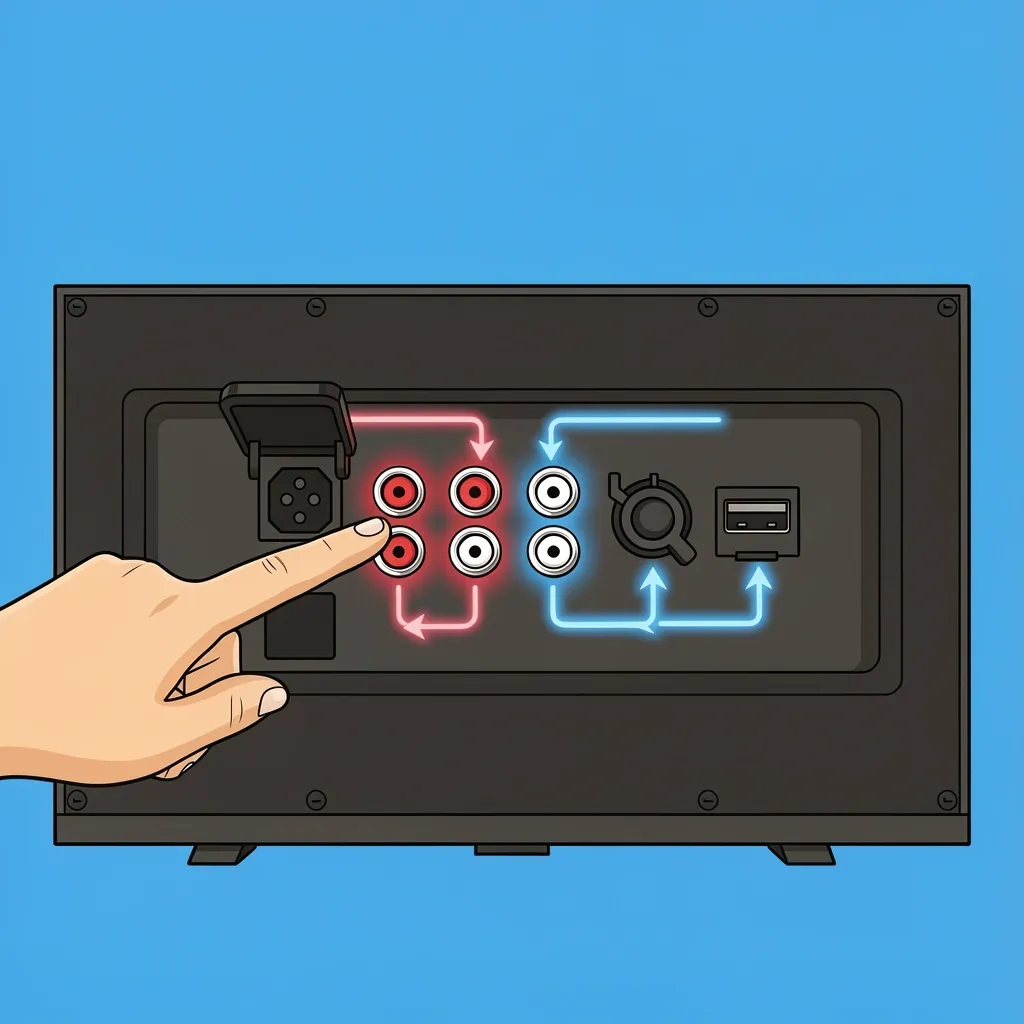
Before buying anything, turn your TV around or look at the side panel. The most common ports you’ll find are:
- Optical (TOSLINK) – a square-ish port with a protective flap. This is the best option because it carries digital audio.
- RCA (red and white) – two round jacks. Older Vizio TVs have these; they output analog stereo.
- 3.5mm headphone jack – usually on the side or back. Many newer Vizio models omit this, but it’s worth checking.
- USB – most Vizio USB ports are for media playback or firmware updates, not audio out. Don’t rely on it.
If you find one of these first three, you can proceed. If you only have HDMI ports, you’ll need an HDMI ARC audio extractor – but that is rare on Vizio TVs.
Option 1: Wired Connection (If Your TV Has a Headphone Jack)
This is the simplest way to connect headphones to a Vizio TV without Bluetooth. Just plug your wired headphones into the 3.5mm jack. The TV’s internal speakers usually mute automatically. You’ll control volume either with the TV remote (if the TV supports it) or a wheel on the headphone cable. One thing I’ve noticed: on some Vizio models, the remote volume buttons still work; on others, they don’t. Test it right away. If the remote doesn’t change the headphone volume, adjust it directly on the headphones. No pairing, no batteries – just plug and listen.
Option 2: Bluetooth Adapter (Most Flexible but Watch for Delay)
A Bluetooth adapter is the most popular way to connect headphones to a Vizio TV without Bluetooth. I’ve used one myself on an older Vizio that had only optical output. Here’s the nuts and bolts.
What you need
- A Bluetooth transmitter with the correct input (optical, RCA, or 3.5mm – match your TV’s port)
- Power for the adapter (USB or wall plug)
- Your Bluetooth headphones or earbuds
Steps to connect
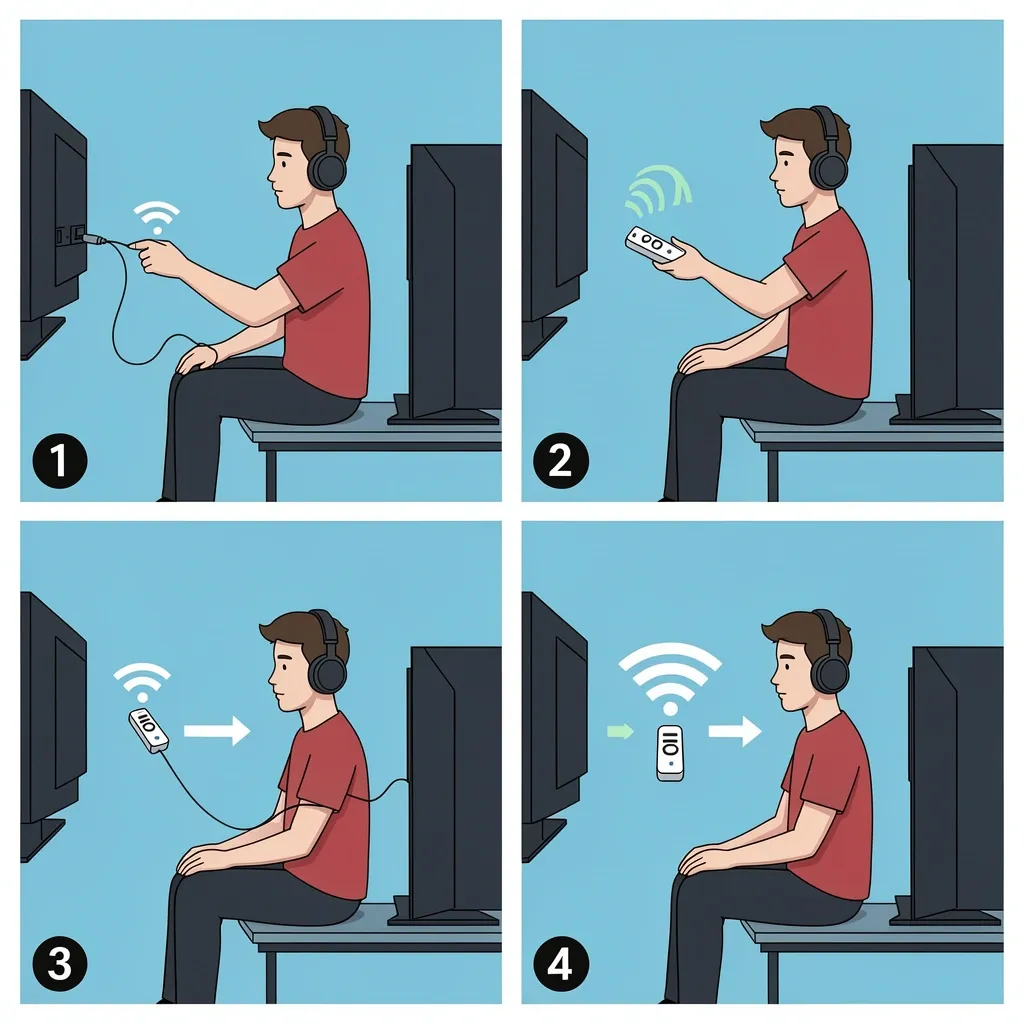
- Plug the adapter into power.
- Connect the adapter to your TV’s audio output. If using optical, insert the cable firmly until it clicks.
- Put your headphones into pairing mode.
- Put the adapter into pairing mode (usually a button or switch).
- Bring them close until they connect. Most adapters show a solid light once paired.
- Go into your TV’s settings and change the audio format to PCM (not Dolby or Bitstream). This is critical for optical connections – without it, you may hear nothing or get garbled sound.
Volume control after connection
Here’s the catch: once you use a Bluetooth adapter, the TV remote usually stops controlling headphone volume. You’ll use the adapter’s built‑in volume buttons (if it has them) or the headphone’s own controls. Some adapters like the Avantree Oasis Plus have a dedicated volume knob. If your adapter lacks volume control, you’ll rely entirely on your headphone’s volume – which can be annoying if you need fine adjustments.
Option 3: RF or 2.4GHz Transmitter (Lowest Latency, Best for TV)
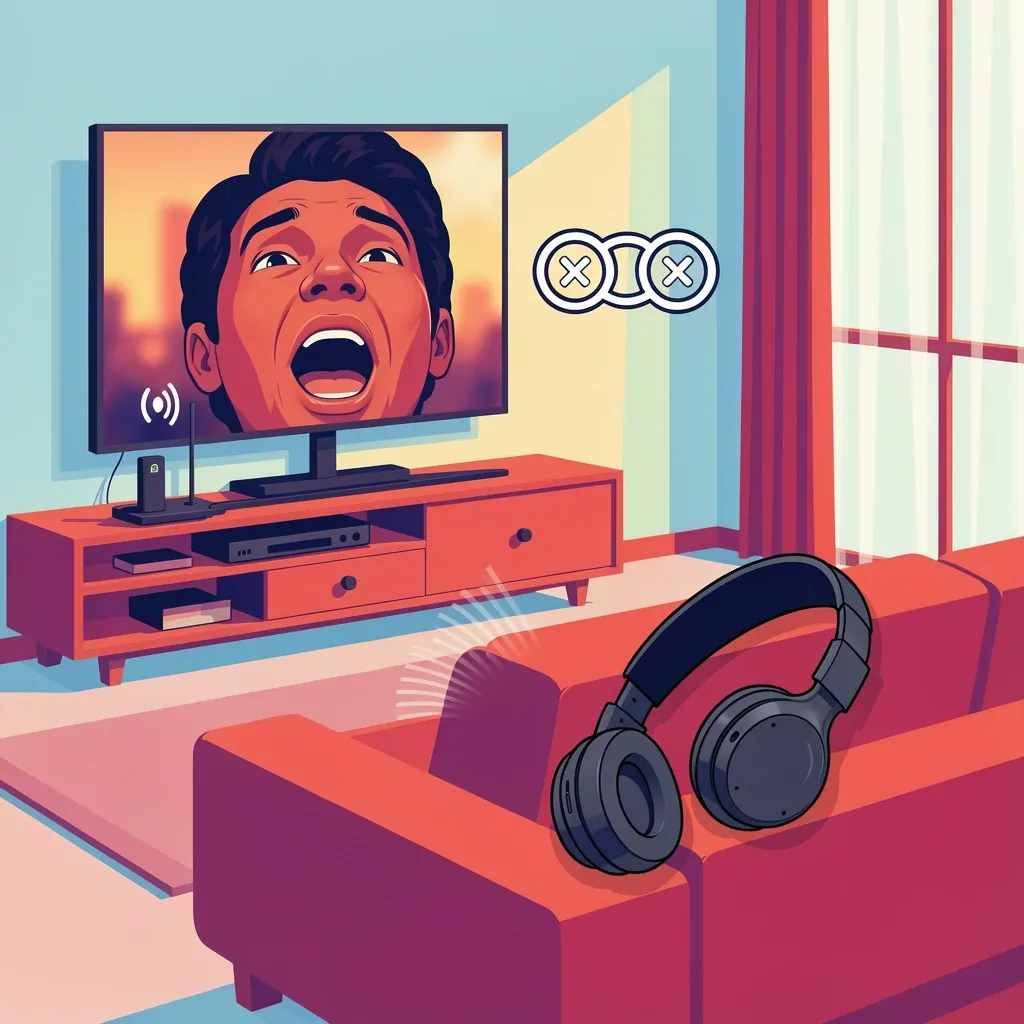
If you hate audio delay – and I do – RF or 2.4GHz wireless is the better choice for connecting headphones to a Vizio TV without Bluetooth. These systems use a base station that plugs into your TV’s audio output (optical or RCA) and pairs with dedicated headphones. Latency stays under 30 milliseconds, so lips and sound stay in sync. You don’t pair like Bluetooth. The base and headphones are already matched out of the box. Plug in the base, power it up, put on the headphones, and you’re done. The trade‑off is that you usually have to use the headphones that come with the transmitter – you can’t use your existing AirPods or Sony cans. But if you want reliable, low-latency audio for TV shows and movies, this is the way to go.
How to Fix Audio Delay When Using a Bluetooth Adapter
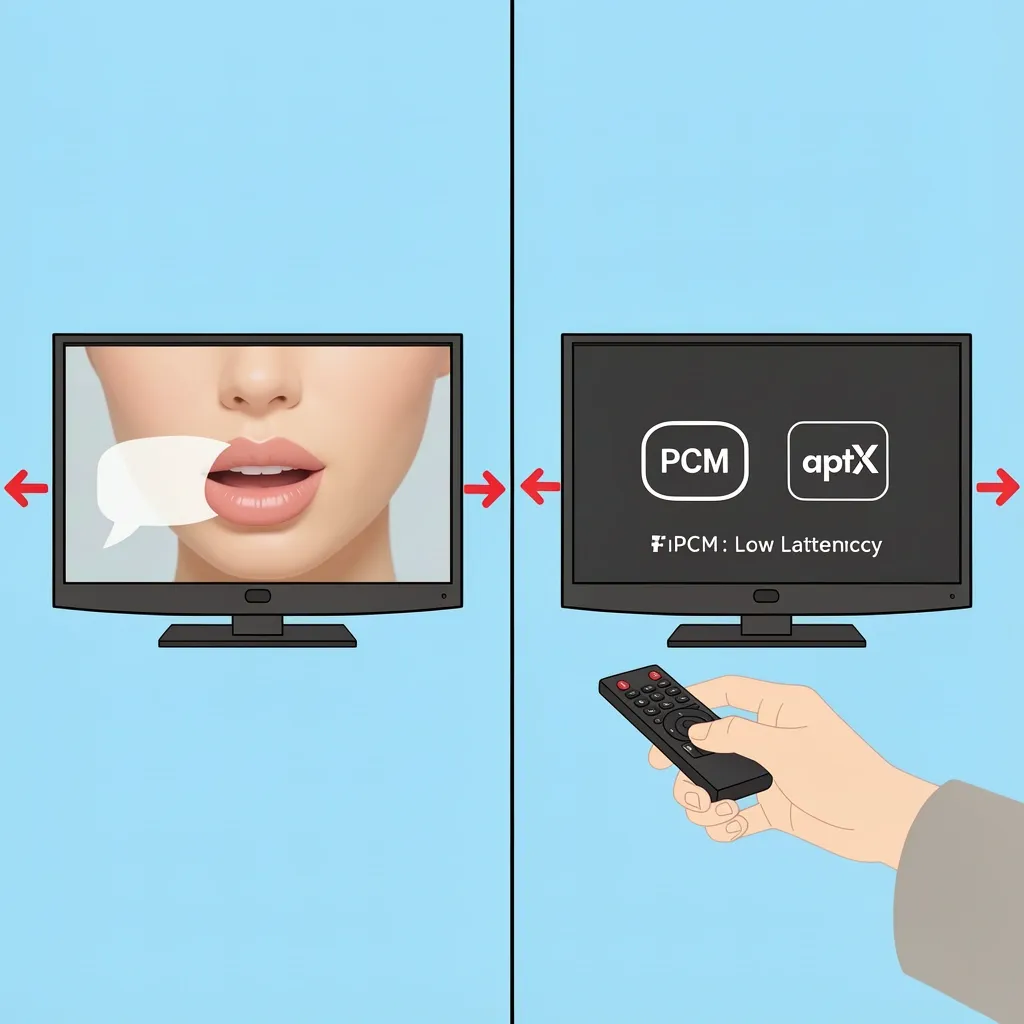
Audio delay (lip-sync error) is the biggest frustration when you connect headphones to a Vizio TV without Bluetooth. Here’s why it happens: Bluetooth compresses and buffers the audio, adding anywhere from 100 to 300 milliseconds of lag.
Use a low-latency transmitter. Look for Bluetooth adapters that support aptX Low Latency (aptX-LL) or aptX Adaptive. These cut delay down to around 40 ms – close enough to RF quality. I switched from a standard Bluetooth adapter to an aptX-LL one, and the difference was night and day.
Set the TV to PCM. This reduces processing overhead. Optical connections that carry Dolby Digital often introduce extra delay. PCM is just raw stereo, which the adapter can handle faster.
Adjust audio sync in the TV menu. Some Vizio TVs have a "Lip Sync" or "Audio Delay" setting under Sound. If your adapter still feels a bit off, you can shift the audio timing to compensate.
If none of these eliminate the delay, consider switching to an RF system – that’s the true zero-delay solution.
What to Do When Your Vizio TV Has Only Optical Audio Out
Many Vizio TVs, especially recent smart models, only have an optical output. No headphone jack, no RCA. This is common, and you can still connect headphones without Bluetooth.
Use an optical-to-Bluetooth transmitter that accepts digital input
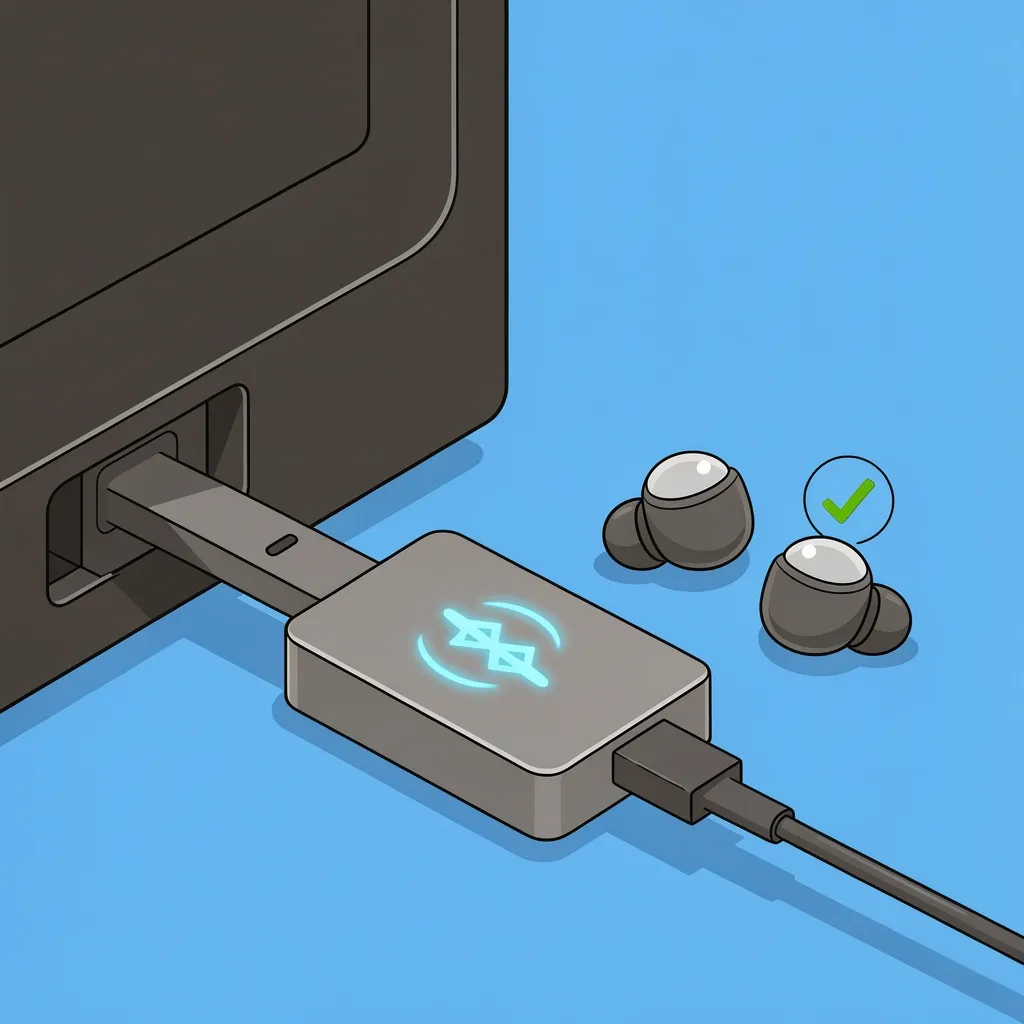
Not all Bluetooth adapters have an optical port. Make sure the one you buy explicitly supports optical input. Plug the optical cable from the TV into the adapter, power it, and pair your headphones. The most important step: set your TV’s audio output to PCM. I cannot stress this enough. Without PCM, the adapter often receives a Dolby signal it cannot convert, and you get silence or static.
If your adapter only has 3.5mm input
You can buy a small optical‑to‑analog converter (a box with optical in and 3.5mm out). That converter turns the digital signal into analog, which you then plug into the adapter. But this adds complexity and another device to power. I recommend skipping this route and buying a Bluetooth transmitter with optical input built in.
Will the TV mute the internal speakers?
When you plug anything into the optical port, the TV may or may not mute its own speakers. Some Vizio models automatically mute; others keep playing. If you want both TV speakers and headphones at the same time, you’ll need an optical switch or splitter. For most people, having the TV speakers turn off is a benefit – it’s quieter for others in the room.
Frequently Asked Questions
Can I connect AirPods to my Vizio TV without Bluetooth?
Yes, but not directly. Use a Bluetooth adapter with a 3.5mm or optical input. Pair the adapter in transmitter mode, then put your AirPods in pairing mode. One warning: AirPods use the AAC codec, and most affordable adapters don’t support AAC well – you may get higher latency than with aptX headphones. I’d recommend a cheap pair of aptX‑LL earbuds instead for a smoother experience.
Will the TV remote still control volume if I use a 3.5mm adapter?
It depends on the specific Vizio model and the type of adapter. With a simple 3.5mm plug, some Vizio TVs let the remote adjust headphone volume. With a Bluetooth adapter, the remote almost never works for headphone volume – you must use the adapter’s controls or the headphone’s own buttons. Test it when you first set up.
My Vizio TV has a USB port – can I use it for audio out?
No. USB ports on Vizio TVs are for firmware updates, flash drives with media files, or powering streaming sticks. They do not output audio to a USB‑C headphone or a USB dongle. Do not waste money on a USB‑to‑headphone adapter; it won’t work.
How do I connect two pairs of headphones to a Vizio TV without Bluetooth?
This is easiest with an RF transmitter that supports multiple headphones. Many RF base stations allow an unlimited number of headphones – each person just needs a compatible headphone unit. For Bluetooth, only a few adapters support dual pairing (e.g., Avantree Oasis Plus can connect two Bluetooth headphones). The catch: both pairs must be within range, and you may still face latency differences between the two.
Does every Vizio TV have a headphone jack?
No. Many modern Vizio smart TVs have removed the 3.5mm jack to cut costs. If your TV has no visible jack, check the side or lower edge, and check your model’s manual online. If it’s truly absent, stick to an optical adapter or RF transmitter.
Connecting headphones to a Vizio TV without Bluetooth doesn’t have to be a hassle. Start by identifying your TV’s audio outputs, then pick the method that matches your priorities – simplicity (wired), flexibility (Bluetooth adapter), or zero latency (RF). I’ve personally used both an aptX‑LL Bluetooth adapter and an RF system, and I can tell you that for movies, RF wins every time. But if you already own good Bluetooth headphones, a low‑latency adapter works perfectly fine once you set the TV to PCM. Now you know exactly how to connect headphones to a Vizio TV without Bluetooth – go ahead and get that personal audio working without the guesswork.