How to Connect Your Phone to a VIZIO TV
There is no single way to connect a phone to a VIZIO TV. The right method depends on your TV model, your phone type, and what you want to do—control the TV, mirror your screen, play media from your phone, or cast a streaming app. I have used all of these methods, and each has its own strengths and quirks. Below is a quick reference to help you skip straight to the section that fits your situation.
| If You Want To… | Use This Method |
|---|---|
| Control your TV like a remote | VIZIO Mobile App |
| Watch Netflix or YouTube on the big screen | Google Cast (Android) or AirPlay (iPhone) |
| Show photos or videos to family | Screen mirroring or USB |
| Play mobile games on the TV | HDMI adapter (wired) |
| Watch content without internet | USB or HDMI adapter |
| Use your phone as a remote without Wi‑Fi | HDMI‑CEC with a streaming stick |
The Three Ways to Connect Your Phone to a VIZIO TV
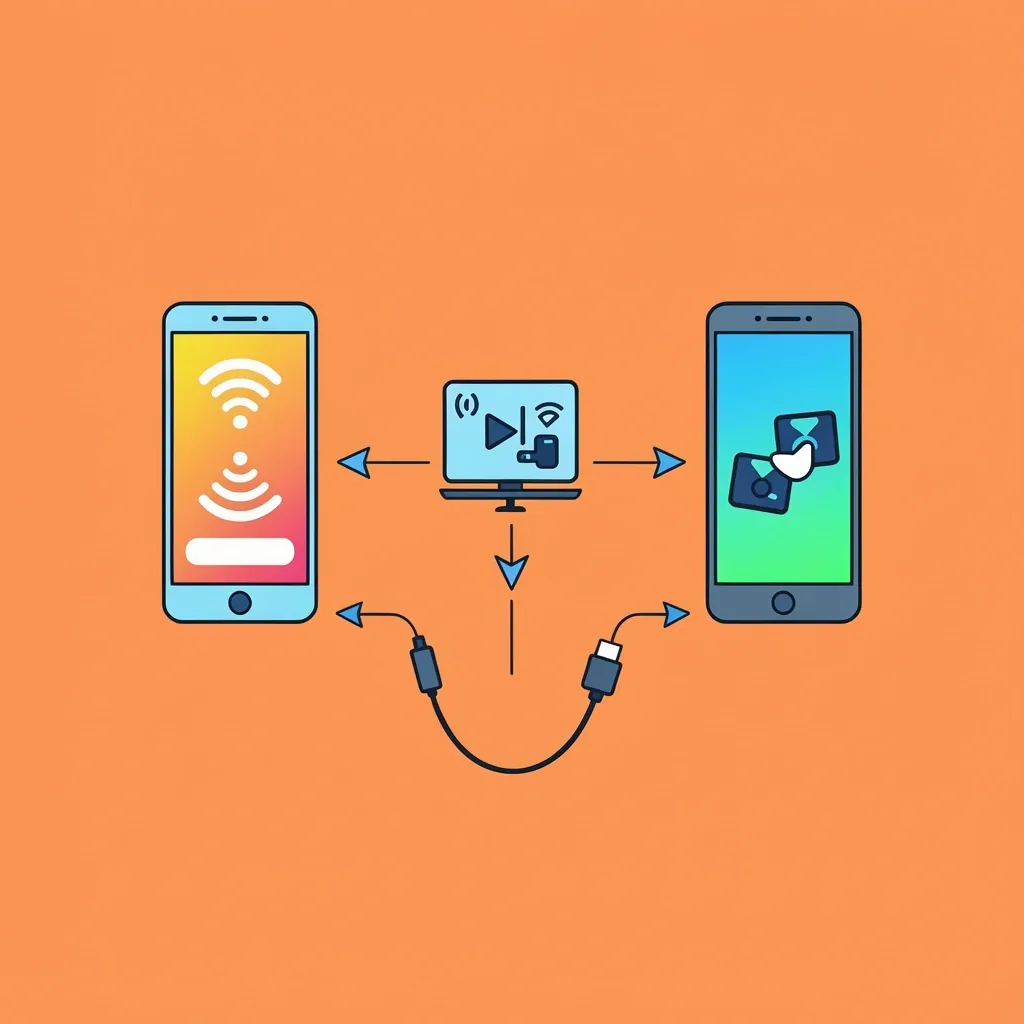
Every connection method falls into one of three categories:
- Wireless – App‑based: The VIZIO Mobile App lets you control the TV, cast content, and use voice search. Requires Wi‑Fi and the app installed on your phone.
- Wireless – Screen mirroring / casting: Built‑in protocols like AirPlay (for iPhones) and Google Cast (for Android) stream video or mirror your screen. Also needs Wi‑Fi.
- Wired – USB or HDMI: Plugging in a cable gives you media playback or full screen mirroring. No Wi‑Fi needed, but you lose remote control capability.
Check which method your VIZIO TV supports. Most Smart TVs from 2016 onward work with the app and casting. Older models or non‑smart sets may only handle USB media playback.
Connecting with the VIZIO Mobile App
This is the most feature‑rich method. After you pair the app, you can control volume, switch inputs, launch WatchFree+ channels, and use your phone’s microphone for voice search. Here is how to set it up.
What You Need Before You Start
- A VIZIO Smart TV (2016 or newer for full functionality)
- Your phone with the VIZIO Mobile App installed (free from the App Store or Google Play)
- Both devices on the same Wi‑Fi network
- The TV remote (you will need it for the initial pairing step)
Step‑by‑Step Pairing Process
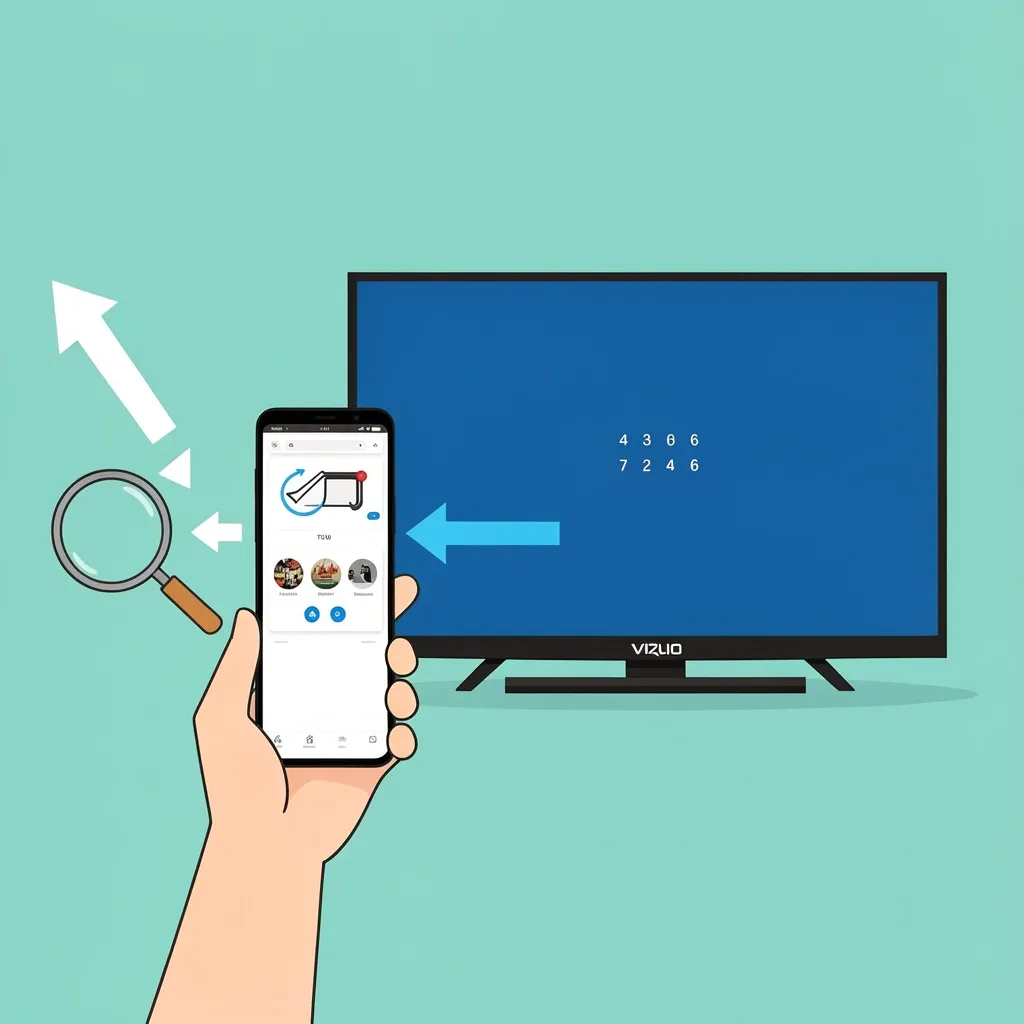
- Download the VIZIO Mobile App and open it.
- Make sure your TV is on and connected to your home Wi‑Fi.
- In the app, tap the device selector icon (usually at the top) and choose “Search for TV.”
- Your TV will display a 4‑digit code on its screen.
- Enter that code in the app.
- After a few seconds, the app will say “Paired successfully.”
What You Can Do Once Connected
- Use your phone as a full remote (volume, inputs, playback).
- Cast videos from apps like YouTube, Netflix, and Prime Video to the TV.
- Browse and watch WatchFree+ live channels.
- Search for shows using voice (tap the microphone icon in the app).
- Access the TV’s settings and change inputs.
How to Connect Without Wi‑Fi
Auto‑suggestions show that many people need to connect when Wi‑Fi is not available. I have been in that situation, and here are the workarounds that actually work.
Using Your Phone as a Hotspot
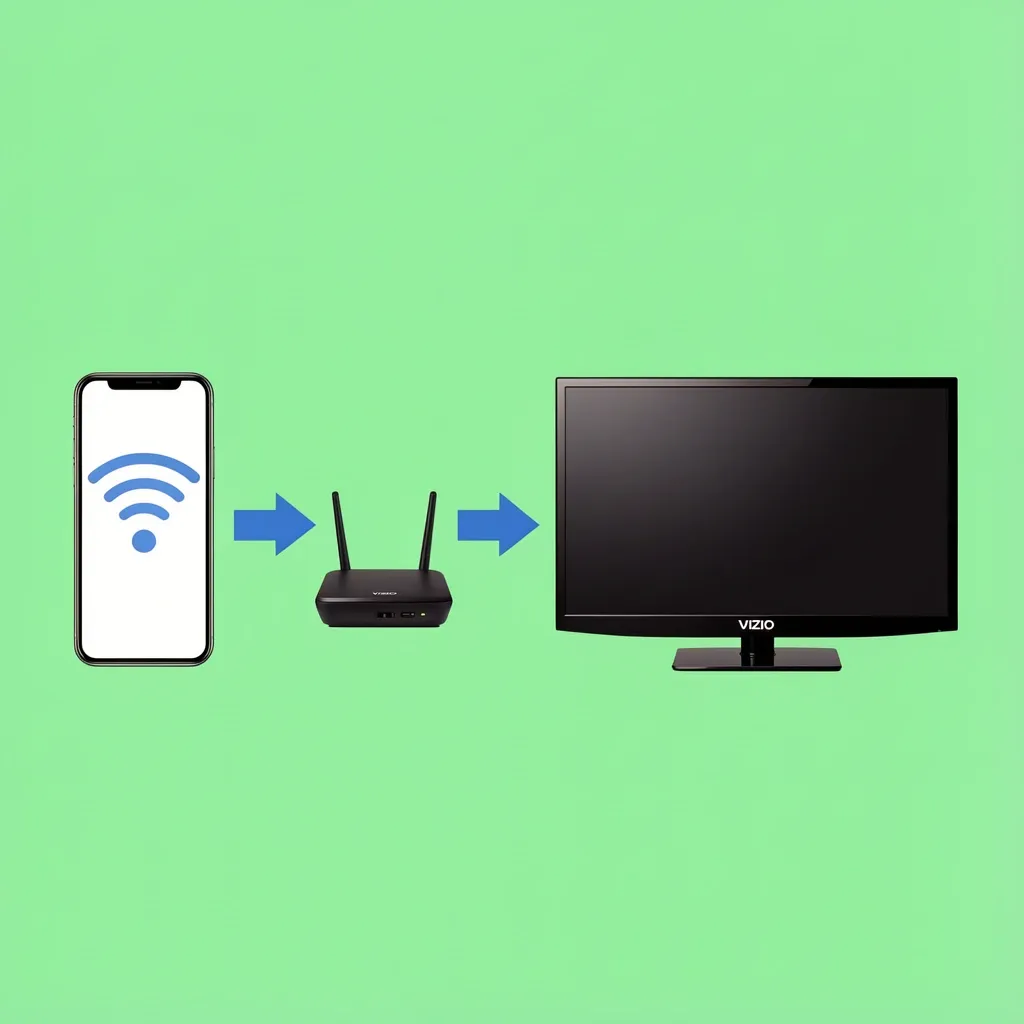
The big challenge: most VIZIO TVs cannot handle captive portal networks—the kind your phone creates. The TV tries to connect but gets stuck on a login page it cannot display. The reliable fix is a travel router. Connect your travel router to your phone’s hotspot, then connect the TV to the router’s standard Wi‑Fi signal. The TV sees a normal network and pairs with the app.
If your VIZIO TV supports Wi‑Fi Direct (check the manual or online specs), you can skip the router. Wi‑Fi Direct creates a direct link between the phone and TV without a separate network. This is rare on VIZIO, so do not assume it works.
Using a Wired USB Connection
This only works for media playback—photos, videos, music stored on your phone. It does not mirror your screen or let you control the TV.
- Connect your phone to the TV using a USB cable (use the cable that came with your phone).
- On your phone, select “File Transfer” mode when prompted.
- On the TV, open the USB Media Player app (look for it in the TV’s app row or input menu).
- Browse your phone’s storage and play the file.
Not all VIZIO TVs have a USB port that supports media from phones. If nothing appears after plugging in, try a different cable or check your TV model specifications.
Using an HDMI Adapter
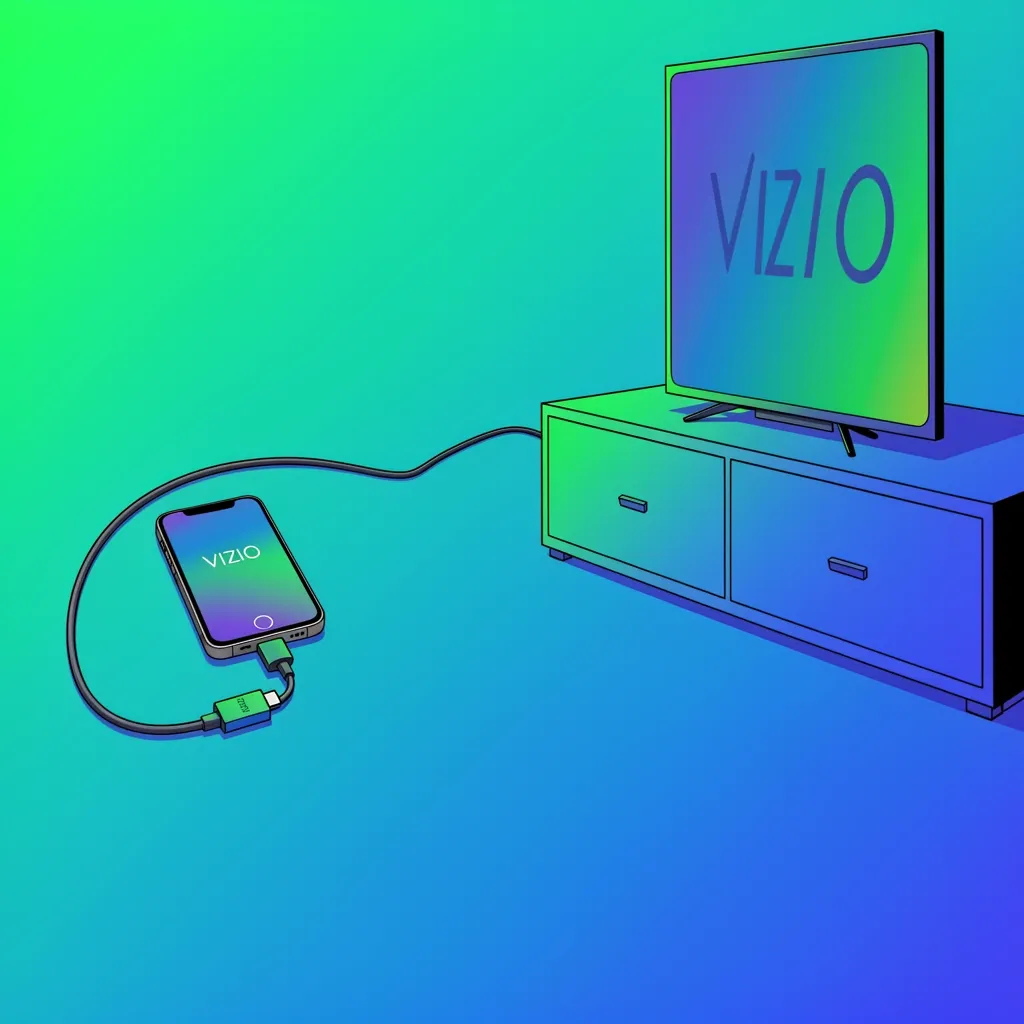
This gives you full screen mirroring without any Wi‑Fi. You need a USB‑C to HDMI adapter (for Android) or a Lightning to HDMI adapter (for iPhone).
- Plug the adapter into your phone.
- Connect an HDMI cable from the adapter to any HDMI port on the TV.
- On the TV, select that HDMI input.
- Your phone’s screen will appear on the TV instantly.
Note: You cannot control the TV from your phone over this connection. You will need the physical remote for volume and input switching.
How to Connect Without a Remote
Losing or breaking the remote is a pain. I have helped friends through this. Here are your options.
If the TV Was Already Paired to the App
Open the VIZIO Mobile App. If your phone is on the same Wi‑Fi network as the TV, the app will usually detect it automatically. You do not need the remote for this.
If the TV Has Never Been Paired
You will need a way to navigate the TV’s menus. Check for physical buttons on the TV itself—usually a joystick or buttons on the back or bottom. Use them to go to Settings > Network and connect the TV to Wi‑Fi. Once the TV is online, you can use the app to pair (the code appears on the screen, so no remote needed after that). If the TV has no buttons, buy a replacement VIZIO remote online or use a universal remote that supports VIZIO.
As a last resort, a factory reset using the physical buttons can force the TV into setup mode where it broadcasts its own temporary network. The exact process varies by model; search online for “factory reset VIZIO TV without remote.”
HDMI‑CEC as a Workaround
If you have a streaming device (like a Roku, Fire Stick, or Apple TV) connected via HDMI, enable HDMI‑CEC on both the TV and the device. Then you can use the streaming device’s phone app to control power and input on the VIZIO TV, even without the original remote.
Connecting an iPhone to a VIZIO TV
iPhones have two solid options: AirPlay and the VIZIO Mobile App.
Using AirPlay (VIZIO TVs 2018 and Newer)
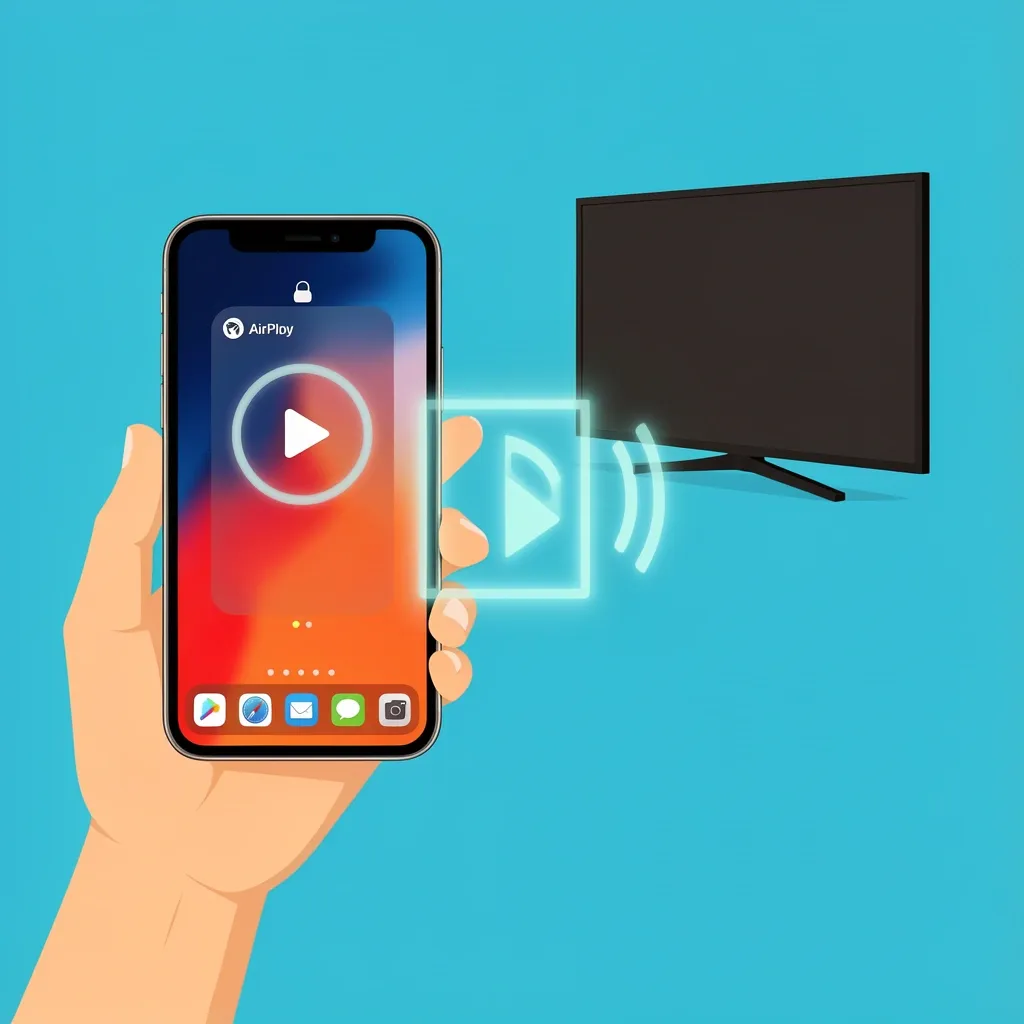
- Make sure your TV supports AirPlay 2 (check under Settings > AirPlay).
- Connect both your iPhone and the TV to the same Wi‑Fi network.
- Swipe down to Control Center from the top‑right of the iPhone screen.
- Tap “Screen Mirroring” and select your VIZIO TV from the list.
- If a code appears on the TV, enter it on your iPhone.
AirPlay lets you mirror almost everything or stream video from apps that support it (YouTube, Netflix, etc.).
Using the VIZIO Mobile App
The same pairing steps described earlier apply. Many iPhone users prefer AirPlay for streaming because it is built‑in, but the app gives you remote control and access to WatchFree+.
Connecting an Android Phone to a VIZIO TV
Android phones can use Google Cast or screen mirroring (Miracast).
Using Google Cast (Built‑in on VIZIO Smart TVs)
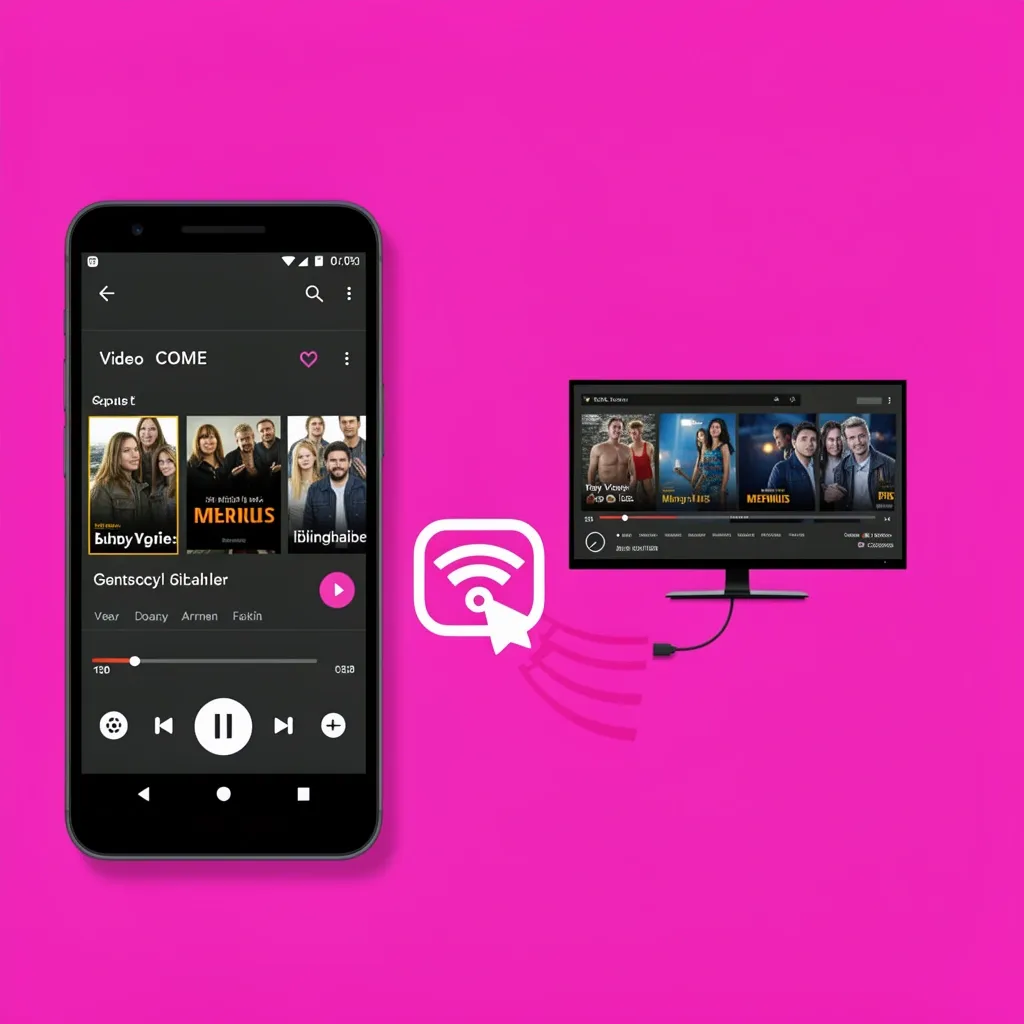
- Connect both phone and TV to the same Wi‑Fi network.
- Open a Cast‑enabled app (YouTube, Netflix, Disney+).
- Tap the Cast icon (a rectangle with a Wi‑Fi signal in the corner).
- Select your VIZIO TV from the list.
- The app will stream directly to the TV—your phone is free to do other things.
Google Cast does not mirror your entire screen; it only sends video from the app. For full mirroring, use screen mirroring.
Using Screen Mirroring (Miracast)
Not every VIZIO TV supports Miracast. Check under Settings > Network or look in the TV manual. If it does:
- On your Android phone, go to Settings > Connected Devices > Cast (or “Screen Mirroring” on some phones).
- Turn on wireless display.
- Select your VIZIO TV from the list.
Your phone’s screen will appear on the TV, but there may be a slight lag. This is fine for presentations and photos, but not for fast games.
Why Your Phone Won’t Connect and How to Fix It
When the basic steps fail, these common fixes usually solve the problem.
Both Devices Are on the Same Network but Can’t Find Each Other
- Restart both the TV and your phone.
- Update the TV’s firmware: Settings > System > Check for Updates.
- Update the VIZIO Mobile App to the latest version.
- Turn off any VPN on your phone temporarily.
The Pairing Code Won’t Appear on the TV
- The TV might be in retail demo mode. Switch it to home mode in Settings > System > Demo Mode.
- A previous pairing may be stuck. Unplug the TV for 60 seconds, then plug it back in.
Connection Drops Frequently
- Move your Wi‑Fi router closer to the TV, or use the 5 GHz band if available.
- Older VIZIO TVs have weaker Wi‑Fi antennas. Consider connecting the TV to your router with an Ethernet cable for a stable connection.
- Too many devices on one network can cause interference. Disconnect a few and try again.
Audio and Video Are Out of Sync
This happens most often with screen mirroring (Miracast). Switch to Google Cast or AirPlay instead—those protocols keep audio and video in sync. If you must use mirroring, adjust the TV’s audio delay setting: Settings > Audio > Lip Sync.
What the VIZIO Mobile App Can’t Do
Being honest about limitations builds trust. I have run into each of these myself.
- It cannot turn on the TV if the TV is completely unplugged. It only wakes the TV from standby mode.
- It cannot change advanced picture settings (those require the physical remote or the TV’s on‑screen menu).
- You can only pair one TV at a time. To switch to another TV, you must unpair and re‑pair.
- It cannot stream local files from your phone’s storage. Use USB or a media app that supports casting (like VLC with Cast).
- If the TV is on a different Wi‑Fi network, the app will not find it.
Which Connection Method Is Best for Your Situation
| Goal | Recommended Method |
|---|---|
| Control TV like a remote | VIZIO Mobile App |
| Stream Netflix/YouTube | Google Cast or AirPlay |
| Show photos to family | Screen Mirroring or USB |
| Play games on big screen | HDMI Adapter (lowest lag) |
| Watch without internet | USB or HDMI Adapter |
| Phone as remote without Wi‑Fi | HDMI‑CEC with streaming stick |
Frequently Asked Questions
Can I connect multiple phones to the same VIZIO TV?
Yes, but only one phone can actively control the TV at a time. Each phone must go through the pairing process separately.
Does the VIZIO Mobile App work with older VIZIO TVs (pre‑2016)?
Limited functionality. Basic control may work, but features like WatchFree+ streaming and voice search require a 2016 or newer model.
Can I use the app to turn my TV on from standby?
Yes, if the TV is in standby mode (not unplugged) and connected to Wi‑Fi, the app can wake it.
Will connecting my phone drain my phone’s battery quickly?
Using the app as a remote uses very little battery. Screen mirroring or casting will drain it faster, especially if your phone is also streaming content from mobile data.
Do I need to create a VIZIO account to use the app?
Yes. A VIZIO account is required for initial setup and to access features like WatchFree+ and personalized recommendations.
Can I connect my phone to a VIZIO TV in a hotel or rental property?
Yes. First connect the TV to the property’s Wi‑Fi using the physical remote. Then connect your phone to the same network. The VIZIO Mobile App will find the TV automatically.