Vizio TV Picture But No Sound: How to Fix It Quickly
If your Vizio TV has a clear picture but absolutely no sound, you are not alone. This is a common issue, and in most cases, you can fix it yourself in a few minutes without spending money. This guide walks you through every step, from the quickest fix to deeper hardware checks. Follow the order below — each step builds on the last, and you can stop once your sound returns.
Start With the Most Likely Fix: Power Cycle the TV
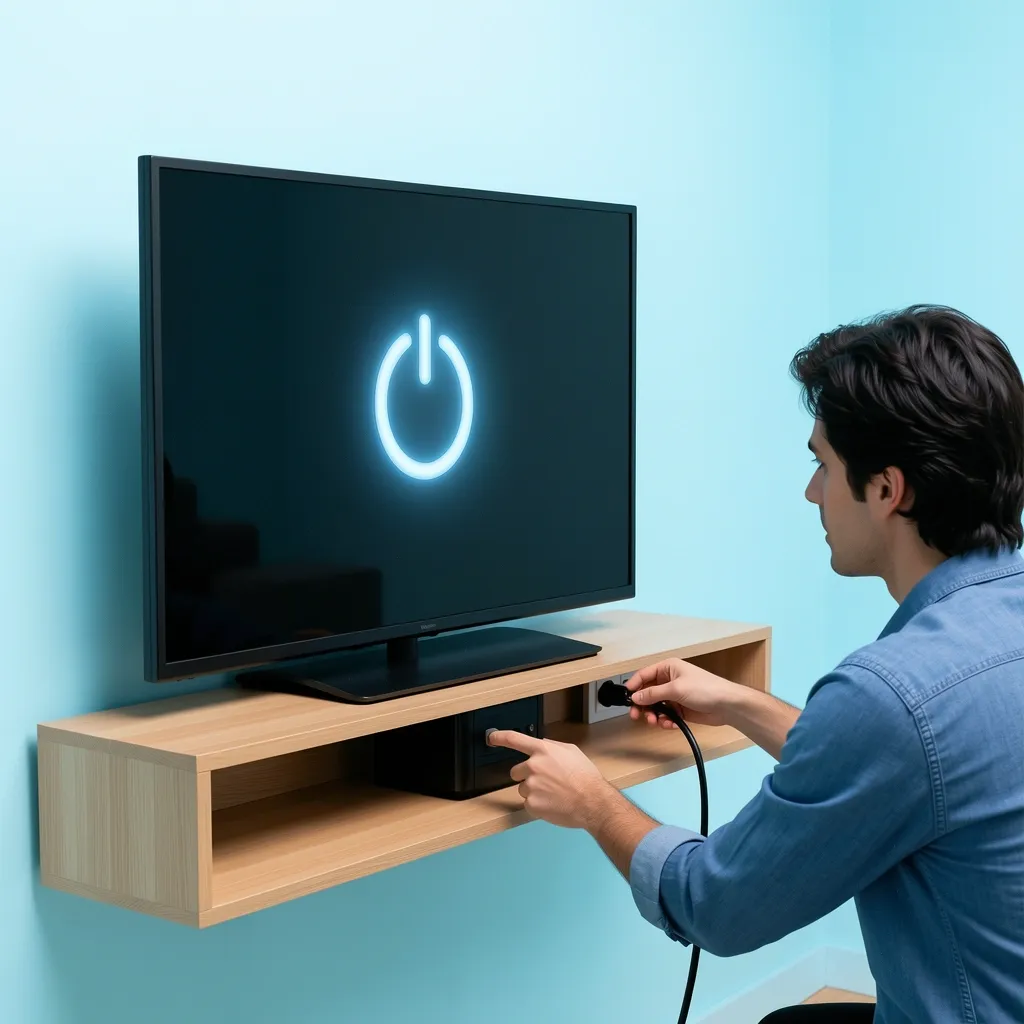
Many Vizio TVs lose sound due to a temporary software glitch. A full power cycle clears the TV’s internal memory and often restores audio. How to do a hard power cycle:
- Unplug the TV from the wall outlet.
- Press and hold the power button on the TV itself (not the remote) for 30 seconds. This drains any leftover charge in the capacitors.
- Wait 2 minutes, then plug the TV back in.
- Turn the TV on and check for sound.
If this works, your sound should be back. If not, move to the next step.
Check the Obvious (But Easy to Miss) Things
Before digging into settings, rule out these simple causes. They take less than a minute each.
Mute and Volume Levels
Press the mute button on your remote. Look for a speaker icon with an X on the screen. Also, press volume up several times — sometimes the volume is accidentally turned all the way down.
Headphone Jack
If you have headphones or earbuds plugged into the TV’s audio output jack, the internal speakers are disabled. Unplug anything from the headphone jack (usually on the side or back) and see if sound returns.
Input Source
Make sure you are on the correct input. If you changed inputs by accident, the TV might show a blank input with no audio. Cycle through inputs using the Input button on your remote until you find the one connected to your cable box, streaming stick, or antenna.
SAP (Secondary Audio Program)
Some remotes have a button labeled SAP or Audio. Pressing it can switch the TV to a secondary audio track that may be silent. Press it again until normal sound returns.
Check the Cables and External Devices
If the simple checks fail, turn to the cables and devices connected to your TV.
HDMI Cables
A faulty or loose HDMI cable is a common cause of picture but no sound. HDMI carries both video and audio, so a bad cable can break the audio signal.
- Unplug the HDMI cable from both the TV and the source (cable box, Roku, game console).
- Plug it back in firmly. Make sure it clicks into place.
- If sound is still missing, try a different HDMI cable.
- Also test a different HDMI port on the TV.
External Devices (Cable Box, Streaming Stick, Game Console)
Sometimes the issue is not the TV but the device sending the signal.
- Reboot the device: Unplug its power, wait 30 seconds, plug it back in.
- Check the device’s audio output settings. For cable boxes, go to Settings > Audio and change from Dolby Digital to PCM (or stereo). Many boxes default to Dolby, which can cause handshake problems with Vizio TVs.
- If using a streaming stick like Roku or Fire TV, check its audio settings as well.
The Hidden Culprit: Audio Output Routing (ARC, CEC, and Internal Speakers)
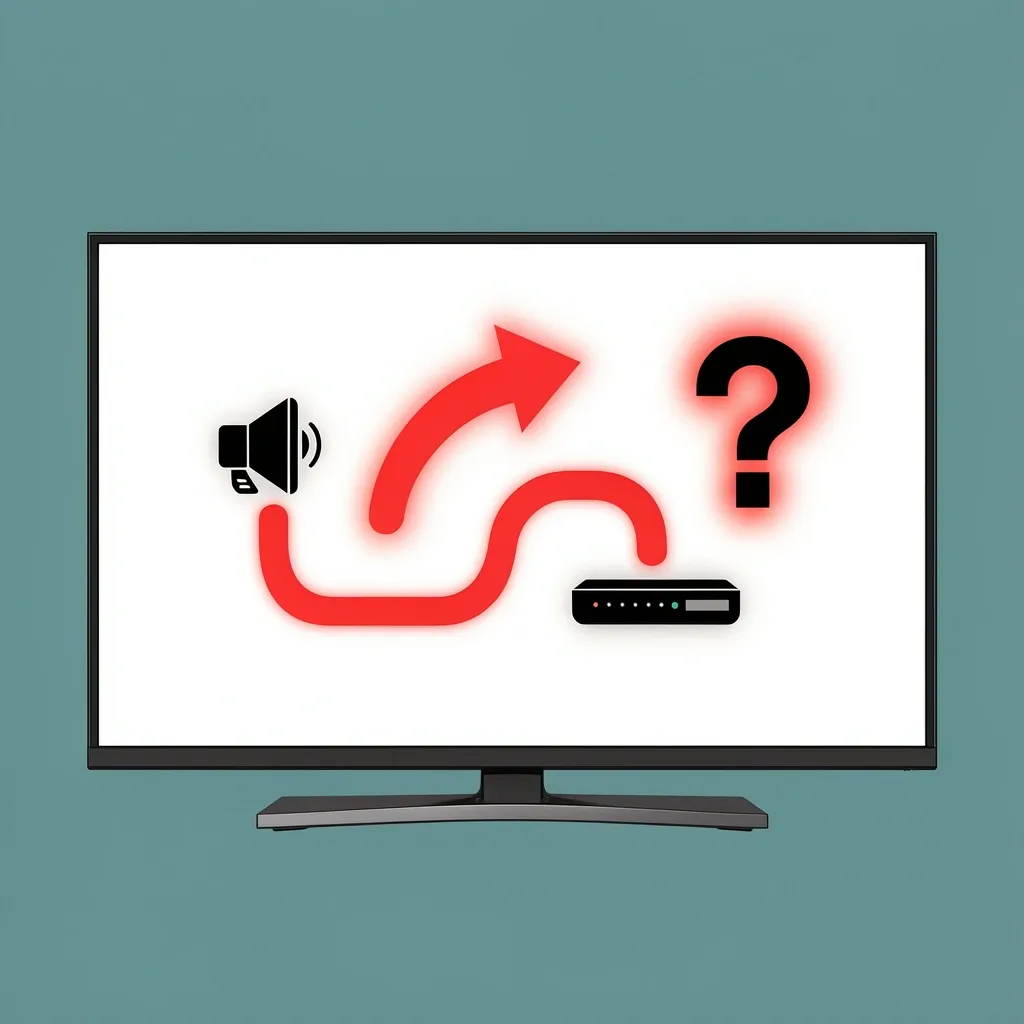
This is where most basic guides stop — but it’s also where you find the real fix. Vizio TVs are designed to automatically send audio to external devices like soundbars or receivers when they detect a connection. Even if you are not using external speakers, the TV might think it should send sound elsewhere.
Disable CEC (HDMI Control)
CEC (Consumer Electronics Control) lets devices control each other over HDMI. A connected cable box, game console, or streaming stick can tell the TV to output audio to an external device — even if none is plugged in. How to turn off CEC on your Vizio TV:
- Press the Menu button on your remote.
- Go to System > CEC (or HDMI Control).
- Set it to Disabled.
After disabling, test the sound. If it works, you found the problem. You can turn CEC back on later if you use a soundbar, but leave it off for now.
Check the Audio Output Setting
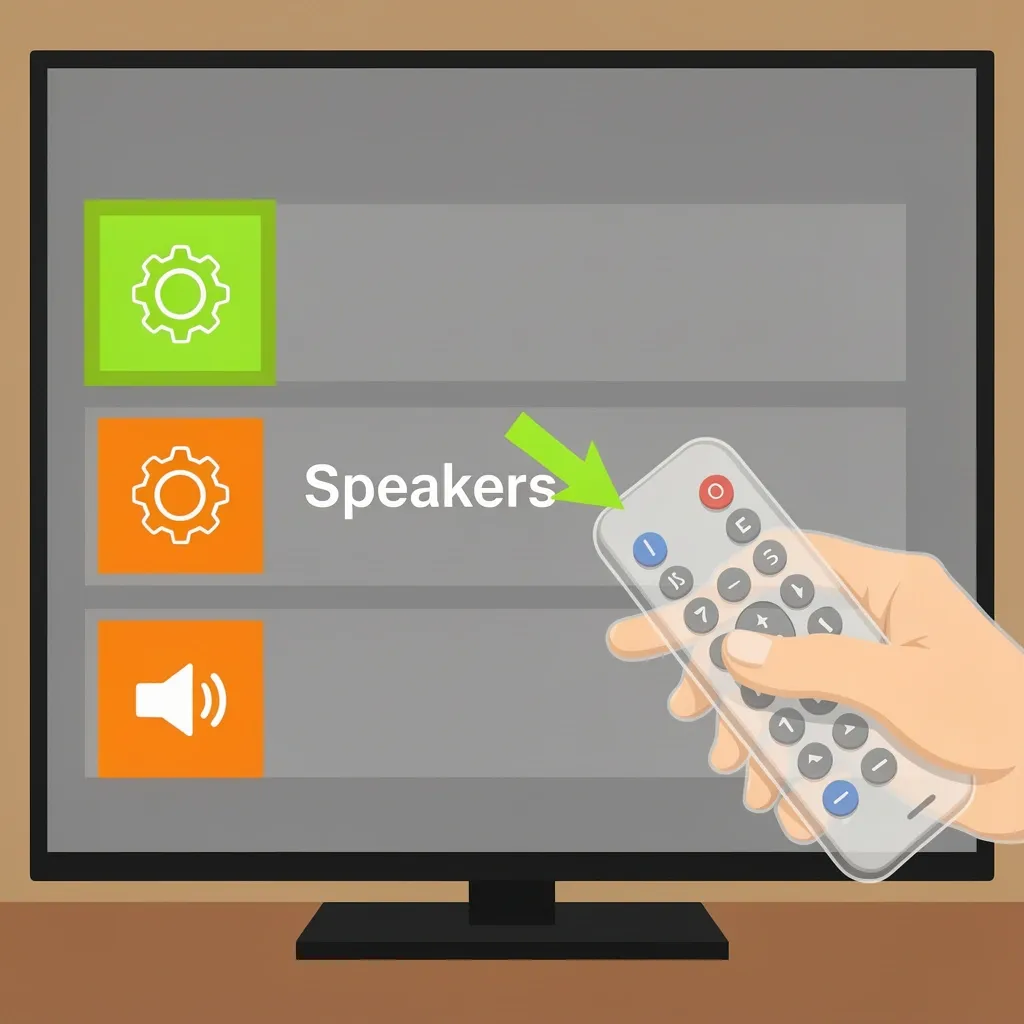
Your Vizio TV has an “Audio Output” setting that determines where sound goes.
- Press the Menu button.
- Go to Audio > Speakers (or TV Speakers).
- Make sure it is set to TV Speakers or Auto. If it says External or Fixed, the TV is sending sound to a non-existent device.
Also look for a setting called “Volume Leveling” or “TruVolume.” Some users report that turning this off (set to Off) restores sound.
Audio Format (Bitstream vs PCM)
Vizio TVs sometimes struggle with certain audio formats. The fix is often to switch the audio format.
- Go to Menu > Audio > Digital Audio Out.
- Change from Auto or Bitstream to PCM.
PCM (Pulse Code Modulation) is a simpler, more universal format that works with almost all content and devices. If sound appears with PCM, you can leave it there, or try switching back to Auto later to see if the problem returns.
Advanced Software Fixes: Factory Reset and Firmware Update
If the audio routing settings did not help, the software inside the TV may be corrupted. These steps are more drastic, but they often resolve stubborn sound issues.
Factory Reset
A factory reset erases all your settings and returns the TV to its original state. This can fix bugs that cause audio to disappear. How to factory reset a Vizio TV:
- Press the Menu button.
- Go to System > Reset & Admin > Factory Reset.
- Enter the password (usually 0000) and confirm.
After the TV restarts, go through the initial setup (you can skip Wi-Fi if you just want to test sound). Then check if audio works.
Firmware Update
An outdated firmware can cause audio problems. Vizio occasionally releases updates to fix known bugs.
- Connect your TV to the internet (Wi-Fi or Ethernet).
- Go to Menu > System > Check for Updates.
- If an update is available, install it. The TV will restart.
If your TV cannot connect to the internet, you can download the latest firmware from Vizio’s support site onto a USB drive and install it manually. Instructions are on their website.
Hardware Diagnosis: When the TV Itself Is Broken
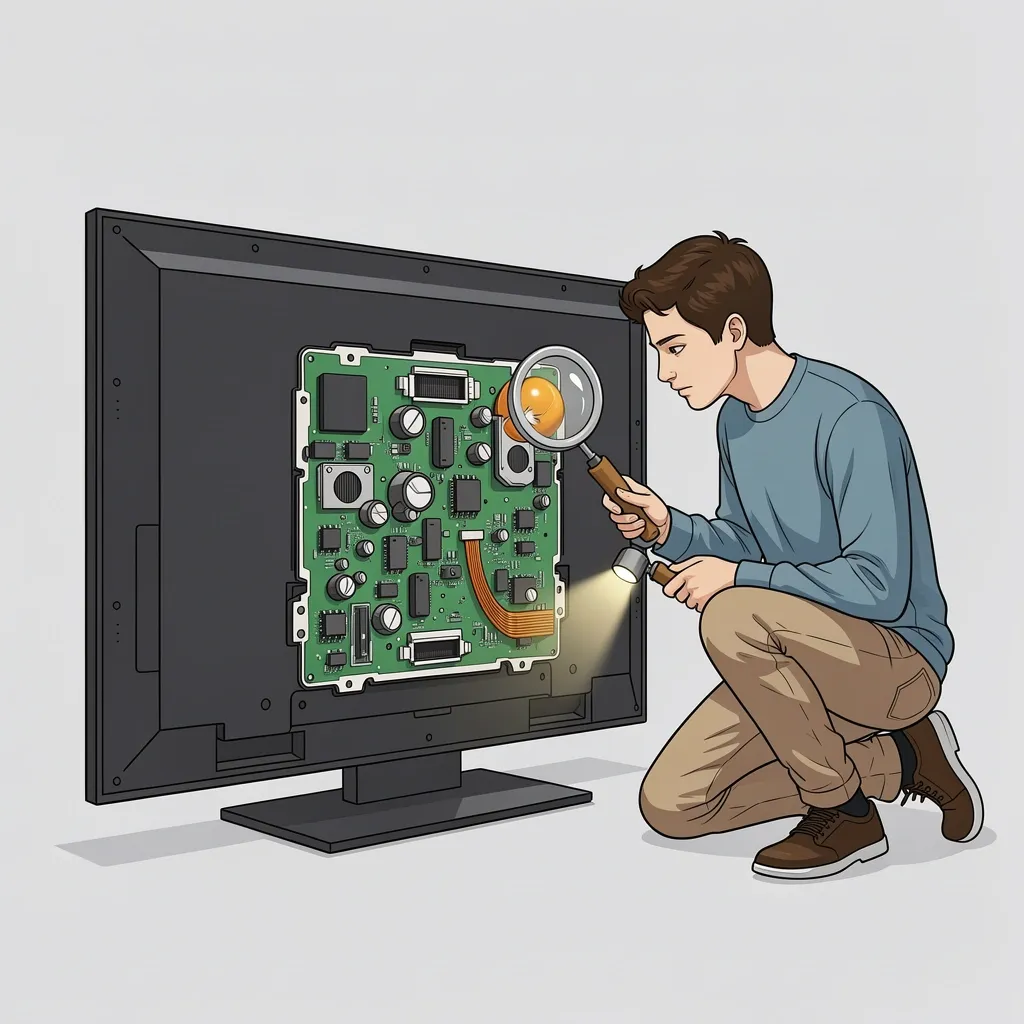
If software fixes and cable checks fail, the problem may be hardware inside the TV. Here is how to tell which part is faulty.
Test the Internal Speakers
Connect a known working audio source to the TV’s audio output (the headphone jack or digital audio out). For example, plug in a pair of powered speakers or headphones into the TV’s audio out port.
- If you get sound through the external speaker/headphones, the internal speakers are likely dead.
- If you still get no sound, the main board or audio amplifier may be faulty.
Look for Physical Damage
Unplug the TV and carefully open the back panel (only if you are comfortable with electronics). Look for:
- Bulging or leaking capacitors on the main board.
- Signs of water damage or burnt components.
- Loose ribbon cables connecting the speakers to the board.
If you see obvious damage, you can replace the main board or speakers. These parts are available online. But be aware: if the TV is old or has other issues, buying a new TV may be more cost-effective.
Common Triggers: Why Sound Suddenly Stops
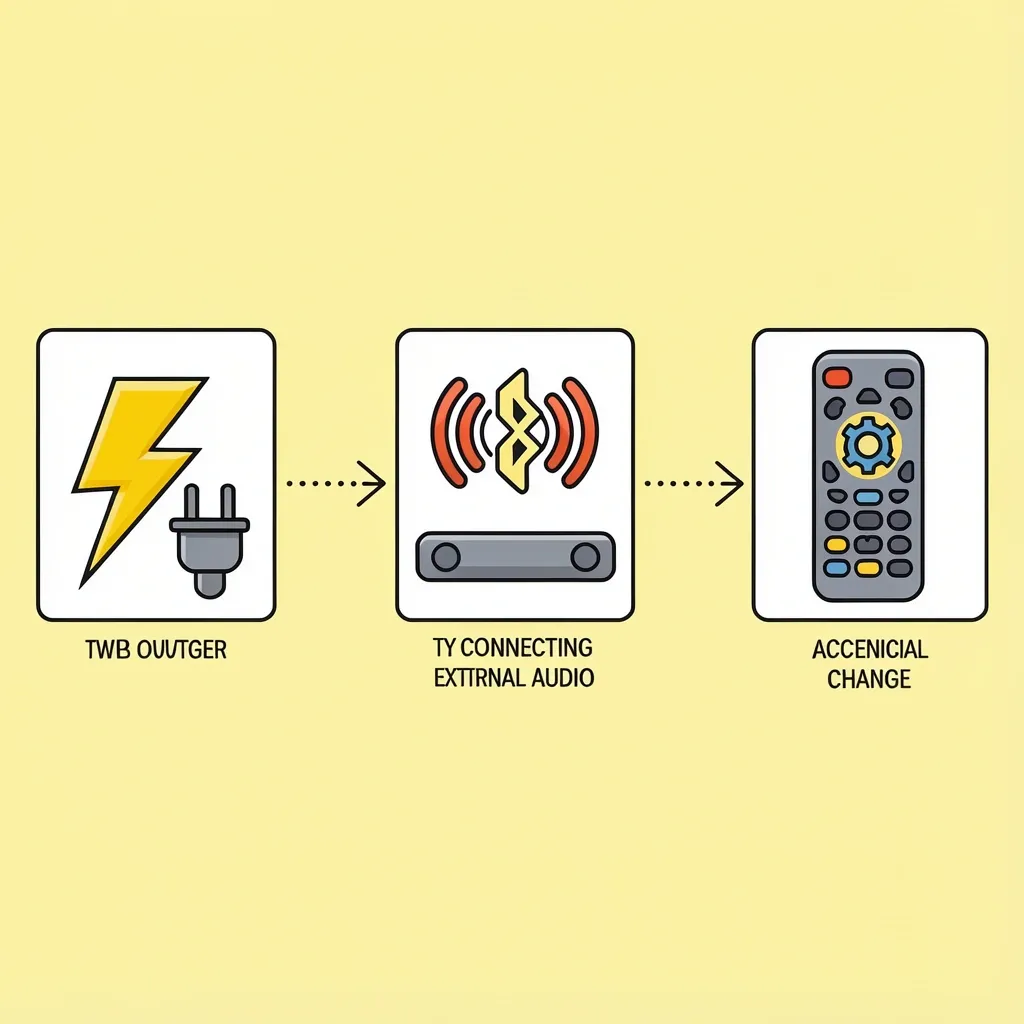
Many users report that their Vizio TV lost audio after a specific event. Knowing the trigger can help you focus on the right fix.
- After a firmware update: Try a factory reset.
- After connecting a Bluetooth speaker or soundbar: The TV may have switched audio output to that device. Unpair it or disable Bluetooth in TV settings.
- After a power outage: A power cycle usually restores sound.
- After changing the cable box or streaming device: Check the device’s audio output format and set it to PCM.
- After using the TV’s remote to change settings accidentally: Review Audio menu and CEC settings.
Preventive Tips to Avoid Future Sound Loss
Once you have sound back, follow these tips to keep it working.
- Clean the TV’s vents and speaker grills with a soft brush or vacuum. Dust buildup can cause overheating and audio glitches.
- Use a surge protector to protect against power surges.
- Avoid bending HDMI cables too tightly. A broken cable can cause intermittent audio issues.
- Periodically power cycle your TV (unplug for a minute) to clear temporary bugs.
Frequently Asked Questions
My Vizio TV has no sound only on certain apps (Netflix, YouTube) – why?
This usually happens because the app sends a different audio format than the TV expects. Go to TV Settings > Audio > Digital Audio Out and set it to PCM. Also, clear the app’s cache: go to SmartCast > Settings > Apps > select the app > Clear Cache.
TV picture works but sound cuts out after a few seconds
This is often a loose HDMI connection or a failing main board capacitor. First, try a different HDMI cable and a different input. If the problem persists, the main board may need replacement.
Vizio TV no sound after Spectrum/Comcast update – what to do?
The cable box likely changed its audio output to Dolby Digital. On the cable box remote, go to Settings > Audio > set to PCM or Stereo. Then power cycle both the cable box and the TV.
Can I fix no sound without a remote?
Yes. You can do a hard power cycle (unplug TV, hold power button, plug back in). If your TV has physical buttons, use them to navigate to Menu > Audio > TV Speakers. Or download the Vizio SmartCast app on your phone to act as a remote.
My Vizio E-Series sound works when I use ARC but not internal speakers
When ARC (Audio Return Channel) is enabled, the TV automatically sends sound to the ARC-connected device, disabling internal speakers. Either turn off CEC/ARC in TV settings, or unplug the HDMI cable from the ARC port.