Vizio Sound Bar Universal Remote: Complete Setup Guide
So you want to control your Vizio sound bar with a single remote. Maybe you're tired of juggling two remotes on your coffee table. Or maybe you just unboxed a new streaming device and realized its remote won't talk to your sound bar at all. I've been there. The good news is that in most cases you can make it work. But the exact steps depend on two things: your remote type and how your sound bar connects to the TV. Let me walk you through the options so you can find the one that fits your setup.
Understanding Compatibility Before You Start
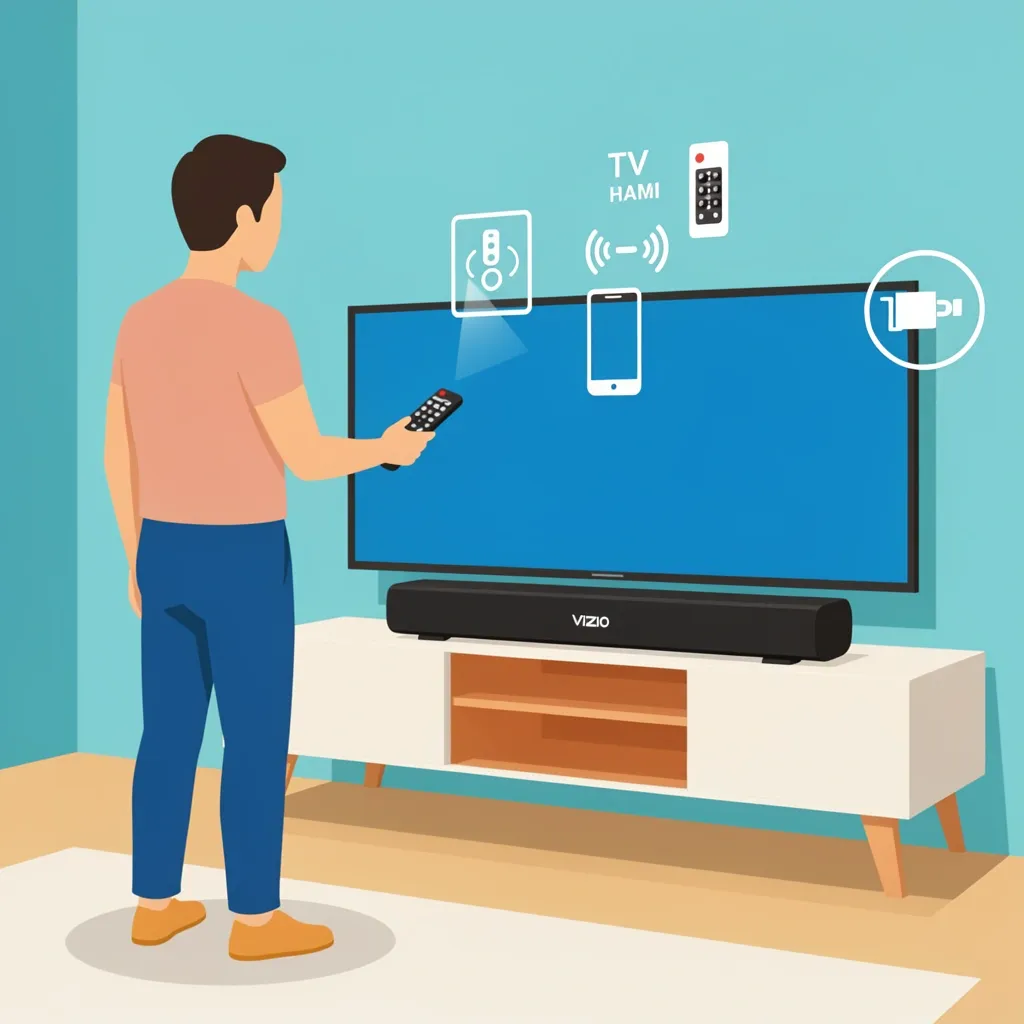
Not all remotes are created equal. A dedicated universal remote (like a GE or Logitech Harmony) is designed to control multiple devices. Your TV remote might also work – but not always. Streaming device remotes, like the DIRECTV Gemini or Roku remote, often have limits. Here's a quick table to help you figure out what you're working with:
| Remote Type | Can it control a Vizio sound bar directly? | Best method |
|---|---|---|
| Dedicated universal remote (GE, Harmony, etc.) | Yes | IR codes or learning mode |
| TV remote (Samsung, LG, Sony, etc.) | Usually yes | HDMI-CEC or IR codes |
| Streaming device remote (DIRECTV Gemini, Roku, Fire TV) | Rarely – these often only control TV volume | Workaround: pretend the sound bar is a TV |
| Phone app (Vizio Mobile or third-party with IR blaster) | Yes | Bluetooth or Wi-Fi direct |
Your Vizio sound bar likely supports one or more of these: IR (infrared), Bluetooth, HDMI-CEC, and sometimes Wi-Fi. Most modern sound bars (like the V-Series or M-Series) handle all of them. But if you have an older model, check the manual – it might only speak IR. The most common mistake people make is assuming any remote can control any device. That's just not true. A streaming remote like the DIRECTV Gemini only knows how to talk to a TV. It does not have built-in codes for sound bars. That's why you need a workaround, which I'll cover in a moment.
Step-by-Step Programming for Your Remote
Pick the path that matches your remote. Follow only the instructions for your situation.
Path A: Using a dedicated universal remote with IR codes
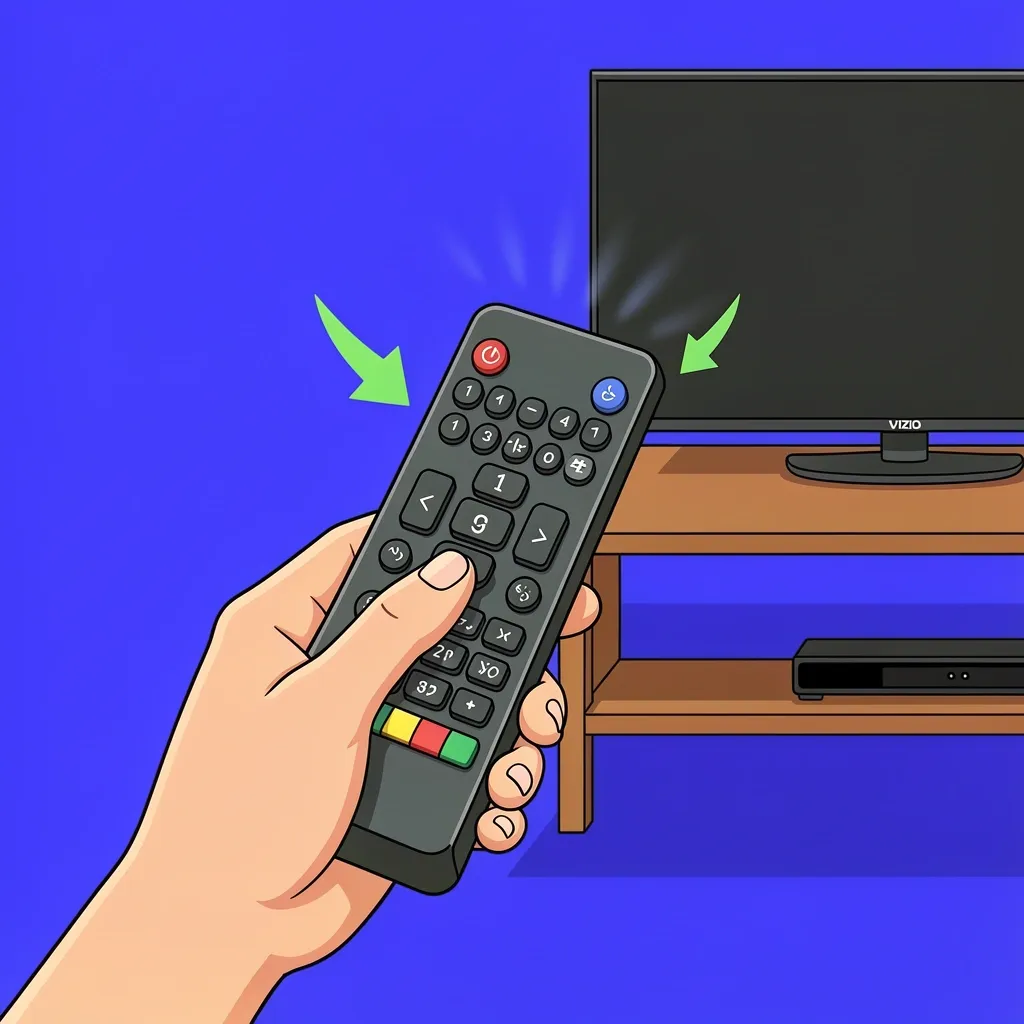
If you have a universal remote from GE, One For All, or similar, you can enter a code to control the Vizio sound bar.
- Turn on your Vizio sound bar.
- Press and hold the "Setup" button on your universal remote until the LED blinks twice.
- Enter one of these codes: 175, 186, or 280. After each code, test the volume buttons. If they work, you're done.
- If none of those codes work, try a code search: hold "Setup" then press "Volume Up" repeatedly until the sound bar responds.
- If code search fails, the sound bar may support IR learning (see Path C).
Some universal remotes also let you program by pointing the original sound bar remote at them and pressing the same button. Check your remote's manual for "learning" instructions.
Path B: Using your TV remote with HDMI-CEC
HDMI-CEC (sometimes called Anynet+, Simplink, or Bravia Sync) lets you control connected devices through your TV remote. This works great if both your TV and sound bar support HDMI-ARC.
- Connect your Vizio sound bar to the TV's HDMI-ARC port using an HDMI cable. (Make sure the port is labeled "ARC" on both devices.)
- Turn on your TV and sound bar.
- On your TV, go to Settings and find the CEC option. Enable it. On most TVs it's under "HDMI Control" or "External Devices."
- On the Vizio sound bar, press the "Menu" button on its remote, go to System, and enable HDMI-CEC (may be labeled "CEC" or "ARC").
- Now your TV remote should change the sound bar volume. If not, try cycling power on both devices.
This is the simplest method when it works. But sometimes CEC can cause weird issues, like the sound bar turning off when the TV turns off. I'll cover that in the troubleshooting section.
Path C: Using IR learning mode
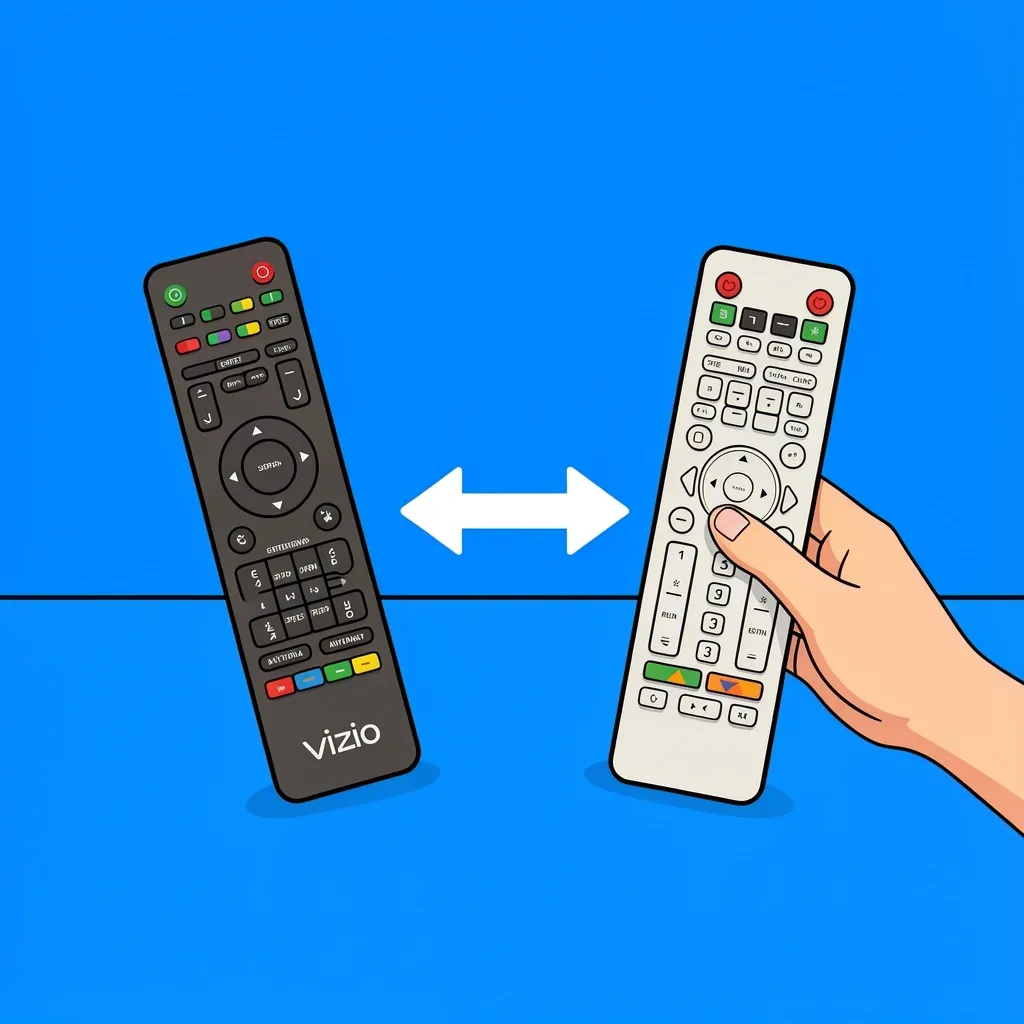
If your remote doesn't have codes and doesn't support HDMI-CEC, you can "teach" it the Vizio sound bar's IR commands. This works for many universal remotes and even some TV remotes.
- Get your Vizio sound bar remote (the one that came with the bar).
- On the remote you want to program, enter learning mode. (This varies by brand – check the manual.)
- Point both remotes at each other, about 2 inches apart.
- Press the volume up button on the learning remote. Then immediately press the volume up button on the original Vizio remote. The learning remote should blink to confirm it learned the command.
- Repeat for volume down, mute, and power if needed.
This method works for any remote that has a learning function. If your remote doesn't support learning, you'll need to use one of the other paths.
Troubleshooting and Workarounds for Trickier Remotes
Sometimes the standard methods don't work. Here are fixes for common situations I've seen.
The "Fake TV" hack for streaming remotes
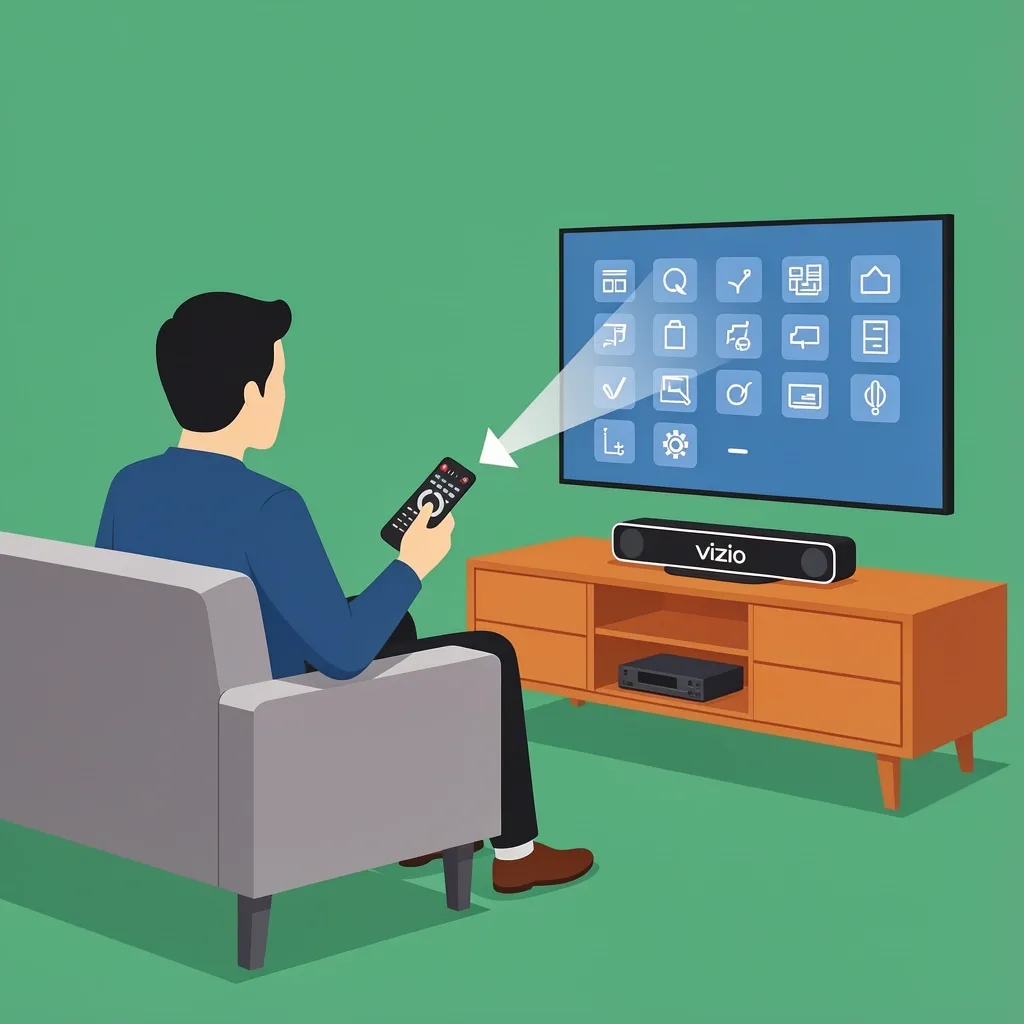
This is the trick I discovered when helping a friend with a DIRECTV Gemini remote. That remote only lets you set up a "TV" during programming – it won't let you select "sound bar." But you can fool it.
- On your streaming remote, start the TV setup process as if you're programming a TV.
- When it asks for the TV brand, choose Vizio. Enter the code for a Vizio TV (for example, 10178 for some models).
- Point the remote at the sound bar, not the TV.
- Complete the setup. The volume buttons should now control the sound bar.
Note: The power button may turn the sound bar on/off instead of the TV. To work around this, disable the sound bar's auto power-off feature in its settings menu. Or just accept using the TV's power button for the TV and the remote's power for the sound bar. This hack works with Roku, Fire TV, and Apple TV remotes too, if they allow TV code programming. It's not perfect, but it's often the only way to avoid using two remotes.
Sound bar powers off randomly after HDMI-CEC setup
This happened to me after I connected a Vizio sound bar to a TCL TV. The sound bar kept turning off after a minute of silence. The fix:
- On the sound bar, press the "Menu" button and look for "Auto Power Off." Disable it.
- If that doesn't help, check the TV's CEC settings. Some TVs have a "Device Auto Power Off" option – turn that off.
- As a last resort, switch to an optical audio cable instead of HDMI-ARC. You'll lose volume control through CEC but can use IR programming on your TV remote.
Bluetooth pairing problems
If your remote uses Bluetooth (like some universal remotes), and the sound bar won't pair, try a reset:
- Turn off the sound bar and unplug it for 30 seconds.
- Plug it back in and put it in Bluetooth pairing mode (hold the Bluetooth button for 5 seconds).
- On your remote, select "Vizio Sound Bar" from the Bluetooth list. If it's not there, forget any previous pairing and try again.
- Make sure the remote is less than 10 feet away and no other Bluetooth device is interfering.
If Bluetooth still fails, the sound bar may only support IR for volume control. Use an IR-based method instead.
Advanced Optimization: Getting the Best Experience
Once you have basic volume control, you might want more. For example, some users want to control input switching or adjust sound modes.
Using a programmable remote
If you own a Logitech Harmony (or similar programmable remote), you can map multiple commands into a single activity. For example, one button press can turn on the TV, switch to HDMI 1, turn on the sound bar, and set it to "Movie" mode. To do this:
- In the Harmony app, add your Vizio sound bar as a device. Use "Sound Bar" as the device type and enter "Vizio" as the brand.
- The app will try to find IR codes automatically. If it doesn't, use the learning function (point the original sound bar remote at the Harmony hub).
- Create an activity like "Watch TV" and assign the sound bar as the audio output.
Programmable remotes cost more, but they eliminate every remote from your coffee table.
Using the Vizio Mobile App
If all else fails, you can use your phone as a temporary universal remote. The Vizio Mobile App works with most sound bars via Bluetooth or Wi-Fi. It gives you full control – volume, input, sound modes, even EQ settings. Download the app, follow the pairing instructions, and you'll have a virtual remote on your phone. This is especially useful if your sound bar doesn't have an IR receiver (some Bluetooth-only models).
Frequently Asked Questions
What universal remote codes work with a Vizio sound bar?
The most common codes are 175, 186, and 280. If those don't work, try a code search or use IR learning mode.
Can I use my Samsung TV remote to control a Vizio sound bar?
Yes, if both devices support HDMI-CEC. Connect the sound bar to the TV's HDMI-ARC port. Enable Anynet+ on your Samsung TV and HDMI-CEC on the Vizio sound bar. Volume control should then work.
My DIRECTV Gemini remote won't pair with my Vizio sound bar. What can I do?
The Gemini remote is designed to control only the TV, not a sound bar directly. Use the "fake TV" hack: during TV setup, tell the remote you have a Vizio TV and point it at the sound bar. That will let the volume buttons control the sound bar (see the workaround section above).
Is there a universal remote app for Vizio sound bars?
Yes. The official Vizio Mobile App works over Bluetooth or Wi-Fi. For IR control, you need a phone with an IR blaster (like some Android models) and a third-party universal remote app. Most iPhones don't have IR blasters, so Bluetooth/Wi-Fi is your only option.
What if my Vizio sound bar has no IR receiver? Can I still use a universal remote?
Some Vizio sound bars (like the SB2020) are IR-only. If your sound bar has no IR receiver, you'll need to use Bluetooth (with the Vizio app) or Wi-Fi. Very old models may require the original remote. Check your sound bar's specifications to confirm.
Why does my sound bar turn off when I change TV input?
This is usually caused by HDMI-CEC. The TV sends a "power off" signal to all connected devices when you switch inputs or turn off the TV. To stop it, disable CEC on the sound bar or TV. Or disable "Auto Power Off" on the sound bar's menu.
How do I program a universal remote without codes or a learning function?
If your remote has neither codes nor learning, you're limited to HDMI-CEC. Connect the sound bar via HDMI-ARC and enable CEC on both devices. If that's not possible, you may need to buy a universal remote that supports IR learning or code entry.