How to Use Your Tablet as a Vizio Remote Control
If you lost your physical remote or just want a more powerful way to control your TV, your tablet can take over. Yes, you can turn an iPad or Android tablet into a full Vizio remote control. The official Vizio Mobile app works with most Vizio SmartCast TVs made after 2016. You get on-screen keyboards, voice search, and touch gestures that a standard remote cannot match. This guide covers everything from first-time setup to advanced tips and common fixes.
What You Need Before You Start
Not every tablet works, and not every Vizio TV is compatible. Here is what you need:
- A tablet running iOS 12 or later, or Android 7 or later.
- A Vizio SmartCast TV from 2016 or newer. Older Vizio models without SmartCast will not work with the app. For those, you may need a third-party universal remote or a USB-IR dongle.
- A stable Wi-Fi network. Both devices must be on the same network. The app uses local Wi-Fi, not mobile data.
If you have a Vizio soundbar that is connected via HDMI-ARC or is a SmartCast model (2018 or newer), the app can control it too.
Step-by-Step Setup
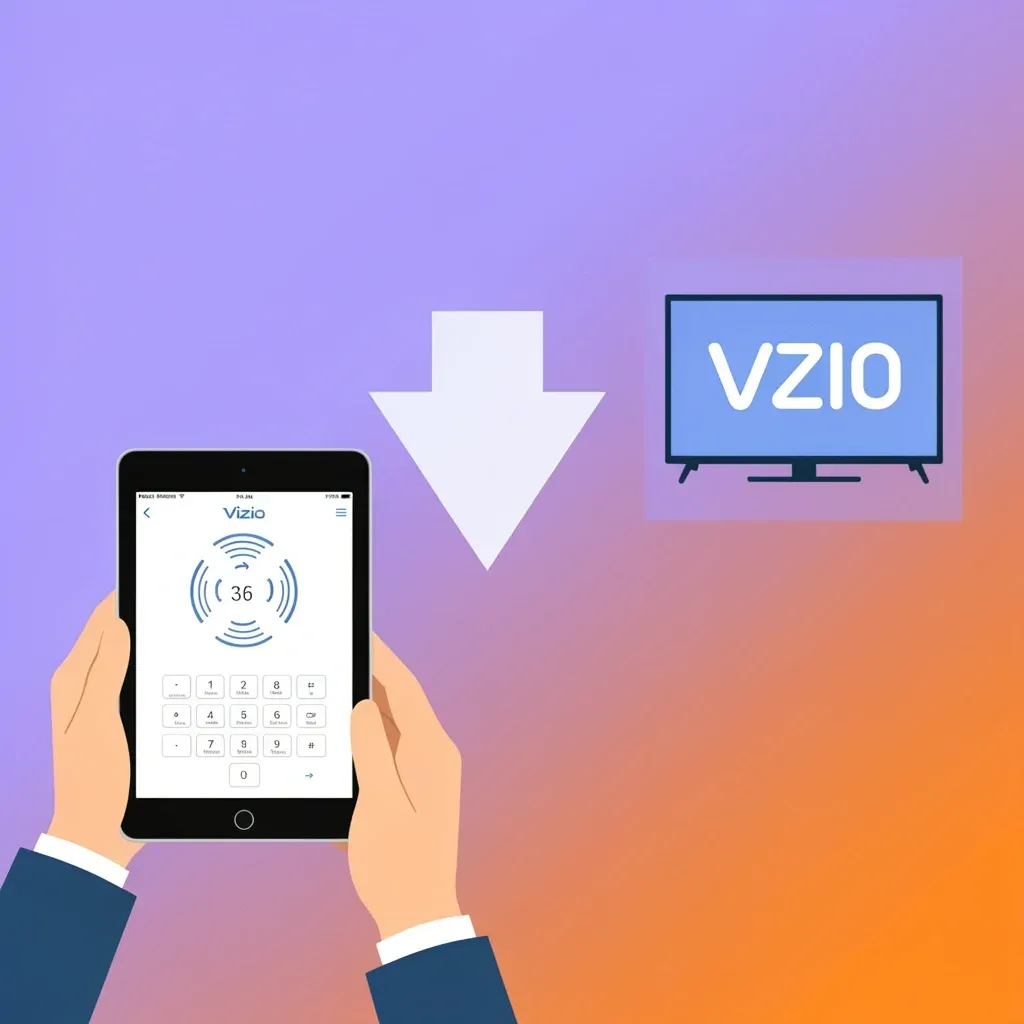
Getting your tablet to act as a remote takes about two minutes. Follow these steps.
- Download the Vizio Mobile app. Get it from the Apple App Store or Google Play Store. The app is free.
- Open the app. It will ask you to create or sign in to a Vizio account. You can skip this for basic remote control, but an account gives you access to WatchFree+ streaming and personalized recommendations.
- Let the app scan for devices. Make sure your TV is on and connected to the same Wi-Fi network. The app will show a list of nearby Vizio SmartCast devices.
- Tap your TV. A pairing code will appear on your TV screen. Enter that code in the app.
- Done. Your tablet now works as a remote. The app interface includes a directional pad, volume slider, number pad, and shortcut buttons for popular streaming services.
For tablets, the app automatically scales to the larger screen. On an iPad, you can use it in landscape orientation. Android tablets also get a wider layout that makes buttons easy to tap.
What Your Tablet Can Do That a Physical Remote Cannot
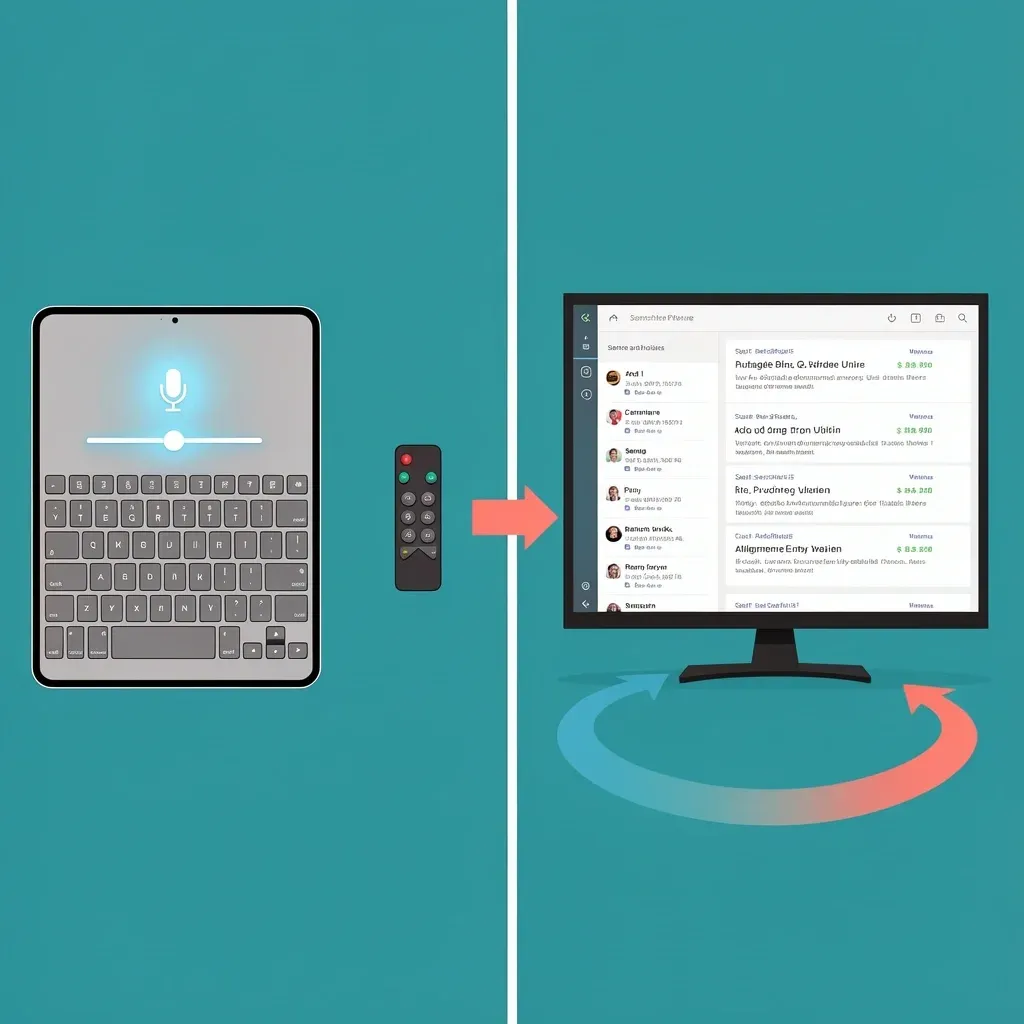
The Vizio Mobile app goes beyond basic channel and volume control. Here are the features that make a tablet a better remote.
- Full keyboard input. When you need to search for a movie on Netflix or type a password, the tablet’s on-screen keyboard appears. No more pecking letters one by one on a tiny remote.
- Voice search. Use your tablet’s built-in microphone to search for content by speaking. The app sends the voice command to the TV.
- Swipe gestures. Slide your finger up or down on the volume area to adjust sound. Swipe left or right to change channels. It feels natural on a touchscreen.
- Control multiple TVs. If you have more than one Vizio SmartCast TV in your home, the app lets you switch between them from a list.
- Advanced TV settings. Change picture modes, adjust audio output, and tweak network settings directly from the app. You do not have to dig through the TV’s menu with a remote.
- WatchFree+ streaming on the tablet. The app lets you stream free live TV and on-demand content directly on your tablet. You can watch a show on the tablet while the TV plays something else, or use the tablet as a second screen.
Should You Replace Your Physical Remote?
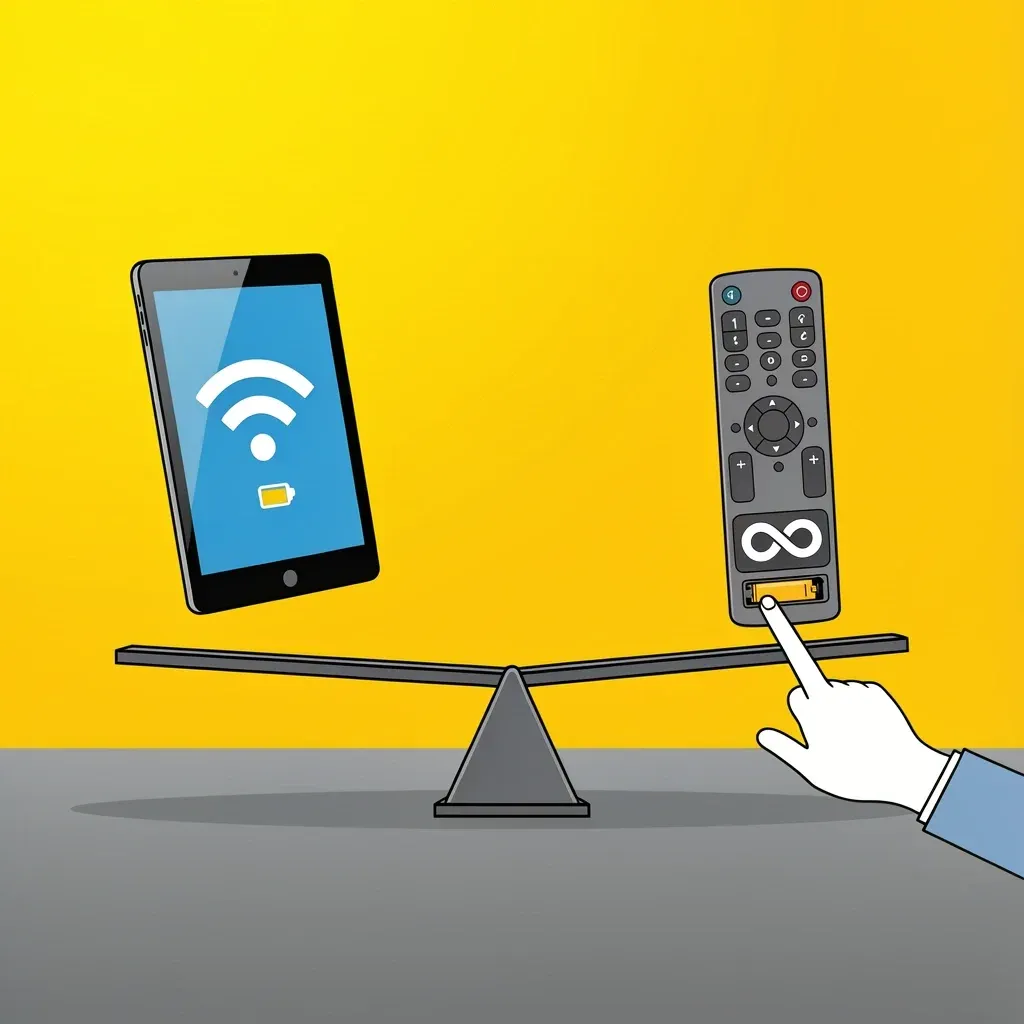
A tablet remote is powerful, but it is not perfect for every situation. Here is a quick comparison.
| Aspect | Tablet as Remote | Physical Remote |
|---|---|---|
| Always available | Yes, if tablet is with you | Easy to lose |
| Batteries | Uses tablet battery | Needs AA or coin cell replacement |
| Text input | Full keyboard | Slow D-pad typing |
| Voice control | Yes, via tablet mic | Only if remote has mic |
| Offline use | Requires local Wi-Fi | Works without internet |
| Guest friendly | Needs app setup | Just hand it over |
| Screen always on | Yes, drains battery faster | No screen needed |
For everyday use, the tablet is great. But keep your physical remote handy for quick power control, for guests, or when the internet is down.
Pro Tips for Tablet Users
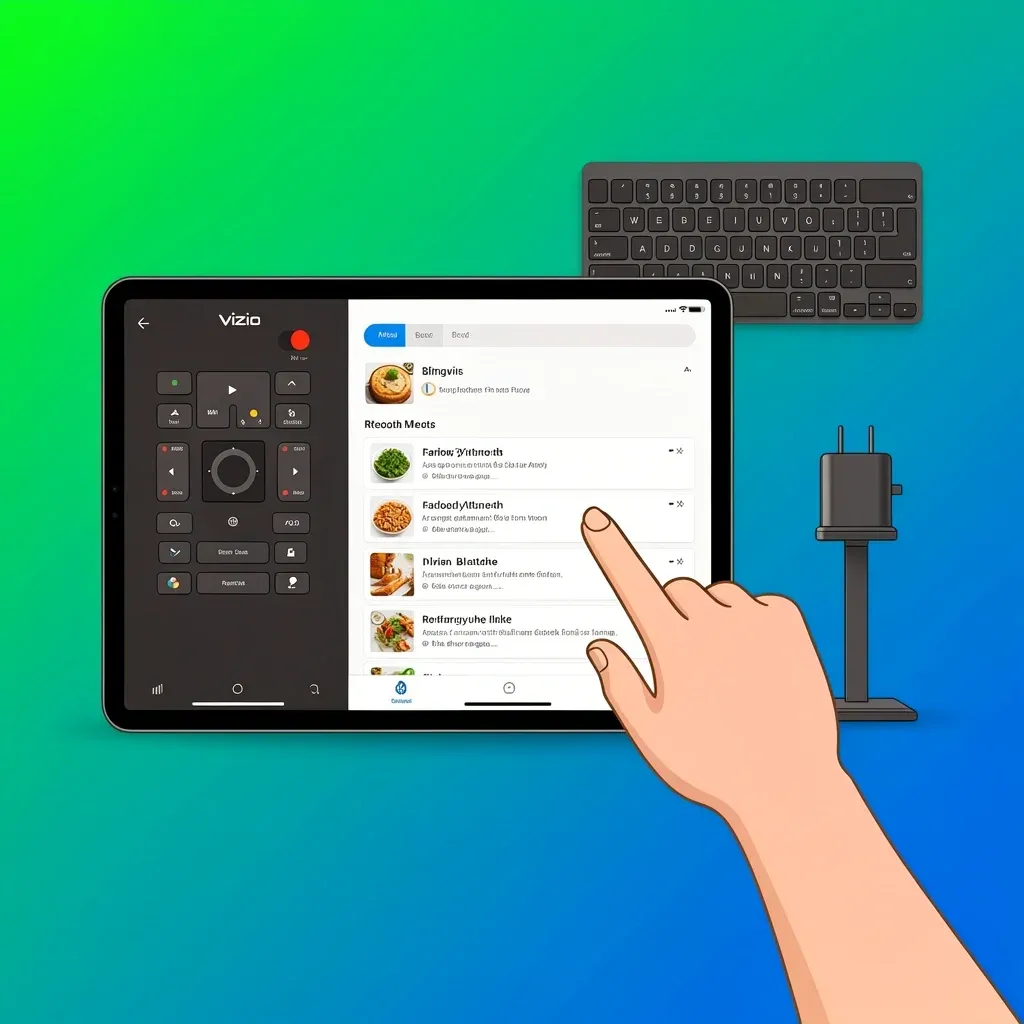
These tricks make using your tablet as a Vizio remote even smoother.
- Add a shortcut. On iOS, create a Shortcut that opens the Vizio Mobile app instantly. On Android, add a widget or use the Quick Settings tile (if available). This saves you from hunting through your app drawer.
- Use split-screen. On an iPad or large Android tablet, you can run the remote app alongside another app. For example, keep the remote open while browsing a recipe on the tablet’s browser.
- Pair a Bluetooth keyboard. If you have a Bluetooth keyboard connected to your tablet, you can use it to type directly into the TV’s search fields when the remote app is active. The app forwards keystrokes to the TV.
- Keep the tablet charged. If you use the tablet as a dedicated remote, consider a charging stand. That way it stays powered and ready.
Troubleshooting Common Problems
When the app does not connect or the TV does not respond, here are the likely causes and fixes.
The App Says "No Device Found"
- Check that both the tablet and TV are on the same Wi-Fi network. A common issue is the TV connected to a 5 GHz band while the tablet is on 2.4 GHz, or vice versa. Force both to the same band.
- Restart your router. Sometimes the device discovery protocol gets stuck.
- Update the TV’s firmware. Go to Settings > System > Check for Updates on the TV.
- Restart the TV by unplugging it for 30 seconds.
The App Crashes or Freezes
- Clear the app’s cache. On Android, go to Settings > Apps > Vizio Mobile > Storage > Clear Cache. On iOS, offload the app and reinstall.
- Make sure the app is updated to the latest version.
- Reboot your tablet.
The TV Responds Slowly
- Wi-Fi interference can cause lag. Move your tablet closer to the TV or router.
- Close other apps on the tablet that use the network heavily, like video streaming.
Old Vizio TV Not Working
- If your TV is from before 2016, it likely does not have SmartCast. You can try the older Vizio Remote Control app (not the Mobile app), but functionality is limited. For those TVs, a universal remote with IR is a better solution.
Myths About Using a Tablet as a Vizio Remote
Let’s clear up a few common misunderstandings.
- “The app uses mobile data to control the TV.” No. The app communicates over your local Wi-Fi network. Even if your internet is down, the remote will work as long as the local network is active.
- “Casting from the tablet is the same as using the remote.” Not exactly. Casting streams video from the tablet to the TV. The remote app sends commands like volume up, input switch, or menu navigation. They are two different functions.
- “You need a Vizio account to use the remote.” False. You can skip the account setup and still control the TV. An account is only needed for WatchFree+ streaming and certain personalized features.
- “The app drains the tablet battery fast.” The app itself uses very little power when idle. If you keep the screen on constantly, it will drain faster. But if you turn off the screen after using the remote, battery impact is minimal.
Frequently Asked Questions
Can I use an iPad as a Vizio remote?
Yes. The Vizio Mobile app is fully compatible with iPad. The interface scales nicely and supports landscape orientation.
Does the app work with Vizio soundbars?
Yes, if the soundbar is connected to a compatible Vizio TV via HDMI-ARC or is a SmartCast soundbar from 2018 or newer.
Will the remote app drain my tablet battery quickly?
Not particularly. The app uses minimal power when idle. If you keep the screen always on, it will drain faster. A good practice is to close the app or put the tablet to sleep after use.
What if I have multiple Vizio TVs in my home?
The app can discover all Vizio SmartCast devices on the same network. You can switch between them from the device list inside the app.
Can I control the TV without internet (only local Wi-Fi)?
Yes. Basic remote functions work over your local network without an active internet connection. Features like WatchFree+ streaming from the app do need internet.
How do I reset the app if it forgets my TV?
Go to your tablet’s Settings, find Apps, tap Vizio Mobile, then Storage, and select Clear Data. Reopen the app and you will need to pair again.