What Is AV Delay on a Vizio Soundbar?
If you’ve ever watched a movie and noticed the sound coming a split second after someone’s lips move, you’ve run into audio delay. On a Vizio soundbar, the setting to fix that is called AV delay. It’s a manual lip-sync adjustment that lets you push audio forward or backward to match the picture. I’ve set up and used Vizio soundbars in a few different living rooms, and this feature has saved me more than once. But knowing how it works and when it won’t help makes all the difference. Let me walk you through the full picture.
What Causes the Audio Delay in the First Place?
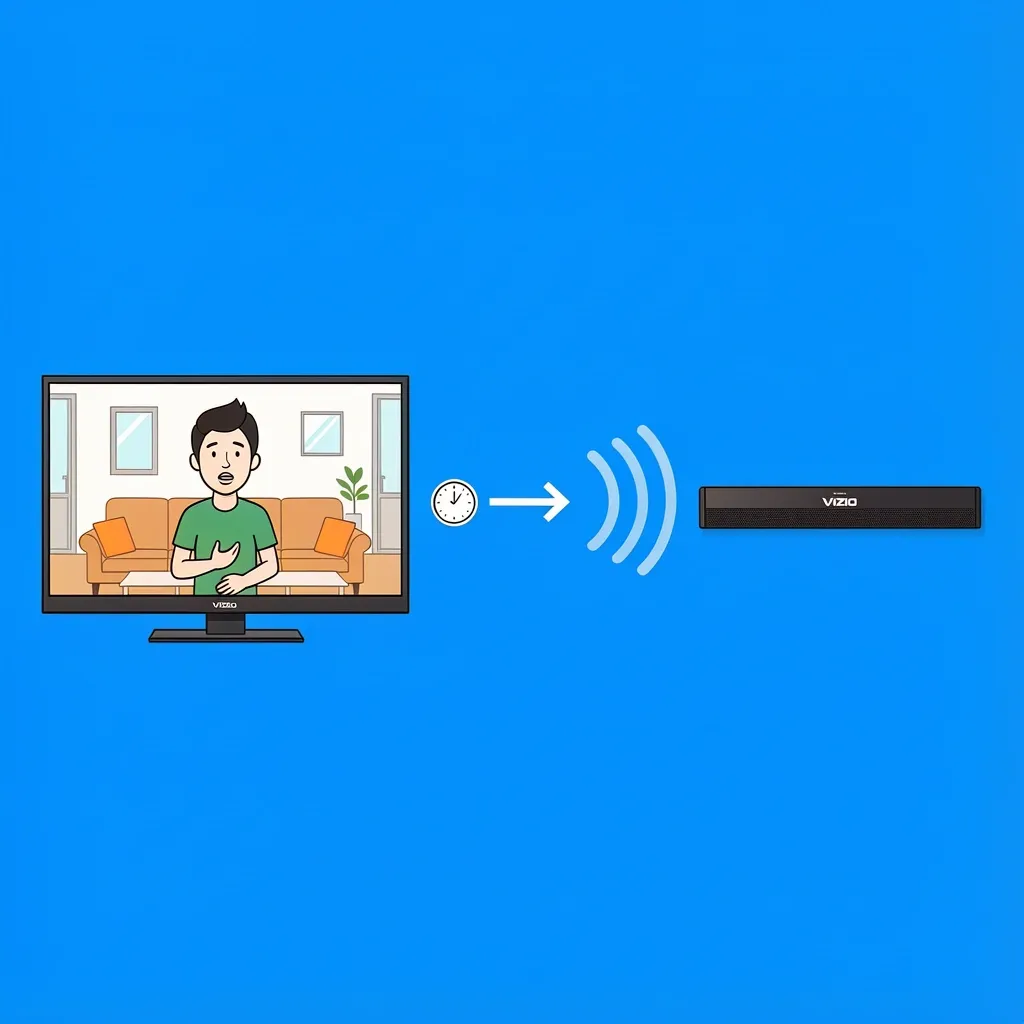
The delay doesn’t usually come from the soundbar itself. Most of the time, the TV or the source device (like a streaming stick, game console, or cable box) is adding a small lag. Here are the common culprits:
- TV video processing. Features like motion smoothing, noise reduction, or upscaling take extra milliseconds to process the image. The audio signal goes through the soundbar faster, so you hear it before the image catches up.
- HDMI ARC (Audio Return Channel). When audio travels from the TV back to the soundbar through an ARC connection, some TVs add a tiny delay. This is especially common with older ARC versions or with certain brands.
- Soundbar’s own processing. If your soundbar is decoding Dolby Atmos or virtual surround sound, that digital processing can introduce a small lag.
- Source device buffering. Streaming devices like Chromecast with Google TV or Roku sometimes add delay inside the app or during wireless streaming.
Understanding this helps you figure out whether the AV delay on your Vizio soundbar is the right tool — or if the problem is coming from somewhere else.
How to Adjust AV Delay on a Vizio Soundbar
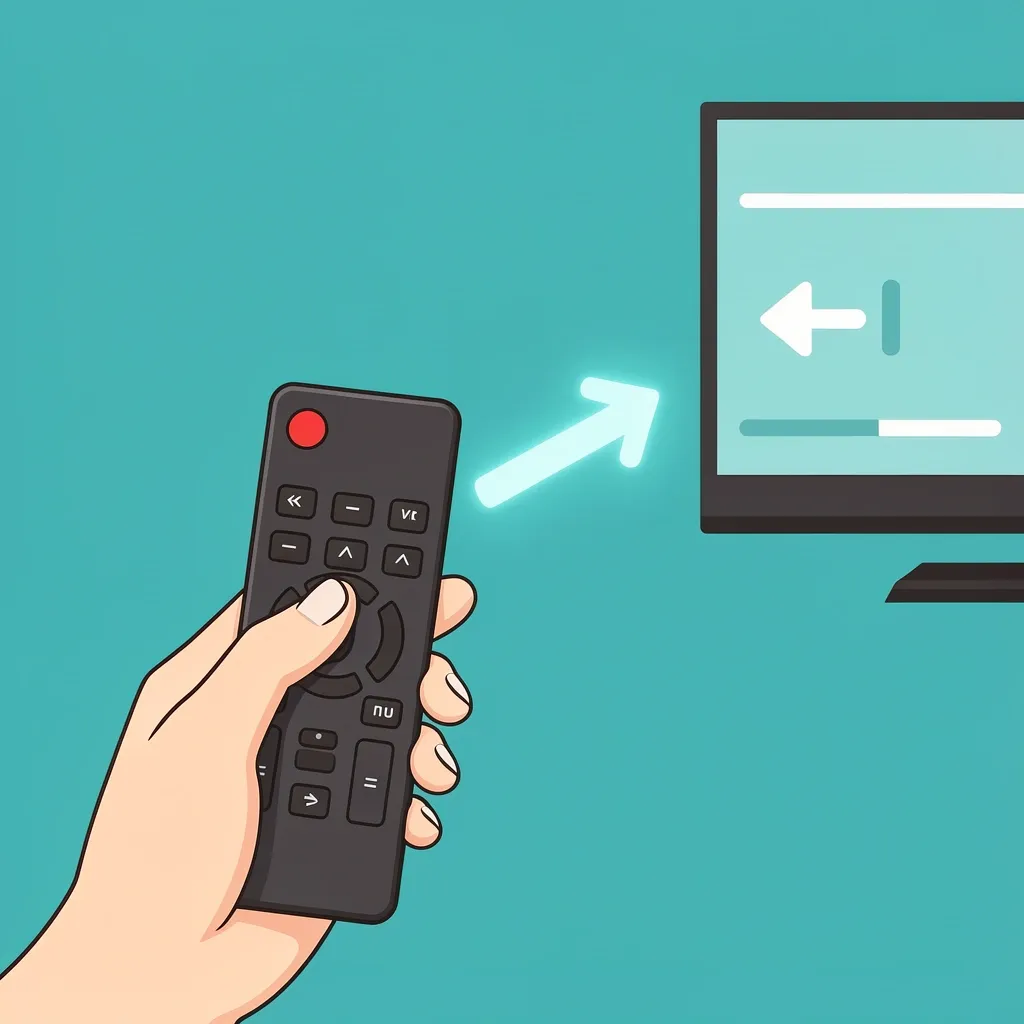
On most Vizio soundbars, the AV delay setting is reachable directly from the remote. Here’s the typical method:
- Press the Menu button on the soundbar remote (sometimes labelled “Settings”).
- Use the arrow keys to find AV Delay, Audio Sync, or Lip Sync — the name depends on your model.
- Press Enter or Select.
- Use the up/down arrows to shift the delay. Negative values (like -10ms) pull audio earlier; positive values push it later.
- Press Exit when done.
If your remote doesn’t have a Menu button, try the Vizio SmartCast app on your phone. Open the app, select your soundbar, look under Audio or Settings, and you’ll find the same slider. Tip: If the setting is greyed out, the soundbar might be receiving a format (like Dolby Digital) that doesn’t allow manual sync. Switch the TV audio output to PCM (Stereo) and try again.
How to Find the Perfect Delay Value
Setting the right number isn’t guesswork. I’ve found these steps work every time:
- Play a lip-sync test video on YouTube (search “lip sync test”). They show a ticking clock or a person clapping, which makes the offset obvious.
- Start at 0ms and increase in steps of 10ms until the sound matches the image.
- If you overshoot, go back 5ms and fine-tune.
- Test with a real movie scene where you can see mouth movement clearly. Dramas or news clips work best.
Most Vizio soundbars let you adjust in increments of 5 or 10ms. A setting between 20ms and 60ms usually fixes common lag. Anything above 100ms means the delay is probably coming from the TV or source, not the soundbar.
When the Soundbar’s AV Delay Won’t Help
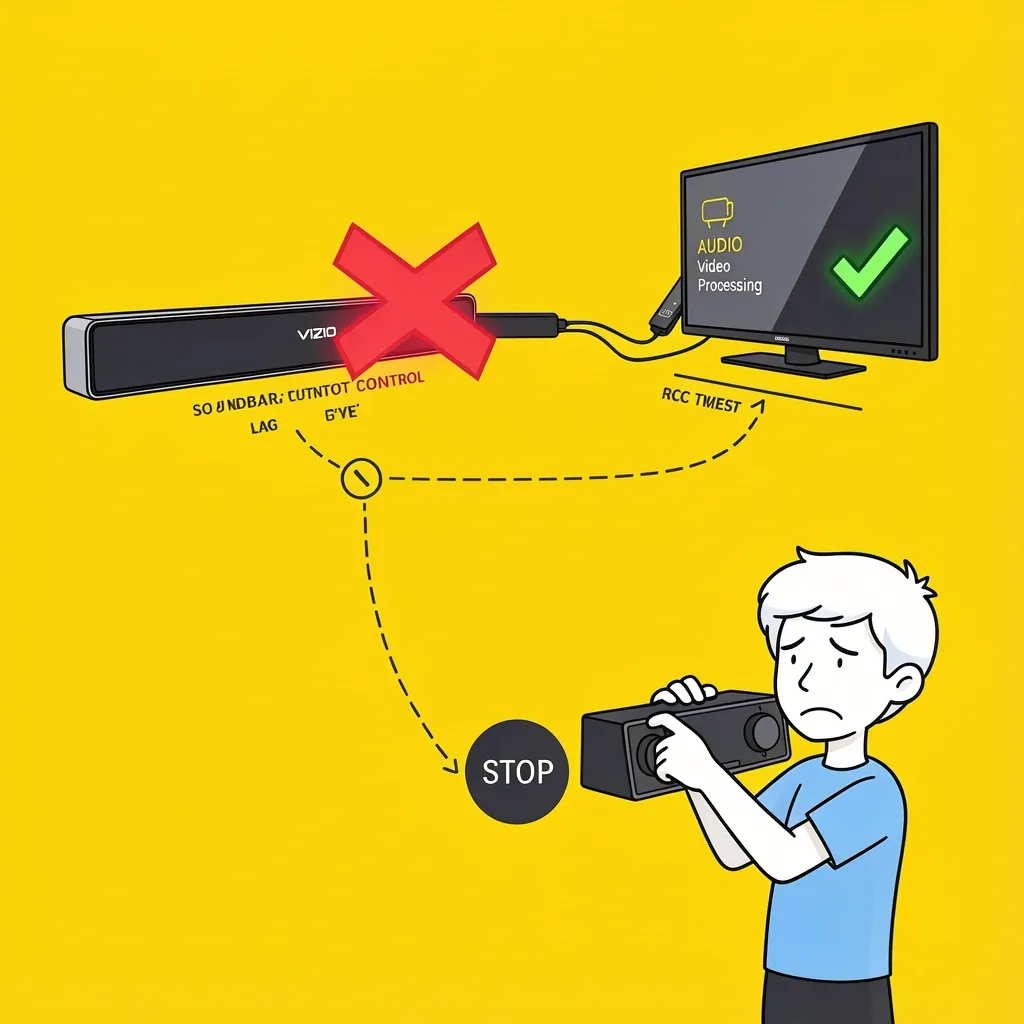
This is the part that trips up a lot of people. The AV delay setting on your Vizio soundbar only adjusts audio that passes through the soundbar’s own processor. It cannot fix delays introduced by your TV’s video pipeline when using HDMI ARC. Here’s a real scenario I saw on a forum: a user had a Chromecast with Google TV plugged into their Vizio TV, and the soundbar was connected via ARC. They adjusted the AV delay on the soundbar, but the lag kept coming back. The reason? The TV was adding video processing delay (motion smoothing, upscaling) that the soundbar had no control over. When that happens, you need to solve the problem at the source:
- Change the HDMI chain. Plug the source device directly into the soundbar’s HDMI input (if your Vizio soundbar has one), then run an HDMI cable from the soundbar’s output to the TV. This bypasses the TV’s video processing for audio.
- Disable TV motion smoothing and other video processing. Look in your TV’s picture settings for “Game Mode” or “Filmmaker Mode” — these reduce processing lag.
- Use eARC if available. Enhanced Audio Return Channel supports higher bandwidth and often reduces sync problems.
- Switch the audio format to PCM. In your TV’s audio settings, choose PCM (Stereo) instead of Bitstream or Dolby Digital. This removes extra processing that can cause delay.
Why Your Soundbar AV Delay May Seem Inconsistent
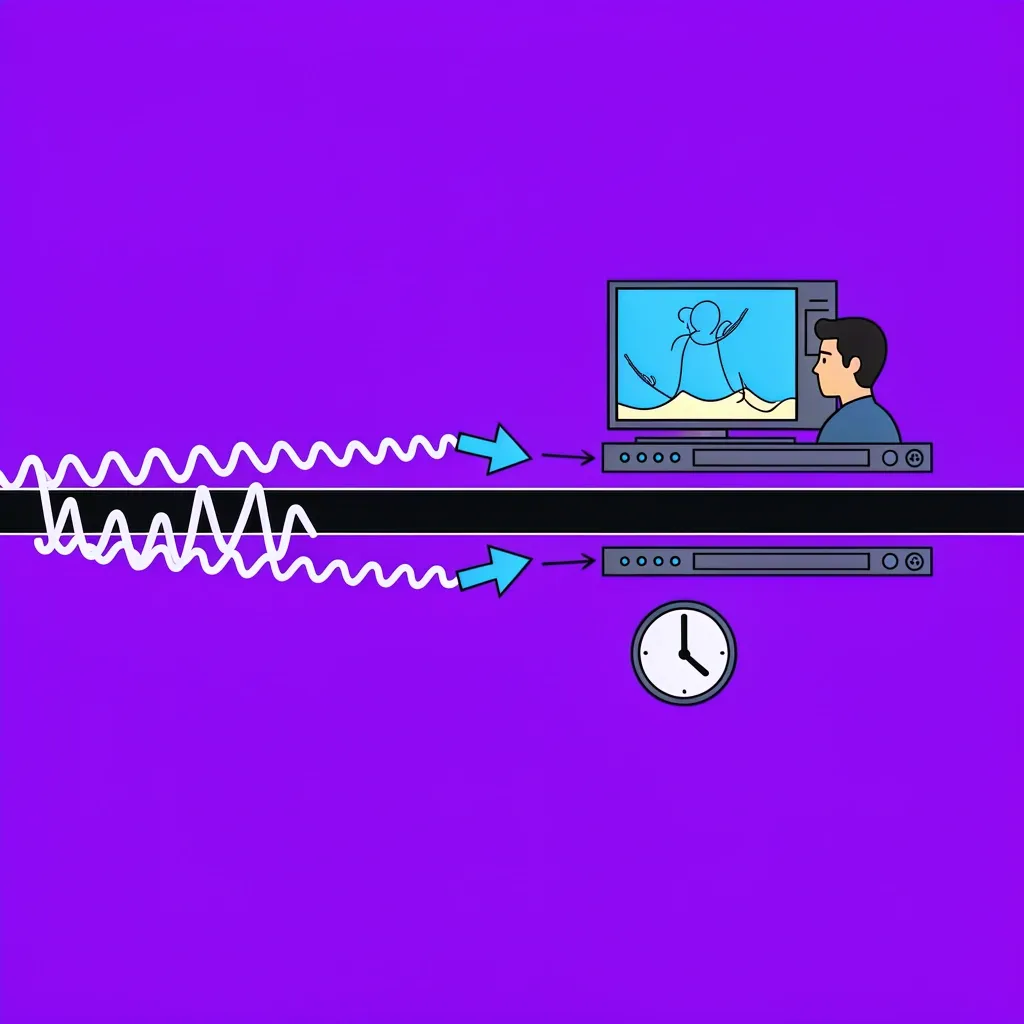
Even after you set the delay, you might notice the sync drifts during a movie. This happens because some content (like Dolby Atmos or Dolby Digital Plus streams) can shift sync mid-scene. A fixed AV delay cannot correct a moving target. In those cases, the best solution is to ensure your devices use a consistent audio format (like PCM) and to keep your TV’s processing minimal.
Frequently Asked Questions

What is the difference between AV delay and lip sync?
They’re the same thing. “Lip sync” is what you want to achieve — matching sound to mouth movement. “AV delay” is the setting on your soundbar that lets you do it. Some manufacturers call it “Audio Sync” or “Lip-Sync Adjustment.”
Does AV delay affect all inputs equally?
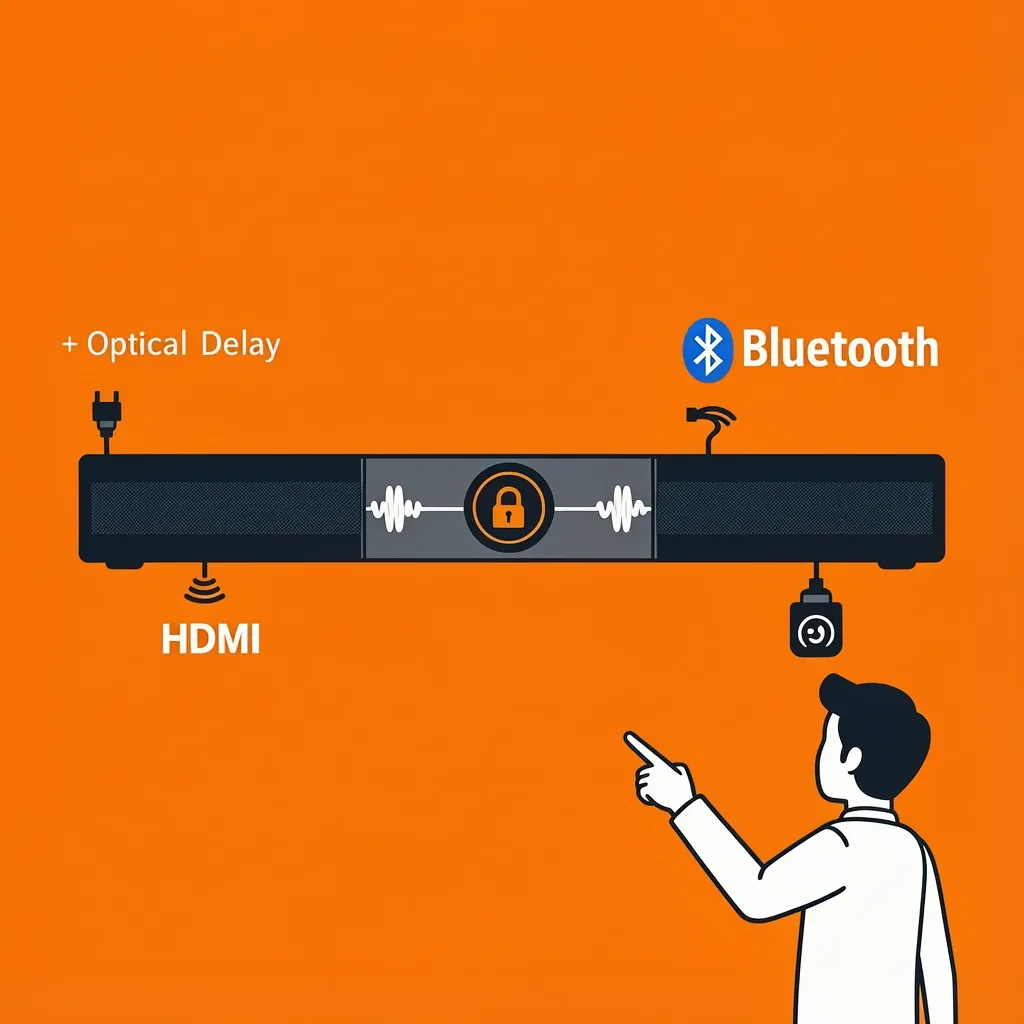
Yes. On most Vizio soundbars, the AV delay setting applies globally to every input (HDMI, optical, Bluetooth). You cannot set a different delay for each source. If you need per-input sync, consider adjusting the delay on the source device itself (e.g., in the TV’s audio menu or the streaming stick’s settings).
Will AV delay fix Bluetooth audio lag?
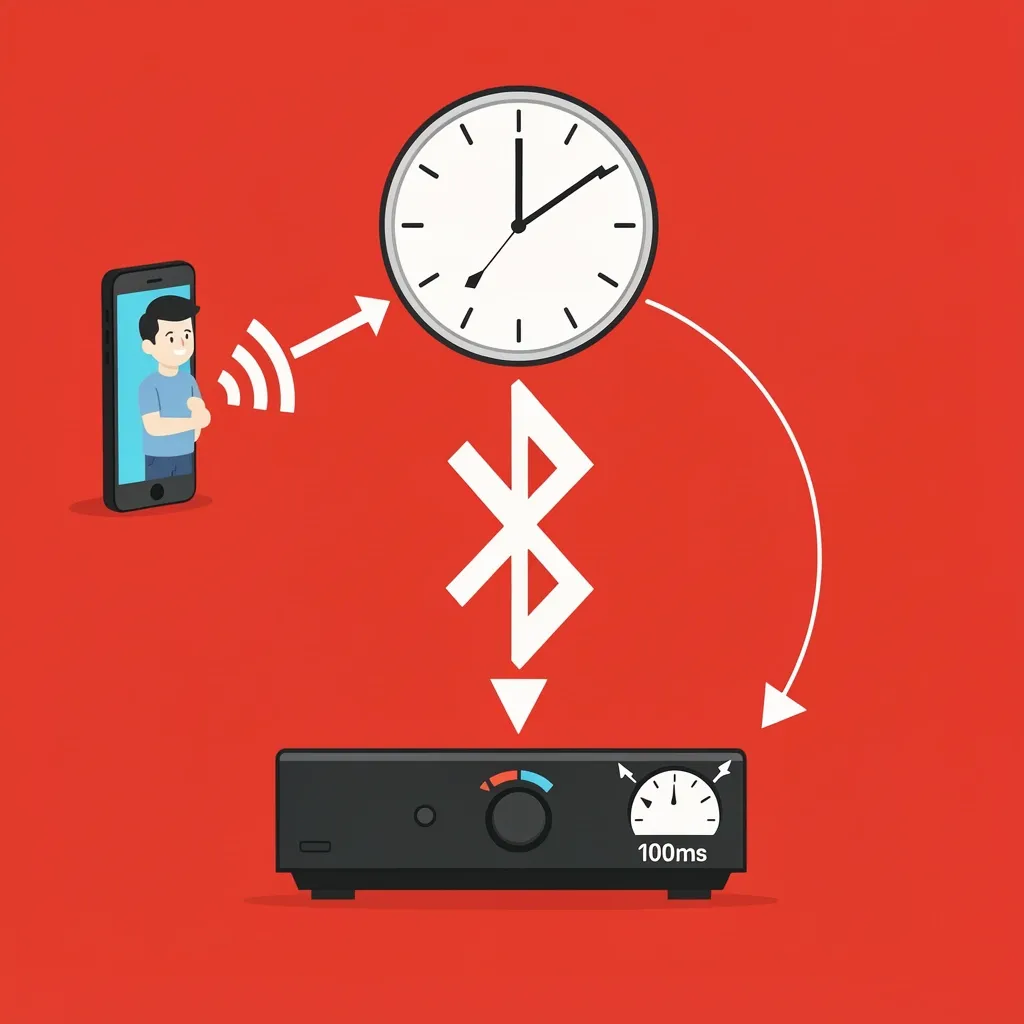
Bluetooth has inherent latency that can be 150–250ms or more. The soundbar’s AV delay range (typically up to 100ms) won’t cover that. Bluetooth lag is better addressed with a codec like aptX Low Latency or by using a wired connection. If you must use Bluetooth, try a very low positive delay (e.g., 10–20ms) — it may help a little but won’t fix the issue entirely.
My Vizio soundbar’s AV delay setting keeps resetting or disappears — why?
This usually happens when the audio stream changes (for example, switching from a stereo show to a surround-sound movie). The soundbar may reset the delay when it detects a new format. It can also occur if the HDMI handshake between the TV and soundbar drops briefly. Try power cycling both devices: unplug the TV and soundbar for 30 seconds, then plug them back in. Check that HDMI CEC is enabled in the TV settings, and keep the audio output set to PCM to minimise format changes.