How to Adjust Volume on Vizio TV Without Remote
Losing your remote or finding it with dead batteries is frustrating, especially when you just want to change the volume. The good news is you have several ways to turn the sound up or down without that small plastic controller. This guide walks through every method, from the simplest to the more technical, so you can find what works for your specific Vizio TV model.
The Quickest Way to Adjust Volume Without a Remote
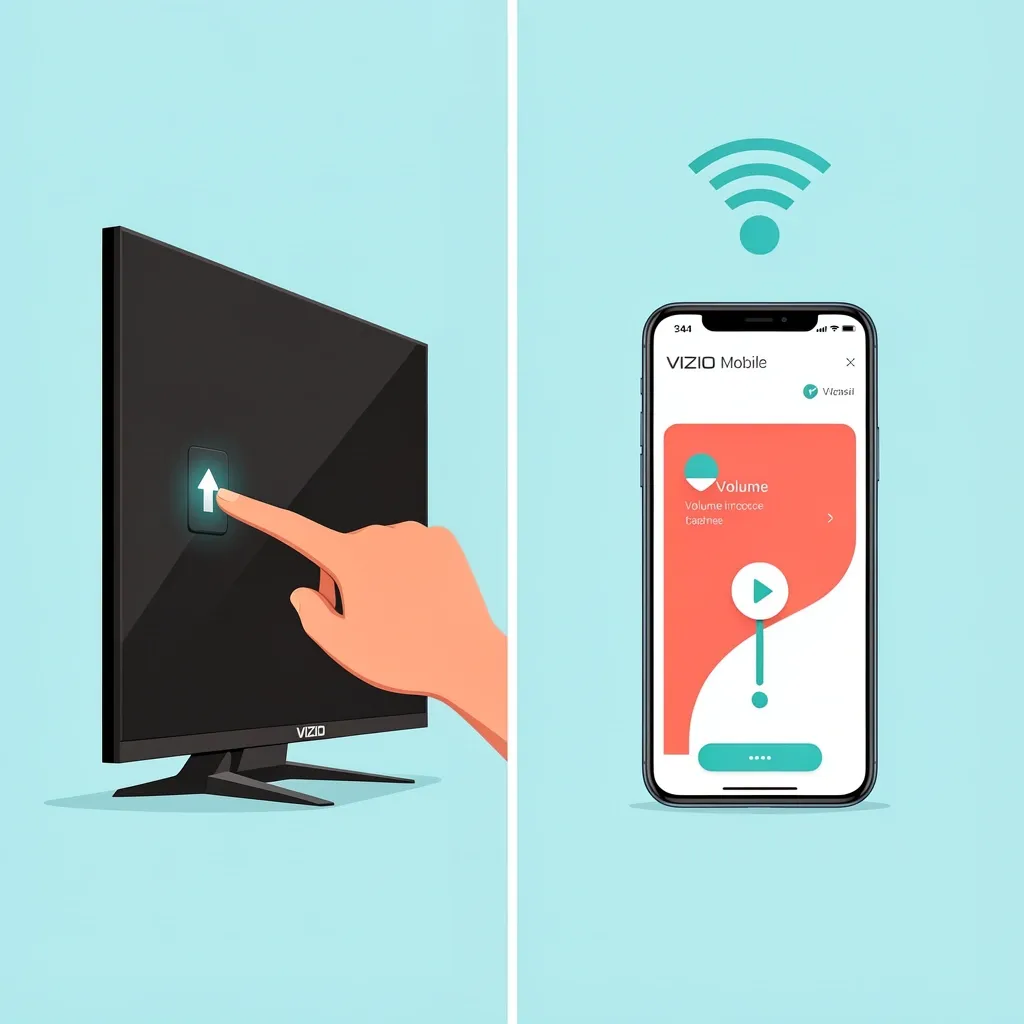
If you need the volume changed right now, two methods work for most people: the physical buttons on the TV itself, or the Vizio Mobile app on your phone. The buttons are always available, no setup required. The app needs Wi-Fi and a compatible SmartCast model, but it gives you a full remote-like experience.
Using the Physical Buttons on Your Vizio TV
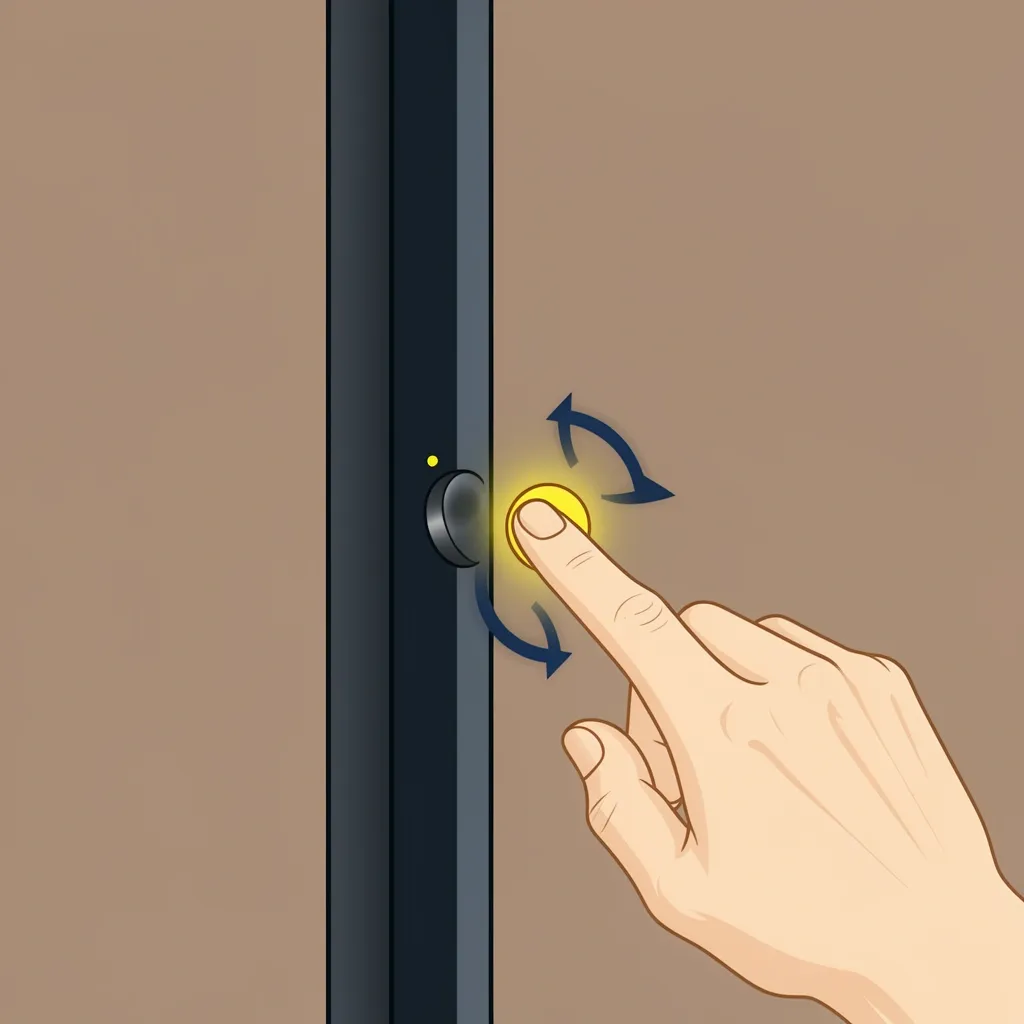
Before searching for another solution, check the TV itself. Almost every Vizio TV has manual controls somewhere on the chassis.
- Standard placement: Most Vizio TVs have the buttons on the right side, near the back edge. Look for a row of small, recessed buttons.
- Bottom edge: On some models, especially larger sizes, the controls sit on the bottom bezel, facing downward.
- Joystick control: Many newer and thinner Vizio models use a single joystick-style button on the back. Pushing it up increases volume, pushing it down lowers volume. You press the stick in to confirm selections.
- No buttons at all? Some ultra-thin or older budget models hide a small rocker switch on the back panel. It feels like a tiny plastic nub. Slide it left or right.
If these buttons are stuck, unresponsive, or simply not there, move to the next method. Do not try to force a jammed button—you can damage the TV.
Controlling Volume with the Vizio Mobile App
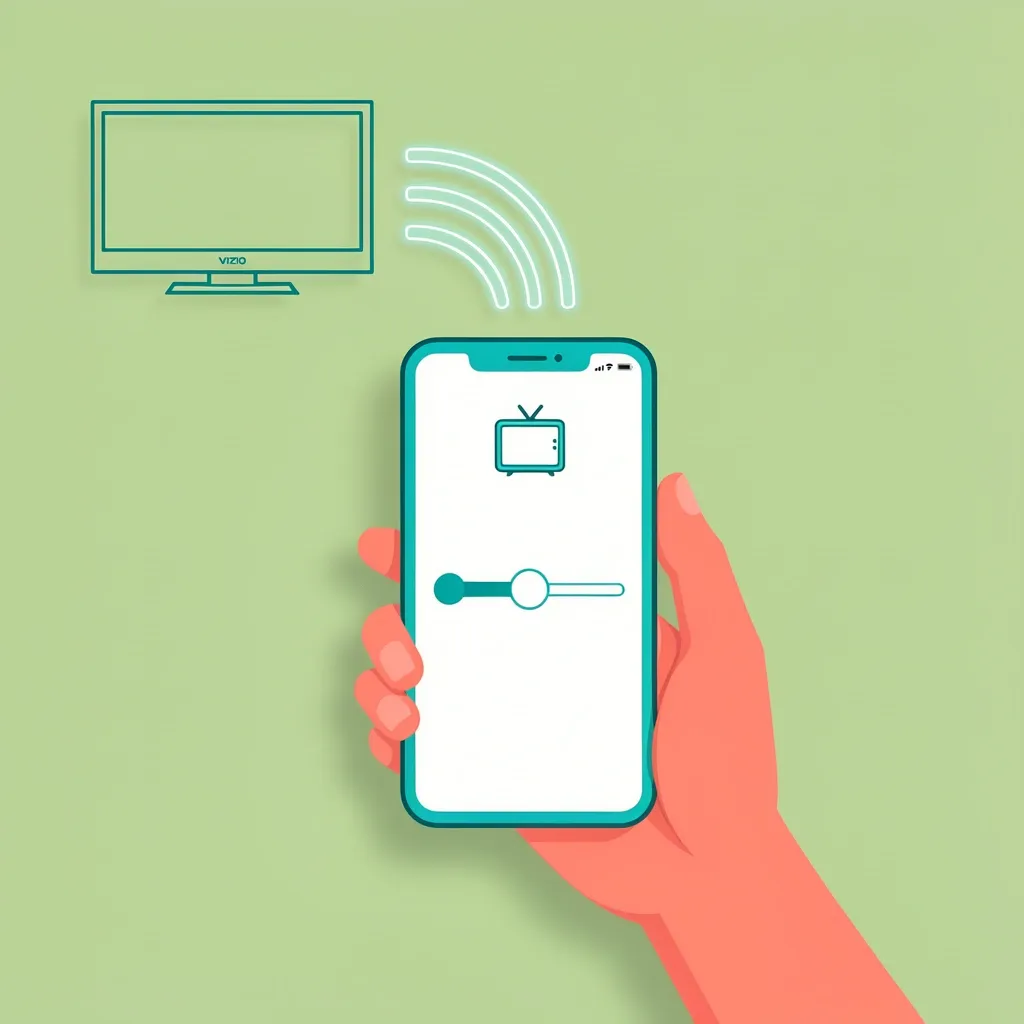
The official app works well, but only under specific conditions. Here is how to set it up and what to do when it fails.
Step-by-step setup:
- Download the Vizio Mobile app from the App Store (iPhone) or Google Play Store (Android).
- Make sure your phone and TV are connected to the same Wi-Fi network. This is critical.
- Open the app and tap the “Devices” icon (looks like a TV screen).
- The app searches for nearby Vizio TVs. When it finds yours, a 4-digit code appears on the TV screen.
- Enter that code into the app to pair them.
- Once connected, a volume slider appears on the app’s main control screen. Drag it up or down to adjust sound.
Common App Failures and Fixes
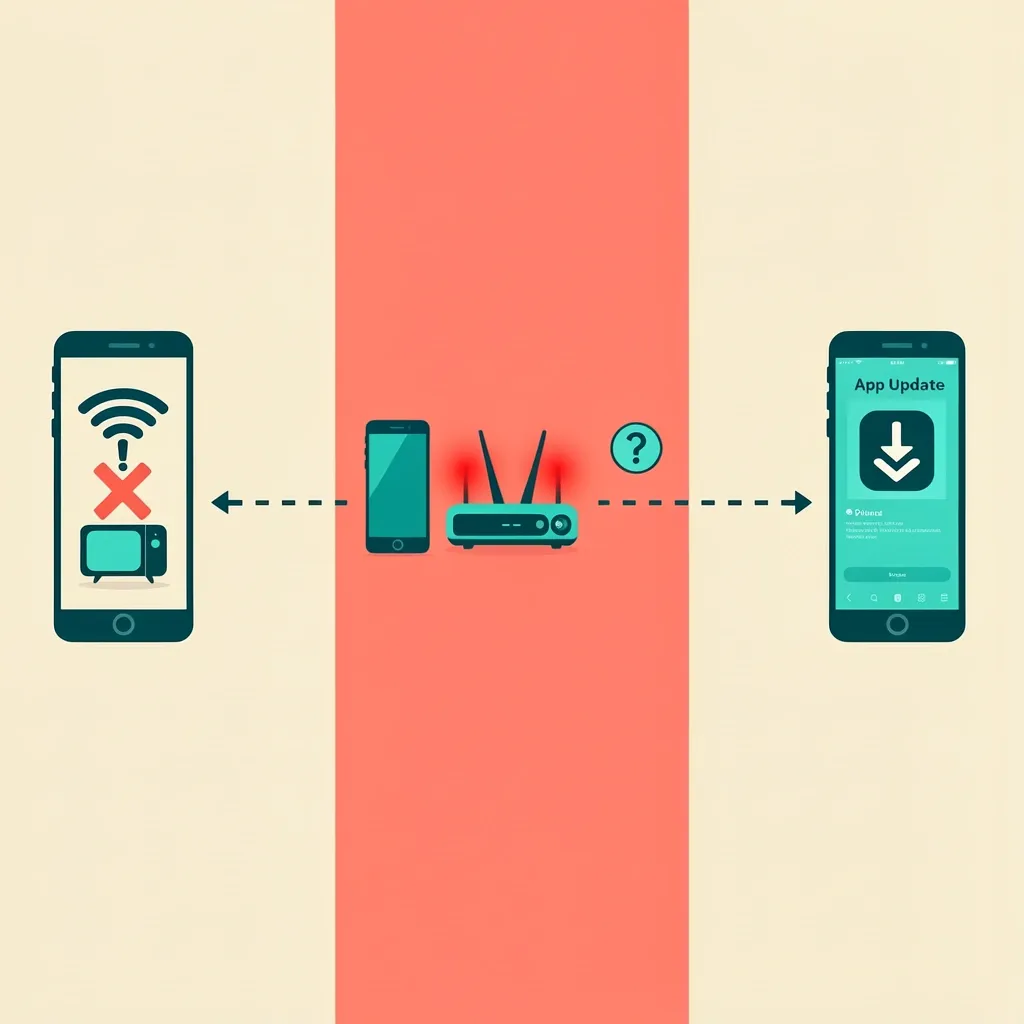
- TV does not appear in the app: Your TV may not be a SmartCast model. The app only works with TVs that have built-in Wi-Fi and SmartCast software, generally 2016 models and newer. Older LCDs or non-smart TVs will not work.
- TV is offline: The app requires both the TV and phone to have active internet connections. If your Wi-Fi is down or the TV is not connected, the app cannot find it. Try restarting your router or checking the TV’s network settings using the physical buttons.
- Wrong Wi-Fi network: Double-check that your phone is not connected to a guest network or a different band. Both devices must be on the same subnet.
- Old app version: Update the app to the latest version. Outdated apps sometimes lose device discovery.
Using a Universal Remote or IR Blaster
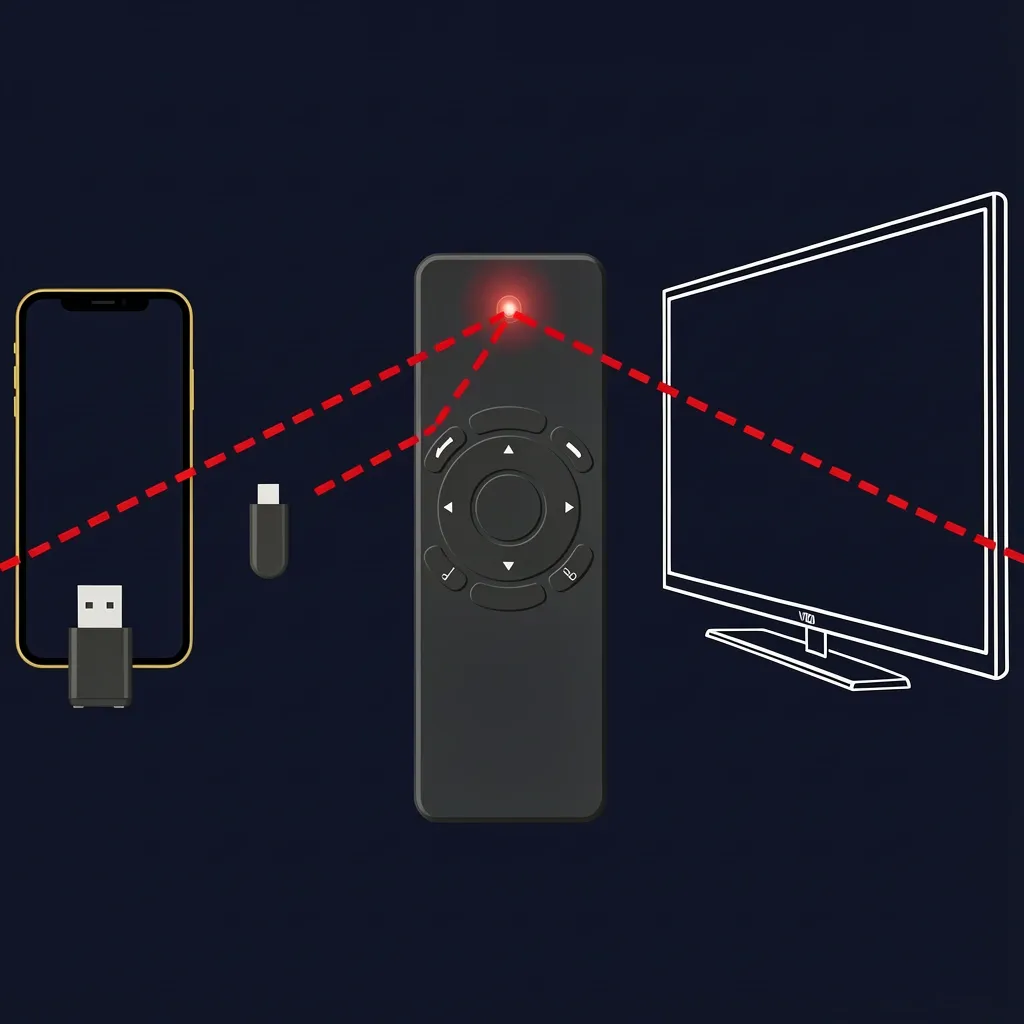
A universal remote is a reliable, low-cost solution that works with any Vizio TV, regardless of model year. Most universal remotes from brands like GE, RCA, or One For All come with a Vizio code pre-loaded or found in the manual. You rarely need to program anything for basic volume up/down.
If you do not have a universal remote:
- Phone with an IR blaster: Some older Android phones (like the Samsung Galaxy S6 series or LG G5) have built-in infrared emitters. Download a third-party IR remote app (for example, “IR Remote for Vizio”) and pick your TV brand. These apps send IR signals directly from the phone, no Wi-Fi needed.
- IR dongle: If your phone lacks an IR blaster, buy a small plug-in infrared dongle that connects to the headphone jack or USB-C port. The app handles the rest.
- Cable box or streaming device remote: Many cable provider remotes or streaming device remotes (Roku, Fire TV, Apple TV) can control TV volume. This works either through HDMI-CEC or by programming the remote with a Vizio IR code. Check the remote’s manual for how to enter a device code.
Adjusting Volume Through External Devices (HDMI-CEC)
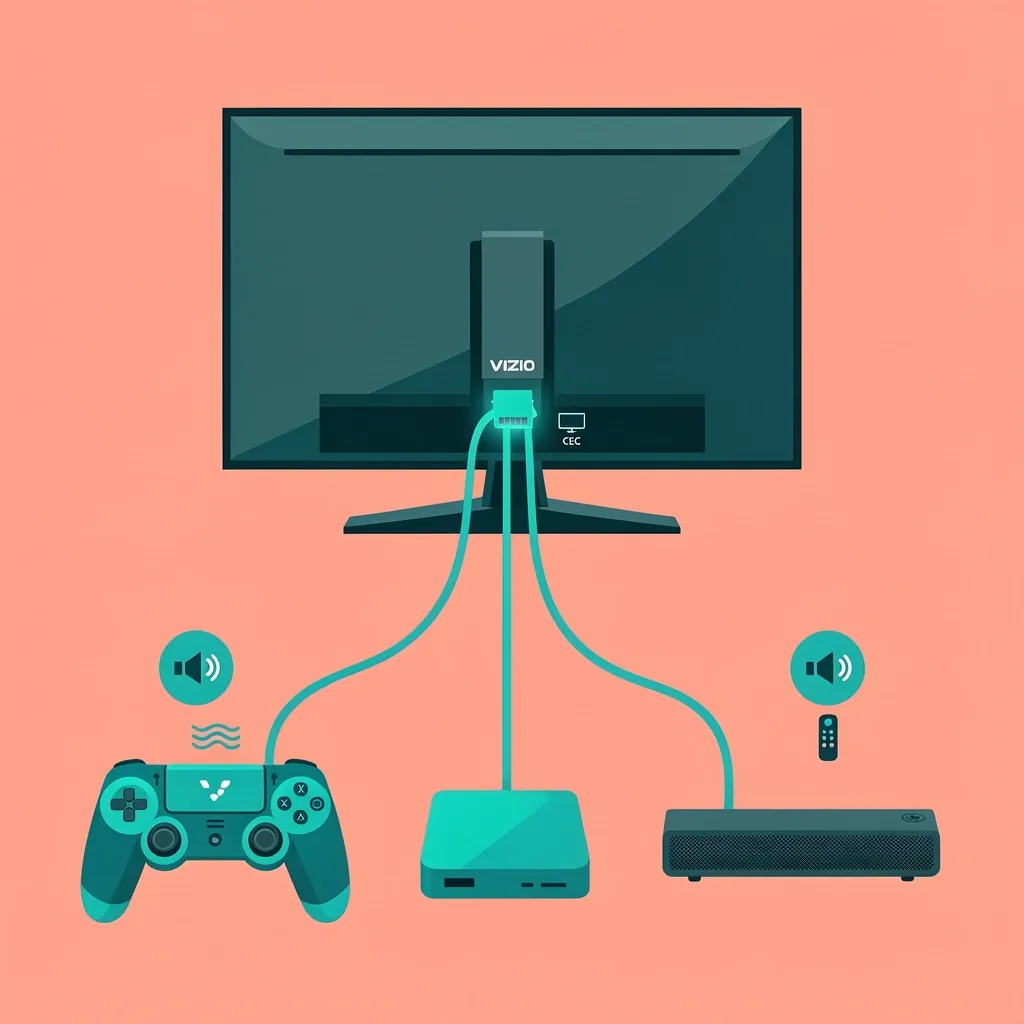
HDMI-CEC is a feature that lets devices connected to the TV via HDMI control each other. If you have a soundbar, game console, or streaming box plugged into your Vizio, you might already be able to adjust the volume using that device’s remote or controller.
How to enable HDMI-CEC on a Vizio TV:
- Press the physical “Menu” button on the TV to open settings.
- Navigate to “System” (or “Settings” on older models).
- Look for “CEC” or “HDMI-CEC” and turn it on. It may be labeled as “Device Link” or “Tuner Link” on some Vizio menus.
- Once enabled, the volume buttons on your connected device’s remote should control the TV’s volume.
Examples of working setups:
- Xbox or PlayStation: The controller’s media controls can adjust TV volume when CEC is active.
- Apple TV remote: The silver remote’s volume rocker works through CEC.
- Roku remote: Some Roku models have dedicated volume buttons that use CEC to control the TV.
- Soundbar remote: If your soundbar is connected via HDMI-ARC, its remote can often control the TV volume directly.
What to Do When Nothing Works – Last Resort Options
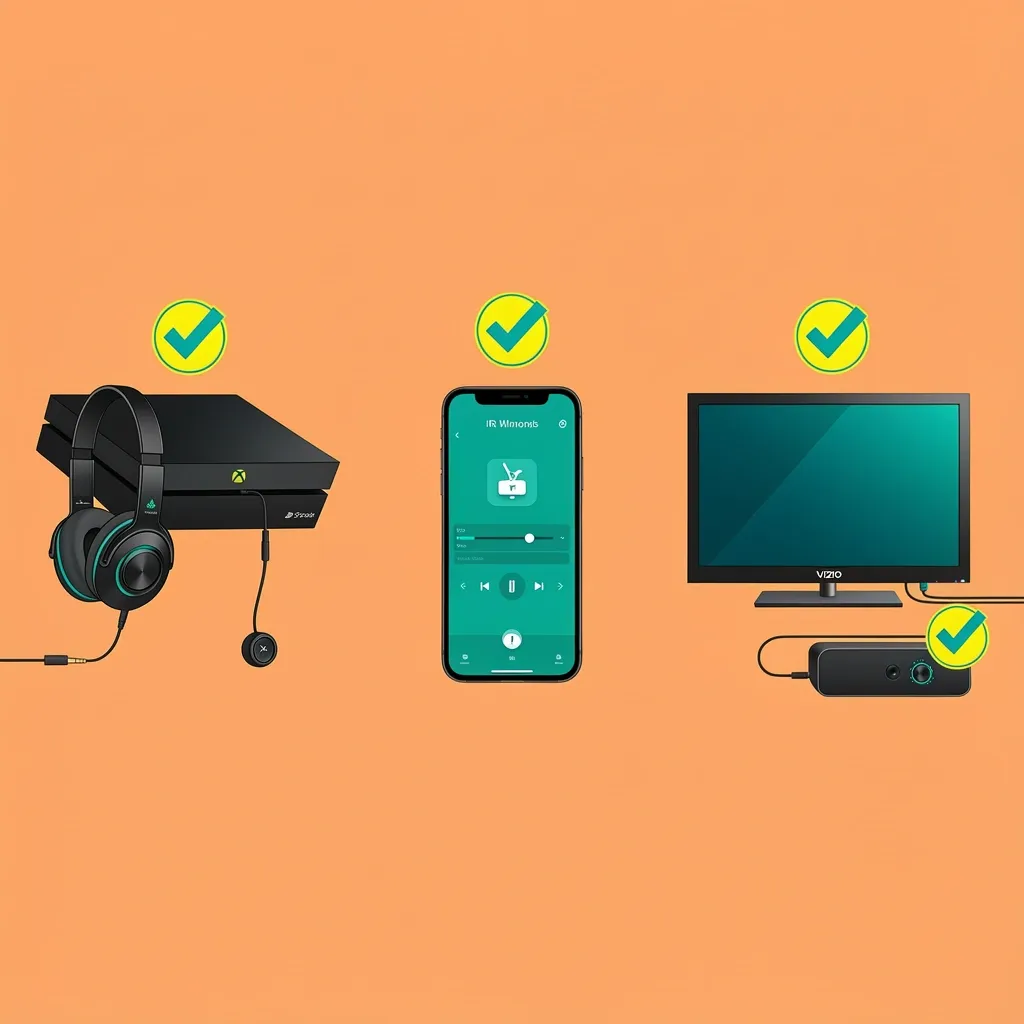
Sometimes the physical buttons are broken, the app won’t connect, and you do not own a universal remote or HDMI-CEC device. Here are ways around that wall.
- Use a game console for audio output: Connect your headphones or speakers directly to a PlayStation, Xbox, or Nintendo Switch. The console controls its own audio volume independently of the TV. You do not need the TV remote to hear sound from the console.
- Digital IR remote apps: Apart from the official Vizio Mobile app, there are third-party apps (like “IR Remote for Vizio” or “Universal TV Remote”) that work on phones with IR blasters. These are completely separate from the Wi-Fi method and do not require any pairing or internet.
- Temporary hardware fix: If your TV has a headphone jack (3.5mm), plug a portable Bluetooth speaker or wired headphones into it. The volume of that external audio device is independent of the TV’s internal speakers. Turn the TV’s internal volume all the way down (using the physical buttons if possible), and control loudness on the speaker. This bypasses the broken internal controls entirely.
- Myth-busting insert: You do not need a special Vizio remote. Any remote that sends IR signals will work if you find the correct code. Check the universal remote code list online for Vizio—common codes are 0101, 10178, or 10856.
Frequently Asked Questions

Can I adjust volume on a Vizio TV without any buttons or remote?
Only if you use an external control via HDMI-CEC or a Bluetooth speaker with its own volume. No direct TV control is possible without some form of external input. The physical buttons or a remote are your only ways to change the TV’s internal audio level.
How do I change volume on an old Vizio TV that has no physical volume buttons?
Look for a small joystick or rocker on the back edge. Some older budget models hide a tiny nub that slides. If none exist, rely on a universal remote or the headphone jack method described above.
Does the Vizio Mobile App work offline?
No. Both the phone and TV must be on the same Wi-Fi network with active internet. If your internet is down, the app will not connect.
Can I use my smartphone's volume buttons to control the TV through the app?
No, but the app's volume slider works with touch. Some newer updates allow button mapping, but not the phone's hardware rocker.
Why does my universal remote not adjust volume on my Vizio TV?
Likely the remote is not programmed for Vizio, or you need to enable CEC if using a streaming device remote. Try programming the remote with the correct Vizio IR code. Look up the code list for your remote brand.
Is there a way to adjust volume via the TV's on-screen menu without a remote?
Only if you can navigate the menu with physical buttons. Once in the menu, you can find a volume setting, but that requires functional buttons to open the menu in the first place.