Vizio TV Remote Codes That Actually Work
You have a universal remote and a Vizio TV. You want to control the volume, change inputs, and turn the TV on and off. What you need is a code that makes them talk to each other. Below is a quick list of the most reliable codes, followed by how to use them and what to do if they don't work.
Vizio TV Remote Codes Quick Reference
These code sets work with the widest range of universal remotes. Start with the 4-digit list. If none of those work, try the 5-digit codes.
4-Digit Codes
| Code | Notes |
|---|---|
| 1178 | First code to try for most Vizio TVs |
| 1756 | Common for older Vizio models |
| 1085 | Works with many 2010-2015 Vizio sets |
| 1321 | Alternative for newer Smart TVs |
| 1017 | Often used with RCA and GE remotes |
| 1587 | Good fallback for power and volume |
| 1120 | Controls basic functions reliably |
5-Digit Codes
| Code | Notes |
|---|---|
| 10178 | Most common 5-digit code for Vizio |
| 10756 | Frequent match for Vizio D-series |
| 10085 | Works when 4-digit 1085 fails |
| 11321 | Backup for newer Vizio E-series |
| 10017 | Sometimes needed for older remotes |
If your remote came with a specific brand, skip down to the brand-specific tables below. If not, try the codes listed here first.
How to Program a Universal Remote to Your Vizio TV
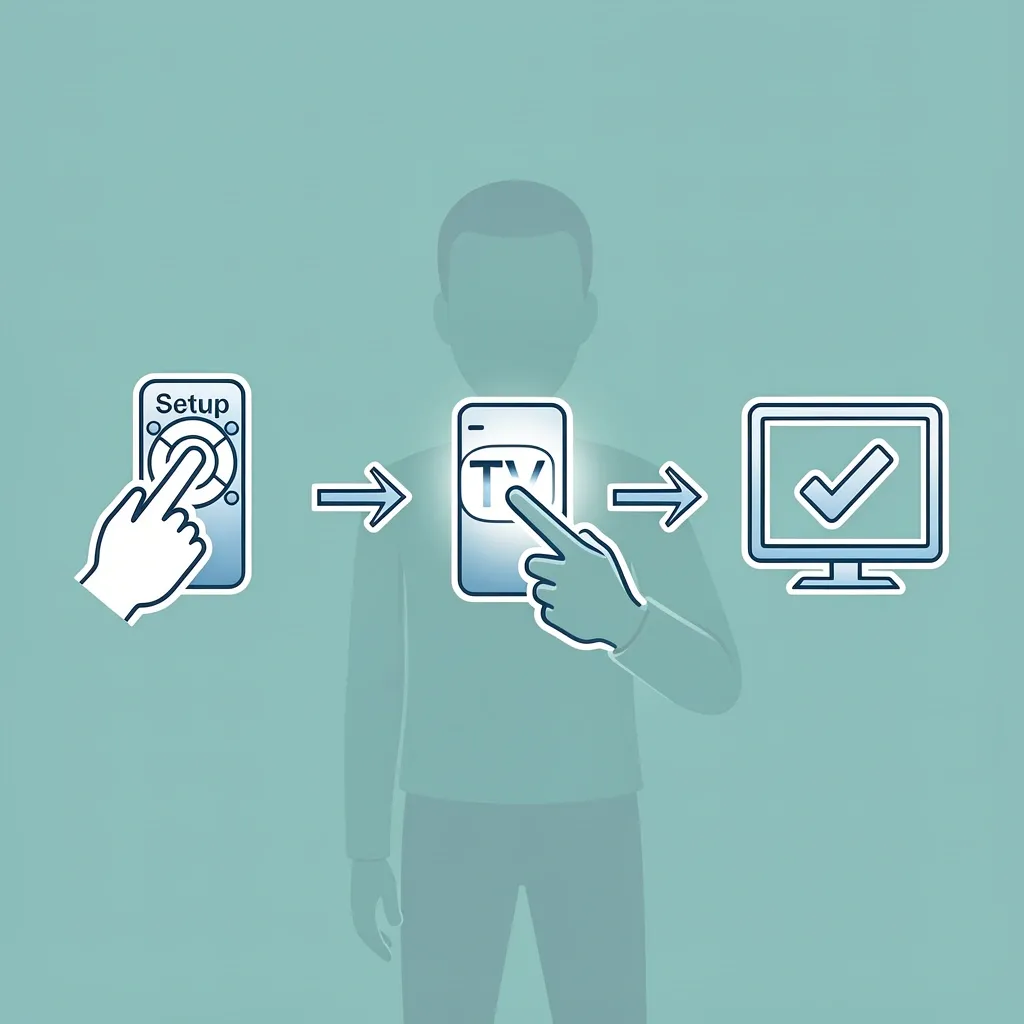
Programming follows the same basic steps for almost every universal remote. The key is entering the code correctly and testing it right away.
- Turn on your Vizio TV manually using the power button on the TV itself.
- Press and hold the Setup button on your universal remote until the red light stays on. If your remote has a Code Search button instead of Setup, press that.
- Press and release the TV button on the remote. The red light should blink once and stay on.
- Enter the first 4-digit or 5-digit code from the table above. If the light turns off after entering the code, it accepted the code. If the light blinks twice or stays on, the code is wrong.
- Point the remote at the TV and test the Power button. If the TV turns off, test volume and input buttons. If everything works, you are done.
- If the power button does not work, repeat steps 2-5 with the next code on the list.
If you enter three or four codes and none work, do not keep trying codes one by one. Use the auto-search method instead.
Universal Remote Codes by Brand for Vizio TV
Different remote brands use different code libraries. Below are the codes specific to the most common universal remote brands people search for.
RCA Universal Remote Codes for Vizio TV
| 4-Digit Code | 5-Digit Code |
|---|---|
| 1178 | 10178 |
| 1085 | 10085 |
| 1756 | 10756 |
RCA remotes use a code list version printed under the battery (CL3, CL4, CL5). The 5-digit codes above correspond to newer versions. If your remote is older, try the 4-digit codes first.
GE Universal Remote Codes for Vizio TV
| 4-Digit Code | 5-Digit Code |
|---|---|
| 1178 | 10178 |
| 1321 | 11321 |
| 1017 | 10017 |
GE remotes often have a 3-digit code search mode. If your remote has a Search button, hold it down until the TV turns off, then press Enter.
Philips Universal Remote Codes for Vizio TV
| 4-Digit Code | 5-Digit Code |
|---|---|
| 1178 | 10178 |
| 1085 | 10085 |
Philips remotes are picky about the exact code. If the TV responds to power but not volume, try a different code from the list.
Xfinity Remote Codes for Vizio TV
Xfinity remotes use a different process. For Xfinity X1 and Flex remotes, go to the settings menu on your TV, select Remote Setup, and follow the on-screen instructions. If you need to enter a code manually, use 1178 or 1756.
Spectrum Remote Codes for Vizio TV
For Spectrum remotes, press and hold the OK and 2 buttons together until the light flashes twice. Then enter 1178 or 1085. If the TV turns off, press OK to lock the code.
One For All Universal Remote Codes for Vizio TV
One For All remotes work best with 1178 (4-digit) or 10178 (5-digit). Some models also accept 1321.
DirecTV Remote Codes for Vizio TV
DirecTV remotes use a slightly different method. Press Menu on the remote, go to Settings, then Remote Control, then Program Remote. Enter 1178 or 1085.
Alternative Programming Methods for Vizio TV
If the codes from the tables do not work, do not give up. These alternative methods almost always work.
Auto Code Search
Most universal remotes have a built-in code search that cycles through all possible codes automatically.
- Turn on your Vizio TV manually.
- Press and hold the Setup button until the red light stays on.
- Press and release the TV button.
- Press and release the Power button repeatedly. The remote will send a power-off signal with each press.
- When the TV turns off, immediately press the Enter or OK button to lock in the code.
- Test the remote to confirm all functions work.
This method can take up to 200 button presses, so be patient. It is the most reliable way to find the correct code.
Manual Pairing with Device Code 108
Some Vizio TVs accept a universal code of 108. This code works across many brands. To try it, follow the standard programming steps and enter 108 as a 3-digit code. If the TV responds, you are set.
Troubleshooting Vizio Remote Programming Issues
If none of the codes or methods worked, the problem is usually not the code itself. Something else is blocking the connection.
- Power cycle everything. Unplug your Vizio TV for 60 seconds. Remove the batteries from the universal remote for 30 seconds. Plug the TV back in, put the batteries back in, and try programming again. This clears any ghost signals.
- Check the batteries. Weak or old batteries can stop a remote from transmitting a full signal. Replace them with fresh ones, even if the remote light still blinks.
- Verify line of sight. Universal remotes use IR (infrared) light. The remote must be pointed directly at the TV sensor, usually located at the bottom center or bottom right edge of the TV. Obstructions like soundbars or furniture can block the signal.
- Confirm the remote is in TV mode. If your universal remote controls multiple devices, it must be set to TV mode before you enter codes. If it is in CBL or DVD mode, the code will program the wrong device.
- Reset the universal remote. Most remotes have a factory reset. Usually, you press and hold the Setup button until the light blinks twice, then press Enter. Check your remote manual for the exact sequence.
- Know your Vizio TV type. Vizio TVs built after 2016 use Bluetooth for the original remote. Universal remotes do not speak Bluetooth to Vizio. They use IR instead. If your Vizio remote has a Bluetooth symbol on it, the TV still accepts IR signals for power and basic functions, but some smart features will not work with a universal remote. You can still program power and volume even on Bluetooth models.
Understanding Code List Versions on Vizio Universal Remotes
Your universal remote likely has a version number printed inside the battery compartment. This number (CL3, CL4, CL5, or CL6) tells you which code library the remote uses.
| Version | Typical Codes | Age of Remote |
|---|---|---|
| CL3 | 3-digit codes | Before 2010 |
| CL4 | 4-digit codes (most common) | 2010-2018 |
| CL5 | 5-digit codes | 2015-current |
| CL6 | Device code search | Latest versions |
If your remote is CL3, do not try 4-digit or 5-digit codes. Use the auto-code search method instead. If your remote is CL4 or higher, the 4-digit and 5-digit codes above should work. You can find the version by opening the battery cover and looking at the sticker underneath. If the sticker is missing or unreadable, your remote probably uses CL4 codes by default.
Choosing the Right Universal Remote for Your Vizio TV
If you need to buy a new universal remote, these models work well with Vizio TVs:
- RCA RCR503: Good for basic control. Uses 4-digit codes. Works with most Vizio models from 2010 onward.
- GE 33709: Backlit keys, simple programming. Accepts both 4-digit and 5-digit codes. Solid choice for Vizio.
- Philips SRU400: Works with auto-search. Reliable for power and volume. Good if you have a newer Vizio with Bluetooth.
Look for a remote that supports IR control. Bluetooth-only remotes will not work with Vizio TVs that do not have a built-in Bluetooth receiver. Most universal remotes on the market today use IR, which is exactly what you need.
Frequently Asked Questions
Can I use a universal remote with a Vizio Smart TV?
Yes. Vizio Smart TVs use IR for basic commands like power, volume, and input switching. A universal remote can handle those functions. For smart features like streaming apps, you still need the original remote or a smartphone app.
Do Vizio TVs use IR or RF?
Older Vizio TVs (before 2016) use only IR. Newer Smart TVs use both IR and Bluetooth. The IR receiver is always active, so a universal remote will work for power and volume even on Bluetooth models. If you need to control streaming menus, you need the Bluetooth remote that came with the TV.
How do I find my Vizio TV model number?
Check the back panel or the side edge of the TV. You can also find it in the on-screen menu: go to Settings, then System, then System Information. The model number is listed there. Knowing this number helps when searching for exact code lists for older or unusual Vizio models.
What if my universal remote has a Code Search button?
Press and hold the Code Search button until the light stays on, then press TV, then press Power repeatedly until the TV turns off. This is the auto-search method described earlier. It finds the code without you needing to enter numbers.
Can I program a universal remote without a code?
Yes. Use the auto-code search method or a learning function if your remote supports it. Some remotes let you hold the original Vizio remote up to the universal remote and copy the signal button by button. This is called learning mode.
Why does my remote control my TV but not the volume?
The code you entered may only control basic functions like power. Try a different code from the same table. If the remote has a volume punch-through feature, it might be set to control another device (like a soundbar). Check the remote manual to see how to change the volume control source.