How to Factory Reset a Vizio TV With the Remote (and What to Do When That Fails)
I’ve done this more times than I care to count. Whether you’re selling the TV, clearing out a software glitch, or trying to fix that annoying power cycle where the TV turns on and off by itself, a factory reset is the nuclear option. And if you still have the original Vizio remote, the process is pretty straightforward. But the truth is, many people reach this guide because the remote isn’t working, the screen is black, or the TV is stuck in a loop. I’ll cover all that here. Let me start with the standard method, then walk you through the scenarios where the remote doesn’t cooperate.
Standard Factory Reset Using the Vizio Remote
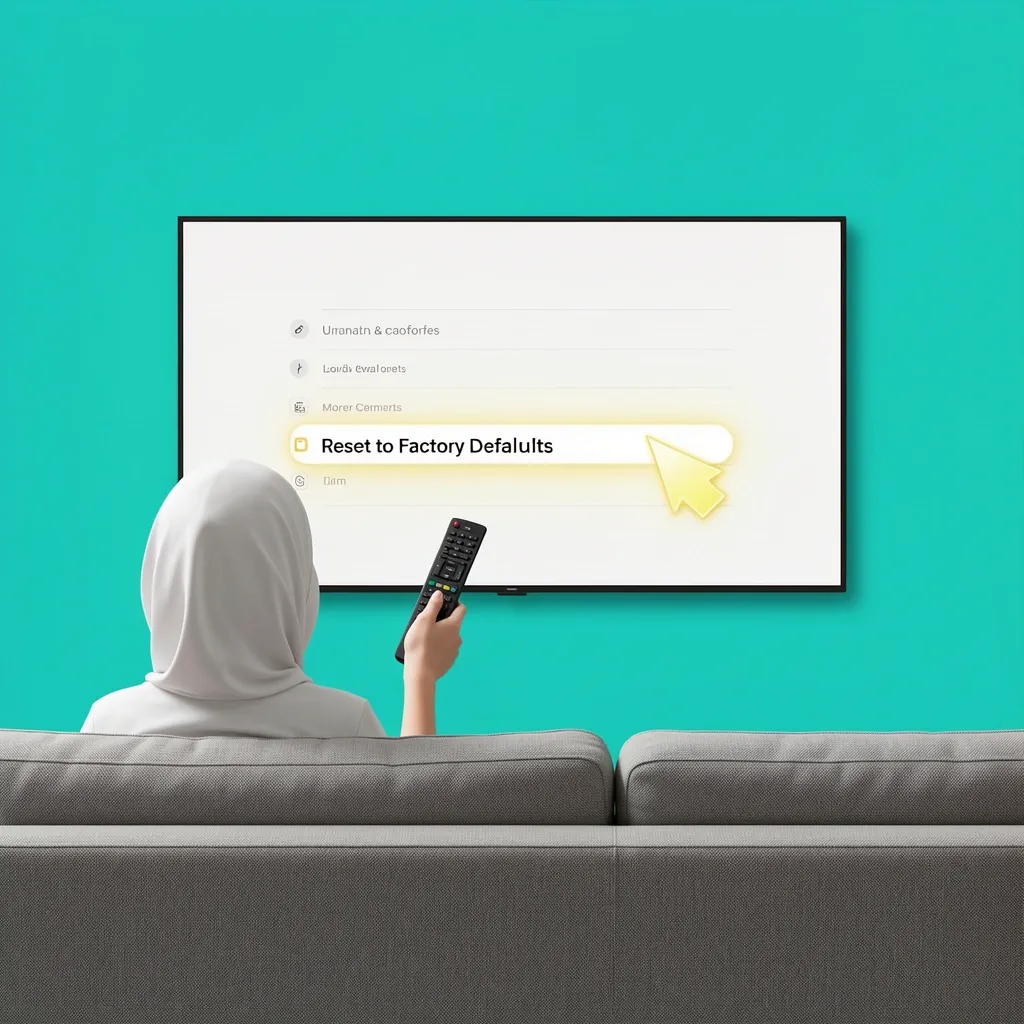
If your TV turns on normally and you have the remote that came with it, here’s how you do it. The exact menu names vary slightly by model year, but the path is almost identical.
- Press the Menu button on your Vizio remote.
- Using the arrow keys, navigate to System and press OK.
- Scroll down to Reset & Admin and select it.
- Choose Reset TV to Factory Defaults.
- A warning will pop up saying all data will be erased. Select Yes or Confirm.
- The TV will restart, and you’ll see the initial setup screen again.
For Vizio SmartCast TVs (most models from 2016 onward), the steps are similar but you might find the reset under Settings > System > Reset. If your remote has a dedicated “V” button or a gear icon, press that to open full settings. The wording inside varies – look for “Reset to Factory Defaults” or “Clear All Data.” One thing to check first: make sure the remote is paired and the battery cover isn’t loose. I’ve spent ten minutes pressing buttons only to realize the remote wasn’t even talking to the TV. If the TV responds to the Menu button, you’re good.
How to Factory Reset a Vizio TV That’s Frozen or Stuck in a Power Loop
This is the scenario that drives people crazy. The TV turns on, shows the Vizio logo for a few seconds, then goes black and repeats. Or the screen stays black and nothing happens. The remote won’t work because the TV isn’t actually booted up. I ran into this on a Vizio D-series. Here’s what actually works in that state. First, do a hard power cycle:
- Unplug the TV from the wall outlet.
- Press and hold the physical power button on the TV (if it has one) for 30 seconds. This drains any residual charge in the capacitors.
- Wait 2 minutes, then plug it back in.
If the TV comes back to life and you can see the menu, immediately do the reset steps above. But sometimes the TV still loops. For certain Vizio models, there’s a hidden button combo you can try when the TV is on but unresponsive. On many Vizio TVs (especially the E-series and D-series), you can press and hold the Input button and the Volume Down button on the TV itself simultaneously for about 15 seconds. This triggers a factory reset without needing the menu. Not all models support it, but it’s worth a shot. You’ll usually see a progress bar on the screen. If that doesn’t work, you move to the no-remote methods.
How to Factory Reset Without the Remote (Physical Buttons and Smartphone App)
When the remote is gone or dead, you still have options. I’ve salvaged a Vizio using each of these methods.
Using the Physical Buttons on the TV
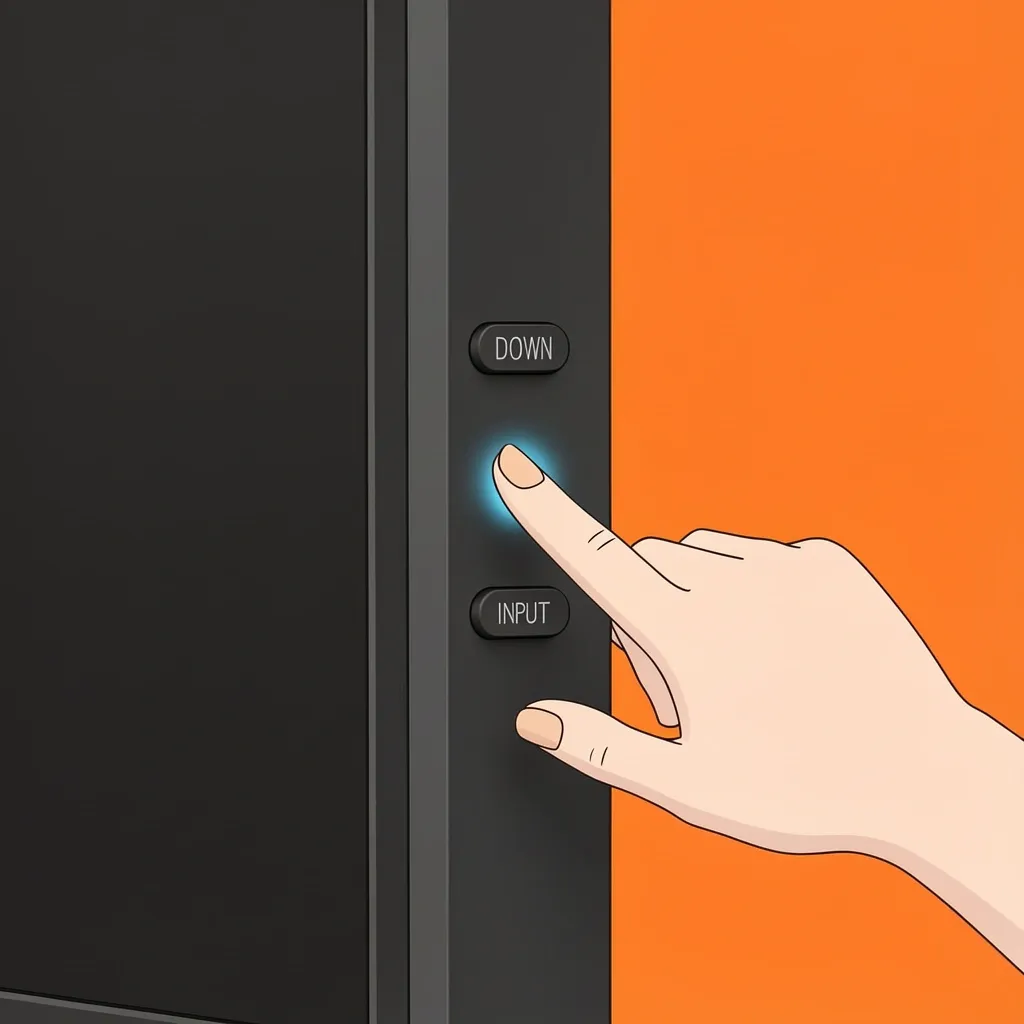
Most Vizio TVs have a small set of buttons somewhere on the back or bottom edge. Look for a joystick-style button or a cluster that includes volume up/down, channel up/down, input, and power. On some models, you can perform a reset by:
- With the TV off, press and hold the Volume Down and Input buttons at the same time.
- While holding them, plug the TV back into power (or press the power button if it’s separate).
- Keep holding until the TV turns on and shows a reset menu.
This works on a surprising number of Vizio TVs, especially the D-series and older E-series. I’ve done it on a D40f-F1. If you don’t see a reset menu after 30 seconds, release and try a different combo: Volume Down + Power, or Input + Power.
Using the Vizio Mobile App
If your TV was previously connected to Wi-Fi and you still have the Vizio SmartCast app on your phone, you’re in luck. The app can send a factory reset command even if the TV’s screen is black but the TV itself is still on the network.
- Open the Vizio Mobile app on your smartphone.
- Make sure your phone is on the same Wi-Fi network as the TV.
- Tap on the icon for your TV (it should show its name or IP).
- Go to Settings (gear icon) within the app.
- Scroll down to System > Reset and select Factory Reset.
- Confirm.
This method only works if the TV’s network interface is still functioning. I’ve used it on a Vizio M-series that had a dead display but was still running in the background. The reset brought it back.
When You Have No Physical Buttons and No App
Some ultra-thin Vizio TVs have only a single power button (no volume or input buttons). In that case, your only hardware option is the power cycle I described earlier. If that doesn’t fix the loop, you may need a universal remote. Most universal remotes can be programmed to send the same menu codes as the original. I’ve had good luck with the GE brand universal remotes for Vizio. After programming, follow the standard reset steps.
What to Do If the Factory Reset Fails or the TV Stays Black
If you’ve tried everything above and the TV still cycles on and off, or the screen stays black after the reset, don’t give up yet. I’ve seen three common culprits that aren’t related to software.
- Check all HDMI devices. A failing HDMI port or a faulty streaming stick can cause the TV to reboot. Unplug every HDMI cable, including the Fire Stick or Roku. I’ve had a Fire Stick remote that was sending a constant signal and making the TV cycle. Remove the batteries from all remotes, especially the Fire Stick remote. In the iFixit thread, that was the fix for hundreds of people. Test the TV with nothing plugged in.
- Try a different power outlet. Use a different wall outlet, not a power strip. Some power strips degrade over time and can’t supply consistent power, causing random reboots.
- Look for physical damage. If you hear a clicking sound or the TV tries to turn on but the screen never lights up, it might be a failed power supply board (bad capacitors). That’s a hardware repair, not a software reset. You’d need to replace the board or get it fixed.
If the TV still acts up after that, contact Vizio support. Some models have hidden button combos that the company doesn’t publish publicly.
Soft Reset vs. Factory Reset – When to Use Each
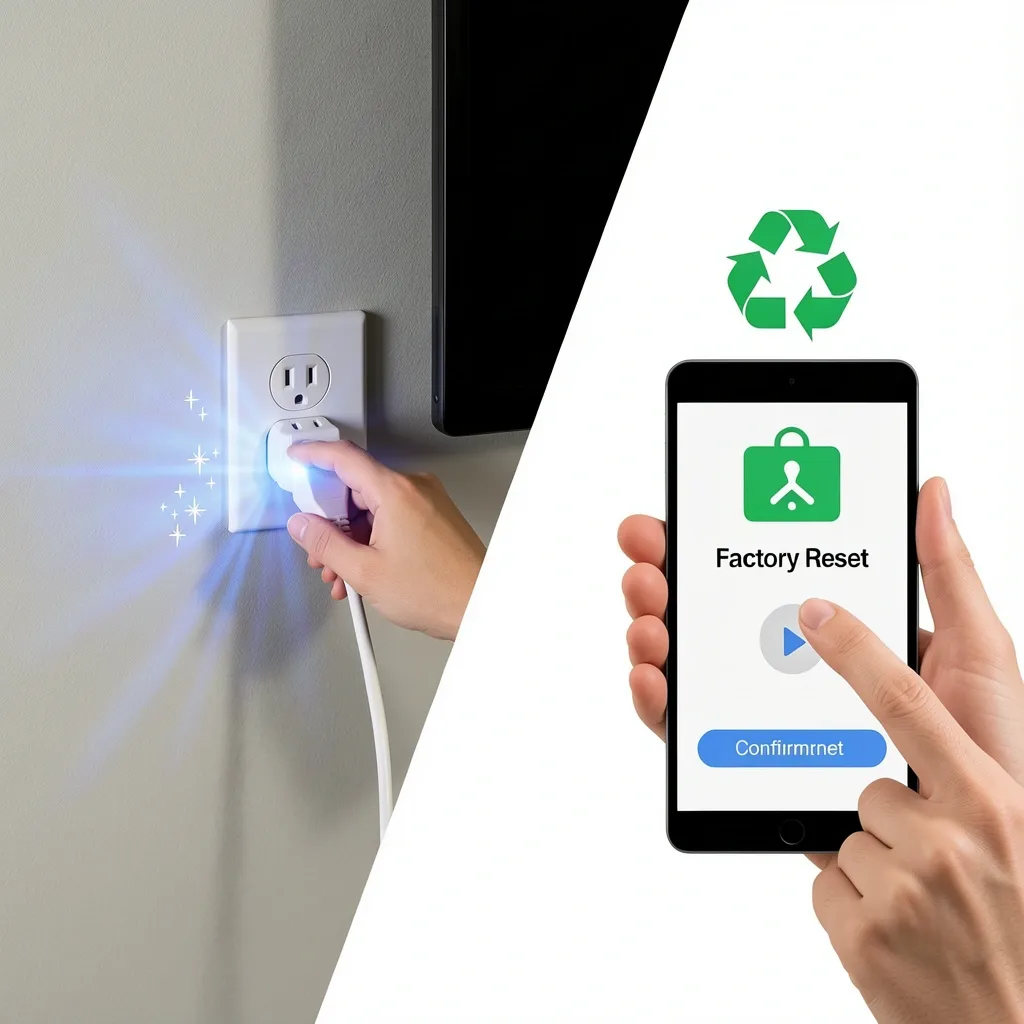
I see people confuse these all the time. A soft reset is just a power cycle: unplug the TV, hold the power button for 30 seconds, plug it back in. That clears temporary glitches and won’t erase any settings or apps. Try that first for any odd behavior like lagging menus or a single freeze. A factory reset wipes everything – all apps, accounts, saved Wi-Fi passwords, and picture settings. The TV goes back to exactly how it looked when you first opened the box. Use it only for persistent problems like constant reboots, software corruption after a failed update, or before you sell the TV. I’ve done factory resets on Vizio SmartCast TVs and they take about 2-3 minutes, then you’ll need to set up the TV from scratch.
Frequently Overlooked Causes of TV Malfunction That Mimic a Software Issue
Before you dive into a factory reset, rule these out. They’re the most common reasons people think their TV is broken when it’s actually fine.
- Fire Stick remote or other external remotes. The Fire Stick remote uses Bluetooth and sometimes interferes with the TV’s CEC commands. Remove the batteries from any remote you’re not using.
- HDMI port failure. A physically damaged HDMI port can short out and cause the TV to cycle. Move all devices to a different HDMI port.
- CEC conflicts. If you have a soundbar or another device connected via HDMI-ARC, it might be sending power commands. Disable CEC in the TV settings (or unplug the soundbar).
- Power supply capacitor failure. Older Vizio TVs (2012-2015) are known for bulging capacitors on the power board. If you hear a tick-tick sound and the TV won’t stay on, that’s hardware.
Frequently Asked Questions
How do I factory reset a Vizio TV with a black screen?
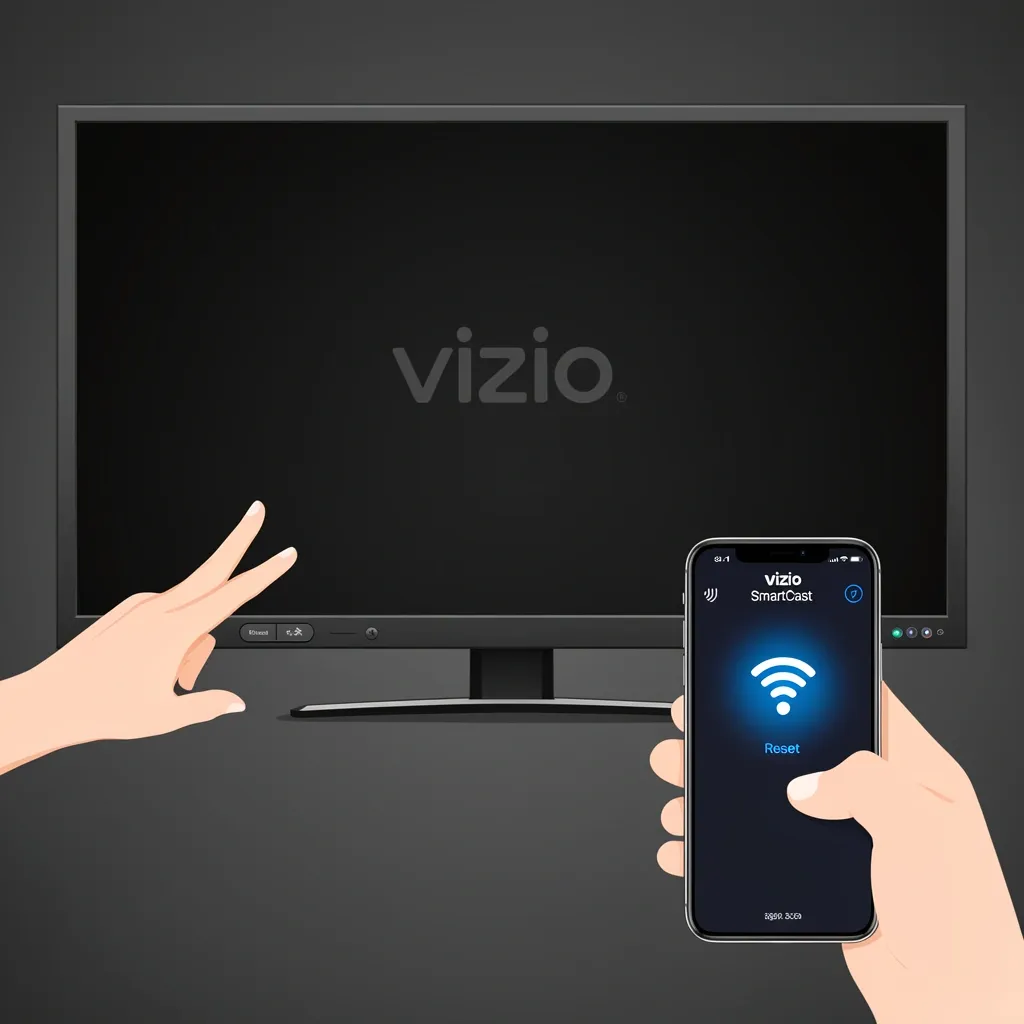
If the screen is black but you hear sound or the TV seems on, try the physical button method (Volume Down + Input while plugging in). If that doesn’t work, use the Vizio Mobile app while the TV is connected to Wi-Fi. As a last resort, unplug the TV, hold the power button for 30 seconds, and plug back in – sometimes that restores display functionality long enough to navigate the menu.
Will a factory reset remove my installed apps and accounts?
Yes. A factory reset erases all user data. You’ll lose installed apps (like Netflix, Hulu), logged-in accounts, saved Wi-Fi networks, and all picture settings. The TV becomes a blank slate.
Can I factory reset a Vizio TV without the remote and without physical buttons?
Almost impossible unless the TV is still on Wi-Fi and you can use the Vizio Mobile app. If the app isn’t an option, you’ll need a universal remote or contact Vizio support for model-specific tricks. Some newer Vizio TVs have a recovery mode accessible by holding the power button on the TV itself for 60 seconds, but that’s rare.
How long does a Vizio factory reset take?
Typically 1 to 3 minutes. The TV will restart, the Vizio logo will appear, and then it will go through the initial setup. If it hangs on the logo for more than 5 minutes, unplug the TV, wait 30 seconds, and plug it back in. It should boot into setup mode. If it loops, try the reset again using a different method.