How to Connect an Antenna to a Vizio TV
You bought an antenna to watch local channels for free, but when you look at the back of your Vizio TV, you don’t see the round threaded port you expected. Or maybe you do see it, but after plugging everything in, your screen still says “No Signal.” I’ve been through this exact frustration, and I’m going to walk you through the right way to connect an antenna to your Vizio — no matter which model you own.
This guide covers every possible scenario, including the most common one that other articles miss: your Vizio might not have a built-in TV tuner at all. Let’s start with the one step that saves you the most time.
Check Your Vizio Model for a Coaxial Tuner
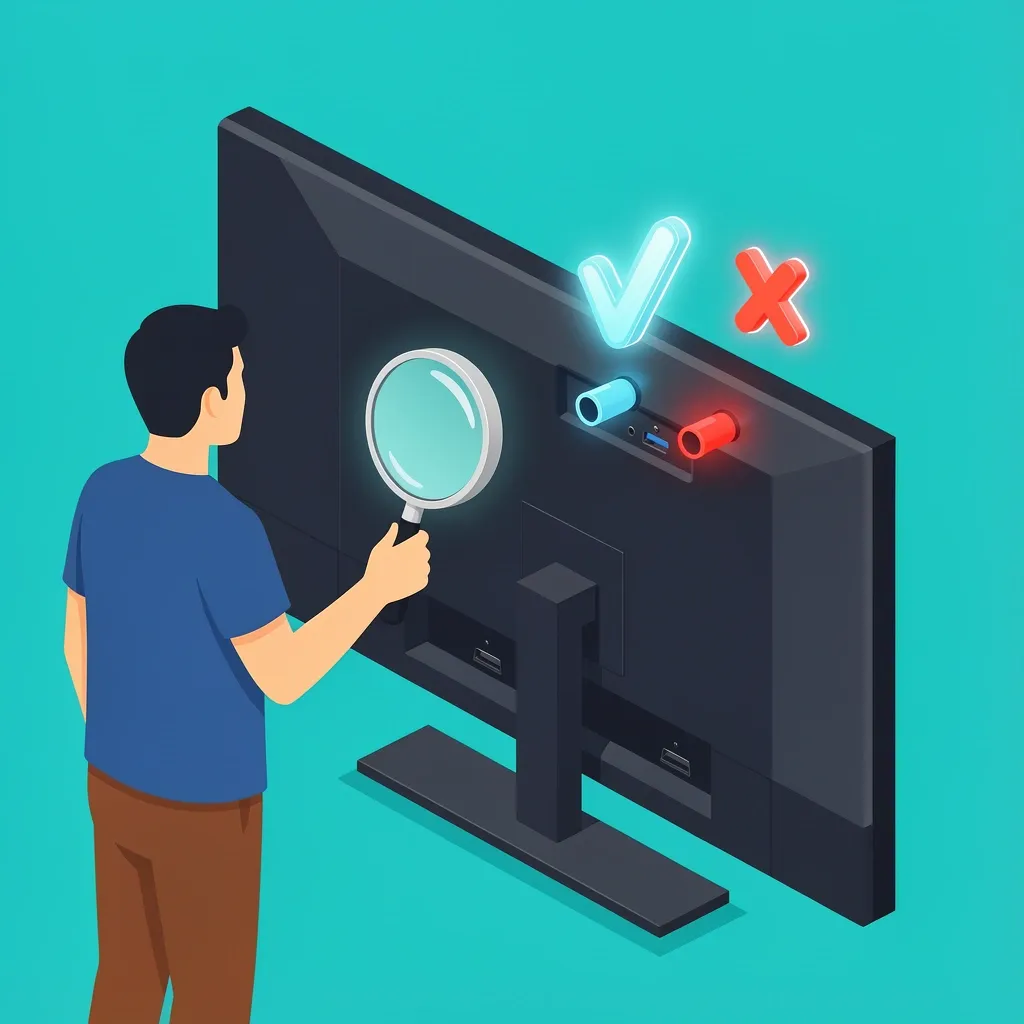
Before you buy any adapters or try to plug anything in, find out if your TV actually has a built-in digital tuner (the part that turns an antenna signal into channels). Vizio started removing coaxial ports from many of their SmartCast models after 2016 to cut costs. If you own one of those, plugging an antenna directly into the TV will never work — you need an external box.
Here’s how to know which group you fall into:
- Vizio models made before 2016 (or older D-series models like D40/D50-D9): They almost always have a coaxial tuner. Look for a round, threaded port labeled “ANT/CABLE IN” on the back.
- SmartCast models from 2016 to 2023 (E, M, P, D-series without the “D9” suffix): Most of these do NOT have a coaxial port. You will need an external HDMI tuner box or a USB tuner adapter.
- 2023 and newer Vizio models (OLED, V-Series, MQX): No coaxial port at all. An external tuner is mandatory.
To find your exact model number, check the sticker on the back of the TV or go to Settings > System > About. Once you know what you’re working with, head to the section below that matches your TV.
Physical Connection Methods Based on Your TV’s Ports
Pick the scenario that fits your TV. I designed these so you don’t have to read through irrelevant instructions.
Scenario A: Your TV Has a Coaxial Port (Labeled “ANT/CABLE IN”)
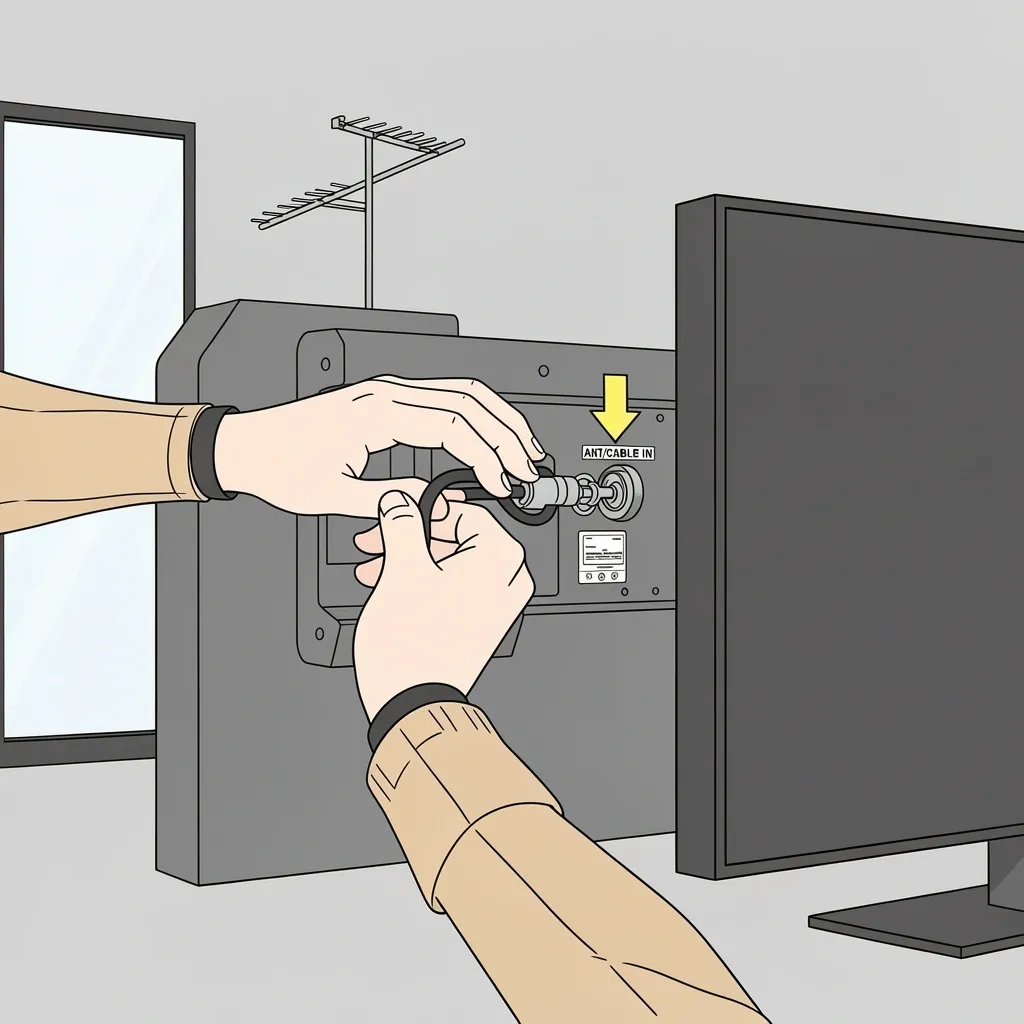
This is the simplest setup. If your Vizio has that round silver or brass port, here’s what to do:
- Screw the coaxial cable from your antenna into the “ANT/CABLE IN” port. Only hand-tighten it — using pliers can crush the connector.
- Place the antenna near a window or as high as possible for the best signal. Elevation matters more than you think.
- Turn on the TV and press the Input or Source button until you see “TV” or “Antenna” selected. Do not leave it on HDMI.
- Go into the menu and run a channel scan (I’ll cover the exact steps in the next section).
Scenario B: Your TV Has No Coaxial Port (Only HDMI Ports)
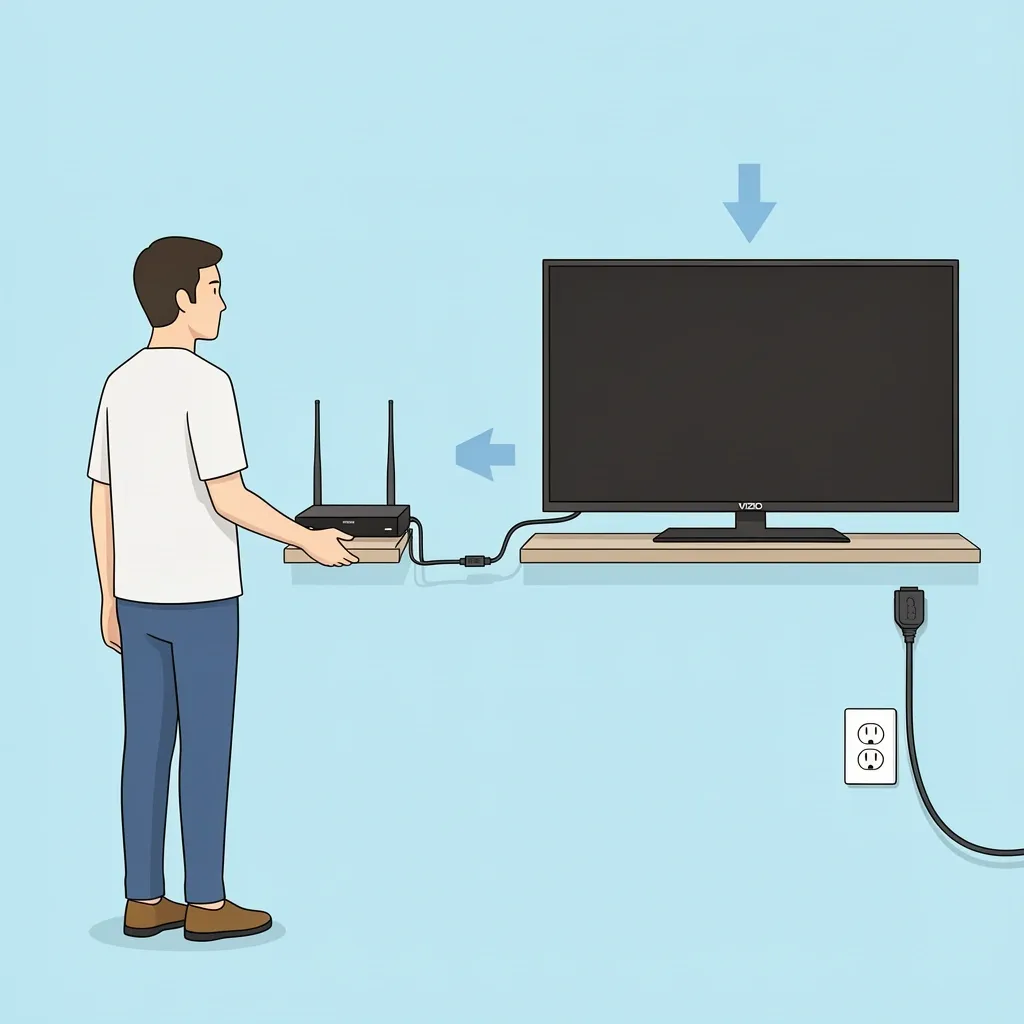
If your Vizio only has HDMI, USB, and maybe an optical audio port, you must buy an HDMI TV tuner box. This is a small device that converts the antenna signal into HDMI output. I’ve used the HomeWorx HW-150PVR and the Mediasonic HW-130 — both work great. Here’s the process:
- Connect your antenna to the coaxial input on the tuner box.
- Connect the tuner box to any HDMI port on your Vizio using a standard HDMI cable.
- Plug the tuner box into power (it needs AC power — it won’t run off the TV’s USB port).
- Turn on your Vizio, select the HDMI input you used, and you’ll see the tuner box’s on-screen menu. Run a channel scan from there.
- Bonus: Many of these boxes let you record live TV to a USB drive and pause live broadcasts.
If you already have a digital converter box from the days of the analog shutdown, that works exactly the same way — it’s essentially an external tuner with HDMI output.
Scenario C: Your TV Has No Coaxial Port (USB Port Available)
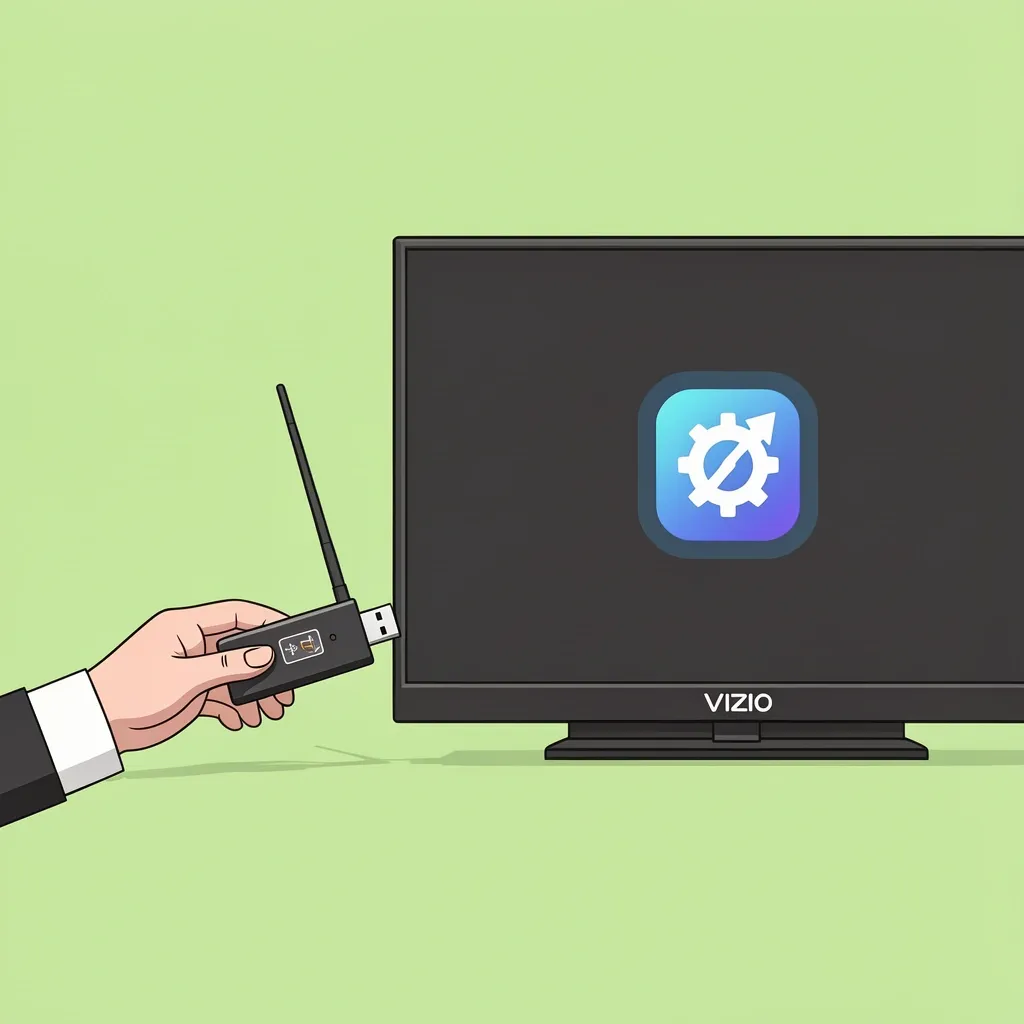
A less common but valid route is a USB TV tuner. Devices like the Hauppauge WinTV-dualHD plug into the TV’s USB port, but they require an app from the Vizio SmartCast store. Setup is more involved:
- Insert a microSD card or thumb drive into the tuner (for channel storage and time shifting).
- Connect the antenna to the tuner’s coaxial input.
- Plug the tuner into your Vizio’s USB port.
- Open the SmartCast home screen, go to the app store, and search for the tuner’s companion app (e.g., “Hauppauge WinTV”).
- Install the app and follow its on-screen instructions to scan channels.
This method is more finicky than the HDMI tuner box, so I only recommend it if you have no HDMI ports available or you want a cleaner setup with one less power cord.
How to Identify Your Vizio TV’s Antenna Input
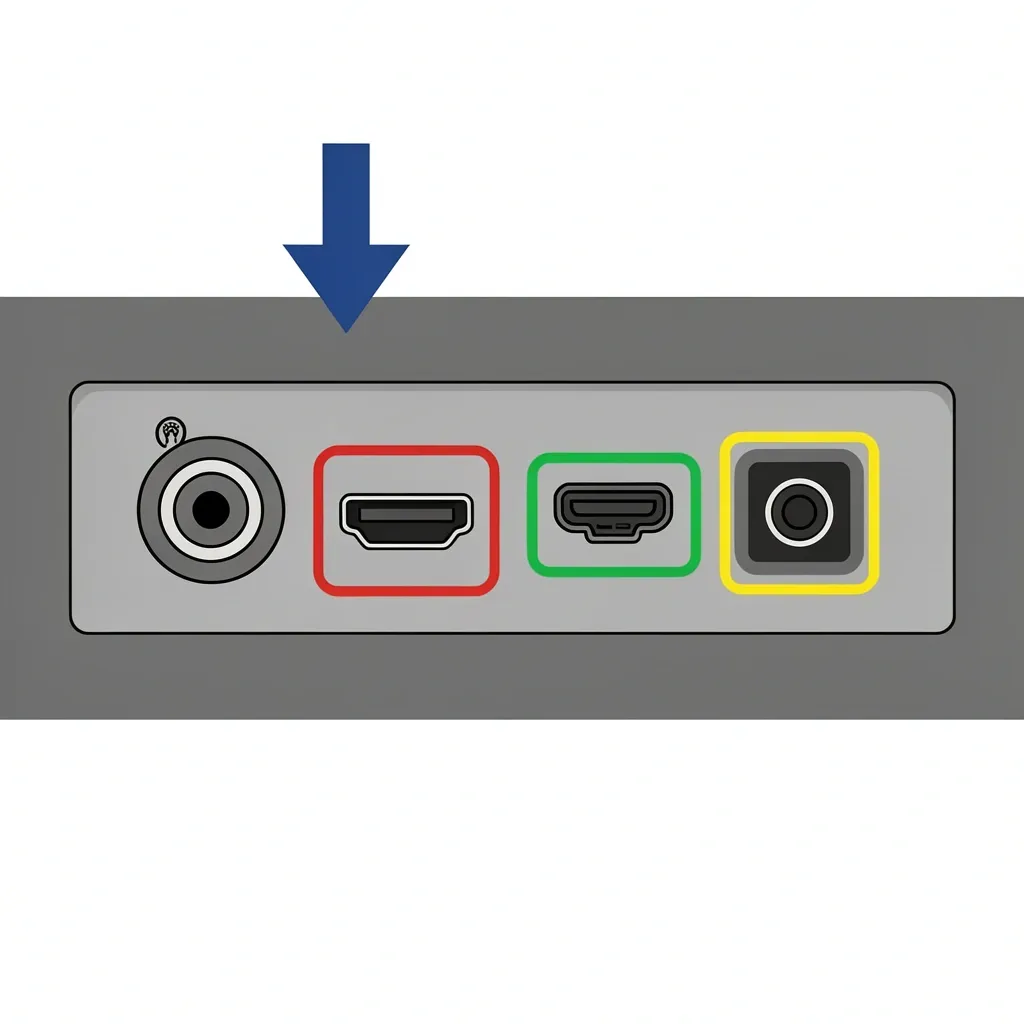
If you’re staring at the back of your TV and none of the ports look familiar, here’s a quick reference guide. The wrong port can damage your equipment or simply do nothing.
| Port Type | Appearance | What It Does |
|---|---|---|
| Coaxial / RF | Round, threaded, brass or silver cylinder | Labeled “ANT/CABLE IN” or “RF IN” — this is the only port that directly accepts antenna signals |
| HDMI | Flat, 19-pin trapezoid, often labeled HDMI 1/2/3/ARC | Accepts video and audio from external devices like a tuner box, streaming stick, or game console |
| USB | Square with a trident icon | For media playback from flash drives or powering streaming sticks — does NOT accept antenna signals without a USB tuner adapter |
| Optical Audio (Digital Audio Out) | Square, black, labeled “DIGITAL AUDIO OUT” | For sending sound to a soundbar or receiver — never plug an antenna here |
| Ethernet | RJ45 jack, labeled “LAN” or “Ethernet” | For wired internet — completely incompatible with antenna signals |
Remember: if you plug an antenna into an HDMI port, you won’t damage the TV, but it won’t work. You need a tuner box in between.
Channel Scanning After Connection
Once the physical connection is done, you still need to tell the TV to find the channels. The scan process is different depending on whether you’re using a built-in tuner or an external box.
If You Have a Built-in Coaxial Tuner (Scenario A)
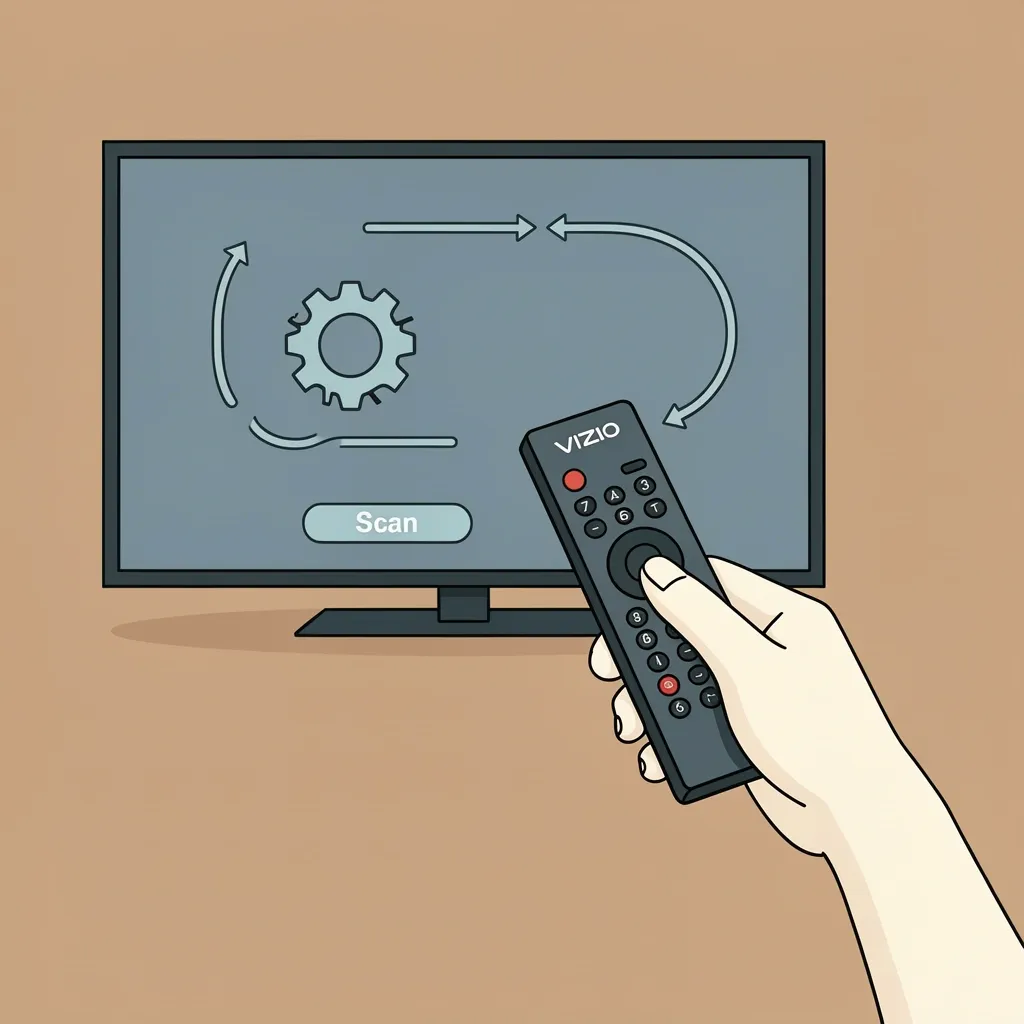
- Press the Menu button on your remote. If your Vizio uses a SmartCast remote without a Menu button, press the Input button repeatedly until “TV” or “Antenna” is selected, then look for a gear icon or “Settings” option on the screen.
- Navigate to Tuner Mode or Channel Setup. Some models call it “Auto Tuning” or “Program Channels.”
- Select Auto Scan or Autoprogram. The TV will search for available over-the-air channels. This takes between 2 and 5 minutes.
- Once the scan finishes, press CH+ or CH- to browse channels. You can also view the full channel list from the same menu.
If your Vizio is a SmartCast model without physical buttons and your remote is missing, use the Vizio SmartCast Mobile App (available for iOS and Android). Make sure your phone and TV are on the same Wi-Fi network. In the app, go to Devices > Your TV > TV Settings > Channels, then select Scan. The app acts as a full remote.
If You’re Using an External HDMI Tuner Box (Scenario B or C)
For any external tuner, the channel scan happens inside the tuner box, not the TV. Use the remote that came with the tuner, or if you lost it, look for a physical “Menu” or “Setup” button on the box itself. Most tuners also support a universal remote (common code 0123 for GE/RCA remotes).
How to Connect an Antenna to a Vizio TV Without a Remote
Losing the remote is maddening, especially when you need to access the channel scan menu. Here are three ways around it, ranked from easiest to last resort.
Use the Vizio SmartCast Mobile App
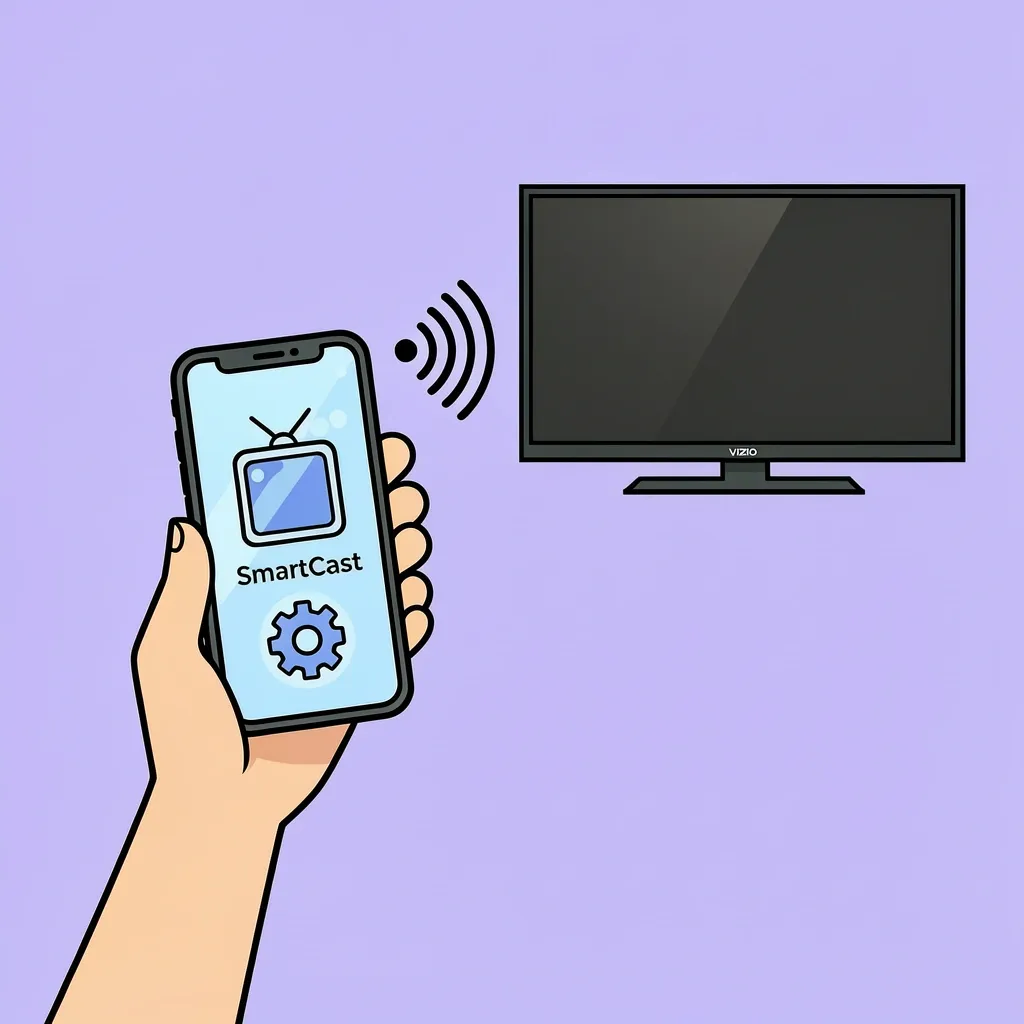
This is the best option for any Vizio SmartCast TV (2016 or newer). Download the Vizio SmartCast app on your phone, ensure both devices are on the same Wi-Fi network, and the app will discover your TV. From the app, go to Devices > Your TV > TV Settings > Channels > Scan. It works exactly like the physical remote would.
Use a Universal Remote
If you have a universal remote (GE, RCA, One For All, etc.), you can program it to control your Vizio. Hold the SETUP button and the TV button simultaneously until the LED blinks. Enter one of these codes: 0123, 0170, 0227. Then press CH+ to test. If the TV changes channels, the code worked. From there, press the Input button to select “TV” and then navigate to the scan menu.
Use the TV’s Side Panel Buttons (Last Resort)
Most Vizio TVs have physical buttons along the edge or bottom of the screen. Look for a button labeled Input, Source, or a small joystick. Press the Input button repeatedly until you see “TV” or “Antenna” on the screen. If you have a way to control volume or channel up/down from the panel, you might be able to access the menu. But in many models, the physical buttons are limited — you may not be able to initiate a channel scan. In that case, you must buy a replacement remote or use the mobile app.
Warning: Do not factory reset your Vizio just to force a channel scan. That erases all Wi-Fi, app login data, and picture settings. Only do that as an absolute last step if you have no other way.
Common Setup Problems and Fixes
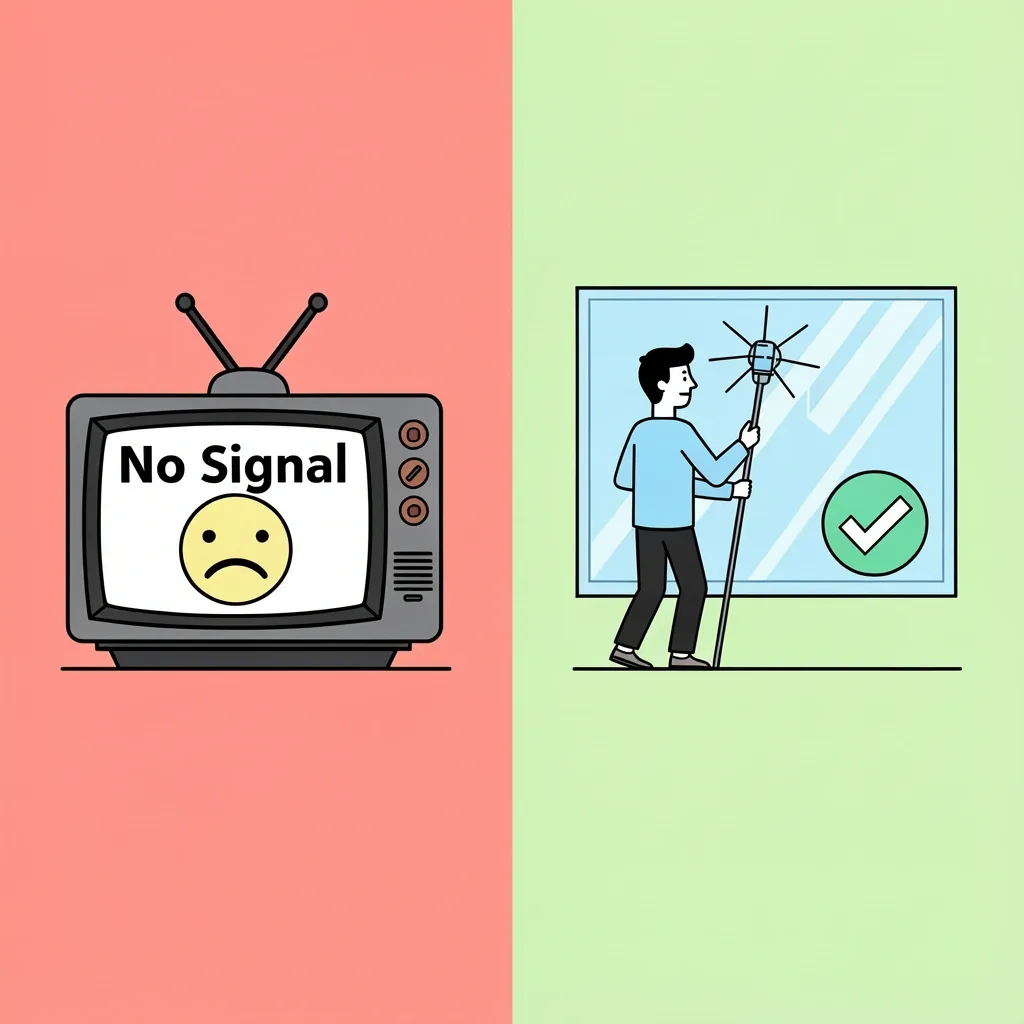
Even after following the steps, things can go wrong. Here are the specific issues I’ve run into and how to fix them.
| Problem | Likely Cause | Fix |
|---|---|---|
| “No Signal” after scan | Antenna is poorly positioned or too close to electronics | Move the antenna near a window, elevate it, or try a pre-amplified antenna. Keep it away from the TV itself — the TV’s internal electronics can interfere. |
| Scan finds zero channels | TV is set to “Cable” mode instead of “Antenna” | Go into Tuner Mode and change it from Cable to Antenna. Then re-run the scan. |
| Channels appear but no audio | Audio format mismatch | In your Vizio’s audio settings, change Audio Format to “PCM” or “Stereo.” Some ATSC 1.0 broadcasts don’t work with compressed audio output. |
| “This TV cannot receive antenna signals” error | Your Vizio lacks a built-in tuner | This confirms you need an external HDMI tuner box. Ignore any advice that says “just plug it in” — it won’t work. |
| Antenna connected but TV still shows HDMI input | The input source is still set to HDMI | Press the Input button repeatedly until you see “TV” or “Antenna” in the source list. It’s easy to miss because many people expect automatic switching. |
Frequently Asked Questions
Do all Vizio TVs have an antenna input?
No. Vizio removed coaxial tuners from most SmartCast models made after 2016 to reduce costs. Check your model against the list in the “Check Your Vizio Model” section above. If your TV was made in 2016 or later and doesn’t have a coaxial port, it doesn’t have a built-in tuner.
Can I use a splitter to connect two TVs to one antenna?
Yes, but you need a coaxial splitter rated for UHF/VHF frequencies. Expect some signal loss — the more TVs you add, the weaker the signal. Use a pre-amplified splitter and keep cable runs under 25 feet per TV for best results.
How do I connect an old rabbit ear antenna to a new Vizio?
If your antenna has flat twin-wire leads (300-ohm ribbon cable), you need a balun (300-to-75 ohm transformer). This cheap adapter converts the two-prong connector to a standard coaxial connector. From there, you can plug it directly into the TV’s coaxial port or into an external tuner box.
What channels can I receive with an antenna?
You can get local broadcast channels like ABC, NBC, CBS, FOX, PBS, and CW — but only if you live within range of the broadcast towers. Enter your zip code on AntennaWeb.org or the FCC DTV Reception Maps website to see which channels are available in your area and what type of antenna you need.
Will my Vizio work with a digital converter box?
Yes. Connect your antenna to the converter box’s coaxial input, then connect the converter box to your Vizio via HDMI or RCA/composite cables (if your Vizio is old enough to have those inputs). This is exactly the same as the external HDMI tuner method I described above.
Why does my Vizio say “No Signal” after connecting the antenna?
The three most common causes are: the antenna is not positioned well, the TV input is still set to HDMI instead of TV/Antenna, or you have not run a channel scan. Follow the “Channel Scanning” section step by step and check the “No Signal” fix in the troubleshooting table above.
Can I connect both an antenna and cable to my Vizio?
If your Vizio has a coaxial port, some models support a dual input through the same port — you can switch between Antenna and Cable in the Tuner Mode settings. But most Vizio models only support one connection at a time. If you want both, you’ll need an A/B switch to toggle between the two sources.
Will an antenna work with my Vizio during a power outage?
The antenna itself does not need power unless it’s a pre-amplified model. But your Vizio TV and any external tuner box need electricity. If you lose power, you’ll only watch TV if you have a generator, battery backup, or a 12-volt TV that runs off a car battery.
My Vizio has a USB port — can I plug the antenna there?
No. A USB port on a Vizio TV cannot accept antenna signals. It is only for playing media files (photos, videos, music) from a flash drive or for powering streaming sticks like Chromecast. To use an antenna with a USB port, you need a dedicated USB TV tuner adapter and its companion app.
Does Vizio’s SmartCast app support antenna control?
Yes, but only on Vizio models with built-in coaxial tuners. Open the app, go to Devices > Your TV > TV Settings > Channels, and you can scan or change channels. If your TV does not have a built-in tuner, the app will not show any antenna-related options.