How to Find Your Vizio TV IP Address Without a Remote
I’ve been in your shoes. The remote is gone – maybe under the couch, maybe in another room, maybe just vanished. And suddenly you need the TV’s IP address to set up a streaming app, connect a soundbar, or troubleshoot a network issue. It feels like a dead end. But it isn’t. After helping several friends and family members solve this exact problem, I’ve put together a list of methods that actually work. None of them require the original remote. You only need your phone, a computer, or sometimes just your bare hands.
Why You Might Need Your TV’s IP Address
Your Vizio TV’s IP address is like its street address on your home network. Without it, you can’t connect certain apps, enable casting, or adjust advanced network settings. I’ve needed it to:
- Authorize streaming services like Plex or Netflix on a new connection
- Pair the Vizio Mobile App for full remote control
- Set up network-based control for home automation
- Diagnose Wi-Fi dropouts
The good news: every method below works without the physical remote. Some take two minutes, some take five. Pick the one that fits your tools and patience level.
Method 1: Use the Vizio Mobile App (Best and Easiest)
This is the first method I try, and it works 90% of the time. The Vizio Mobile App can find your TV on the same Wi-Fi network – even if you’ve never paired it before. Here’s what I do:
- Download the Vizio Mobile App from the Apple App Store or Google Play Store on your phone.
- Make sure your phone is connected to the same Wi-Fi network as your TV. (If you don’t know, ask a family member or check your phone’s Wi-Fi settings.)
- Open the app. It will automatically scan for Vizio devices on your network. This usually takes about 10 seconds.
- When it finds your TV, tap on it. The app will ask for a 4-digit code shown on your TV screen. But you don’t have a remote, right? That’s fine – the app can still show you the IP address before pairing. On the device selection screen, look for a small “i” icon or an “Info” button next to your TV’s name. Tap it. You’ll see the IP address listed there.
- If you don’t see an info button, just try pairing anyway. Sometimes the screen won’t show a code if the TV is already in an unpaired state – but the IP address often appears in the app’s device list anyway.
I’ve used this method on a 2019 Vizio M-Series and a 2022 V-Series. Both worked. It’s my number-one recommendation because you probably already have your phone in your hand.
Method 2: Check Your Router’s Connected Devices List
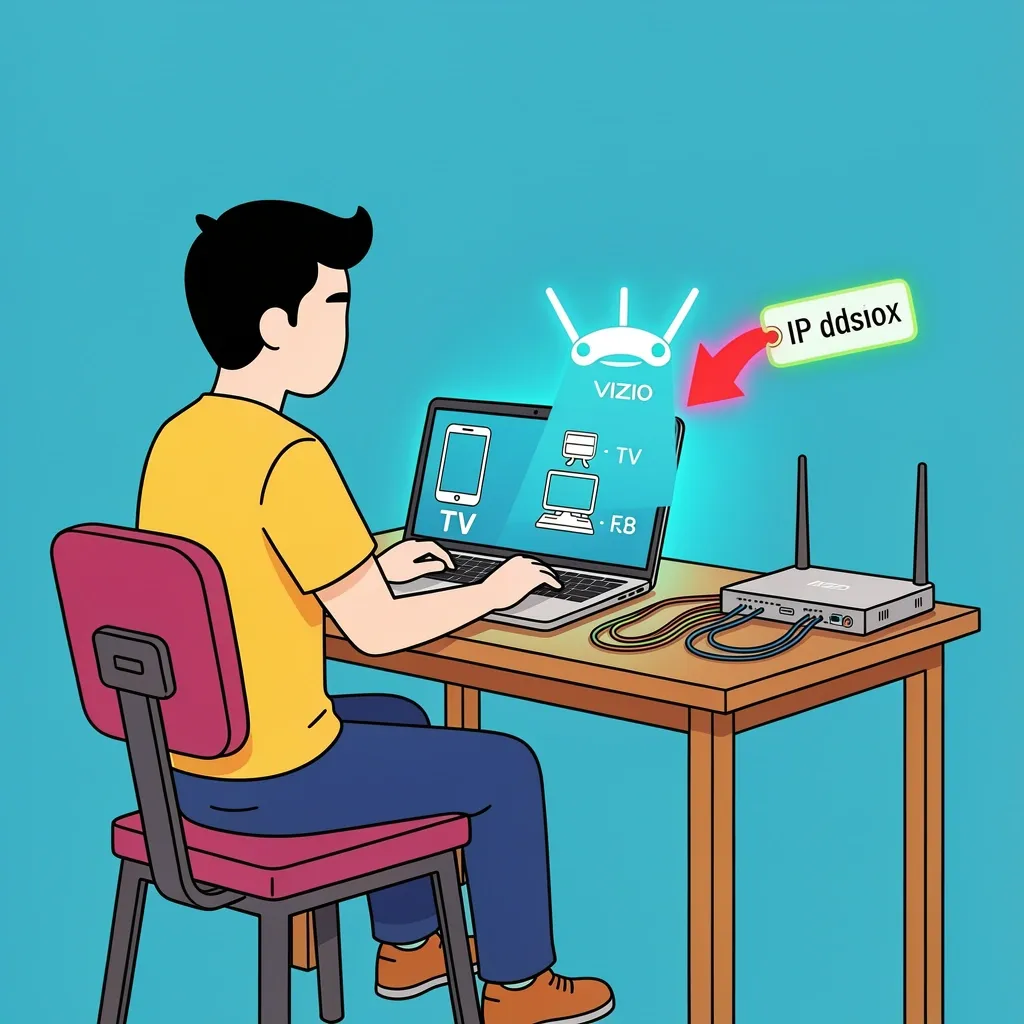
If the mobile app doesn’t work (maybe your TV is on a different network or the app won’t scan), your router can tell you the IP address. This works for any device that is actively connected to your Wi-Fi, including your Vizio TV.
- Open a web browser on any device that is already connected to your home Wi-Fi – a laptop, phone, or tablet.
- Type your router’s IP address into the browser bar. Common ones are 192.168.1.1, 192.168.0.1, or 192.168.1.254. If you don’t know yours, check the sticker on the bottom of your router, or open your phone’s Wi-Fi settings and look for “Gateway” or “Router.”
- Log in with your router’s admin username and password. If you never changed them, try admin/admin, admin/password, or look up your router model online.
- Look for a section called “Attached Devices,” “DHCP Client List,” “Device List,” or “Connected Devices.” (The exact name varies by brand.)
- Scan the list for a device named “Vizio” or “Vizio_xxxx.” The IP address will be right next to it. If you see multiple Vizio entries, note the one that matches your TV’s MAC address (the router should show both IP and MAC – you can compare it to the sticker on the back of your TV if you can reach it).
I’ve helped a friend do this using a laptop while the TV was in another room. It took about three minutes. The only catch is you need access to your router login – if you don’t have that password, you’ll need one of the other methods.
Method 3: Use a Network Scanner App (Like Fing)
Network scanner apps are designed to find every device on your Wi-Fi network. They’re free, fast, and show you the IP address of everything including your Vizio TV. This is great if you can’t log into your router or the mobile app isn’t working.
- Install a free network scanner app on your phone. I’ve used Fing for years – it’s reliable and ad-free. Other options include “Net Analyzer” or “Wi-Fi Analyzer.”
- Open the app and tap “Scan” or “Start.” It will scan your local network.
- After a few seconds, you’ll see a list of all connected devices. Look for “Vizio” in the manufacturer column. If that’s not shown, check for device names like “VIZIO_xxxx” or “Vizio Smart TV.”
- Tap on the device to see its full details. The IP address will be listed, and you can even copy it to your clipboard.
I use this method when I’m at someone else’s house and don’t have access to their router. It works on both Android and iPhone, and you don’t need any special permissions.
Method 4: Use the TV’s Physical Buttons (If Available)
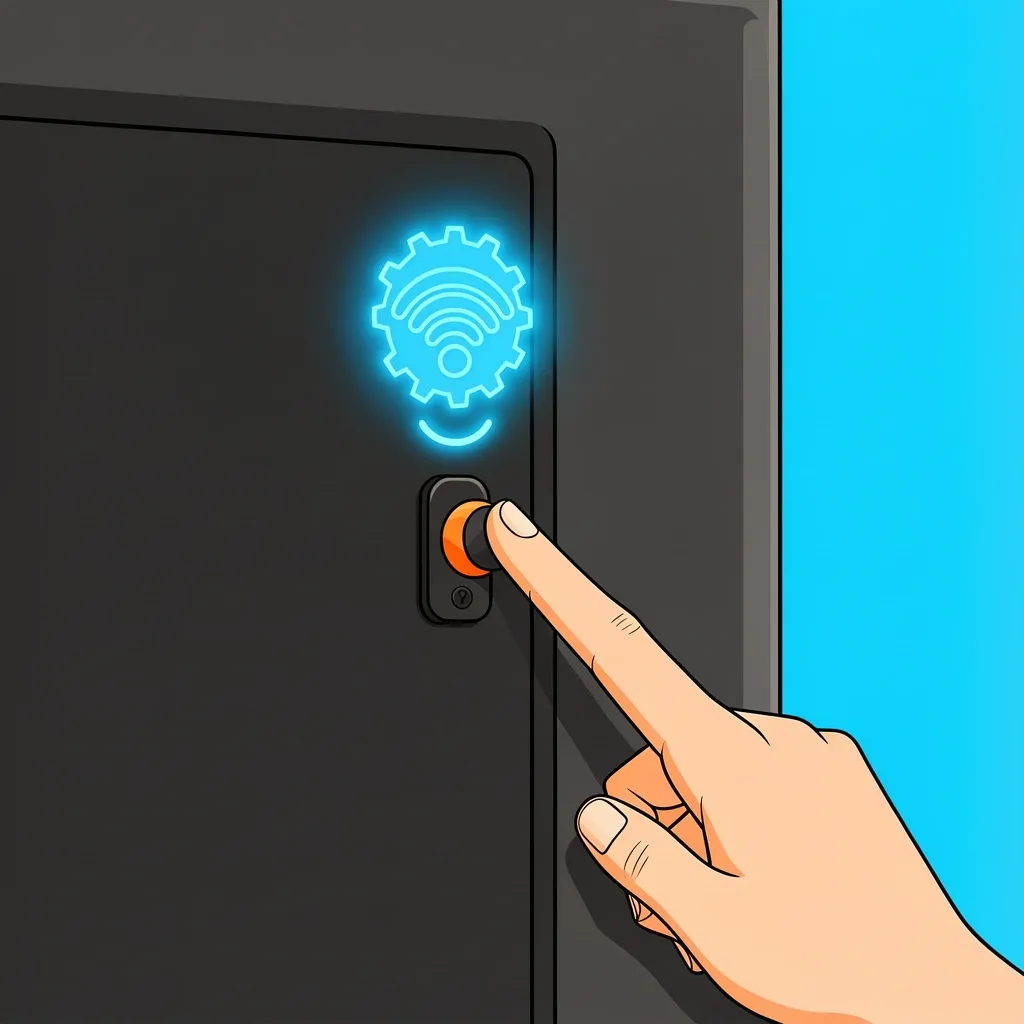
Some Vizio TVs have a small joystick or button panel on the back or bottom edge. It’s usually near the lower-left corner when facing the front of the TV. If your model has it, you can navigate the on-screen menu without a remote. Here’s how:
- Press the physical button to open the menu. On most Vizio models, pressing it once brings up the input/settings menu.
- Look for a “Settings” or “Menu” option. Use the joystick to scroll.
- Go to “Network” or “Wired/Wi-Fi Settings.”
- You should see “IP Address” listed right there.
This method only works if your TV model has physical controls. Many newer Vizio TVs (especially the thin models) don’t have any buttons at all. But older models from 2015-2020 often do. Check the lower back corner – if you see a small joystick or a set of buttons, you’re in luck.
Method 5: Connect a USB Keyboard or Mouse
If your Vizio TV has USB ports (most Smart TVs do), you can plug in a standard USB keyboard or mouse. The TV will recognize it as a navigation device. I’ve done this when helping a neighbor whose remote batteries had exploded – a cheap USB keyboard got her TV back under control.
- Plug a USB keyboard (wired or wireless with a dongle) into any USB port on the TV.
- Press the “Menu” key on the keyboard (often labeled “Windows” or “Start” plus “Menu”). If that doesn’t work, try pressing “F1” or “Esc.”
- Navigate to Settings using arrow keys. Then go to Network.
- Find the IP address displayed there.
Not all Vizio TVs support USB HID (human interface devices) out of the box. But in my experience, most models from the last 7-8 years do. It’s worth a try if you have a keyboard lying around.
What If the TV Isn’t Connected to Wi-Fi?
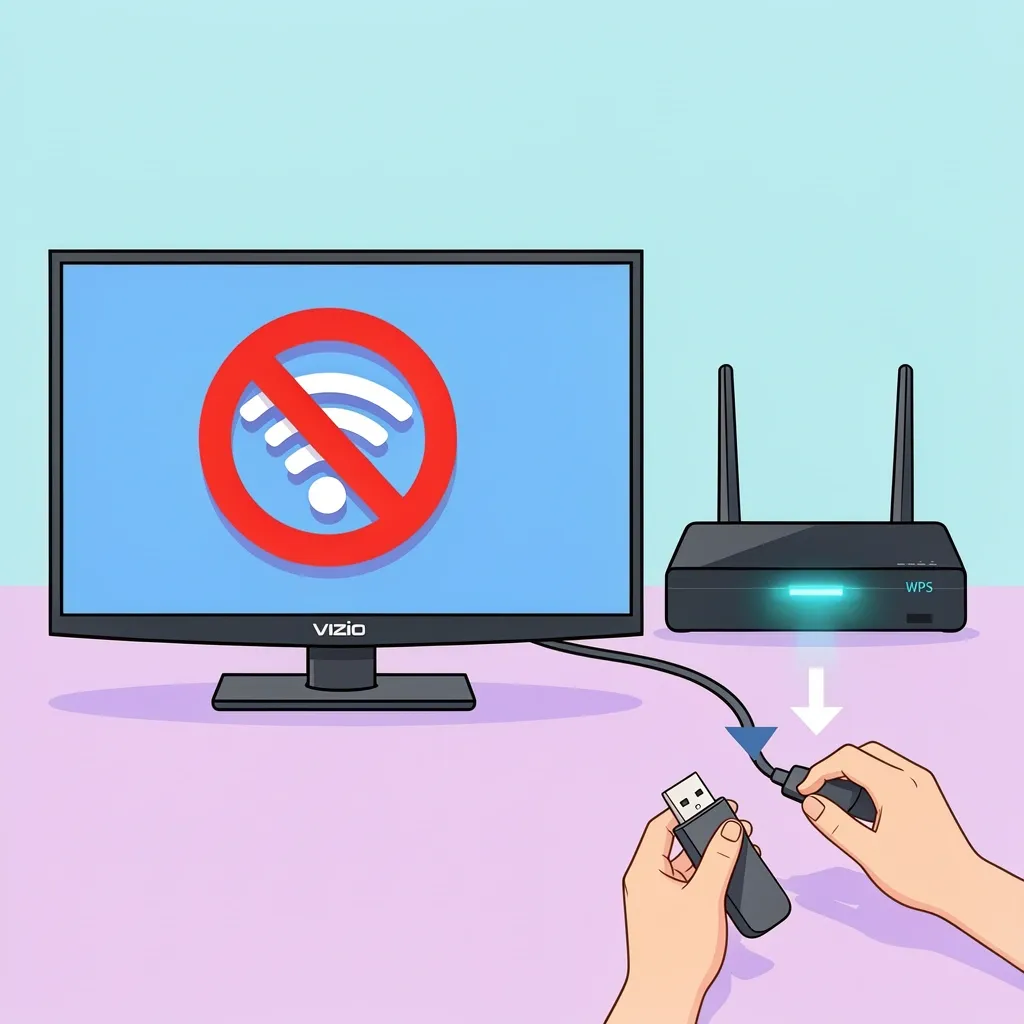
If your TV has never been connected to your Wi-Fi network, or if it’s currently offline, you can’t use the methods above that rely on the network. In that case, you have two options:
- Reset the TV to factory settings – this often prompts the TV to go through the initial setup, which includes connecting to Wi-Fi. On models with a physical button, hold it down for 10-15 seconds until the TV restarts. Then follow the on-screen instructions using a USB keyboard if needed.
- Use WPS – If your router has a WPS (Wi-Fi Protected Setup) button, press it, then look for a WPS button on the TV. Some Vizio TVs have it on the back. This pairs the TV to your network without needing the remote for setup.
Once the TV is connected to Wi-Fi, you can then use any of the first three methods to find its IP address.
Frequently Asked Questions
Can I find my Vizio TV IP address using the serial number?
No. The serial number is specific to your TV unit but does not reveal its IP address. You must be on the same network and use one of the methods above.
Does the Vizio mobile app work if I’ve never paired it before?
Yes. The app can discover your TV on the network even if you’ve never used it. It needs both devices on the same Wi-Fi, but you don’t need a previous pairing.
What if my Vizio TV has no physical buttons and no remote?
If your TV has no buttons and no remote, and it’s not connected to Wi-Fi, you’re in a tough spot. The only way forward is to find a replacement remote (universal or OEM) or use a USB keyboard plugged in. Then you can connect it to your network and proceed.
Can I use a universal remote to find the IP address?
Yes. A universal remote that is paired with your Vizio TV can navigate to the network settings screen just like the original remote. Program the remote first, then follow the normal steps.
Is the IP address the same for wired and wireless connections?
No. If your TV is connected via Ethernet cable, it will have a different IP address than when connected via Wi-Fi. Always check the network method you are currently using.