How to Browse the Internet on a Vizio Smart TV
If you just bought a Vizio Smart TV and started looking for a web browser app, you are not alone. Almost every week someone asks me the same question. The short truth is this: Vizio Smart TVs do not include a built-in web browser. But that does not mean you cannot browse the internet on your Vizio TV. You have three solid ways to make it happen. I have used all three myself, and I will walk you through each option step by step so you can pick the one that fits your setup.
Vizio Smart TVs Do Not Have a Built-In Web Browser
Let me say it clearly so you do not waste time searching the app store. Vizio’s operating system (called SmartCast) is designed around streaming apps like Netflix, YouTube, and Hulu. It does not include a general-purpose web browser, and you cannot download one from the Vizio App Store. Other TV brands like Samsung and LG offer a browser, but Vizio chose a different path. They focus on casting and streaming, which means you will need an external device or your phone to get online.
Why Vizio Does Not Include a Browser App
Vizio uses a modified version of the Chromecast platform. The whole idea is that you send content from your phone or computer to the TV rather than running apps directly on the TV. This keeps the TV software simple and fast. Adding a full browser would require more memory and processing power, which would increase the cost. So Vizio bet on casting, and that is the method most people end up using.
Method 1: Cast Websites from Your Phone or Computer
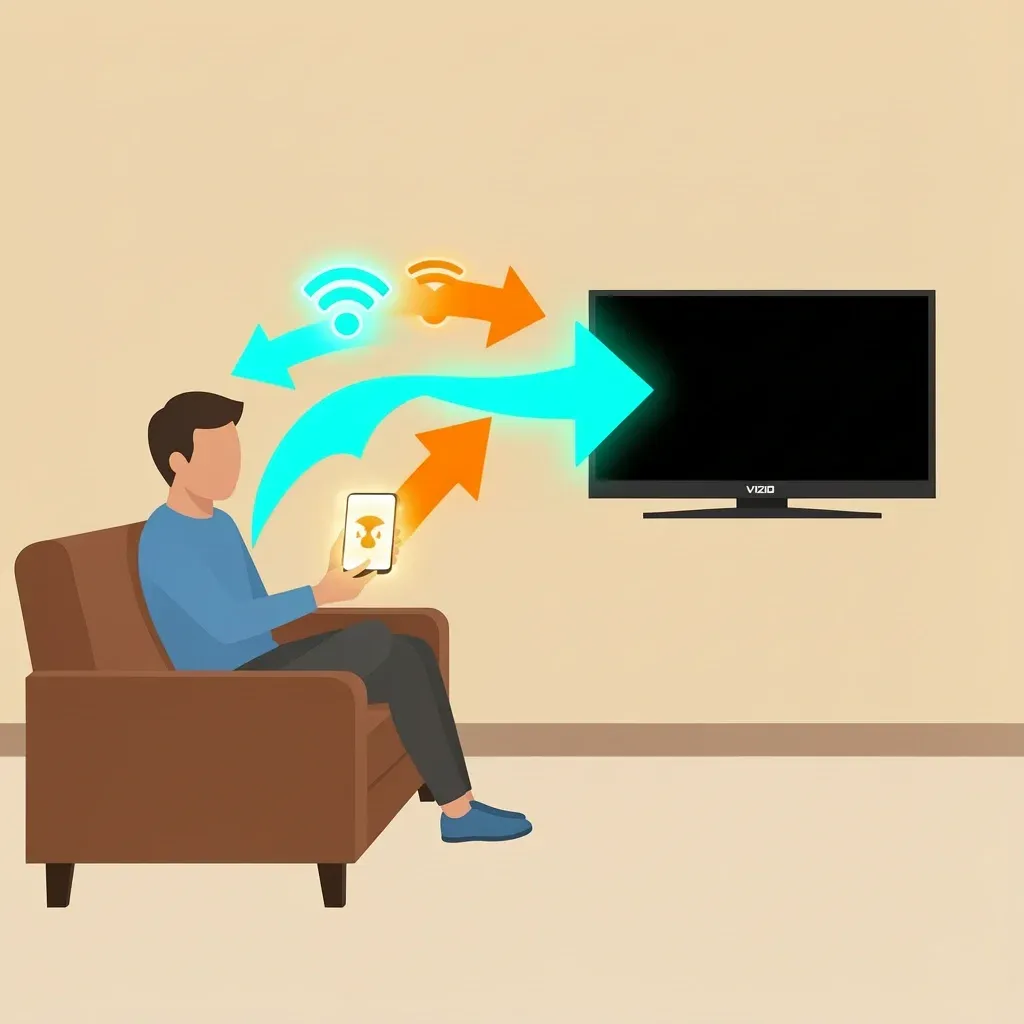
Casting is the easiest way to browse the internet on a Vizio smart TV. You do not need any extra hardware. Your phone, tablet, or laptop sends the webpage to the TV over your Wi-Fi network. The TV only shows what your device sends, but you control everything from your device.
Casting from Android (Chrome Browser)
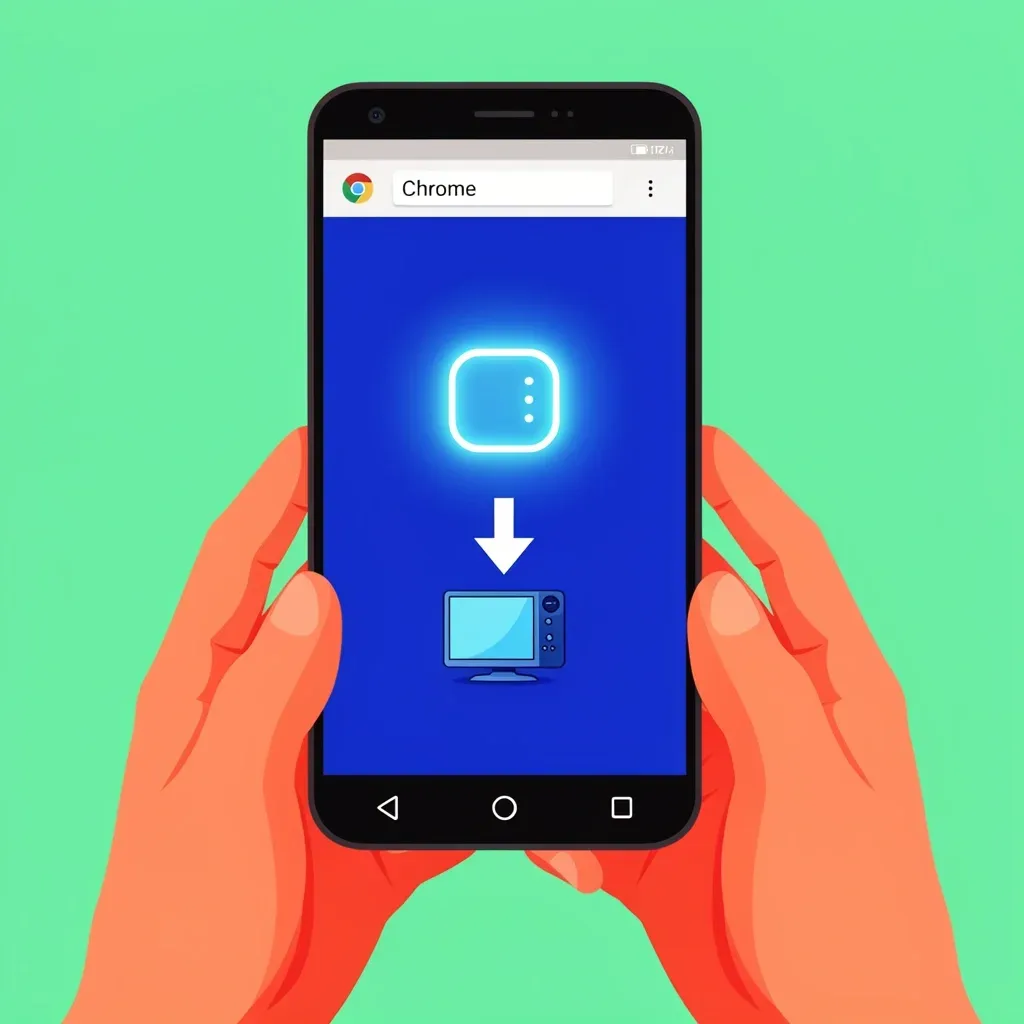
- Open the Chrome app on your Android phone or tablet.
- Go to the website you want to view.
- Tap the three-dot menu in the top-right corner.
- Select “Cast” from the menu.
- Choose your Vizio TV from the list of available devices.
- The webpage will appear on your TV. You can scroll and tap links from your phone.
Casting from iPhone or iPad (Safari or Chrome)
- Open the Safari or Chrome browser on your iPhone or iPad.
- Navigate to the website you want to see.
- Tap the Share button (a square with an arrow pointing up).
- Scroll down and tap “Cast” (if using Chrome) or “Screen Mirroring” (if using iOS’s built-in feature).
- Select your Vizio TV from the list.
- The site will display on the big screen. For best results, use Chrome with the Cast option.
Casting from a Windows or Mac Laptop
- Open the Google Chrome browser on your computer.
- Click the three-dot menu in the top-right corner.
- Choose “Cast” from the menu.
- Click the source dropdown and select “Cast tab” (or “Cast desktop” if you want to mirror your whole screen).
- Pick your Vizio TV from the device list.
- The webpage or your desktop will appear on the TV.
Note: Your phone, computer, and TV must be connected to the same Wi-Fi network for casting to work. If you do not see the Cast button, check that your TV is turned on and connected to the same network.
Method 2: Use a Streaming Device for Full Browsing
If you browse the internet a lot on your TV and want a real browser that you control with a remote, get a streaming stick. A small device like an Amazon Fire Stick, Roku, or Apple TV plugs into your Vizio’s HDMI port and gives you access to proper web browsers.
Best Streaming Sticks for Web Browsing
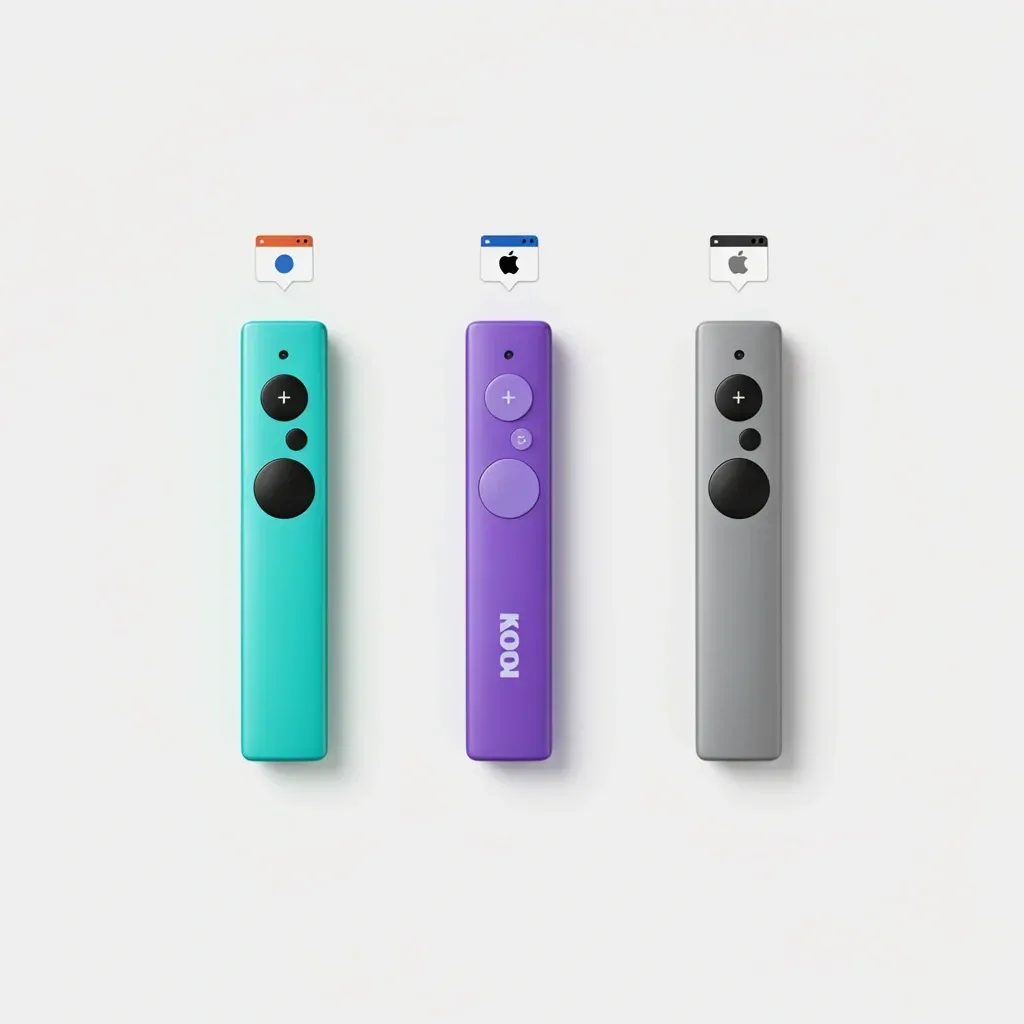
- Amazon Fire Stick (4K or HD) – Supports the Silk Browser and Firefox. You can type URLs, use bookmarks, and even install keyboard apps.
- Roku Streaming Stick – Includes the Roku Channel Store where you can add the “Web Browser X” app. It works but is slower than a Fire Stick.
- Apple TV (4K or HD) – Has the Safari browser. Great if you already use Apple devices. It costs more but offers a smooth experience.
After you plug in the streaming stick and set it up, just open the browser app from its home screen. You can use the remote to navigate, type with an on-screen keyboard, or connect a Bluetooth keyboard for faster typing.
Method 3: Connect a Computer via HDMI
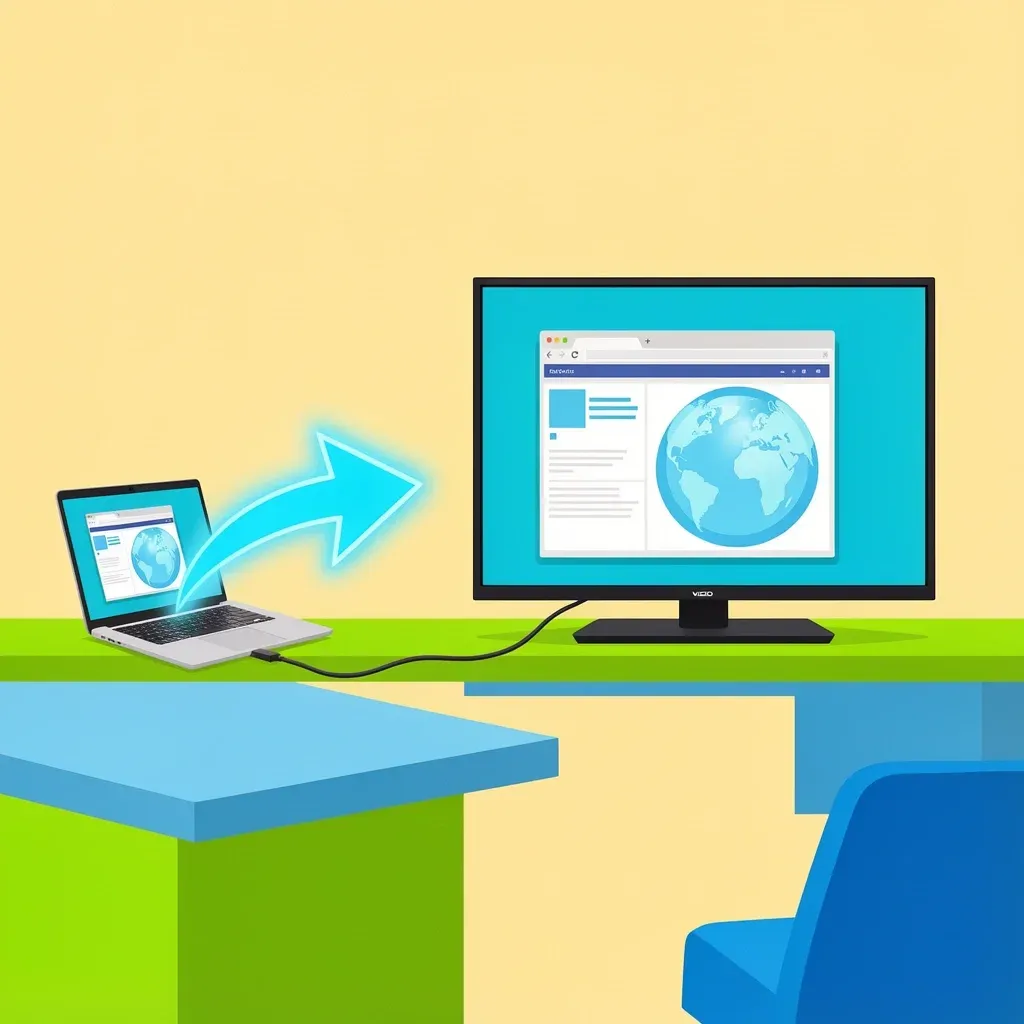
This method gives you the most control. You connect a laptop or desktop computer directly to your Vizio TV using an HDMI cable. The TV acts as a second monitor, so you can use any browser you want. This is perfect for heavy browsing, watching flash-based content, or using web apps that do not cast well.
- Plug one end of an HDMI cable into your computer and the other end into any HDMI port on your Vizio TV.
- Press the Input button on your Vizio remote and select the HDMI port you used.
- Your computer screen will appear on the TV. Open your preferred browser (Chrome, Edge, Firefox) and start browsing.
- You can use a wireless keyboard and mouse connected to your computer for a desktop-like experience.
This method requires a long enough cable or a wireless HDMI kit if your computer is far from the TV. It also means your computer stays powered on while you browse.
Which Method Should You Choose? (Quick Comparison Table)
| Method | Cost | Ease of Use | Full Browser Experience |
|---|---|---|---|
| Casting from phone or laptop | Free (no extra hardware) | Very easy once set up | Limited; you control from your device |
| Streaming stick (Fire Stick, Roku, Apple TV) | $30 – $180 | Easy; remote control | Good; real browser with on-screen controls |
| HDMI connection from computer | Cable cost ($5 – $20) | Moderate; need keyboard/mouse | Best; full desktop browser on TV |
If you only browse occasionally and do not want to buy anything, go with casting. If you browse often and want a remote-controlled browser, buy a Fire Stick. If you need full desktop access, use an HDMI cable.
Troubleshooting Common Casting Problems
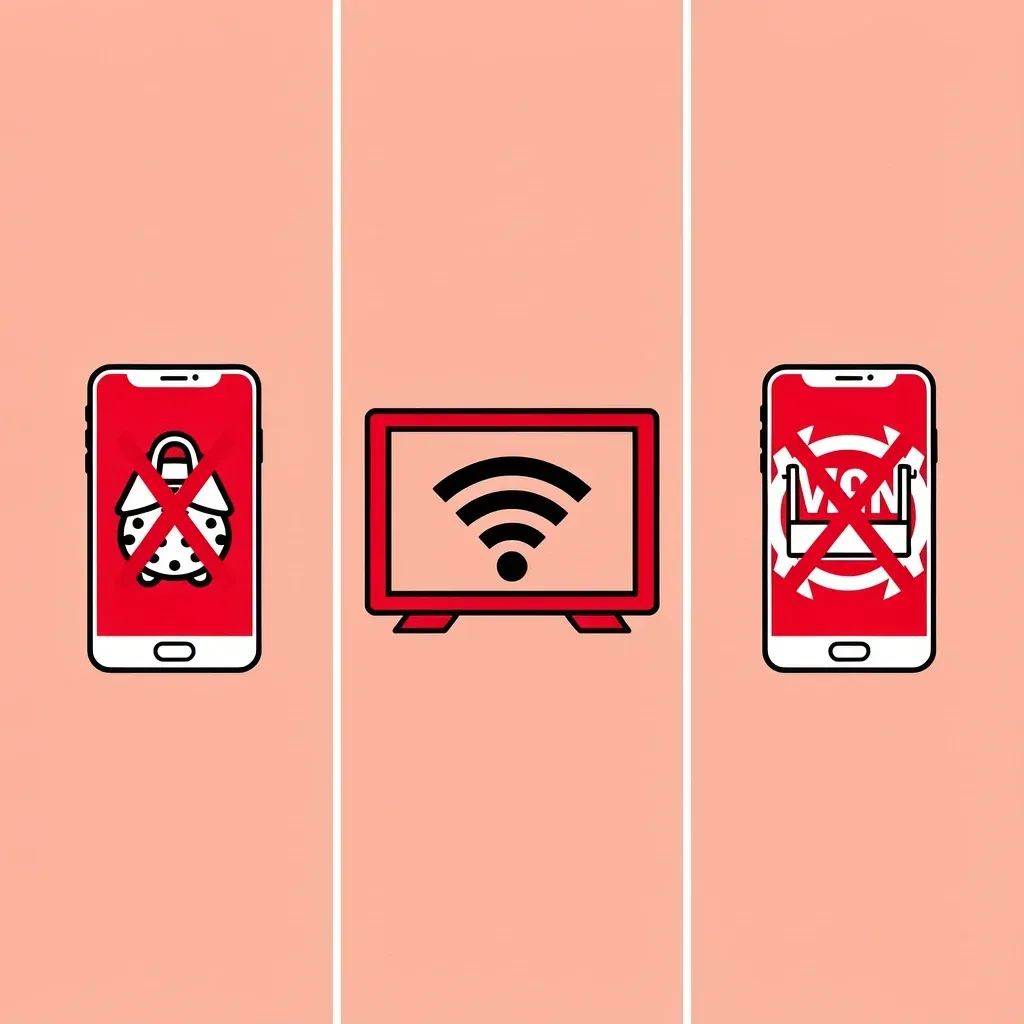
Casting sounds simple, but it can fail for a few common reasons. Here is what to check when things do not work.
- Cast button does not appear – Make sure your Vizio TV is on and connected to the same Wi-Fi network as your phone or computer. Restart both the TV and the casting device.
- TV not found in device list – Disable any VPN on your phone or computer. VPNs can block local network discovery. Also, check that your router does not have “AP isolation” turned on.
- Video or audio lags – The Wi-Fi signal may be weak. Move your router closer or use a 5 GHz band if available. Close other apps that might be using bandwidth.
- Audio delay or no sound – Some websites do not support audio casting. Try a different site. If the problem persists, restart the TV and the casting device.
Frequently Asked Questions
Can I download a web browser app from the Vizio App Store?
No. The Vizio App Store does not have a functional web browser. Any browser app you may find there is either not compatible or removed quickly.
Does Vizio SmartCast support a web browser?
No. SmartCast is a platform for streaming apps and casting. It does not include a native browser.
How do I cast from an iPhone to Vizio TV for web browsing?
Use the Google Chrome app on your iPhone and tap the Cast button. Alternatively, use AirPlay mirroring if your Vizio model supports it, but casting from Chrome is more reliable for specific webpages.
Is there a way to use a keyboard and mouse with my Vizio TV for browsing?
Only if you use a streaming stick (like a Fire Stick) or an HDMI connection. The TV itself does not support Bluetooth keyboards for browsing because there is no browser app to control.
Can I browse the internet on a Vizio TV without Wi-Fi?
Only by using an HDMI cable from a computer. Casting and streaming sticks both require a Wi-Fi network to send the web content to the TV.
Does casting use my phone’s data or the TV’s Wi-Fi?
Casting uses your local Wi-Fi network. The data is transferred over your home network, not your phone’s cellular data (unless you are using a mobile hotspot).