How to Use Your iPhone as a Vizio Remote: The Complete Guide
You lost the physical remote. Or the batteries died. Or you just want the convenience of using your phone. I have been there with my own Vizio TV, and the answer is yes—you can use your iPhone as a remote. But the way it works, and the app you need, has changed over the last few years. If you search for "vizio remote app for iphone" and get confused by old information, this guide will clear it up based on what actually works today.
The Official App Is Now the VIZIO Mobile App
Vizio has rebranded its app. It used to be called VIZIO WatchFree+ or VIZIO SmartCast. The current name is the VIZIO Mobile app. You can download it for free from the App Store. It is one app that does two things: it controls your Vizio TV and soundbar, and it also streams live TV through the WatchFree+ service. If you read an old article that talks about the "VIZIO WatchFree+" app, do not worry. That is the same app under an older name. Download the VIZIO Mobile app and you will have everything you need.
Setting Up the Vizio Remote App on Your iPhone
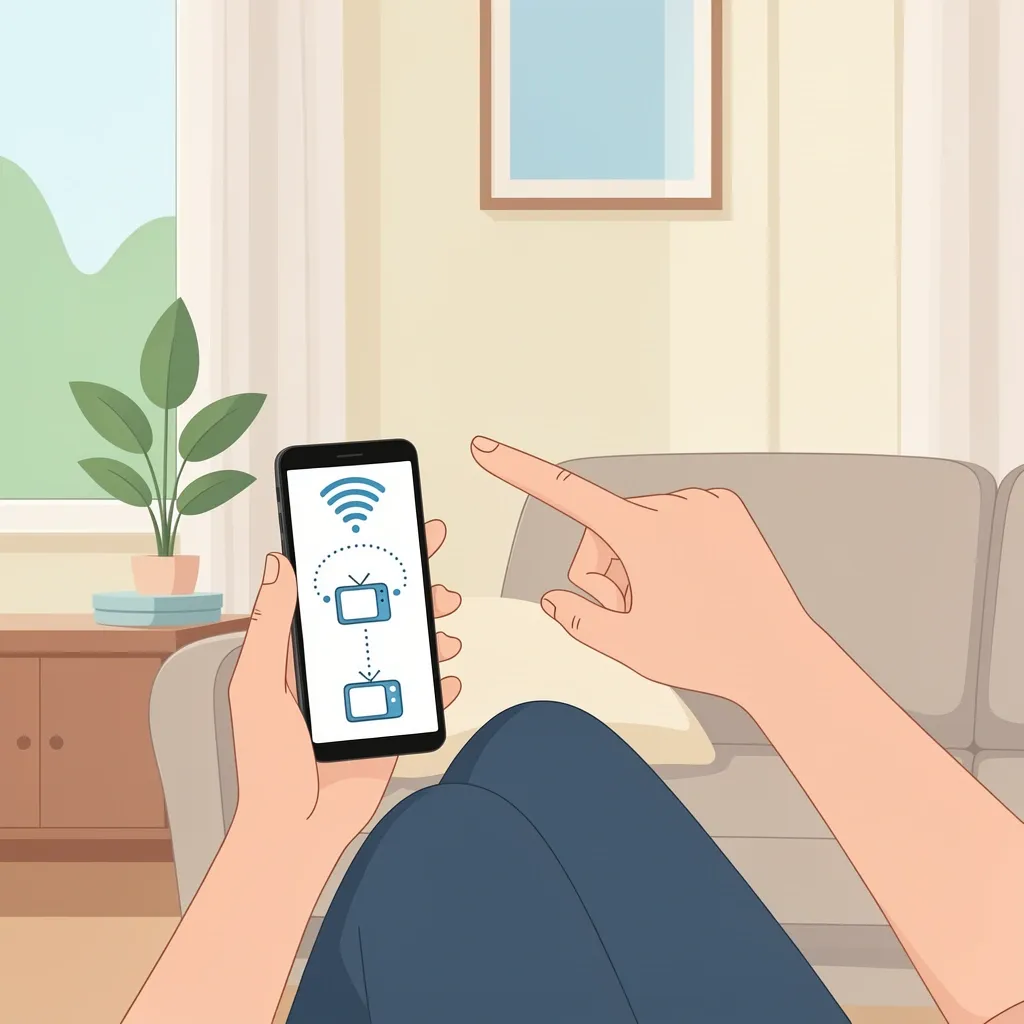
Before you can use your phone as a remote, you have to connect it to your TV. Here is how that works in practice.
- Download the VIZIO Mobile app from the App Store.
- Open the app and create a free Vizio account. You can also sign in with your Walmart credentials (since Vizio is now part of Walmart).
- Make sure your iPhone is connected to the same Wi-Fi network as your Vizio TV.
- The app will automatically search for your TV. When it finds it, you will see it on the screen.
- Tap your TV name. The app will now act as your remote.
That is the ideal process. But it does not always work that smoothly. The biggest obstacle people hit is the app saying "Not Reachable." This is where most of my own frustration came from, and the fix is not obvious.
Why the App Shows "Not Reachable" and How to Fix It
This is the single most common problem with the Vizio remote app. Your iPhone is connected to Wi-Fi. Your TV is connected to Wi-Fi. And the app still cannot find it. I spent hours on this. Here is what actually solves it.
Check Your Network Setup
The app relies on your iPhone and TV being on the same local network. Many modern home networks, especially mesh systems like Eero or Orbi, or 5G cellular gateways, create isolated subnets or use something called client isolation. This blocks device discovery. Your TV and phone might both have internet access, but the app cannot see the TV.
The Ethernet Fix That Works
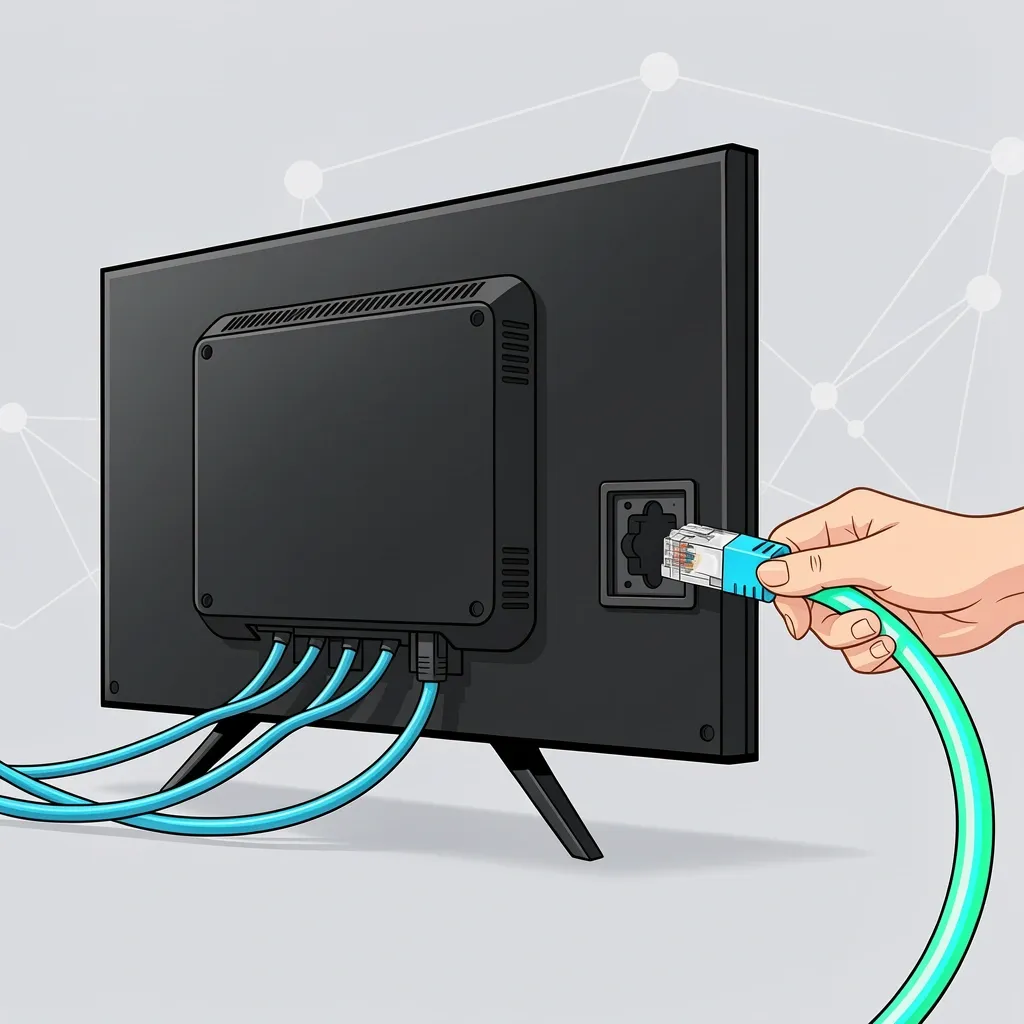
One user on the App Store, JerryWJ213, solved this problem in a way that Vizio support did not tell him to. He connected his TV to his router with an Ethernet cable. It worked instantly. For his smaller TV that did not have an Ethernet port, he bought a USB-to-Ethernet adapter, plugged it into the TV, and connected the cable. Problem solved. If your app cannot find your TV, this is the single most effective fix. It removes Wi-Fi discovery from the equation. Your TV and phone will be on the same local network because the TV is hardwired.
Other Quick Fixes to Try
- Check local network permission: On your iPhone, go to Settings > Privacy > Local Network. Make sure the VIZIO Mobile app is toggled on.
- Turn off VPN or ad-blocking DNS: Apps like AdGuard or your work VPN can block the mDNS traffic the app uses for discovery. Disable them temporarily.
- Disable client isolation on your router: If you use a guest network, switch your phone and TV to the main network. Look in your router settings for "AP Isolation" and turn it off.
- Restart everything: Force close the app, turn your TV off and on at the wall, then reopen the app.
- Reset the TV network: If nothing works, use the physical remote to go to Settings > Network > Reset Connection. Set up the Wi-Fi again from scratch.
What the Vizio iPhone Remote App Can Actually Do
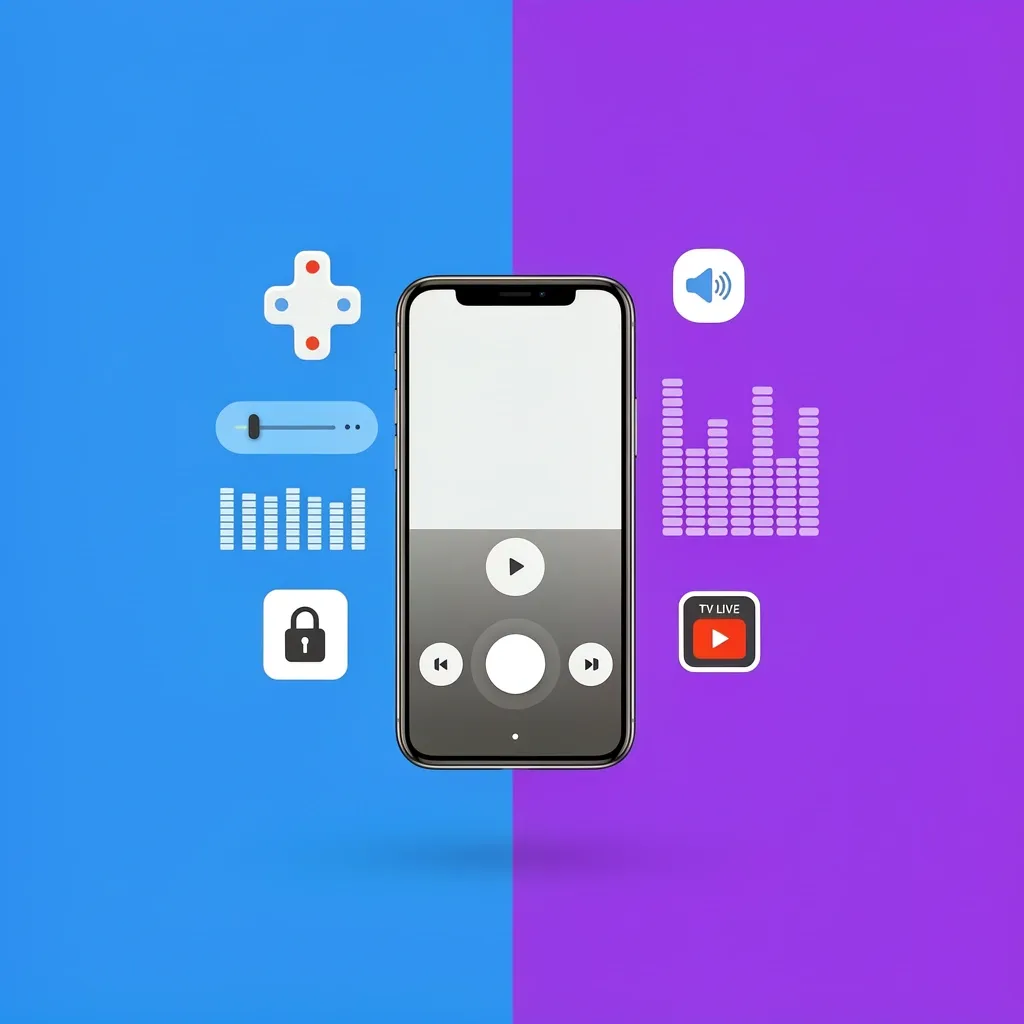
Once the app is working, it does a lot more than just change channels. Here is what you get.
Full TV Remote Control
You get a D-pad, volume control, input switching, and buttons for Netflix, YouTube, and other streaming apps. It works exactly like the physical remote, but on your phone.
Soundbar Control
If you have a Vizio soundbar with SmartCast, the app gives you controls you cannot get from the cheap remote that comes in the box. You can adjust EQ presets, change the height level of satellite speakers, turn on ClearDialog, and set Night Mode. One user, mike12123434, called this a game changer after his app finally started working. He could dial in the exact sound he wanted.
Lock Screen Controls
Starting with version 4.9.0, the app added lock screen controls. You can play, pause, change volume, and turn on captions without unlocking your phone or opening the app. This is convenient, but some users dislike it because it adds clutter. You can disable it in the app settings.
WatchFree+ Live TV
You do not even need a Vizio TV for this. The app streams 300+ free live channels to your iPhone. News, sports, movies. All free, ad-supported. It is a nice bonus if you want to watch something on your phone without a TV nearby.
Adapting to the New App Design
If you have used the Vizio app before the major redesign in 2022, you might miss the old layout. The old app had a remote button that turned your whole screen into a physical remote lookalike. You could swipe to navigate. That is gone in the current version. The new design centers on a slider for your favorite apps. To get the full remote, tap the "Remote" icon at the bottom of the screen. It takes a bit of getting used to. If you prefer the old layout, you are not alone. Many users, including tshook55 who runs his whole house on the app, miss the swiping feature. But the connection reliability is much better now than it was a few years ago.
Third-Party Vizio Remote Apps: Are They Worth It?
If the official app gives you trouble or you just dislike the new design, you might wonder about third-party options. Apps like "Universal TV Remote" by CodeMatics or "AnyMote Universal Remote" exist. They work by connecting over Wi-Fi to your Vizio TV.
What They Do Well
- They are often simpler. No live TV, no recommendations. Just a remote.
- They can work when the official app cannot find your TV, especially if you configure them manually with your TV's IP address.
What They Miss
- No soundbar EQ control. You lose the ability to tweak audio settings.
- No WatchFree+ integration.
- No lock screen controls.
- You often have to pay for the full version.
My recommendation is to start with the official app. If you cannot get it to work and you have tried the Ethernet fix, a third-party app is a decent backup. But it will not give you full control of your Vizio soundbar.
Controlling a Vizio Soundbar from Your iPhone
This deserves its own section because it causes confusion. The VIZIO Mobile app can control compatible Vizio soundbars. But not all of them.
What Works
Most Vizio soundbars with SmartCast, like the M-Series and V-Series 5.1, work. You can adjust volume, bass, treble, and sound modes. You can also set ClearDialog (which makes speech clearer) and Night Mode (which quiets loud effects without reducing dialogue).
What Does Not Work
Older Vizio soundbars without SmartCast are not supported. Also, Vizio Crave speakers cannot be used as an additional channel with your soundbar. If the app sees your TV but not your soundbar, check that the soundbar is connected via HDMI-ARC and is visible in the TV's audio settings.
Common Myths About the Vizio iPhone Remote App
"The app only works with new Vizio TVs."
Not entirely true. SmartCast TVs from around 2014 and newer usually work. But very old "V" series models without SmartCast will not work.
"You need a Vizio TV to use the app."
No. The WatchFree+ live TV service works on your iPhone even if you do not own a Vizio TV. You just use the app to watch free channels.
"The app drains battery because of Bluetooth."
The app uses Wi-Fi, not Bluetooth, to find and control your TV. The only exception is voice control on some soundbars. Wi-Fi discovery uses very little power. Your battery drain will be similar to using any other app.
"I need a separate app for my Vizio soundbar."
No. The same VIZIO Mobile app controls both your TV and soundbar. There is no separate soundbar app.
Frequently Asked Questions
Can I use the Vizio remote app on my iPad?
Yes. The VIZIO Mobile app is universal and works on iPad. The interface scales up, but it is not optimized for split-view multitasking. It functions exactly the same as the iPhone version.
Does the app work with older Vizio TVs from 2013?
No. The app requires SmartCast, which older TVs do not have. For a 2013 Vizio TV, you need a third-party app that uses an IR blaster, like AnyMote or Peel. You will also need a headphone-jack IR emitter for your iPhone.
Can I control multiple Vizio TVs with one app?
Yes. The app will show all Vizio SmartCast devices on your network. You can switch between them. Some users say switching is slow with two TVs, but it works.
Is the Vizio remote app free?
Yes. The app itself costs nothing. There are no in-app purchases for the remote control. WatchFree+ live TV is also free but ad-supported.
Why does the app keep asking me to sign in?
This usually happens with old app versions. Update to the latest version (5.x series). If it still happens, uninstall the app and reinstall it. Sign in with your Walmart or Vizio account.
Can I use the app as a remote without internet?
Not reliably. The app uses local Wi-Fi to find the TV. If your router is offline, local discovery may still work for basic control. But the app itself can be buggy without internet. WatchFree+ streaming will not work.
Does the app support voice control?
Partial support. The app has a voice search button for finding movies and shows. It does not integrate with Siri Shortcuts. For hands-free voice control, use the physical Vizio voice remote or a smart speaker like Alexa or Google Assistant connected to your TV.