How to Hook Up a Vizio Soundbar to a TV
You unboxed the soundbar, laid out the cables, and now you are staring at the back of your TV wondering where everything goes. Maybe you already plugged it in and got nothing but silence. That is normal. A Vizio soundbar setup looks simple on paper, but a few common traps trip up almost everyone the first time. I have helped friends and family hook up Vizio soundbars to old Insignia TVs, new Hisense TVs, and everything in between. The process is the same regardless of the TV brand, but the cable you choose changes how everything behaves afterward. Let me walk you through the whole thing.
Pick the Right Cable for Your TV
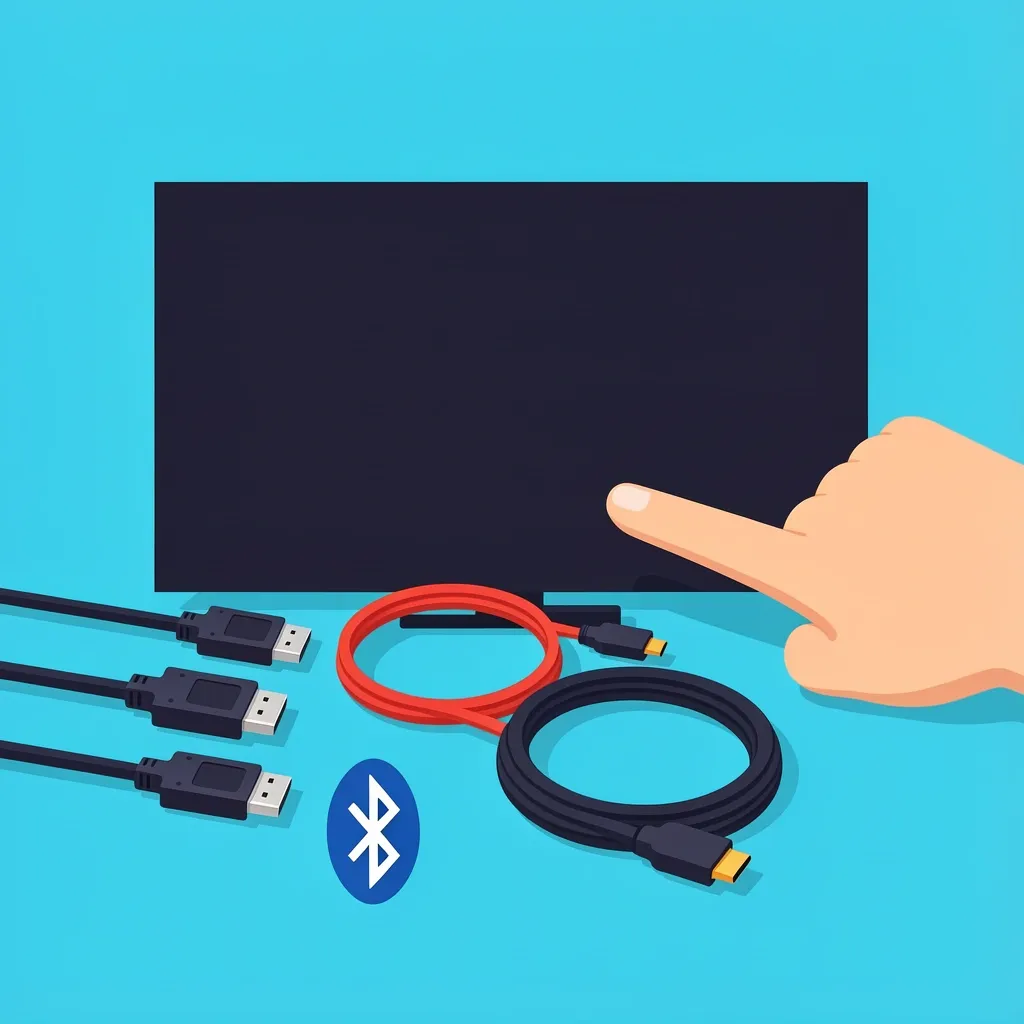
Vizio soundbars support three main connection methods. Your TV determines which one you can use. Your choice also decides what features you get. HDMI ARC or eARC is the best option if your TV has a port labeled "ARC" or "eARC." This single cable carries audio from the TV to the soundbar and lets the TV remote control the volume. It also supports high-quality audio formats like Dolby Atmos if both devices support it. Optical digital audio is the fallback for older TVs or TVs without an ARC port. It delivers good sound quality, but you lose TV remote volume control. You have to use the soundbar remote or the Vizio SmartCast app to adjust volume. Bluetooth works with any TV that has Bluetooth built in. The setup is wireless and straightforward. The tradeoff is a slight audio delay sometimes and no support for surround sound formats. Most Vizio soundbar boxes include an optical cable and a 3.5mm aux cable. They usually do not include an HDMI cable. Check the box before you start. If you need HDMI, grab a standard High-Speed HDMI cable. For Dolby Atmos over eARC, get an Ultra High-Speed HDMI cable.
Connect via HDMI ARC
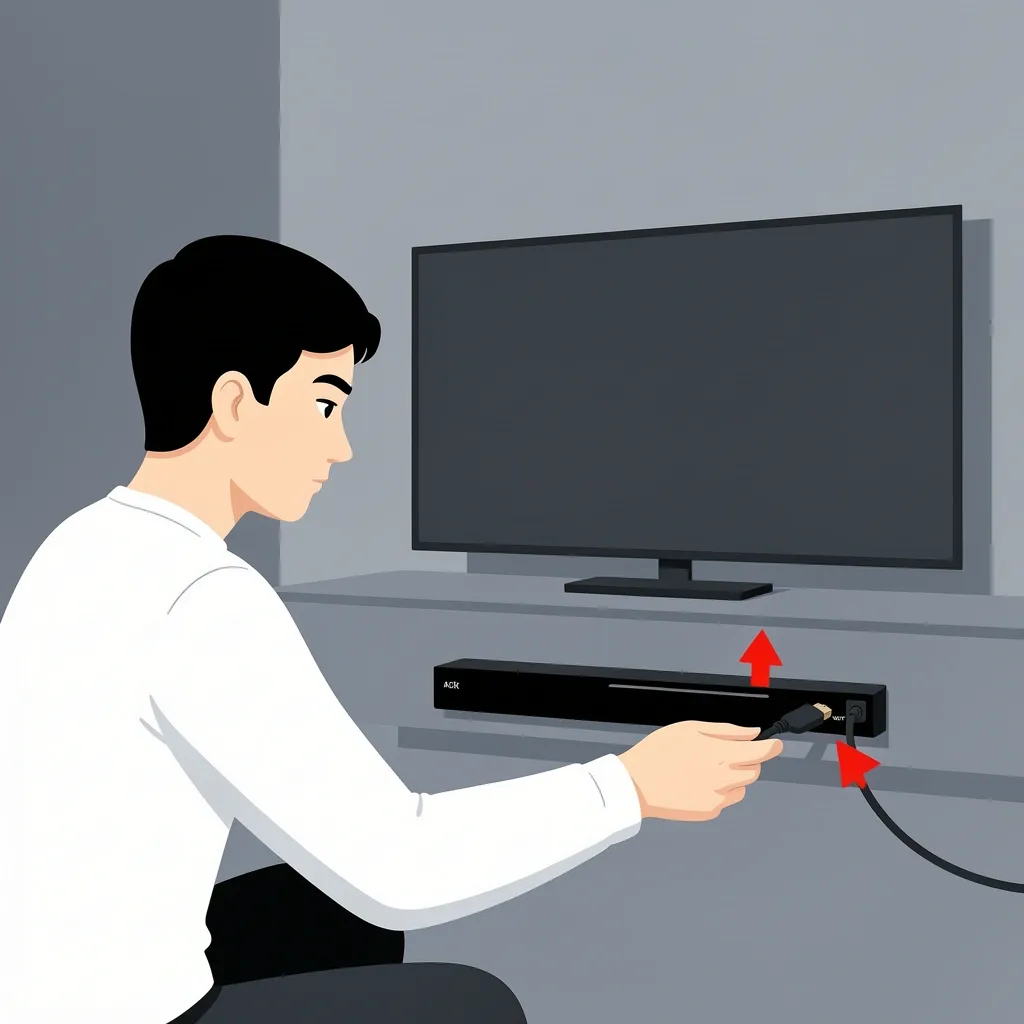
This is the method I recommend for almost everyone. It gives you the cleanest experience.
Step 1: Find the right port
Look at the back or side of your TV for an HDMI port labeled "ARC" or "eARC." It is usually HDMI 1 or HDMI 2. Plug one end of your HDMI cable into that port. Plug the other end into the HDMI Out port on your Vizio soundbar. Do not use the HDMI In port on the soundbar if it has one. That port is for connecting a source device like a streaming stick.
Step 2: Power on and configure
Turn on the TV and the soundbar. The soundbar should automatically detect the HDMI connection and switch to the correct input. If it does not, press the Input button on the soundbar remote until "HDMI ARC" shows on the display. Go into your TV audio settings. Look for a setting called "Audio Output" or "Speaker Settings." Change it to "External Speakers" or "Audio System." If you see a "CEC" setting, enable it. CEC stands for Consumer Electronics Control. It is what allows the TV remote to control the soundbar volume and power.
Step 3: Test the connection
Play something on the TV. You should hear sound from the soundbar. Press the volume buttons on your TV remote. The soundbar volume should change. If nothing happens, try unplugging both the TV and the soundbar from power for 60 seconds. Plug the TV back in first, wait for it to boot, then plug in the soundbar. This forces a fresh handshake between the devices.
Connect via Optical Cable
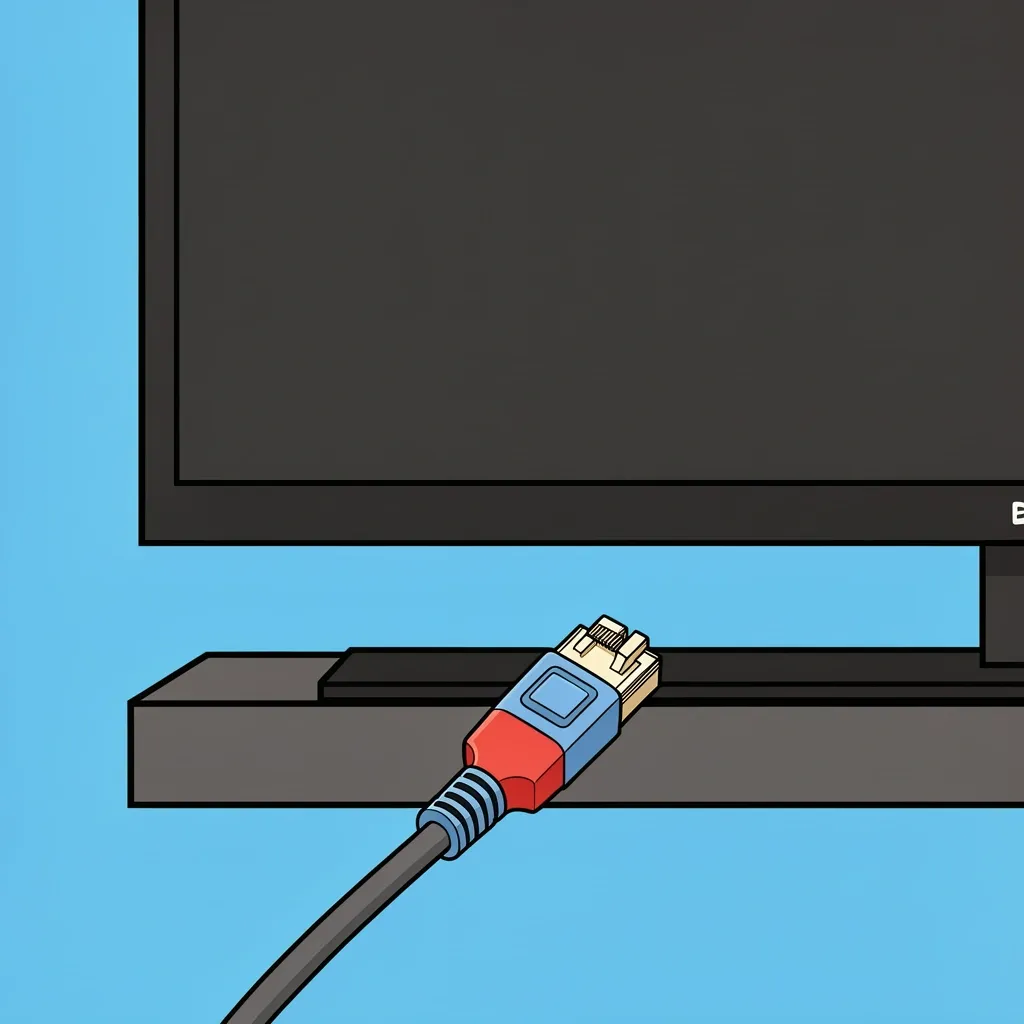
Use this method when your TV does not have an HDMI ARC port or when the ARC handshake keeps failing. It is a reliable backup.
Step 1: Plug in the cable
Remove the plastic caps from both ends of the optical cable. Plug one end into the "Digital Audio Out (Optical)" port on your TV. Plug the other end into the "Optical In" port on the Vizio soundbar. The cable only fits one way. Line up the notch and push gently until it clicks.
Step 2: Configure the TV
Go to your TV audio settings and change the audio output to "Optical" or "Digital Audio Out." Set the audio format to "PCM" or "Bitstream." Some TVs label this as "Auto." If you see an option for "Dolby Digital" or "DTS," leave it enabled. That gives you the best audio quality the optical connection can deliver.
Step 3: Adjust volume control
The TV remote will not control the soundbar volume with an optical connection. You must use the soundbar remote or the Vizio SmartCast app. I keep the soundbar remote on the coffee table when I use optical. It is a small inconvenience, but the connection itself is rock solid and rarely has issues.
Connect via Bluetooth
Bluetooth is the easiest hookup. It works well for casual listening.
Step 1: Put the soundbar in pairing mode
Press and hold the Bluetooth button on the Vizio soundbar remote or on the soundbar itself. The LED indicator flashes blue, and a voice prompt says "Bluetooth pairing."
Step 2: Pair from your TV
Open the Bluetooth settings on your TV. Look for available devices. Select your Vizio soundbar from the list. The LED stops flashing and stays solid blue once the connection is successful.
Step 3: Know the limitations
Bluetooth introduces a small audio delay. You may notice lips moving before the sound matches up. It works fine for music streaming, podcasts, and casual TV watching. For movies and games, use HDMI or optical to avoid lag.
Set Up with the Vizio SmartCast App
The Vizio SmartCast app does more than control playback. It fixes problems that the hardware alone cannot solve. Download the app from your phone app store. Connect your phone to the same Wi-Fi network as the soundbar. The app scans for nearby Vizio devices. Once it finds the soundbar, you can adjust audio settings, switch inputs manually, and run a device discovery to force a connection with a stubborn TV. I have used the app to fix a soundbar that would not switch to the correct input on its own. The manual input selector in the app bypasses the broken auto-detect and gets the audio working again.
Troubleshoot Common Problems
Most issues come down to a few root causes. Here is what to check when something does not work.
No sound at all
Confirm the soundbar is powered on. Check that you selected the correct input on the soundbar. If you are using HDMI, make sure you plugged into the ARC labeled port and not a standard HDMI port. Try a different cable. Optical cables can fail without visible damage.
Sound cuts out or pops
This usually points to a loose cable connection. Unplug and reseat both ends of the cable. If the issue persists, change the TV audio format from "Auto" to "PCM." Some TVs send a signal the soundbar cannot decode, and the forced PCM format solves it.
TV remote does not control volume
You need an HDMI ARC connection for this to work. Optical and Bluetooth do not support TV remote volume control. If you are using HDMI ARC and the remote still does not work, enable CEC in your TV settings. It may be called "HDMI Control," "Anynet+," "Bravia Sync," or "Simplink" depending on your TV brand.
Soundbar turns on by itself This happens when CEC is too aggressive. The soundbar turns on every time the TV turns on, even if you want it off. Disable CEC in your TV settings if this annoys you. You lose automatic power sync, but the soundbar stays off until you press its power button.
Connect to an Old TV without HDMI or Optical Some TVs are too old for digital audio ports. You can still hook up a Vizio soundbar. Look for a pair of red and white audio out jacks on the back of the TV. That is analog RCA output. Connect a 3.5mm to RCA cable. Plug the RCA ends into the TV and the 3.5mm end into the soundbar AUX input. If your TV only has a headphone jack, use a 3.5mm to 3.5mm cable. Plug one end into the headphone jack and the other into the soundbar AUX input. Audio quality is stereo only with these connections. It will not give you surround sound, but it is better than the built-in TV speakers.
Frequently Asked Questions
My Vizio soundbar is not showing up in the TV audio menu. Why?
This is almost always a CEC handshake failure. Unplug both the TV and soundbar for 60 seconds. Plug the TV back in first, wait for it to boot, then plug in the soundbar. This forces a new discovery sequence.
Can I use a universal remote with my Vizio soundbar?
Yes, but only if you use an HDMI ARC connection. The remote sends volume commands to the TV, and the TV passes them to the soundbar via CEC. If using Optical, the universal remote cannot control the soundbar volume.
Why is my Vizio soundbar volume stuck at one level?
This happens when the TV fixed audio output is selected. Go to your TV audio settings and switch from PCM to Auto or Bitstream to allow the TV to send dynamic volume data to the soundbar.
Do I need a special HDMI cable for my Vizio soundbar?
For standard HDMI ARC, any standard High-Speed HDMI cable works. For eARC with Dolby Atmos, you need an Ultra High-Speed HDMI cable. Vizio often does not include an HDMI cable in the box, so check before you start.
Can I hook up a Vizio soundbar to a really old TV?
Yes. If your TV lacks HDMI, use the Digital Audio Out Optical jack. If you lack that too, use the Audio Out 3.5mm AUX jack. Audio quality is standard stereo only with AUX.