VIZIO Keyboard Remote: What It Is, How to Use It, and Troubleshooting
If you have a modern Vizio smart TV, you might be using the standard remote that came in the box. But there is another option that makes typing a lot less painful: the Vizio keyboard remote. This is the one with a full QWERTY keyboard on the back. I have used one for a few years now, and once you get used to the layout, you will not want to go back to hunting and pecking with a directional pad when you need to enter a Wi‑Fi password or search for a show. In this guide I will cover what this remote is, which TVs work with it, how to pair it, how to fix the most common problems, and how it compares to other Vizio remotes. I will also answer the questions I see people ask most often.
What Is the Vizio Keyboard Remote?
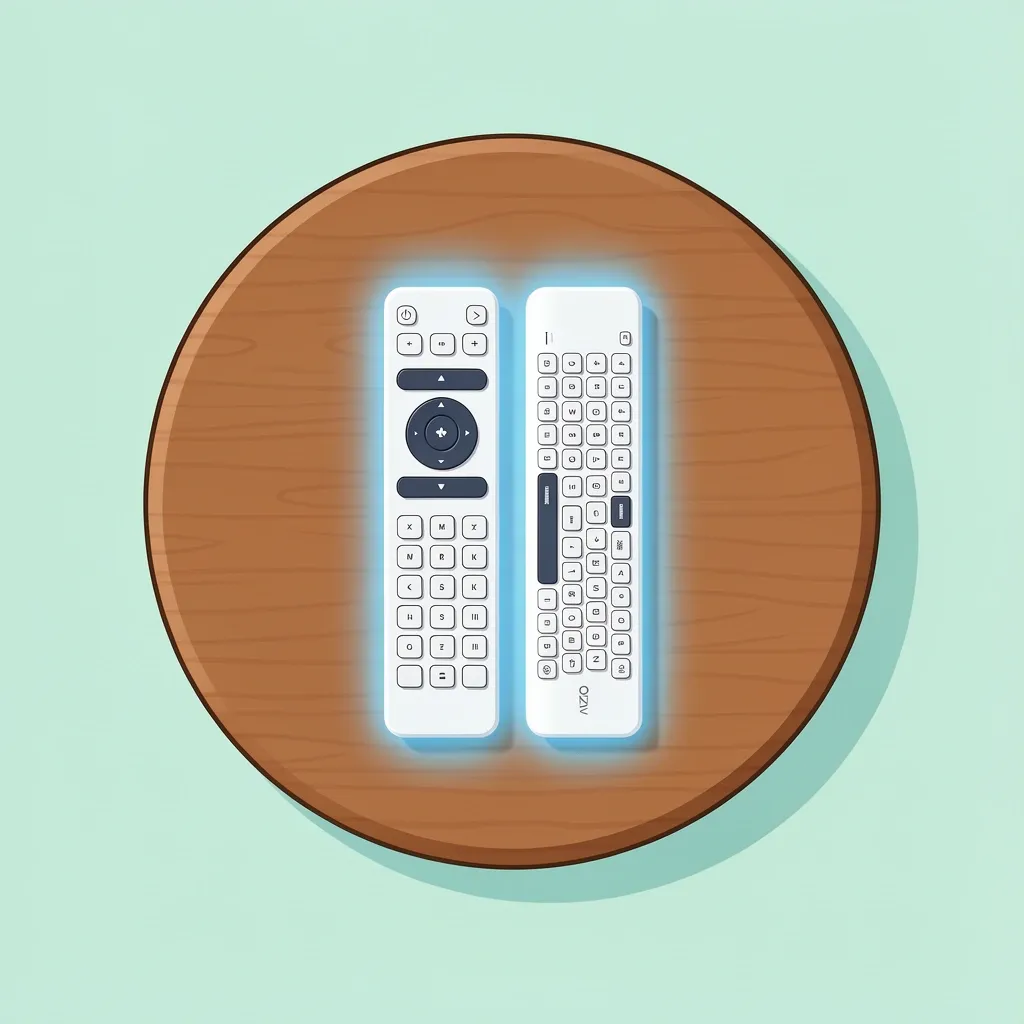
The Vizio keyboard remote is a Bluetooth remote that looks like a normal TV remote from the front. It has the usual power button, volume controls, directional pad, and a select button. Flip it over and you will find a full keyboard. The layout is compact but usable once you get the hang of it. You can type search terms, app login credentials, and text into any field without clicking through an on‑screen keyboard. The most common model numbers you will see are XRT140, XRT136, and XRT137. The differences are mostly about shape and battery type. Some use a coin cell (CR2032), others use two AAA batteries. The pairing process is the same across all of them. Vizio introduced these remotes around 2016, alongside their SmartCast platform. Before that, most Vizio TVs only used infrared (IR) remotes that could not pair over Bluetooth.
Is Your TV Compatible?
Not every Vizio TV can use the keyboard remote. Because it communicates over Bluetooth, your TV needs to have Bluetooth built in and support Vizio’s remote pairing protocol. Here is how to check:
- Go to your TV’s settings menu. Look for a section called Remotes & Accessories or Bluetooth. If you see an option to add a remote or a device, your TV supports it.
- Check your TV’s model number. Models from 2016 and newer, especially from the M‑Series, P‑Series, and SmartCast line, are almost always compatible. Older models (2014 or earlier) lack Bluetooth remote support.
- If you still are not sure, search online for your exact model number plus “Bluetooth remote compatible.” Vizio support pages often list which remotes work with which TVs.
I have a 2017 Vizio P55‑F1, and it paired on the first try. A friend with a 2015 model could not get it to work at all. One important note: If your TV is not Bluetooth‑capable, you cannot use this remote. There is no workaround, not even with a USB dongle. The remote talks to the TV using Vizio’s own Bluetooth stack, not a standard HID profile.
How to Pair the Keyboard Remote
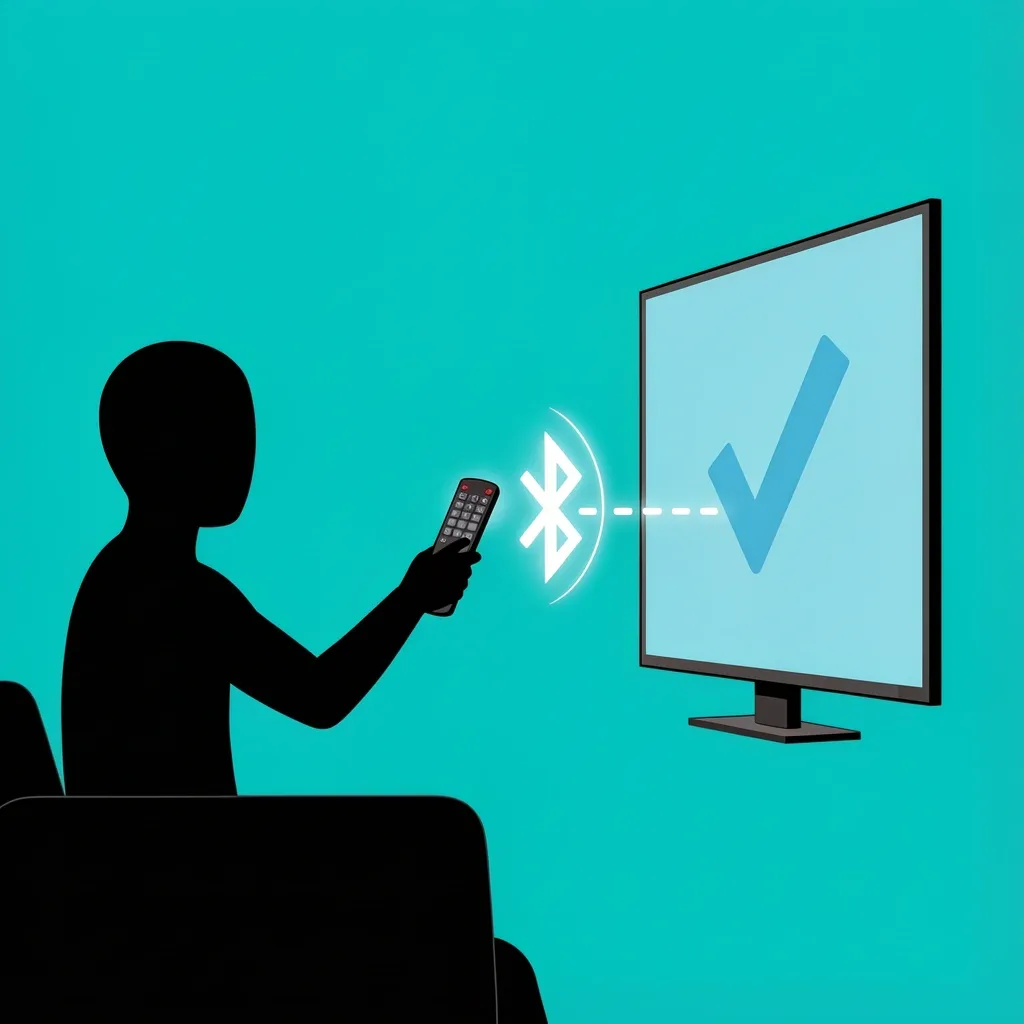
Pairing is straightforward, but the exact steps can vary a little depending on your TV’s SmartCast version. Here is the general process that works on most sets:
- Insert fresh batteries into the remote. Make sure the polarity is correct.
- Turn on your TV.
- On the remote, press and hold the Bluetooth/OK button (the center button in the directional pad) for about five seconds. The LED on the front of the remote will start blinking.
- On your TV, navigate to Settings > Remotes & Accessories (or Bluetooth). Select Add New Remote or Pair Remote.
- The TV will search for the remote. When it appears on the list, select it. The LED on the remote will stop blinking and stay solid, or the TV will show a confirmation message.
If pairing fails the first time, try moving closer to the TV (within three feet) and make sure no other devices are interfering. Power cycling the TV (unplug it for 30 seconds) can also help. On some newer SmartCast TVs, the TV will automatically detect a new remote when you press the Bluetooth button. You might see a pop‑up asking you to confirm. If that does not happen, go into the Bluetooth menu manually.
Using the Keyboard Remote
Once paired, the remote works in two modes:
- Front buttons: These act like a standard remote. Volume, channel, input, and navigation all work as you expect.
- Keyboard on the back: When you want to type, flip the remote over and start pressing keys. Each keystroke sends a Bluetooth signal to the TV. The TV does not need to be in a special mode; it just receives the text input wherever a cursor is active.
The keyboard does not have a backlight on most models, so in a dark room you might need to turn on a light or rely on muscle memory. The keys are small but well spaced. After a few days you will be able to type without looking. Battery life depends on how much you use the keyboard. With normal use (some browsing, an occasional login), a set of batteries lasts several months. Replacements use either a CR2032 coin cell (for the smaller remotes) or two AAA batteries (for the larger ones). To change them, slide the back cover off or use a coin to twist open the battery compartment on some models.
Troubleshooting Common Problems
Even a good remote can act up. Here are the issues I have seen most often and how to fix them.
Remote Not Pairing
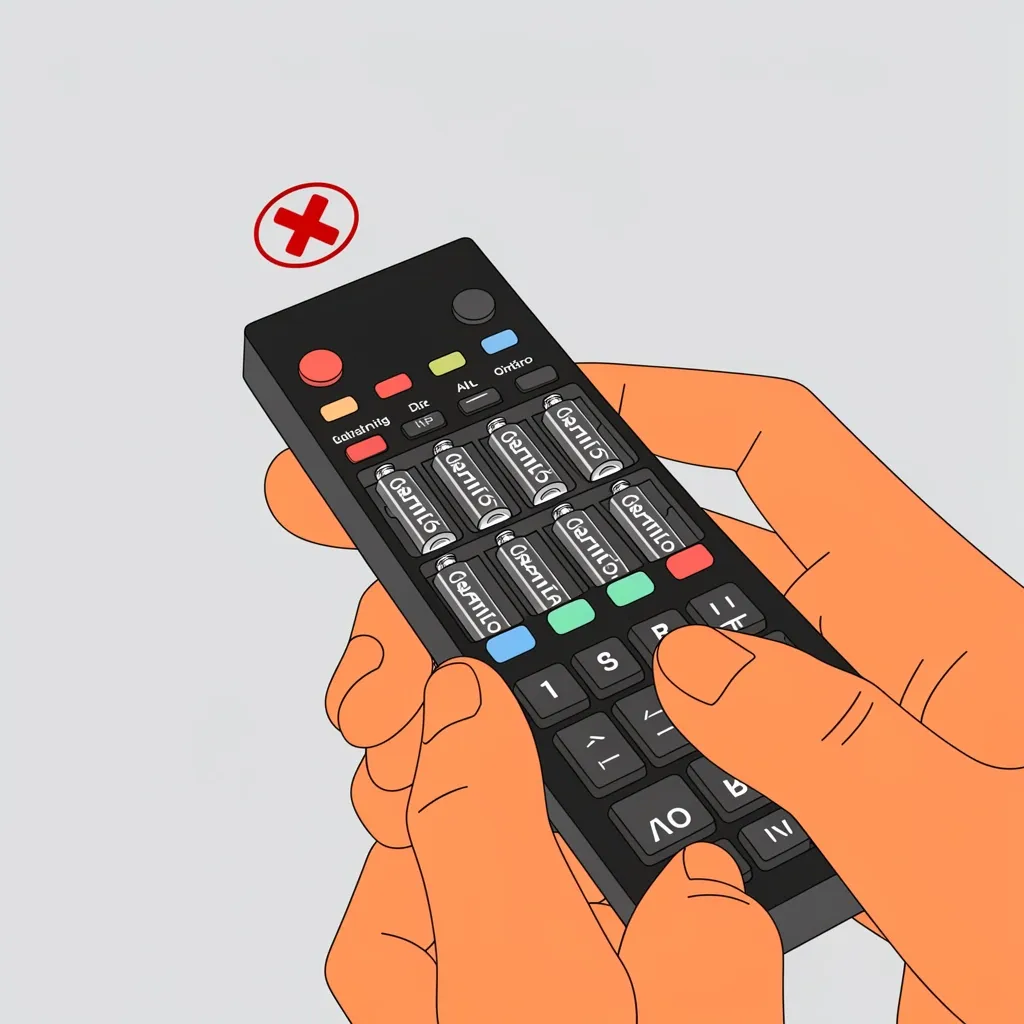
If the remote does not show up in the TV’s Bluetooth menu, check these things:
- Make sure Bluetooth is enabled on the TV. Some TVs have a Bluetooth toggle in the settings.
- Replace the batteries with fresh ones. A low battery can prevent the pairing signal from being strong enough.
- Move the remote close to the TV (within a few feet) and try again.
- Restart both the TV (unplug for 30 seconds) and the remote (remove the batteries, wait a minute, reinsert).
Keyboard Not Typing
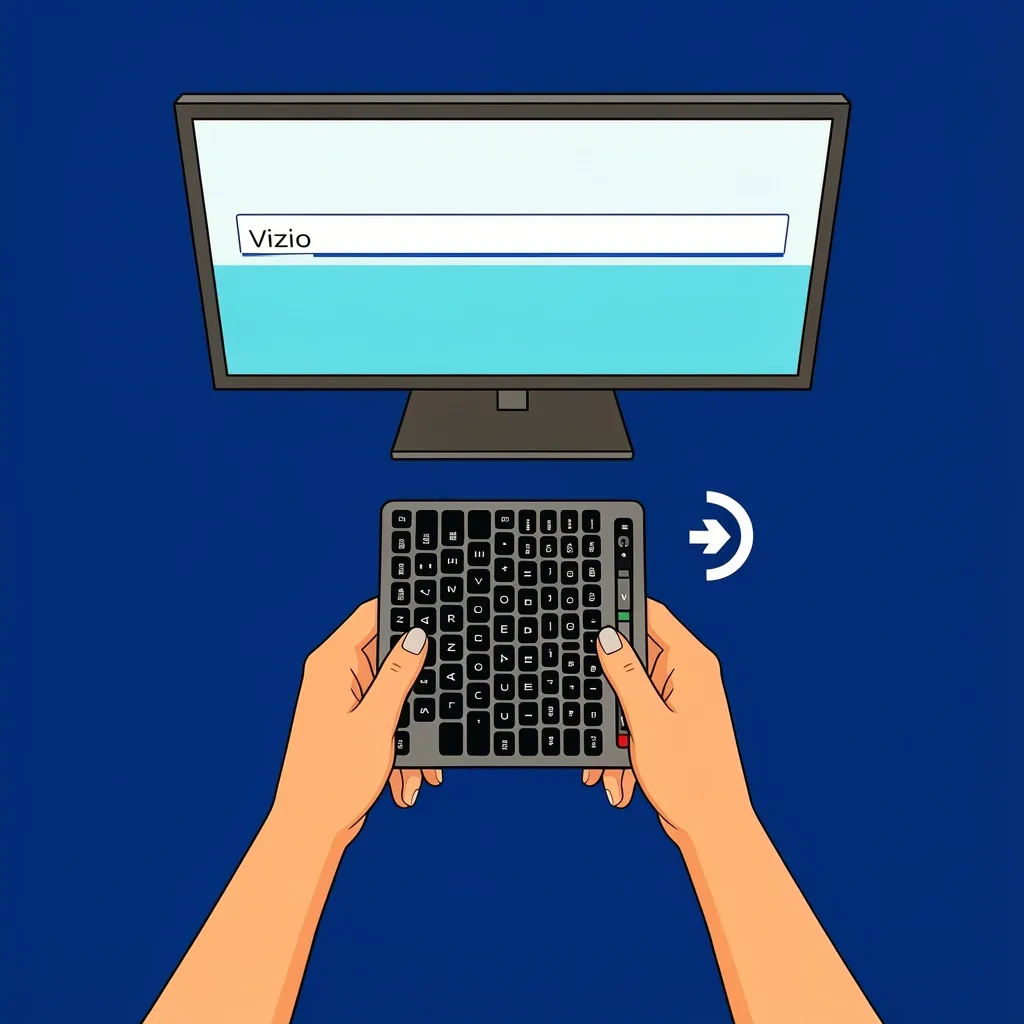
If the front buttons work but the keyboard does not send any text, the Bluetooth connection might be stuck. Try these steps:
- Check whether the TV is still paired. In the Bluetooth settings, you should see the remote listed as connected. If not, re‑pair.
- Reset the remote: remove the batteries, press and hold the power button for 10 seconds, then put the batteries back in and pair again.
- If you recently updated your TV’s firmware, the remote may need to re‑pair. Go through the pairing process again.
Remote Not Responding at All
If the remote does nothing, no lights, no response:
- Batteries are dead. Replace them.
- The remote might be paired to a different TV (if you took it into another room). Unpair it from that TV and re‑pair with yours.
- Rarely, the Bluetooth module inside the remote fails. If you have tried everything and it still does not power on, you probably need a replacement.
Interference from Other Devices
Bluetooth can conflict with other wireless devices, like soundbars, headphones, or even Wi‑Fi routers. If the remote works intermittently, try moving the TV or the interfering device away from each other.
Comparison: Keyboard Remote vs. Other Vizio Remotes
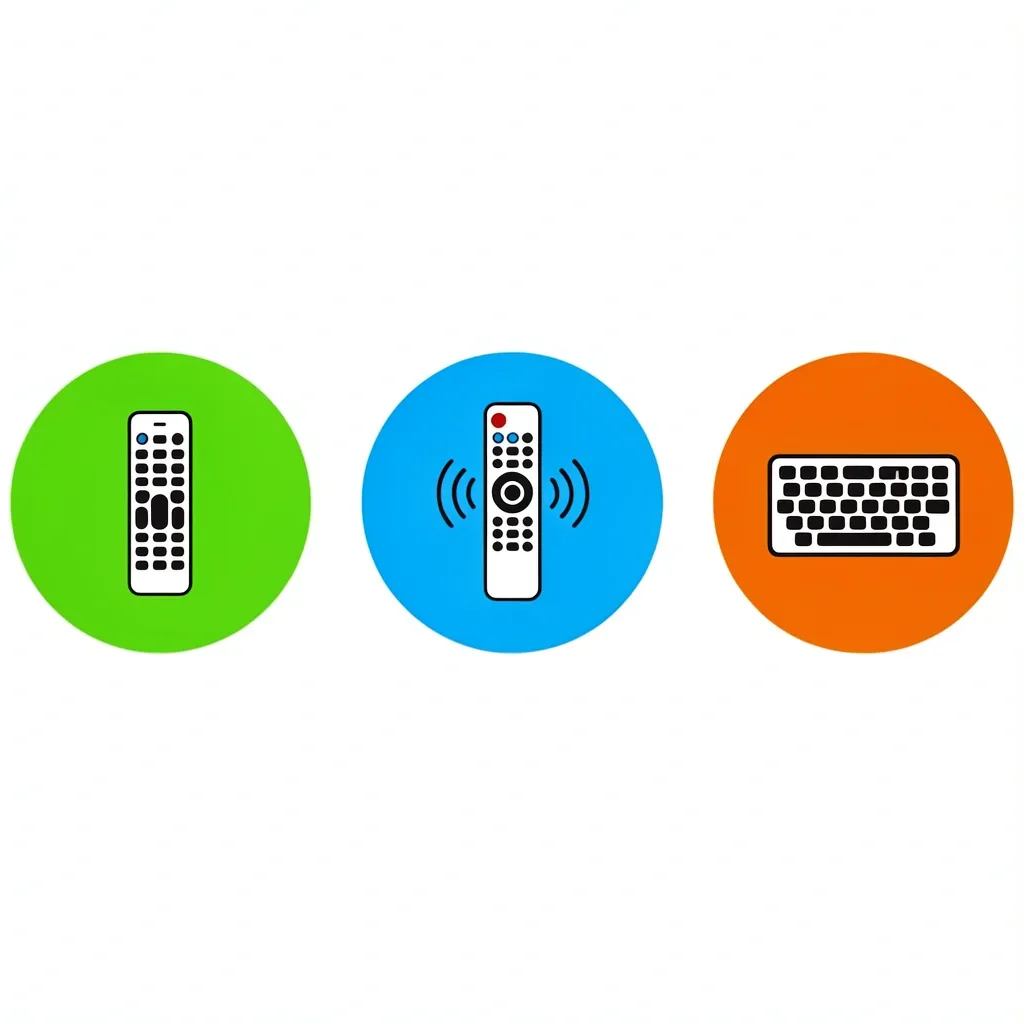
To help you decide whether this remote is worth getting, here is how it stacks up against the other common Vizio remotes.
| Feature | Standard IR Remote | Voice Remote | Keyboard Remote |
|---|---|---|---|
| Connection type | Infrared (line of sight) | Bluetooth | Bluetooth |
| Text input method | On‑screen keyboard (slow) | Voice search only | Physical keyboard (fast) |
| Microphone | No | Yes | No (most models) |
| Works without line of sight | No | Yes | Yes |
| Battery type | AAA or coin cell | AAA or coin cell | AAA or coin cell |
| Typical price | Comes with TV / ~$10 | ~$20 | ~$15–$30 |
| Best for | Simple navigation, no typing | Finding content by voice | Entering logins, search terms, passwords |
Personally, I keep the keyboard remote on my coffee table for heavy typing sessions, and I use the standard remote when I just want to browse channels. The voice remote is fine, but if you are sick of fumbling with an on‑screen keyboard, the keyboard remote is a much better choice.
Where to Buy a Replacement
If you need a new keyboard remote, you have a few options:
- Vizio’s official website – They sell remotes directly. Prices are fair and you are guaranteed compatibility.
- Amazon – Search for “Vizio keyboard remote” and check the model number. Beware of cheap knock‑offs that may not pair properly.
- eBay – Used or refurbished remotes can save money, but make sure the seller is reputable.
Prices typically range from $15 to $30. Genuine Vizio remotes have the Vizio logo and part number printed on the inside of the battery compartment. If it does not, it is likely a counterfeit and might not work.
Frequently Asked Questions
Can I use a Vizio keyboard remote with a non-Vizio TV?
No. The remote uses Vizio’s own Bluetooth pairing protocol and will not connect to other brands.
Does the keyboard remote work with Vizio soundbars?
Only if the soundbar supports Bluetooth remote control, which is very rare. Use the soundbar’s own remote instead.
How do I replace the battery in my Vizio keyboard remote?
Slide off the back cover or use a coin to twist open the compartment. Insert fresh batteries with the correct polarity.
Is there a Vizio keyboard remote app for my phone?
Vizio offers a mobile app called VIZIO Mobile that has a virtual keyboard. It is not the same as the physical remote, but it can work if you lose your remote.
How do I factory reset a Vizio keyboard remote?
Remove the batteries, press and hold the power button for ten seconds, then reinsert the batteries and pair again.
Does the keyboard remote have a microphone?
Most models do not. The voice remote is a separate product that includes a microphone.
Will the keyboard remote work with my older Vizio TV (2014 or earlier)?
Unlikely. Those TVs lack Bluetooth remote support. You would need to upgrade the TV or stick with the original remote.
I hope this helps you get the most out of your Vizio keyboard remote. If you run into a problem I did not cover, try searching for your exact TV model and remote model together – that usually leads to a solution from someone who has been through it.