Vizio Soundbar Not Connecting to TV – Start Here
If your Vizio soundbar won’t connect to your TV, the fix is usually simpler than you think. I’ve helped friends and family with this exact problem, and nine times out of ten the issue comes down to one thing: a mismatch between the connection method and your TV’s audio output settings. Before you try anything else, go into your TV’s sound settings and change the audio output format to PCM. That single step fixes the majority of “no sound” or “no connection” cases with Vizio soundbars. But if that doesn’t do it, keep reading. I’ll walk you through the exact steps for each connection type, including the CEC trick that most guides miss.
Identify Your Connection Type First
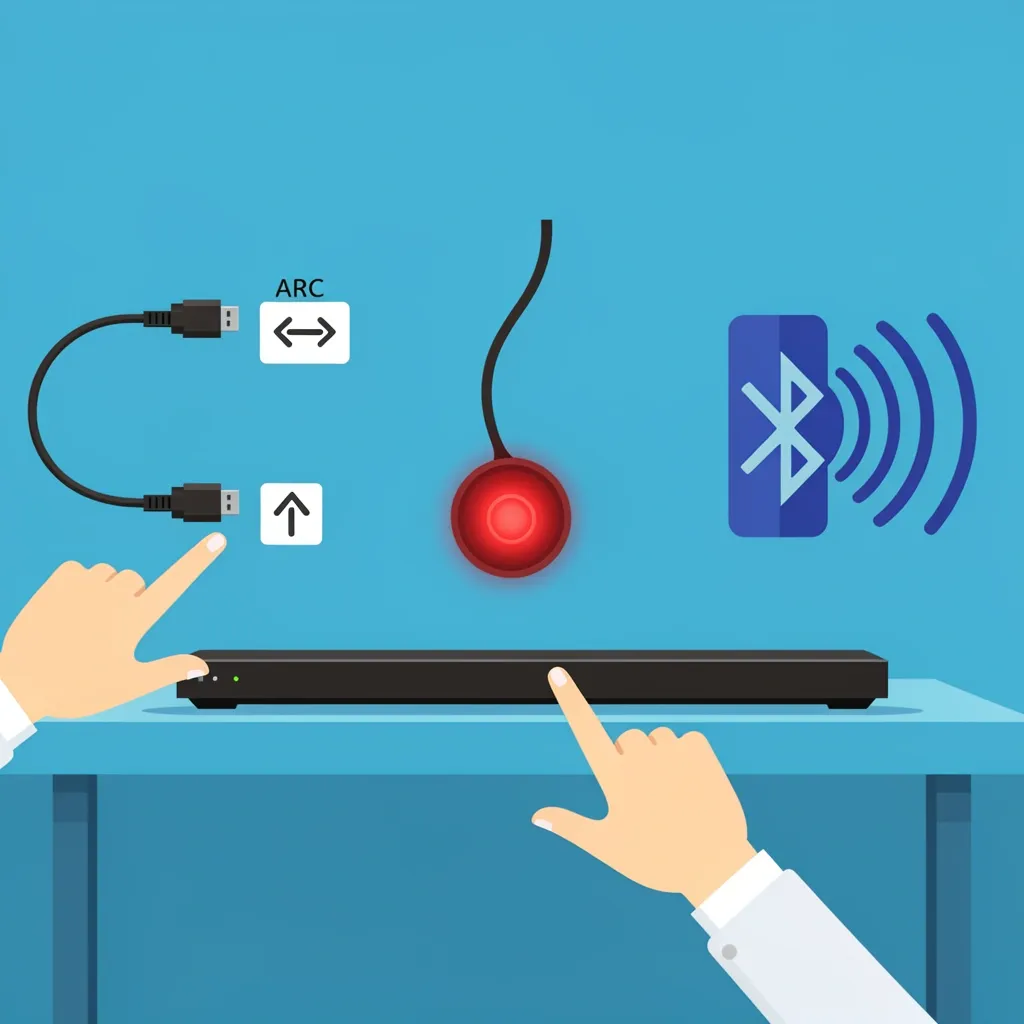
Don’t guess. Grab the cable you’re using and check your TV’s ports. Here is a quick decision guide:
- HDMI ARC – Your TV has a port labeled “ARC” or “eARC.” This is the best method for sound quality and volume control.
- Optical – A square-ish plug with a red light inside. Common on older TVs or soundbars.
- Bluetooth – No cable. You pair the soundbar wirelessly.
- AUX – A 3.5mm headphone-style cable. Rarely used for Vizio bars, but possible.
If you don’t know which one you’re using, look at the back of your soundbar. Most Vizio models have the input type printed next to the port. Once you know your connection method, jump to the section below that matches it.
HDMI ARC Troubleshooting
HDMI ARC is the most common way to connect a Vizio soundbar to a modern TV, but it’s also where most connection problems live. The handshake between the TV and soundbar can get stuck.
Check That Both Ports Are ARC-Enabled
Not every HDMI port on your TV supports ARC. On most TVs, only one port (usually HDMI 1 or the one labeled “ARC”) can send audio back to the soundbar. Plug your soundbar into that specific port. Then, in your TV’s settings, make sure “HDMI ARC” or “eARC” is turned on.
Reset the CEC Handshake
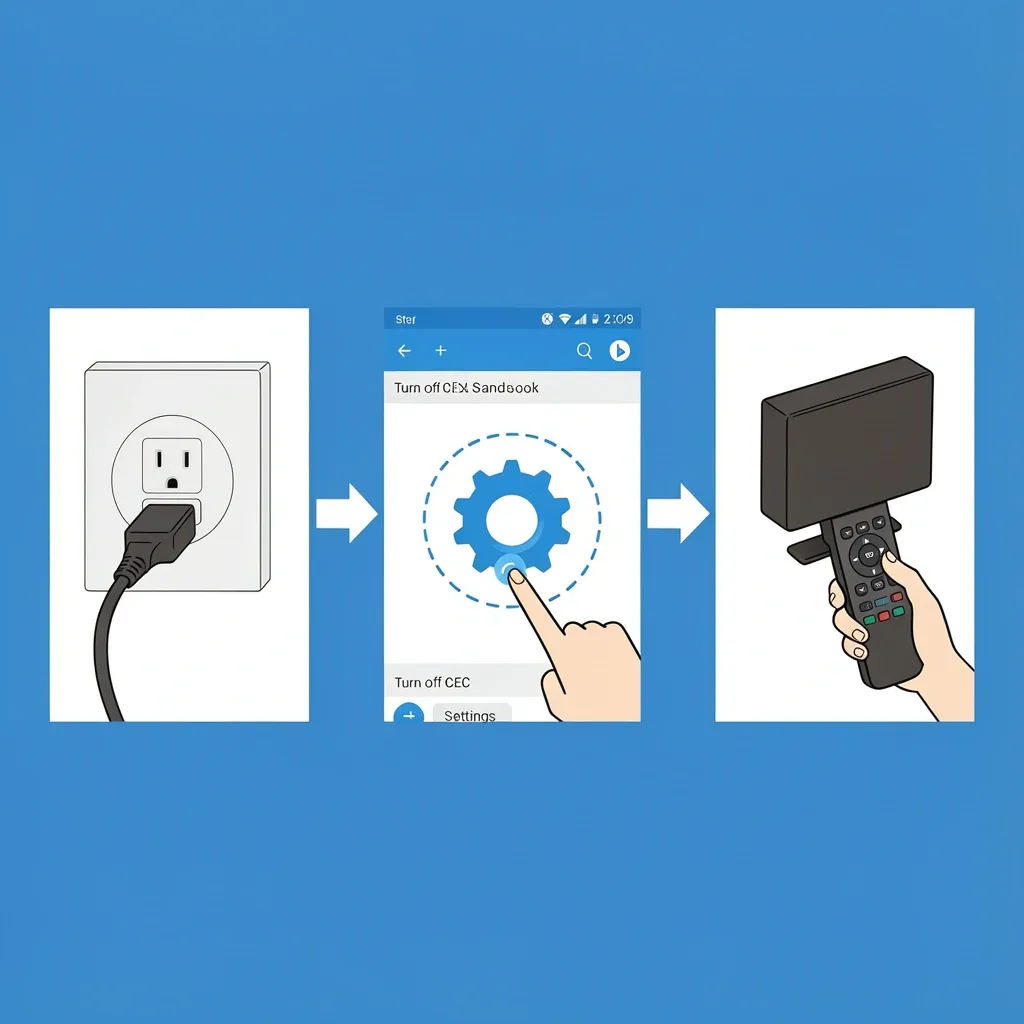
CEC (Consumer Electronics Control) is what lets your TV remote control the soundbar volume. But CEC often freezes in a half-connected state. Here is the fix that works every time:
- Unplug your Vizio soundbar from power.
- On your TV, go to the CEC setting (called Anynet+ on Samsung, Simplink on LG, Bravia Sync on Sony). Turn it OFF.
- Wait 60 seconds.
- Plug the soundbar back in.
- Turn CEC back ON.
This forces a fresh handshake. I’ve seen this fix stubborn Vizio soundbars that refused to show up on the TV’s audio list.
Use the Right HDMI Cable
A standard HDMI cable might not carry ARC signals reliably. Look for a cable that says “High Speed with Ethernet” on the packaging. Cheaper cables sometimes drop the audio return channel. Swap the cable for a known good one to rule this out.
Optical Cable Fixes
Optical connections are simple but have one major gotcha: the TV’s audio output format. If your Vizio soundbar is connected via optical and you get no sound, it’s almost always because the TV is sending a digital signal (like Dolby Digital) that the soundbar can’t decode.
Switch TV Audio Output to PCM
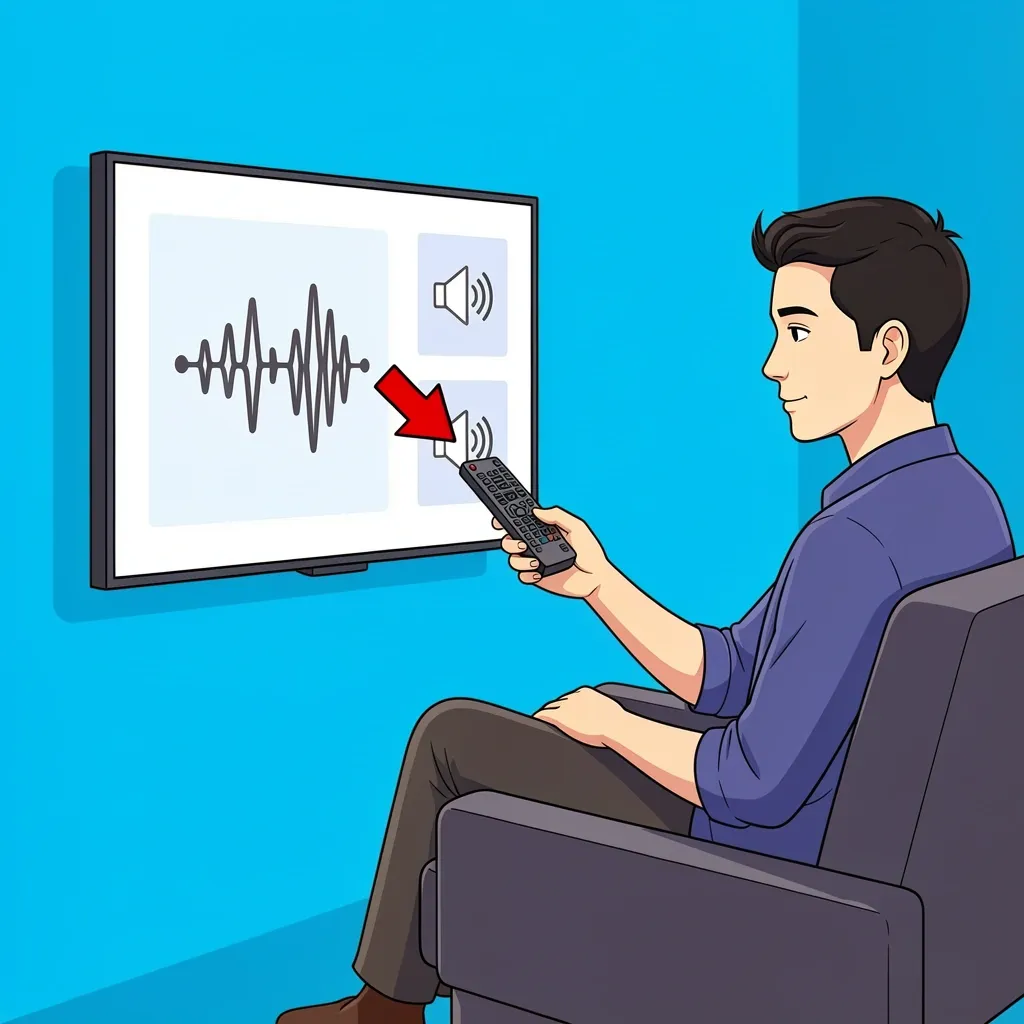
Go into your TV’s sound or audio settings. Look for “Digital Audio Output” or “Audio Format.” Change it from “Auto” or “Bitstream” to PCM. PCM is standard stereo – basically every soundbar can play it. This is the same fix I mentioned at the top, and it works for optical connections just as well.
Check the Cable Fit
Optical cables need to click fully into place. If the plug is even slightly loose, the light won’t transmit. Pull the cable out and push it back in until you hear a soft click. You should see a faint red glow at the TV’s optical port when connected right.
Bluetooth Connection Problems
Bluetooth is convenient, but it’s also the most finicky. If your Vizio soundbar won’t connect to your TV via Bluetooth, try these steps in order.
Clear Old Pairings
Vizio soundbars remember previous Bluetooth devices, and too many saved pairings can cause confusion. On the soundbar, press and hold the Bluetooth button (usually the top button on the remote or the one with the Bluetooth icon) for 5 seconds. The LED will start blinking quickly. This clears the pairing list. Then, on your TV, go to the Bluetooth devices menu and forget the soundbar if it shows up. Pair again from scratch.
Reduce Wireless Interference
Bluetooth uses the 2.4 GHz frequency, same as most Wi-Fi routers and even microwaves. If your soundbar is sitting right next to a router, move it a few feet away. Turn off any microwave oven or baby monitors in the room while you pair. Once paired, interference usually isn’t a problem, but initial pairing can fail if the air is noisy.
Use the Soundbar’s Remote to Confirm Pairing Mode
On many Vizio soundbars, the Bluetooth button must be pressed and held for a full 5 seconds until the LED flashes rapidly. A slow blink means it’s still in normal mode. This little detail trips up a lot of people – they press once and think it’s in pairing mode when it’s not.
When Your TV “Sees” the Soundbar But No Sound Comes Out
This is the most frustrating scenario. You check the TV’s audio menu, it lists the Vizio soundbar as connected, but silence. The culprit is almost always the audio format.
The PCM vs. Bitstream Fix
I already mentioned switching to PCM, but here’s why it matters so much. Many Vizio soundbars (especially older models like the SB2920, SB3820, or any “S” series) cannot decode advanced audio formats like Dolby Digital Plus or DTS. When your TV’s streaming app (Netflix, YouTube, etc.) sends out Dolby Digital Plus, the soundbar has no idea what to do with it. The result? No sound. Here is the permanent fix:
- Open your TV’s sound settings.
- Find the “Digital Audio Output” or “Audio Format” option.
- Change it to PCM (sometimes labeled “Linear PCM” or “Stereo”).
- Save and exit.
You lose surround sound, but you gain working audio. If you have a newer Vizio soundbar that supports Dolby Atmos, use HDMI ARC instead – and keep the TV set to “Auto” or “Bitstream.”
The 5-Second CEC Reset Trick That Most Guides Miss
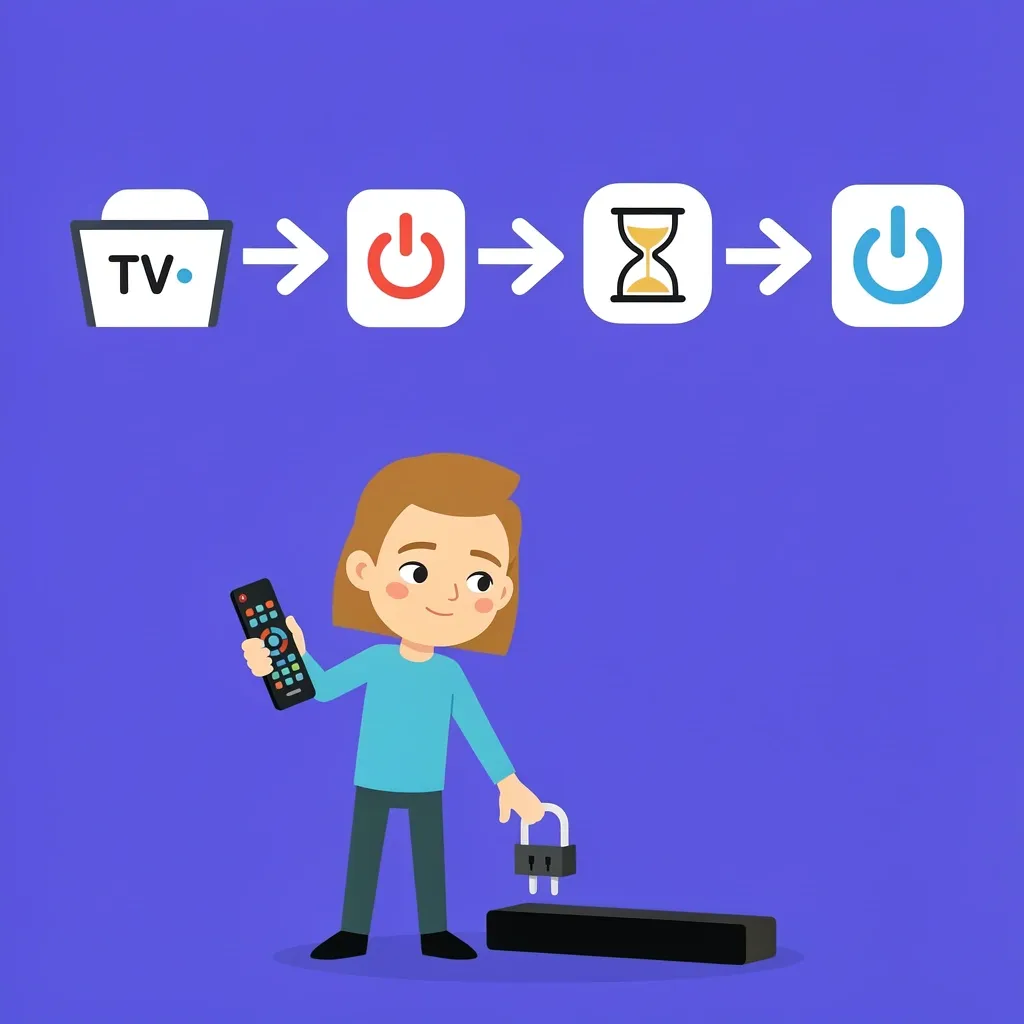
I touched on CEC earlier, but this trick deserves its own spotlight because it saved me three hours of frustration on a friend’s Samsung TV. Here is the condensed version:
- Turn off the TV and unplug the soundbar.
- On the TV, go to Settings > General > External Device Manager > Anynet+ (HDMI-CEC). Turn it OFF.
- Wait 30 seconds after unplugging the soundbar.
- Plug the soundbar back in and turn on the TV.
- Turn Anynet+ back ON.
- The TV should now detect the soundbar. If not, switch the TV input to something else (like HDMI 2) and then back to the ARC port – that often kickstarts the detection.
This works because CEC is a simple “handshake” protocol. When both devices are powered off simultaneously, they can lose track of each other. Powering them back up in the right order resets the handshake.
Firmware Updates and TV Audio Format Conflicts
If you’ve tried everything and the Vizio soundbar still won’t connect, check for a firmware update. Vizio pushes updates over Wi-Fi, but many soundbars need a USB stick to update manually.
How to Update Your Vizio Soundbar
Go to the Vizio support website, find your soundbar model (look on the back or bottom), and download the latest firmware file. Copy it to a USB drive (FAT32 format). Insert the drive into the soundbar’s USB port while the bar is on. The soundbar will automatically detect the update and install it. This can fix compatibility issues with newer TV formats.
TV Audio Output Format Conflicts (4K Passthrough/ eARC)
If you have a 4K TV and a newer soundbar that supports eARC, sometimes the TV tries to send audio in a format the soundbar’s HDMI port can’t handle. Try lowering the TV’s “HDMI UHD Color” or “Deep Color” setting for the ARC port. Also, check if your TV has an “eARC” mode – turn it OFF and use regular ARC instead. That often resolves intermittent dropouts.
Frequently Asked Questions
Can a damaged HDMI cable cause a Vizio soundbar to show no connection?
Yes, absolutely. If the cable doesn’t support ARC (missing the “Ethernet” rating), or if it’s physically damaged, the audio return channel won’t work. Swap in a known good HDMI cable labeled “High Speed with Ethernet.”
My Vizio soundbar connects to the TV but volume control doesn’t work – why?
This is usually a CEC or IR blaster issue. On Vizio soundbars, you can enable “TV Remote Control” in the soundbar’s own menu (via the remote, press Menu, then navigate to “System” or “Audio Settings”). On the TV, make sure CEC is on. If using optical, the TV remote will never control volume – you’ll need the soundbar’s remote or a universal remote that learns the IR code.
Does my Vizio soundbar support 4K or HDR passthrough?
Only if it has HDMI 2.0 ports and is labeled “4K Passthrough” in the specs. Most Vizio soundbars do NOT passthrough 4K or HDR. Connect your 4K source (like a streaming stick or game console) directly to the TV, then use HDMI ARC or Optical for audio. Trying to run video through the soundbar will cause black screens or no signal.
My Vizio soundbar keeps disconnecting from the TV every few minutes – what’s wrong?
If you’re using Bluetooth, the most common cause is Wi-Fi interference on the 2.4 GHz band. Move the soundbar away from your router, or use a wired connection (HDMI or Optical). If you’re using HDMI ARC, the disconnects are usually a CEC handshake failure – run the 5-second CEC reset above. Also, check the soundbar’s firmware; older firmware had known drop-out bugs.
Can I use both Optical and HDMI ARC at the same time?
No. Choose one connection method. Using both can create input priority loops where the soundbar flips between sources and produces no sound. Stick with HDMI ARC for best features, or Optical for simplicity.
I’ve walked through the most common reasons a Vizio soundbar won’t connect to a TV, and the fixes that actually work. Start with the PCM audio output change – it’s quick and it solves the majority of cases. If that doesn’t work, run the CEC reset trick for HDMI connections, or check your optical cable fit and TV audio format. Bluetooth users, clear old pairings and move away from interference. And if all else fails, update the soundbar’s firmware. You don’t need to return the soundbar or buy a new one – this stuff is almost always fixable with the right steps.